Connect an AI assistant to Finaxis
Finaxis has an MCP server, the standard way AI assistants connect to other software. Connect Claude, ChatGPT or another assistant to it, then ask about your accounts receivable in plain language: how old your receivables are, who is overdue, what happened with a customer. The assistant acts as you, never beyond your rights, and you decide which actions it may take.
Before you start
- You need an account with an AI assistant that lets you add a custom MCP connector.
- Every member can connect an assistant. It only reaches what your role allows in Finaxis.
Choose your assistant
| Assistant | Step-by-step guide |
|---|---|
| Claude | Connect Claude to Finaxis |
| Gemini | Connect Gemini to Finaxis |
| ChatGPT | Connect ChatGPT to Finaxis |
| Perplexity | Connect Perplexity to Finaxis |
| Another assistant that accepts a custom MCP connector | Add a connector with the address below in the assistant, then follow the steps on this page to approve it in Finaxis. |
Working with an AI agent in a terminal or on a server instead, such as Claude Code, Codex, OpenClaw or Hermes Agent? Start with Choose how an AI agent connects to Finaxis.
Find the Finaxis address
The address of the Finaxis MCP server is https://api.finaxis.ai/mcp. You also find it in Finaxis: at the top right, click your name, then My Profile, then API in the left menu. Under Connected apps, the Copy button next to the address puts it on your clipboard.
Approve the connection in Finaxis
Once you add the address, the assistant opens a Finaxis page to approve the connection.
- If Finaxis asks you to log in, log in as usual. A page named after the assistant opens, for example Connect Claude to Finaxis.
- Under Portal, choose the instance the assistant will work in. A connection works on one instance only.
- Under What it may do, uncheck the scopes the assistant should not have. Every scope is checked to start, and each line says what it allows. The assistant never goes beyond your rights, whatever you check.
- Click Connect. You are back in the assistant.
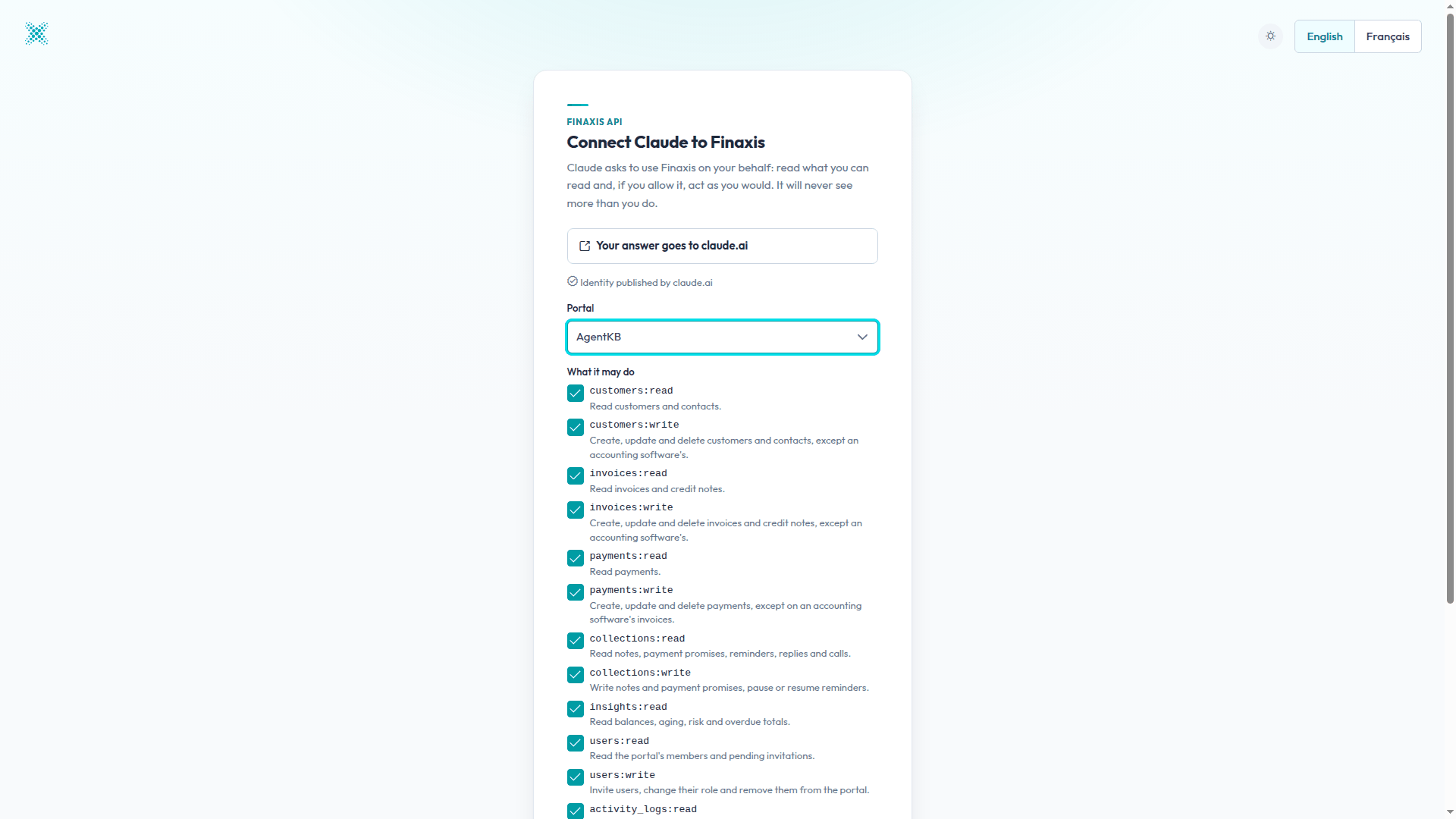
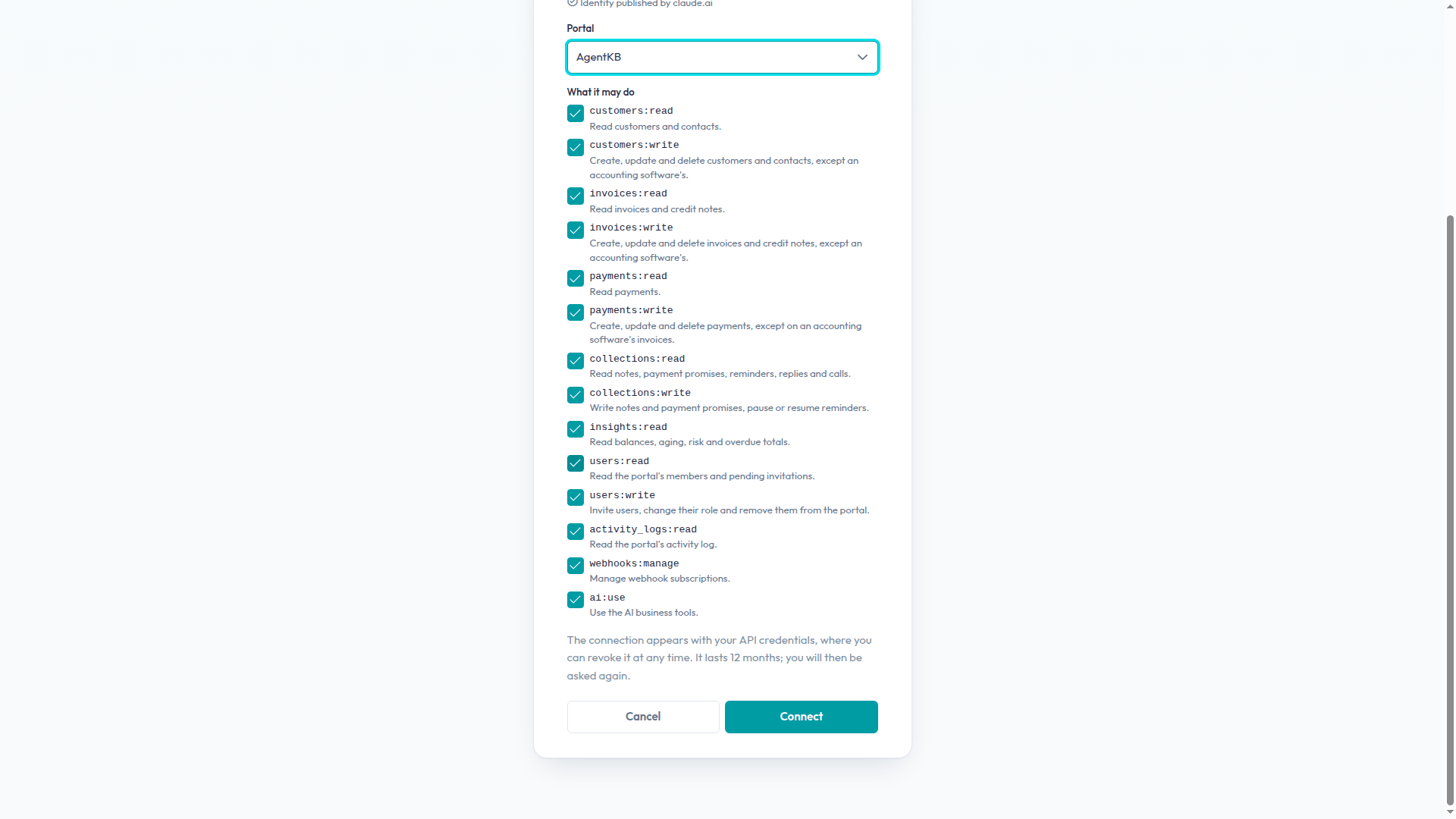
Please note: Give the assistant only what you need. To ask questions, the read scopes are enough. You can change them later from Finaxis.
What the assistant can do
The assistant receives Finaxis tools. It only sees the tools that the scopes you approved allow: with the read scopes alone, it only gets the read tools. The names below are the ones Claude shows.
| Tool | What it does |
|---|---|
| Search customers | Finds customers in your instance. |
| Get a customer | Reads a customer's record and contacts, with its figures, risk and open invoices if you allowed them. |
| List invoices | Lists invoices and credit notes. |
| List payments | Lists payments. |
| Get the collection history | Reads notes, payment arrangements, reminders, replies and calls. |
| Get the receivables aging | Reads the aging of your accounts receivable, by bucket. |
| List the users | Lists the instance's members and pending invitations. |
| List the activity | Reads the instance's activity log. |
| Summarize what is overdue | Writes an AI summary of what is overdue. |
| Explain a customer's risk | Explains, with AI, why a customer is at risk. |
| Add a note | Adds a note to a customer. |
| Record a payment promise | Records a payment arrangement. |
| Pause or resume reminders | Pauses or resumes a customer's reminders. |
| Save a customer, Save a contact, Save an invoice, Save a payment | Creates or updates the record, except those that come from your accounting software. |
| Draft a reminder | Prepares, with AI, a reminder draft in Finaxis. |
- The three AI tools, Summarize what is overdue, Explain a customer's risk and Draft a reminder, need the ai:use scope.
- When the assistant cites a customer or an invoice, it can give you the link to its page in Finaxis.
- What the assistant writes in Finaxis is labelled in the activity log with your name followed by via API (MCP), for example Nova via API (MCP).
Follow and revoke the connection
In Finaxis, My Profile, then API, the Connected apps section lists the assistants you connected: their access, Read and write or Read only, the connection date, their last use, and the date the consent ends. A connection lasts 12 months, then the assistant asks you to approve it again. Finaxis notifies you when an assistant is connected to your account or receives more scopes.
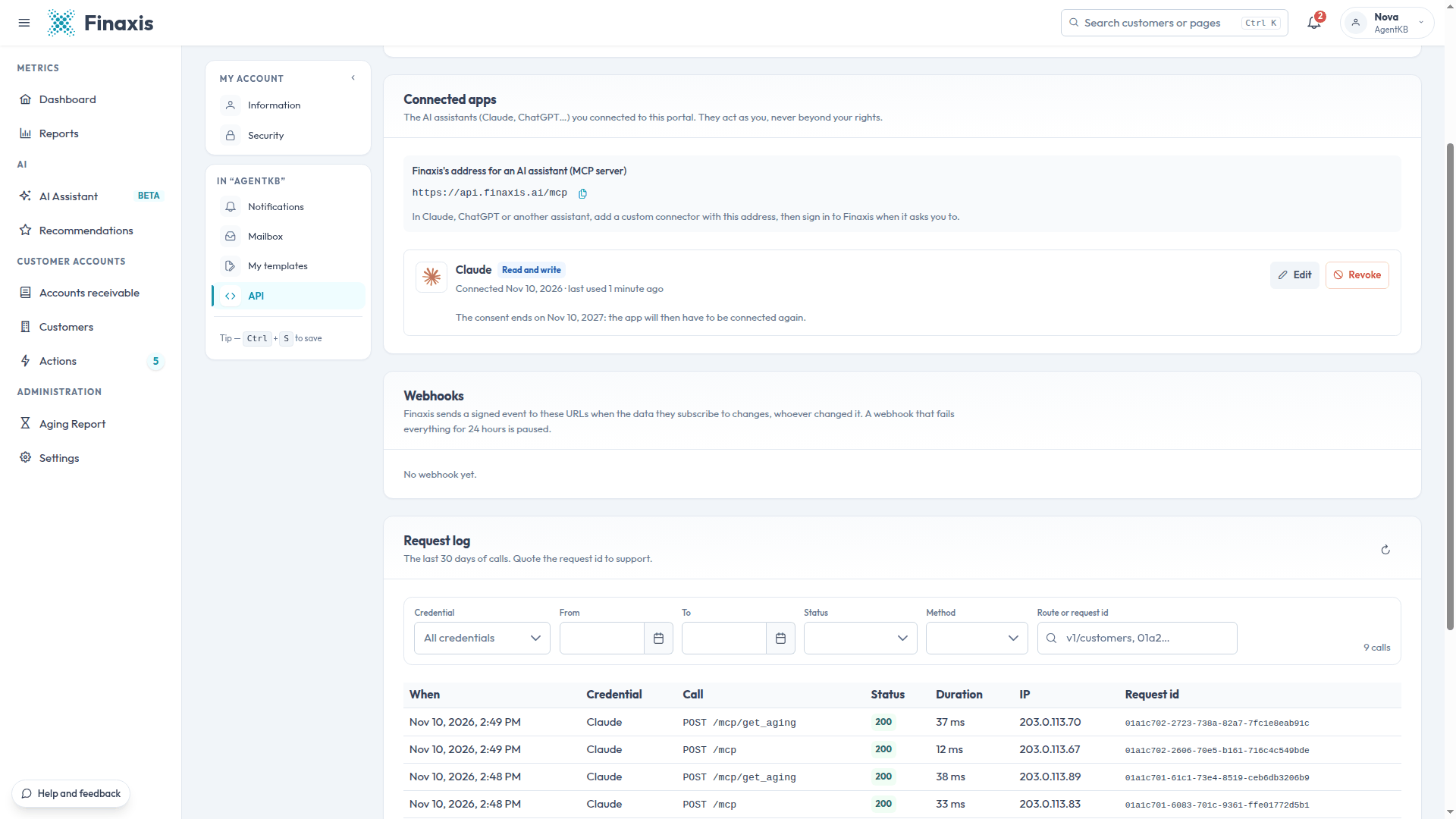
- Each assistant you connect has its own connection in Finaxis, so you can follow its calls and revoke it without touching the others.
- To change what the assistant may do, click Edit on its row, check or uncheck its scopes, then save. The assistant then asks for a new access.
- To cut it off, click Revoke, then Revoke again to confirm. The assistant stops working at once. See Revoke an API credential.
- Every call the assistant makes appears in the request log, below.
- Administrators see every member's connected apps in Settings, then API, under Connected apps, with the member's name, and can revoke them.
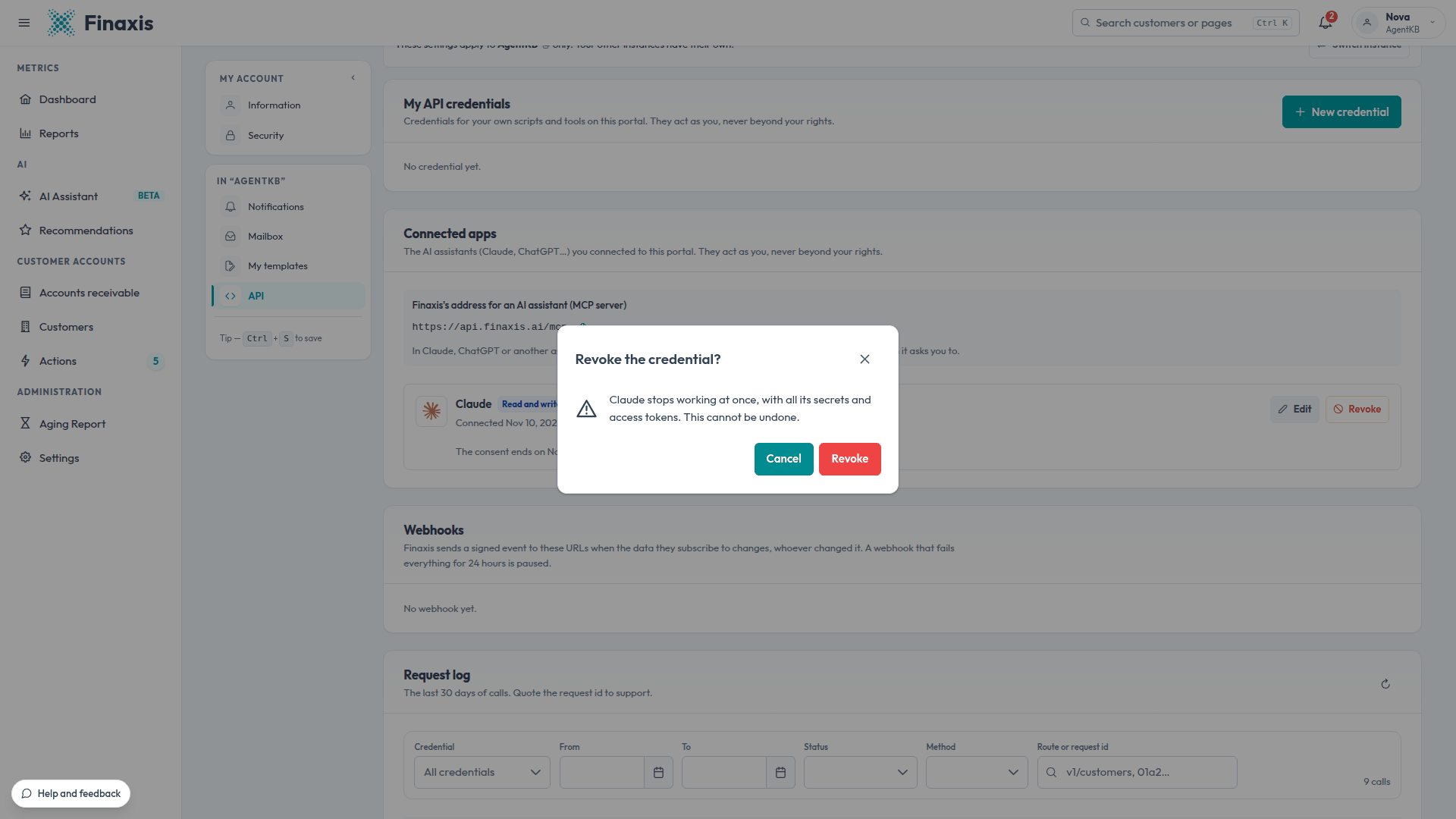
Please note: Good practice: after you disconnect or remove an assistant, always finish in Finaxis. Under My Profile, then API, then Connected apps, revoke its connection if it is still listed. Claude and Gemini leave it in place, while ChatGPT and Perplexity end it when you uninstall or disconnect them. See Revoke an API credential.
Troubleshooting
| Situation | What to do |
|---|---|
| The assistant does not have a tool you expected | The connection does not have the scope that tool needs. Disconnect Finaxis in the assistant, connect it again, and check the scope on the Finaxis page. A connection never goes beyond your role. |
| The assistant asks you to connect Finaxis again | The connection was revoked, or 12 months passed since you approved it. Connect it again and approve it. |
Need help connecting your assistant? Write to support@finaxis.ai, and our team will help you.
Related articles
Can't find what you're looking for?
Our support team is here to help.