Connect Claude to Finaxis
Claude connects to Finaxis through a custom connector. Once connected, ask Claude about your accounts receivable in plain language: Claude reads Finaxis as you, and asks before it uses a Finaxis tool unless you allow that tool for good. Claude's screens are shown in English.
Before you start
- Every Claude plan can add a custom connector; on the Free plan, only one. In a Team or Enterprise organization, only owners add it, and it is then offered to every member, who each connect it with their own Finaxis account.
- To learn what Claude can do in Finaxis, see Connect an AI assistant to Finaxis.
Add Finaxis to Claude
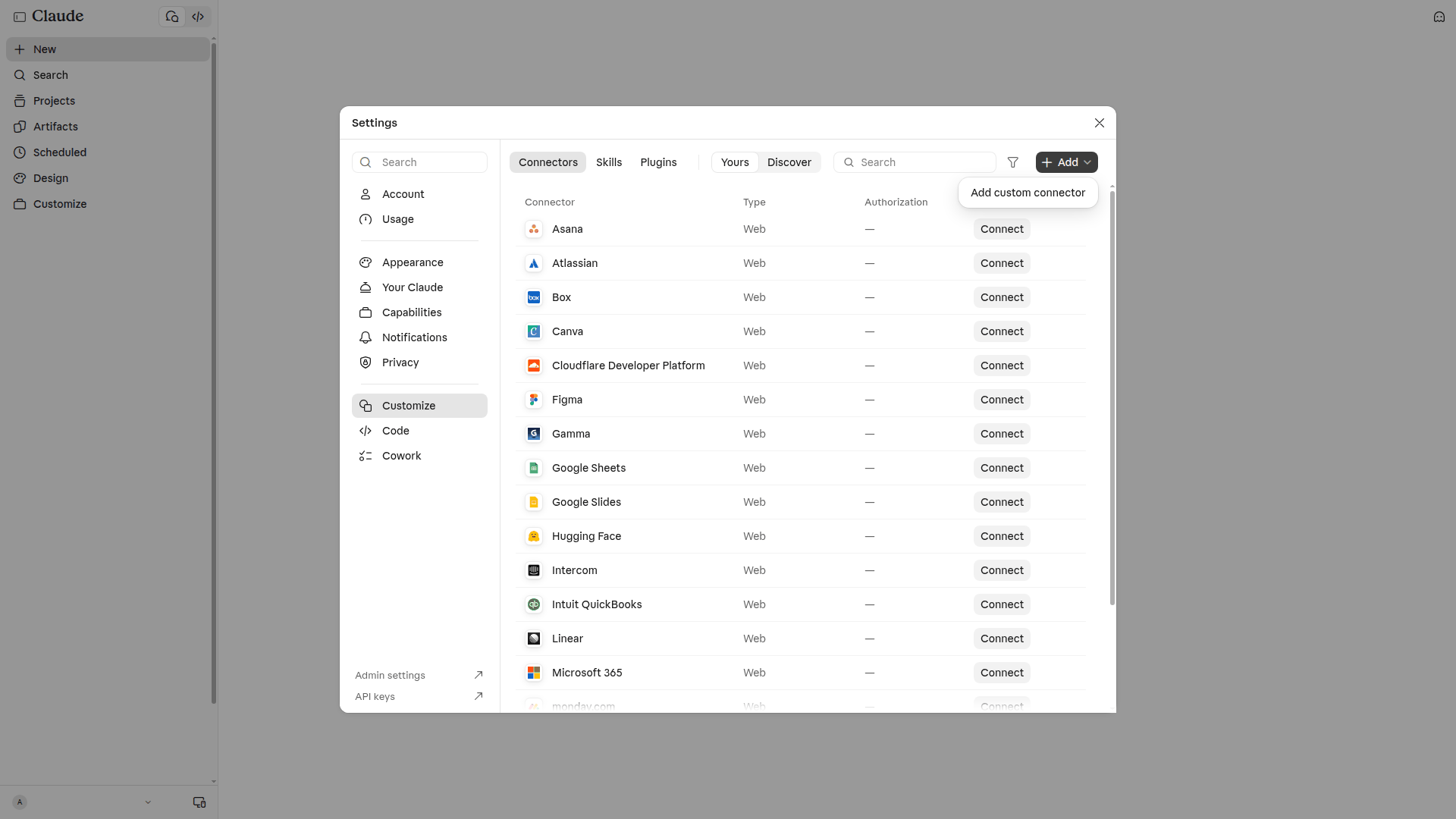
- In Claude's left menu, click Customize, then the Connectors tab.
- Click Add, then Add custom connector.
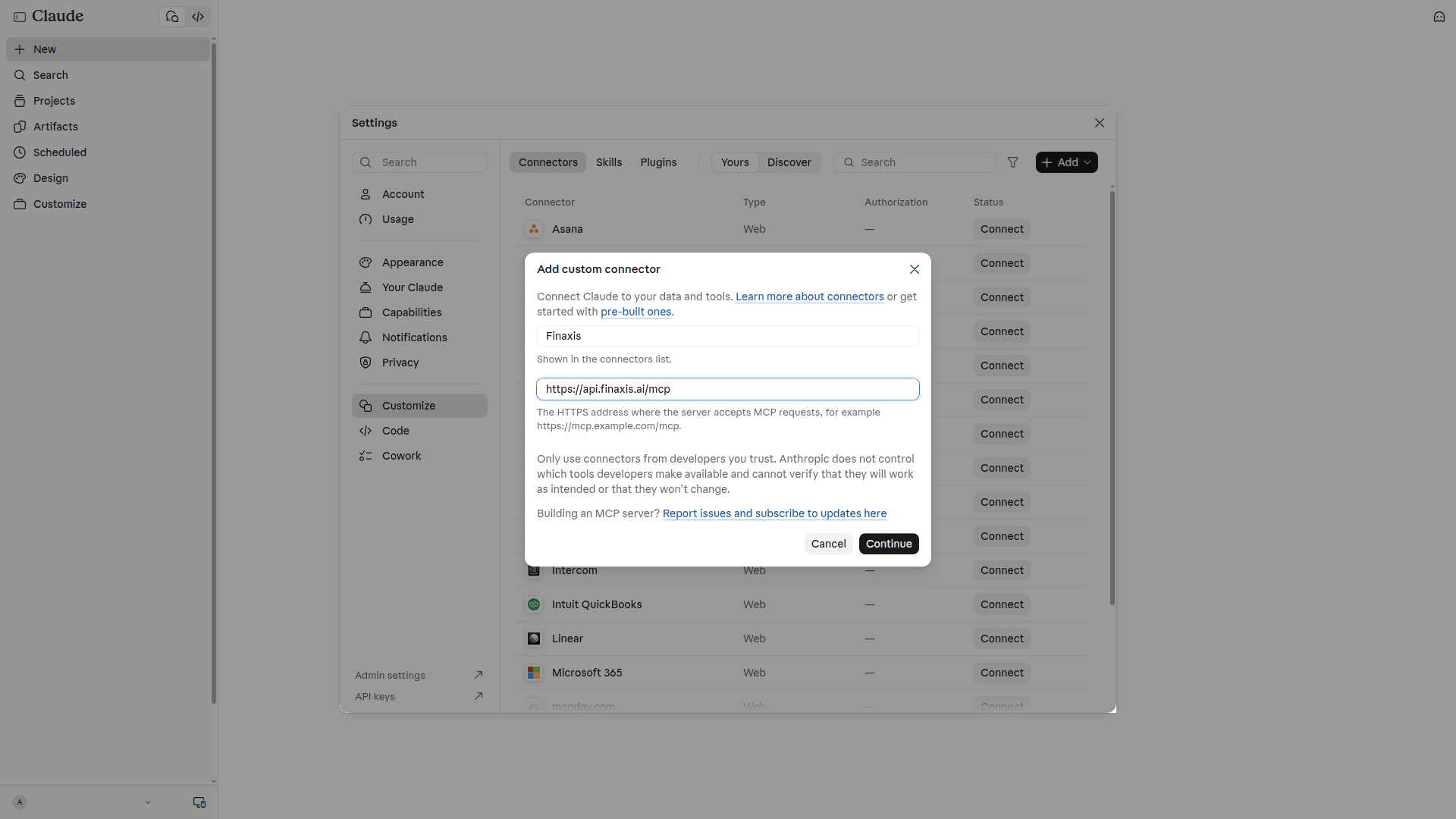
- In Name, enter Finaxis. In MCP server URL, paste https://api.finaxis.ai/mcp. Click Continue.
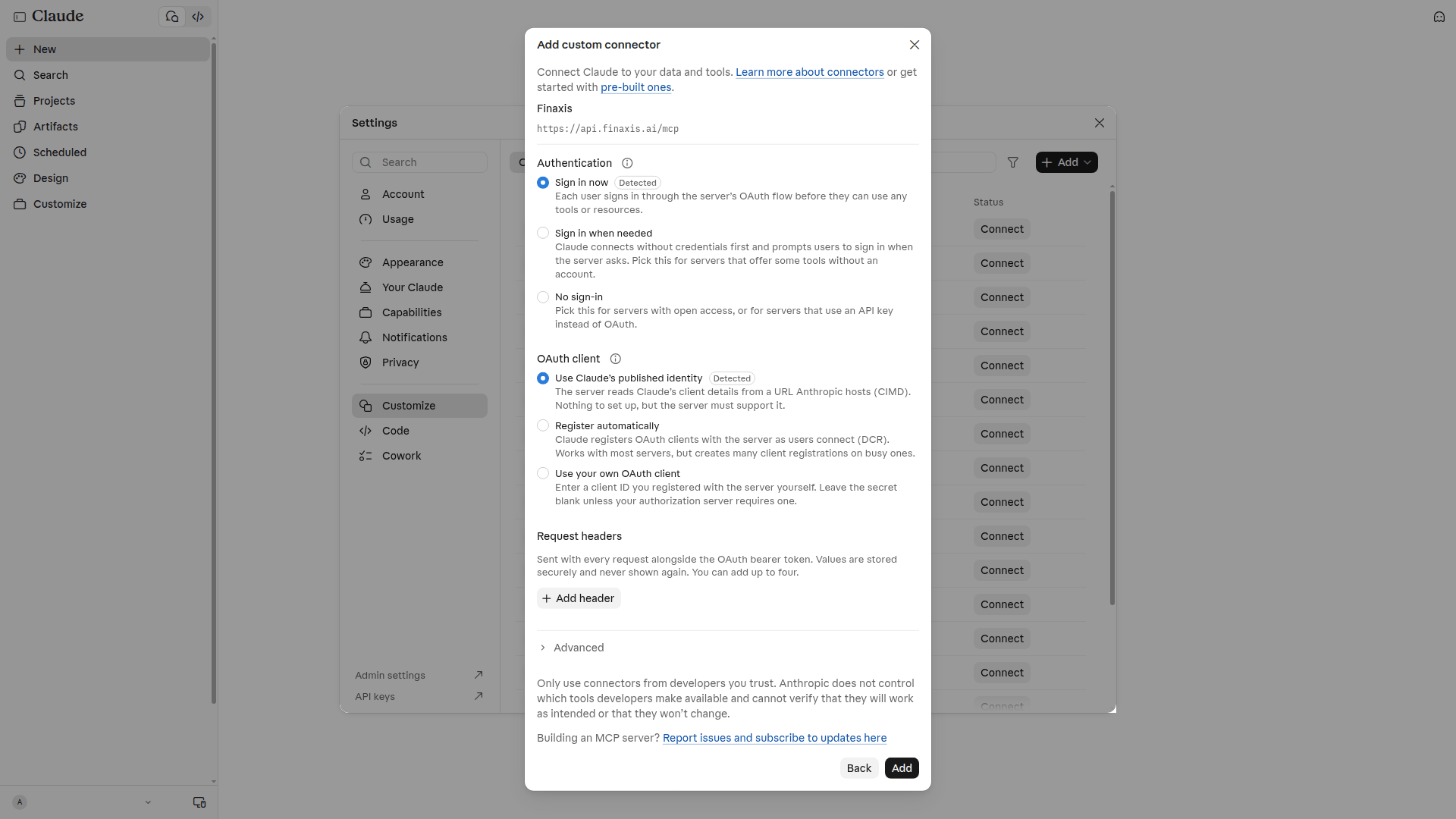
- Claude checks the server and detects how to log in. Keep Sign in now and Use Claude's published identity, both marked Detected, then click Add.
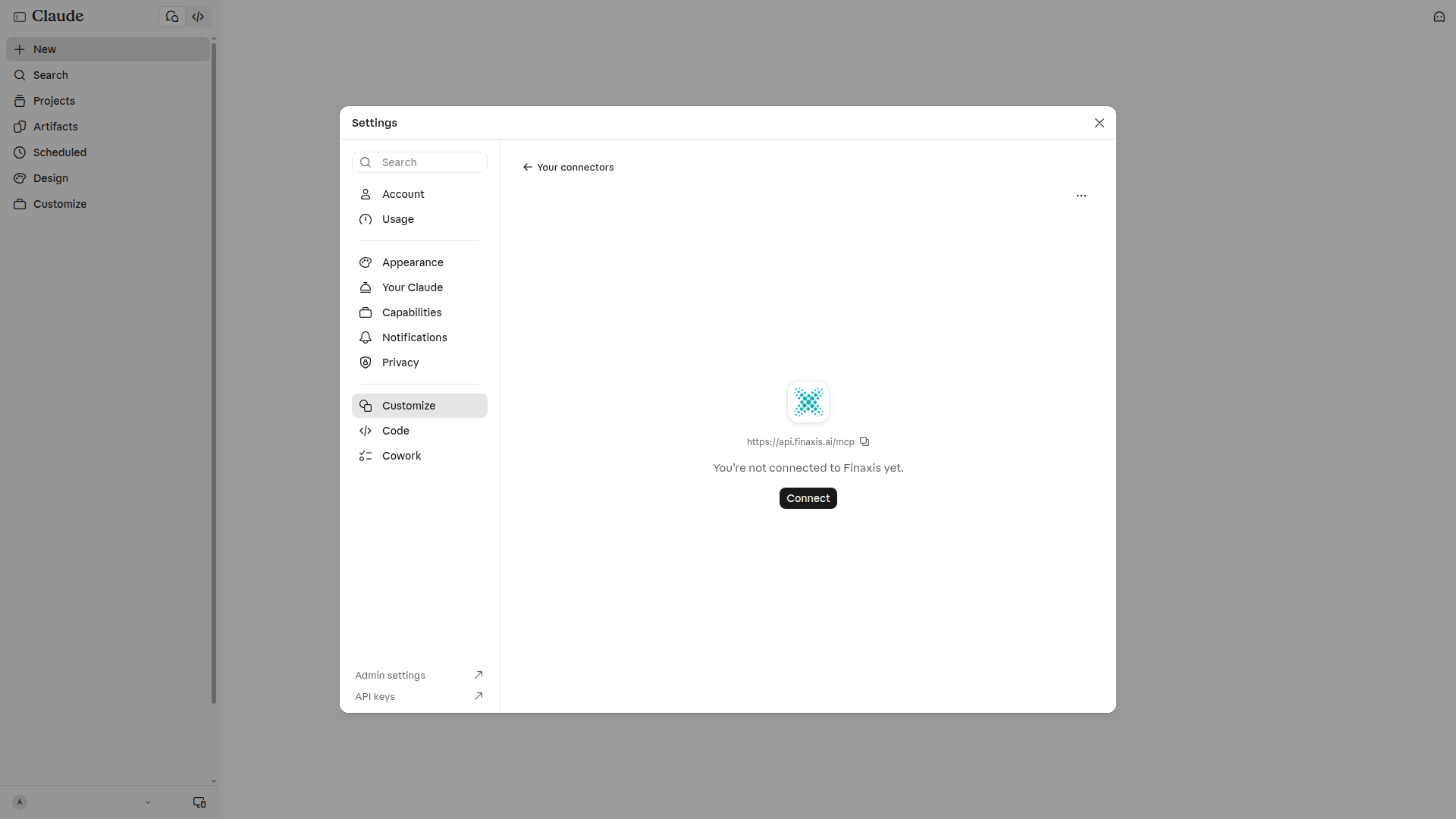
- On the Finaxis connector page, click Connect. Claude opens Finaxis so you can approve the connection.
Approve the connection in Finaxis
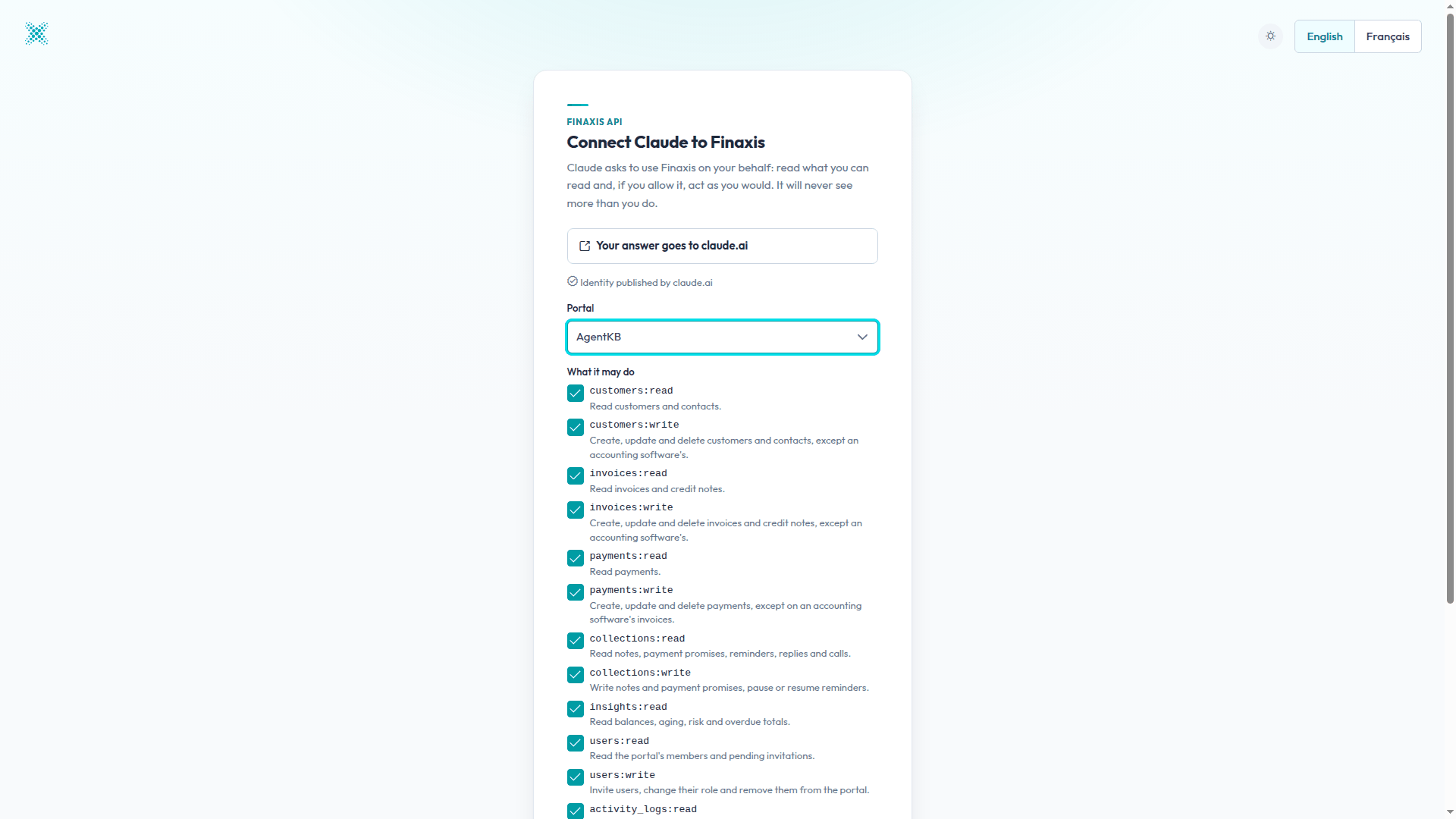
- If Finaxis asks you to log in, log in as usual. The Connect Claude to Finaxis page opens.
- Under Portal, choose the instance Claude will work in.
- Under What it may do, uncheck the scopes Claude should not have. To ask questions, the read scopes are enough.
- Click Connect. You are back in Claude, which shows Connected to Finaxis.
Choose when Claude may use each tool
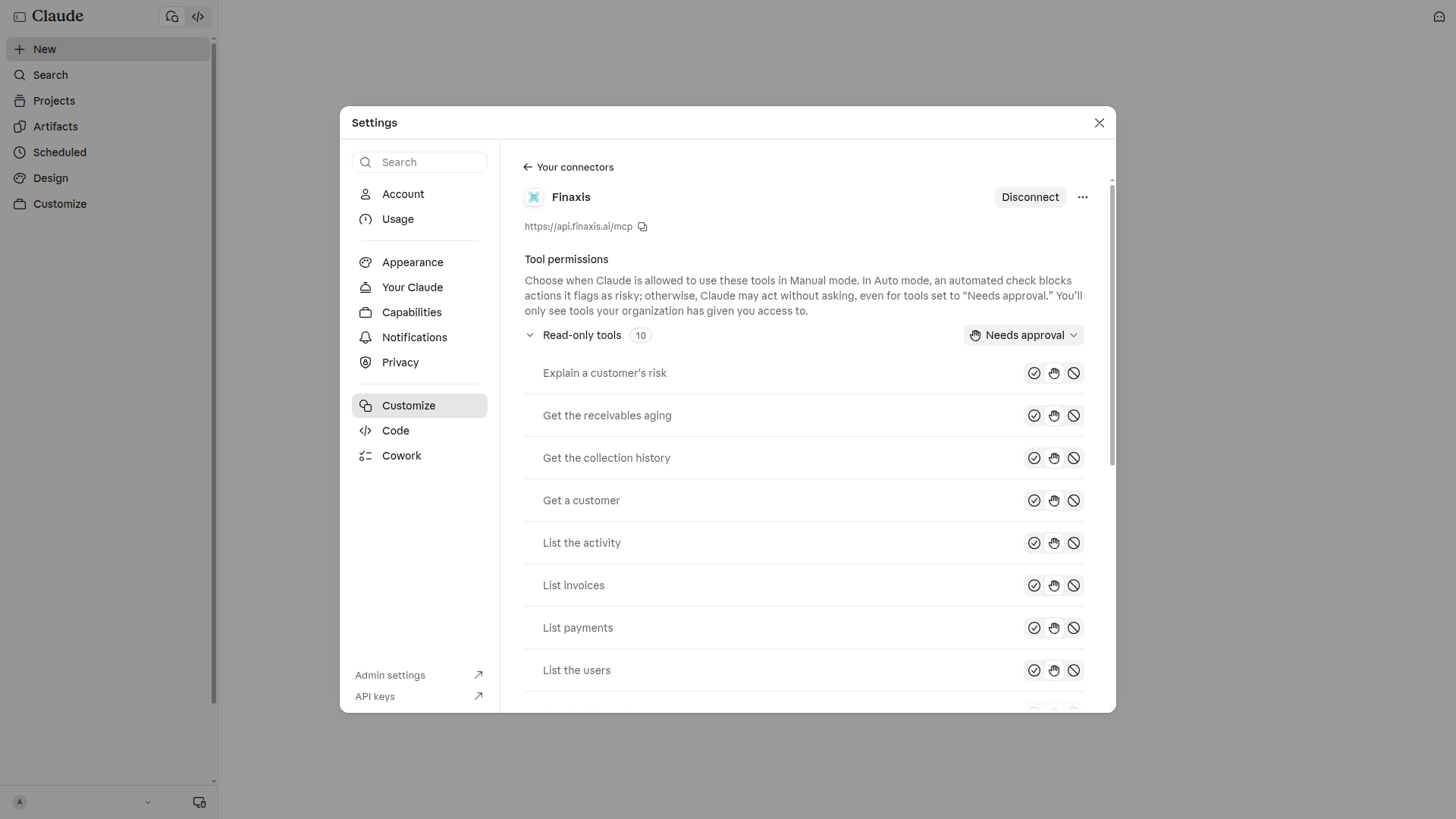
Once connected, the Finaxis connector page lists its tools under Tool permissions, in two groups: Read-only tools and Write/delete tools. Each tool starts on Needs approval: Claude asks you before every use. Switch a tool to Always allow or Blocked if you prefer. Keep the write tools on Needs approval, so nothing changes in Finaxis without your go-ahead.
Ask Claude a question
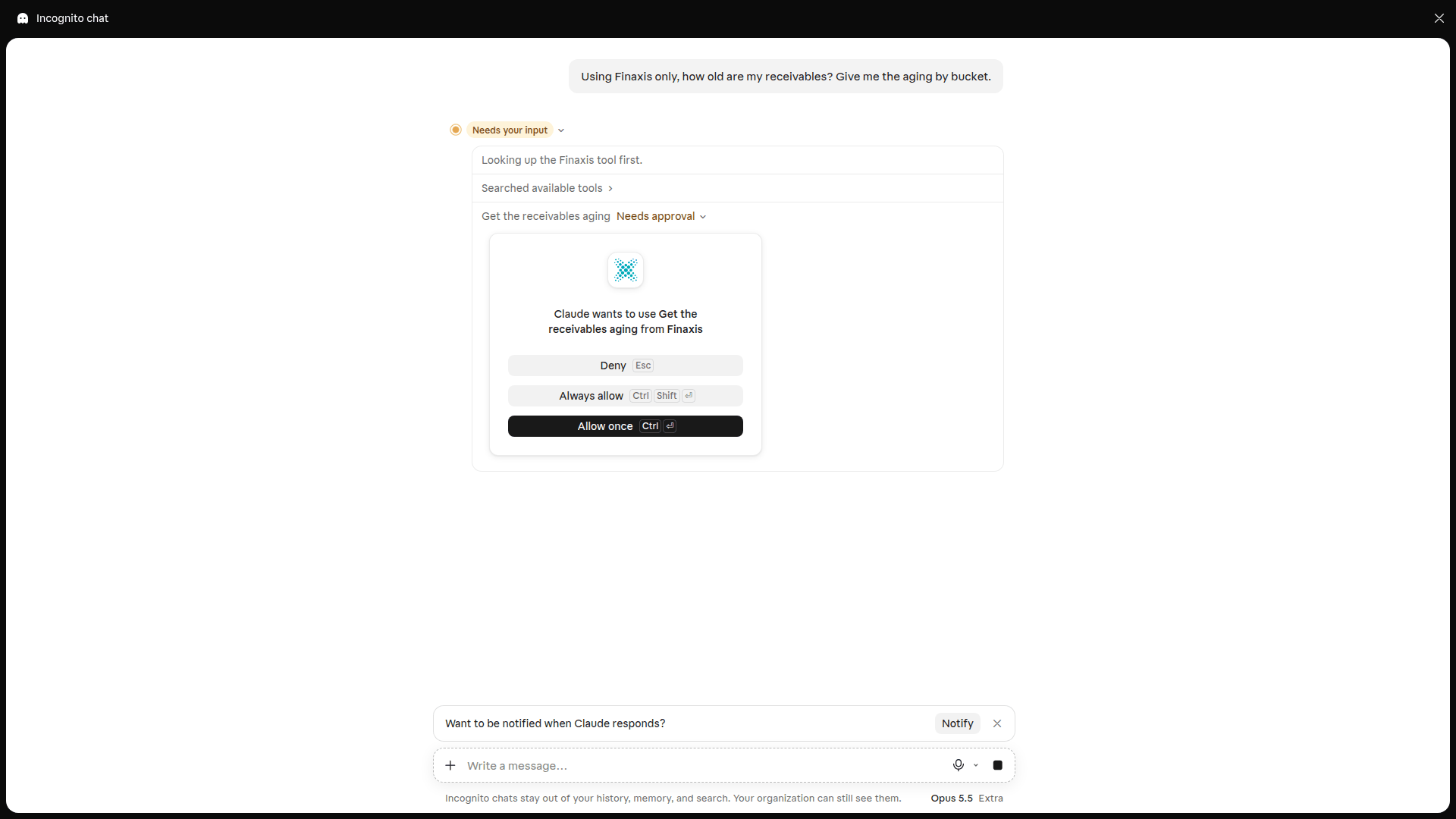
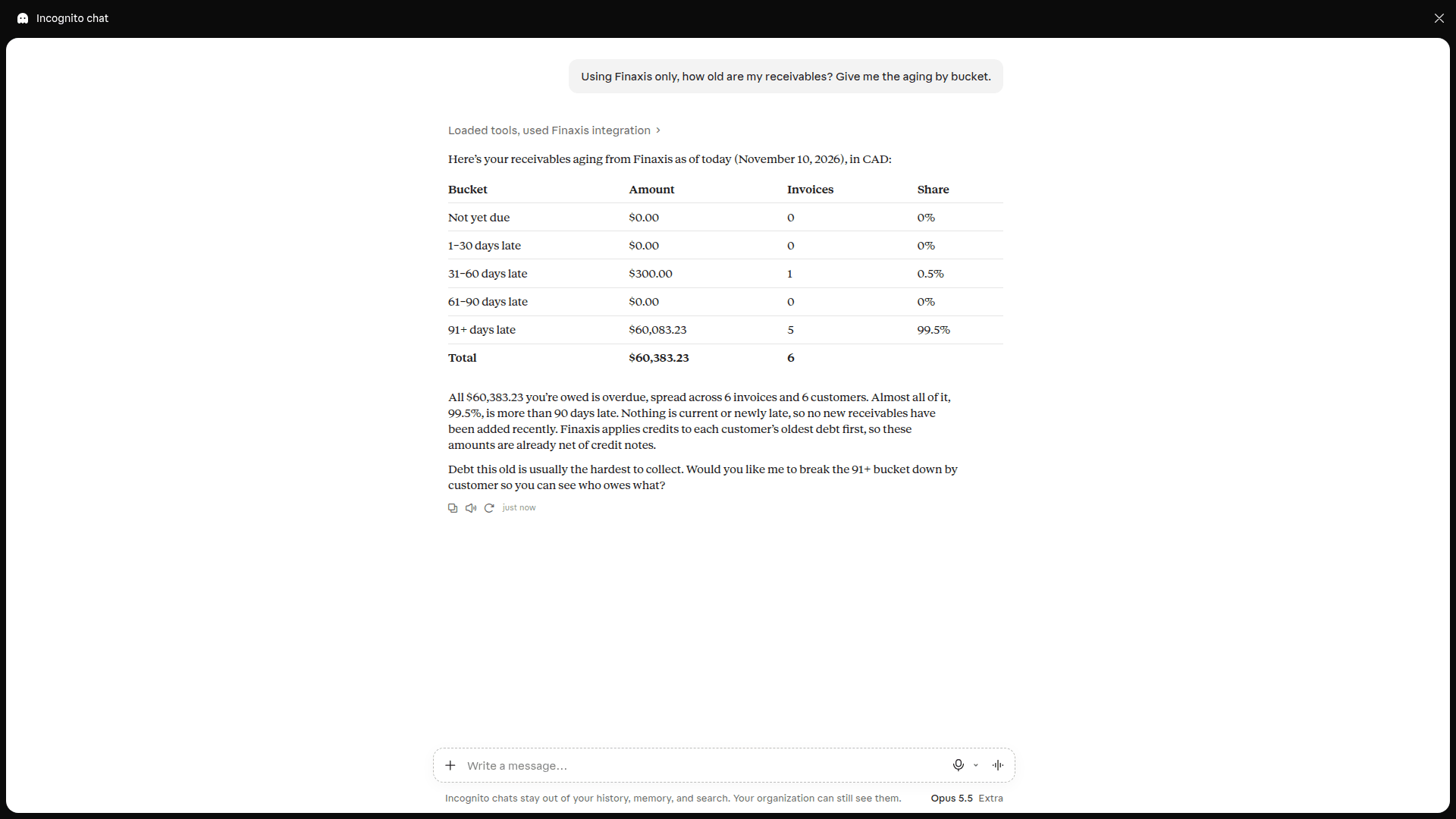
- Start a conversation in Claude and ask your question, for example: Using Finaxis only, how old are my receivables? Give me the aging by bucket.
- When Claude shows Claude wants to use a Finaxis tool, click Allow once, or Always allow to stop being asked for this tool. Click Deny to refuse.
- Read the answer. When Claude cites a customer or an invoice, it can give you the link to its page in Finaxis.
Disconnect Finaxis from Claude
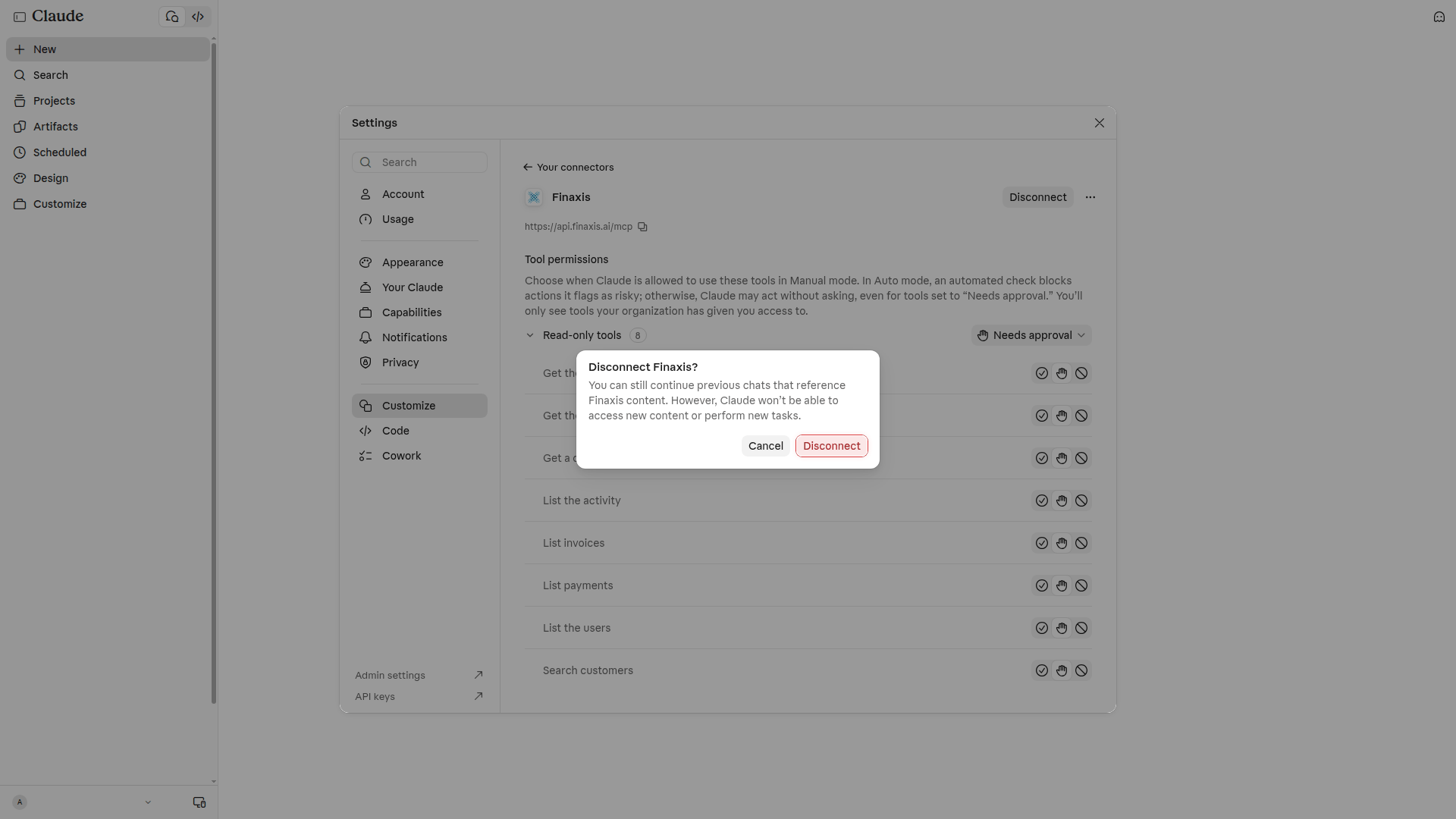
Disconnecting ends your own connection. The connector stays in Claude, ready to connect again.
- In Claude, click Customize, then Connectors, then Finaxis.
- Click Disconnect.
- In Disconnect Finaxis?, click Disconnect. You can still read your previous conversations, but Claude no longer reaches Finaxis.
- In Finaxis, open My Profile, then API. Under Connected apps, Claude is still listed: click Revoke, then Revoke again.
Please note: Good practice: after you disconnect or remove an assistant, always finish in Finaxis. Under My Profile, then API, then Connected apps, revoke its connection if it is still listed. Claude leaves it in place: disconnecting in Claude never ends the connection in Finaxis. See Revoke an API credential.
Remove the Finaxis connector
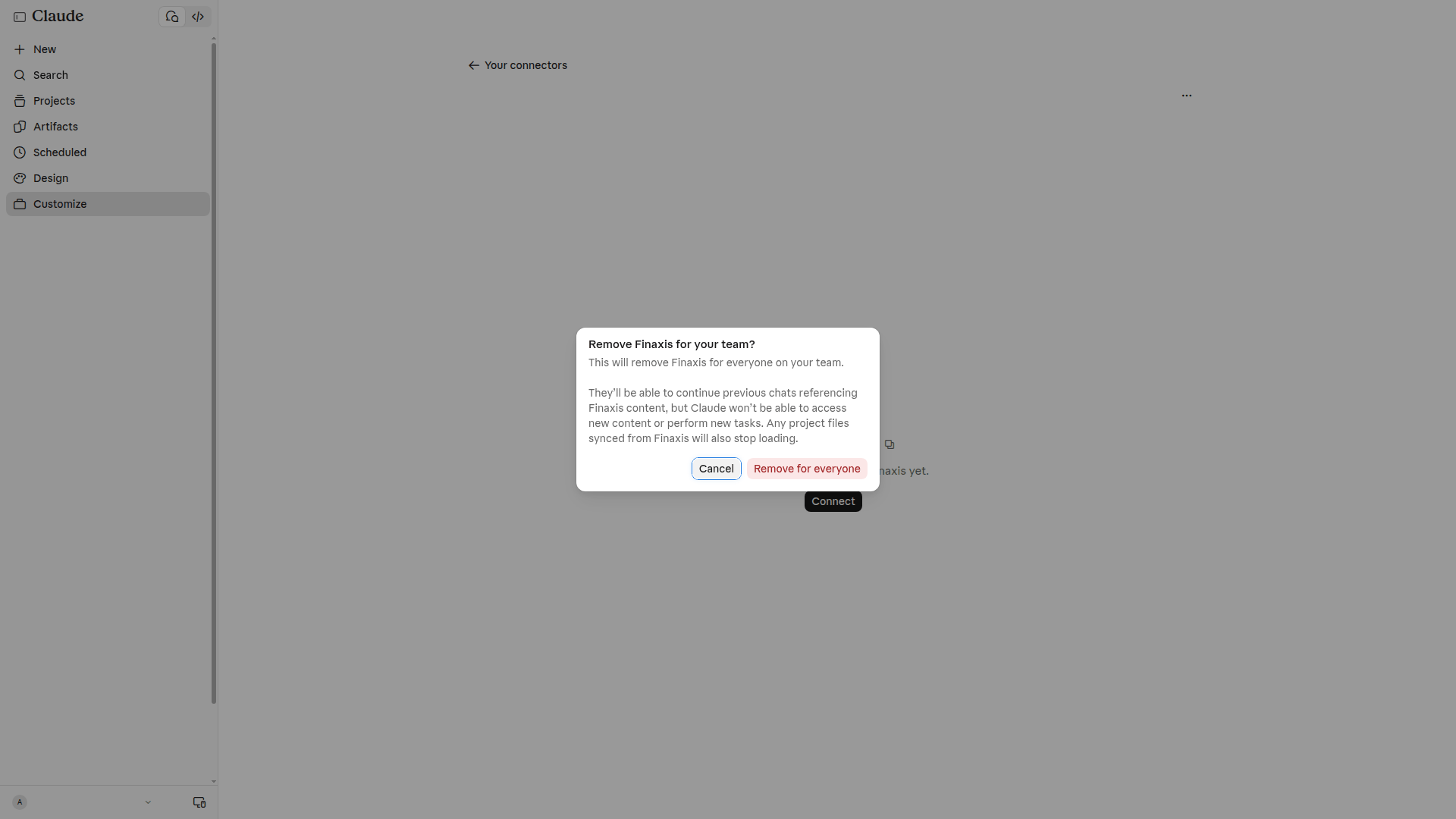
Removing deletes the connector from Claude. In a Team or Enterprise organization, only an owner can remove it, and it is removed for every member.
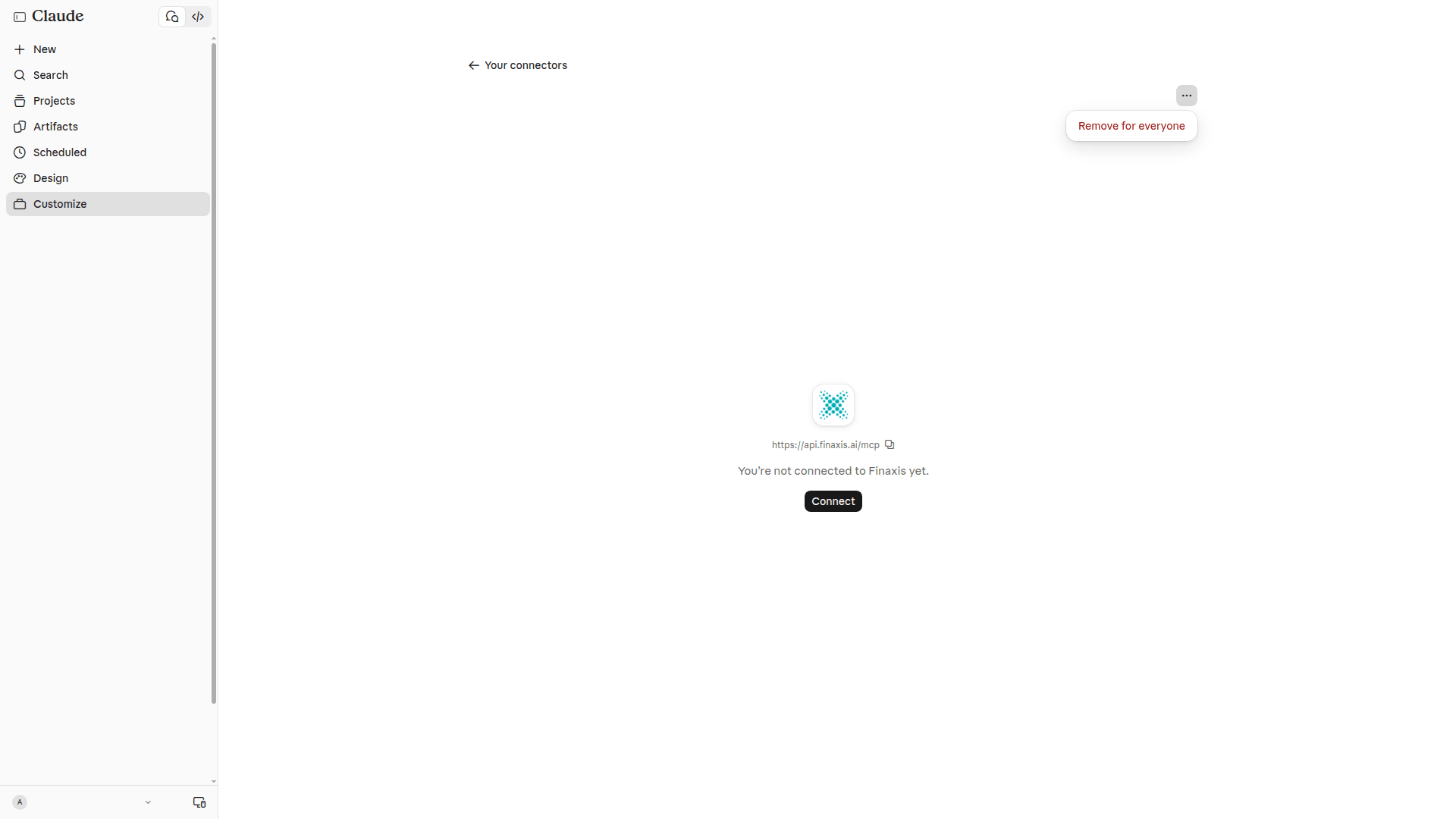
- In Claude, click Customize, then Connectors, then Finaxis.
- Click the three dots at the top right of the connector page.
- In an organization, click Remove for everyone, then Remove for everyone again in Remove Finaxis for your team?. On a personal plan, choose the remove option of the same menu.
- In Finaxis, revoke the connection under Connected apps if it is still listed. In an organization, each member who had connected Claude revokes their own, or an administrator revokes them in Settings, then API.
Troubleshooting
| Situation | What to do |
|---|---|
| Claude does not offer Add custom connector | In a Team or Enterprise organization, only owners add custom connectors. Ask an owner to add Finaxis, then click Connect on it. On the Free plan, you may already have used your one custom connector. |
| Claude does not show a tool you expected | The connection does not have the scope that tool needs. Disconnect Finaxis, connect it again, and check the scope on the Finaxis page. |
| Claude asks you to connect Finaxis again | The connection was revoked, or 12 months passed since you approved it. Click Connect and approve it again. |
| Claude asks before every Finaxis call | That is the Needs approval setting. Change it tool by tool under Tool permissions. |
| Claude is listed in Finaxis after you disconnected it | That is expected. Revoke it under Connected apps in Finaxis. |
Need help connecting Claude? Write to support@finaxis.ai, and our team will help you.
Related articles
Can't find what you're looking for?
Our support team is here to help.