Connect Gemini to Finaxis
Gemini connects to Finaxis through a custom connected app. Once connected, write @Finaxis followed by your question about your accounts receivable: Gemini reads Finaxis as you and asks before each Finaxis tool it uses. Gemini's screens are shown in English.
Before you start
- Google sets who can add a custom app. Its help asks for a personal Google account, since work and school accounts are not supported for now, Gemini in English, and Gemini Apps Activity turned on. Check the conditions in Google's help.
- You add the app in the Gemini web app, at gemini.google.com. To learn what Gemini can then do in Finaxis, see Connect an AI assistant to Finaxis.
Add Finaxis to Gemini
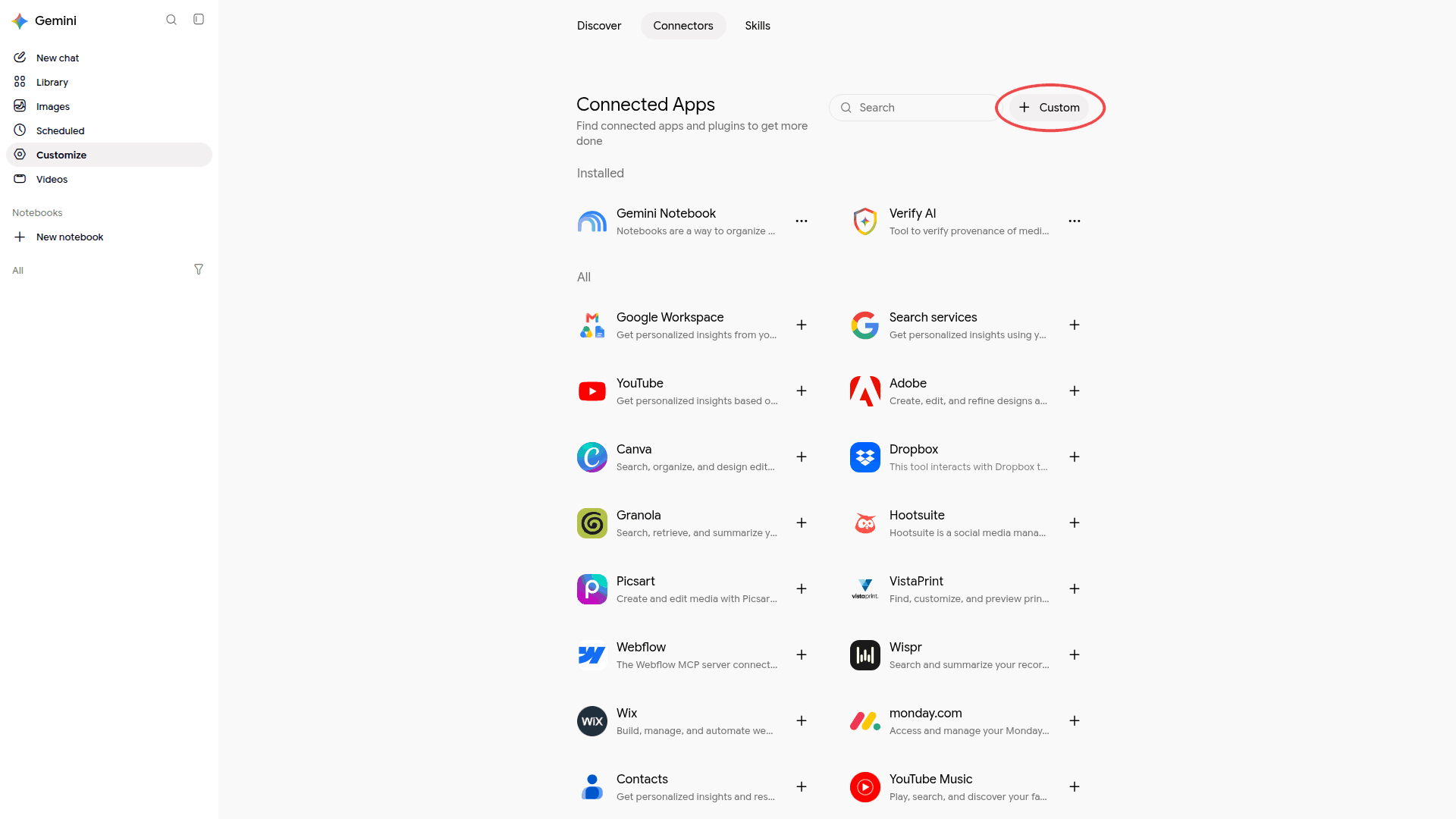
- In Gemini's left menu, click Customize, then the Connectors tab. The Connected Apps page opens.
- At the top right, click Custom.
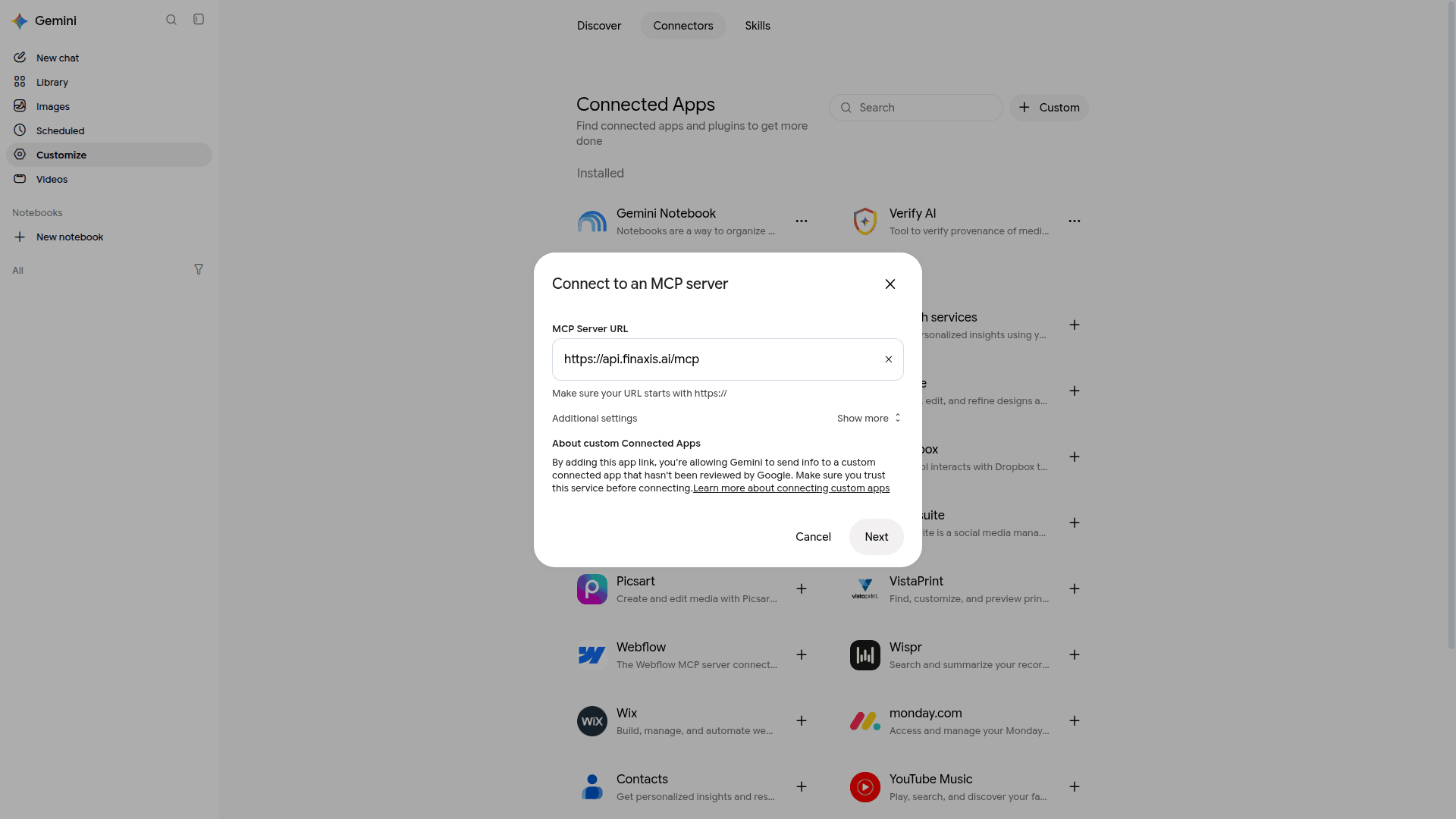
- In Connect to an MCP server, under MCP Server URL, paste https://api.finaxis.ai/mcp. Leave Additional settings empty: Finaxis does not need a client ID. Click Next.
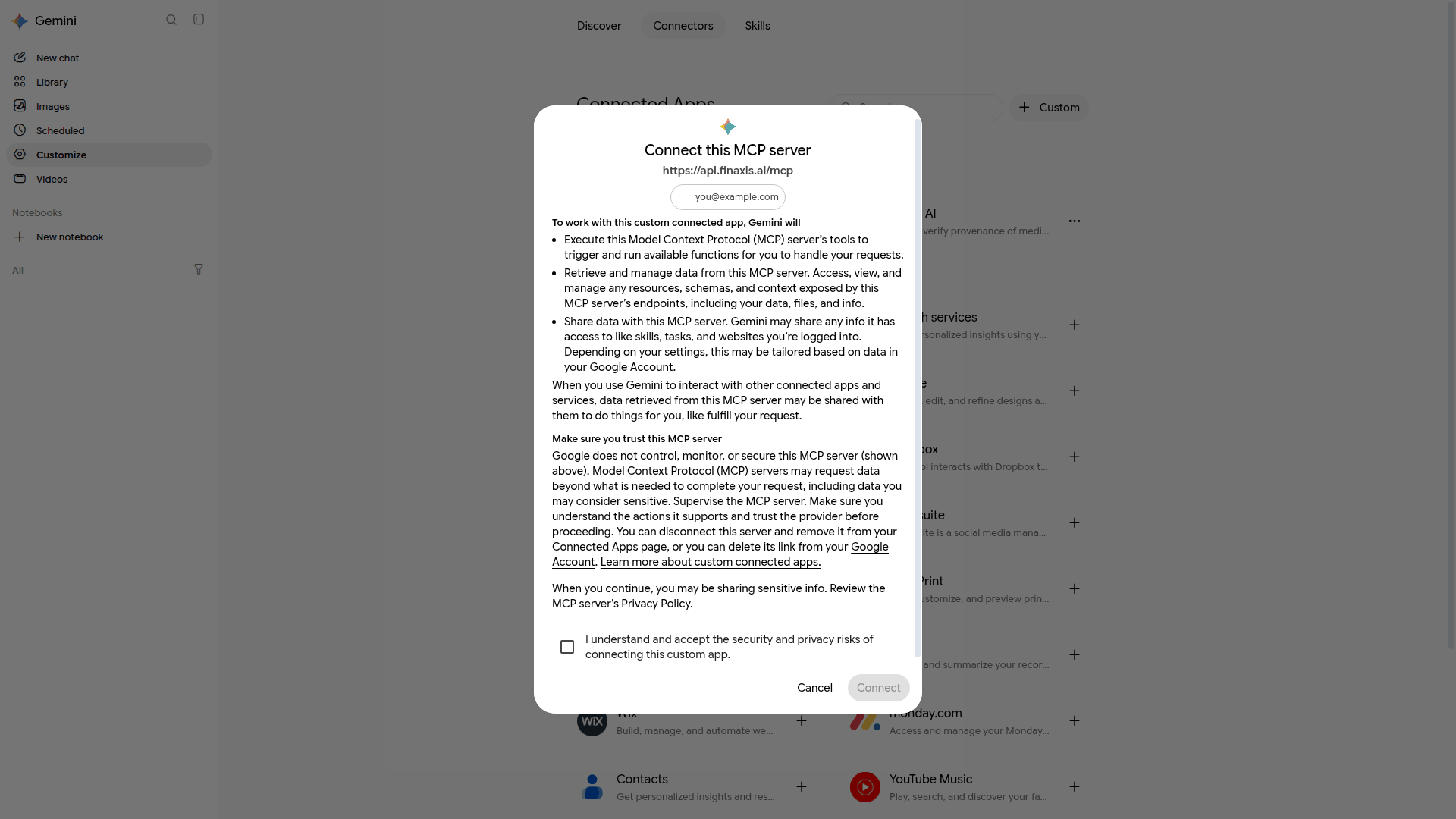
- In Connect this MCP server, read what Gemini will be able to do, check I understand and accept the security and privacy risks of connecting this custom app, then click Connect.
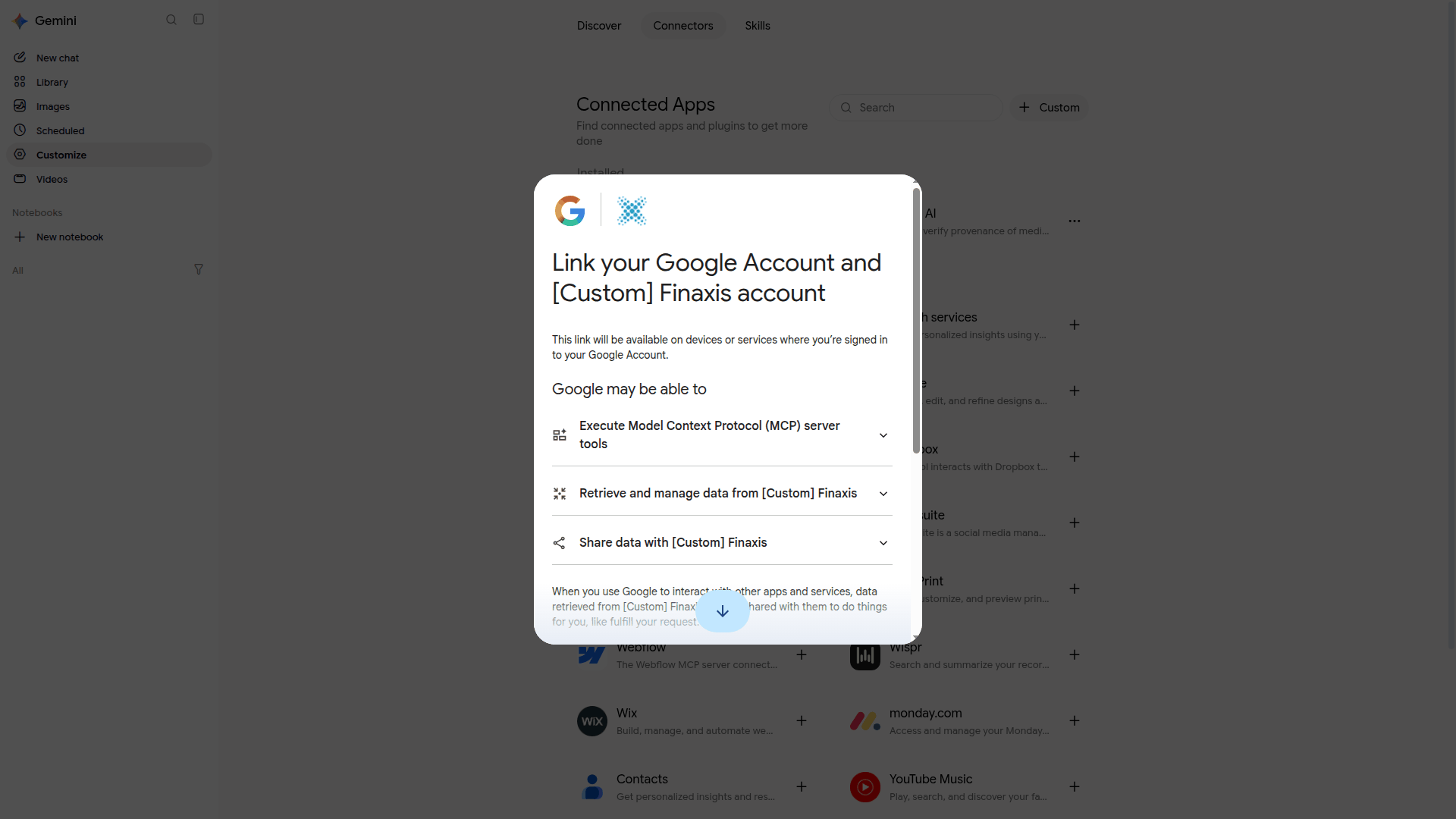
- In Link your Google Account and [Custom] Finaxis account, click Agree and continue. The Finaxis page opens.
Approve the connection in Finaxis
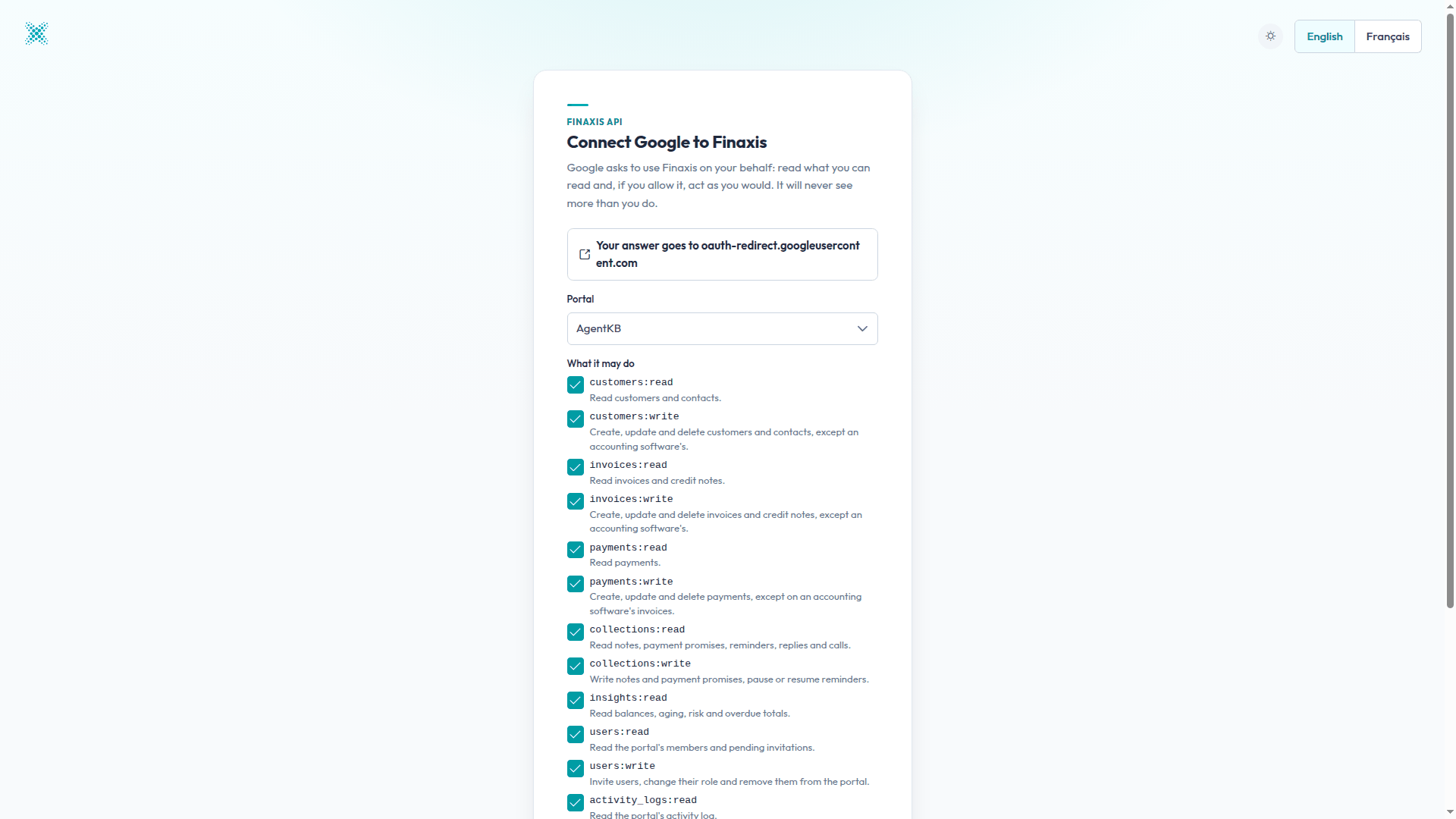
The Finaxis page is named Connect Google to Finaxis: Gemini connects under the Google name, and that is the name you will see in Finaxis.
- If Finaxis asks you to log in, log in as usual.
- Under Portal, choose the instance Gemini will work in.
- Under What it may do, uncheck the scopes Gemini should not have. To ask questions, the read scopes are enough.
- Click Connect. You are back in Gemini.
Save the app in Gemini
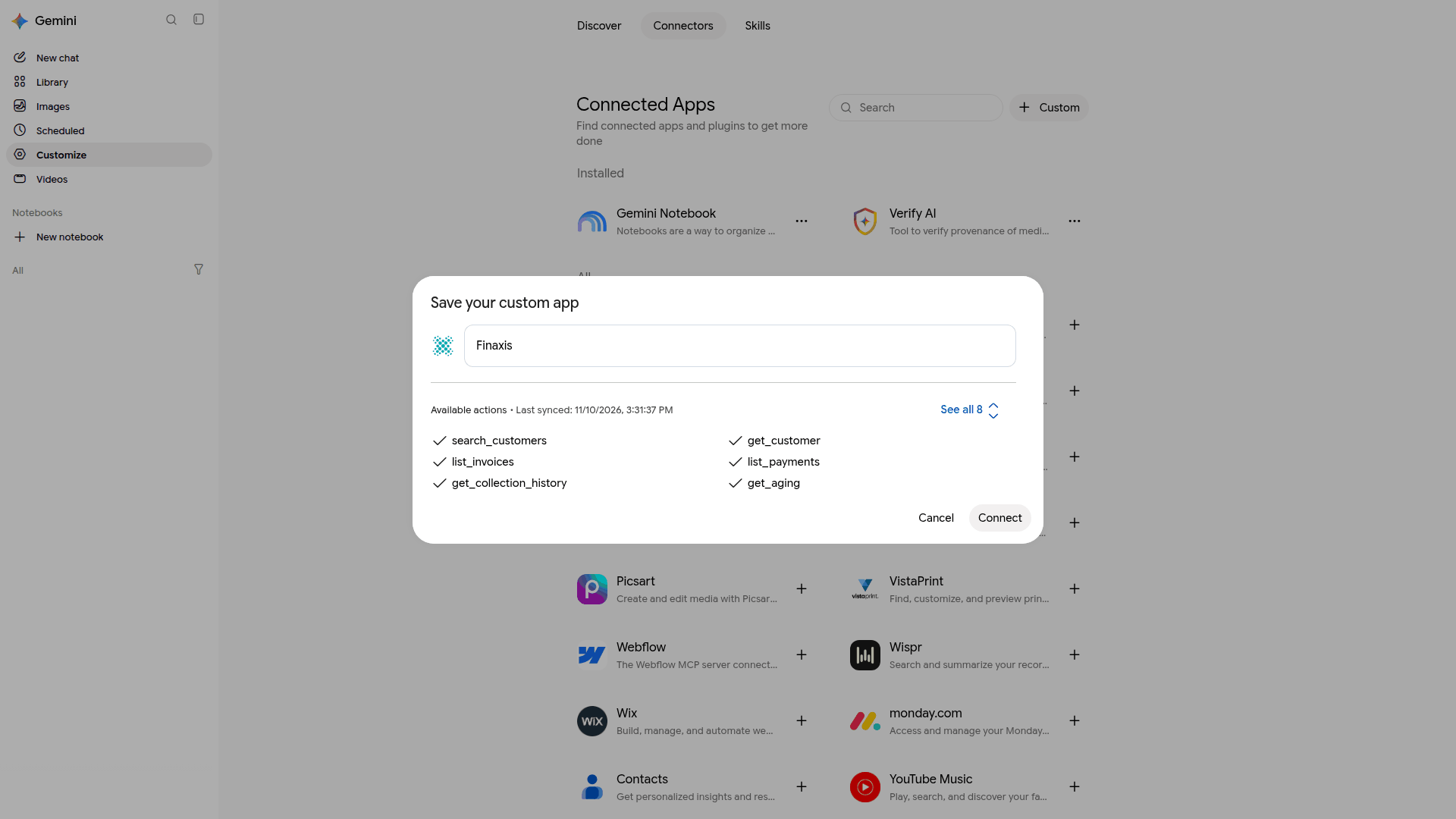
- In Save your custom app, keep the name Finaxis. Under Available actions, Gemini lists the Finaxis tools it received, under their technical names.
- Click Connect. Gemini shows Finaxis is connected and ready to use, and Finaxis now appears under Custom apps.
Ask Gemini a question
- Start a new chat in Gemini. Temporary chats cannot use connected apps.
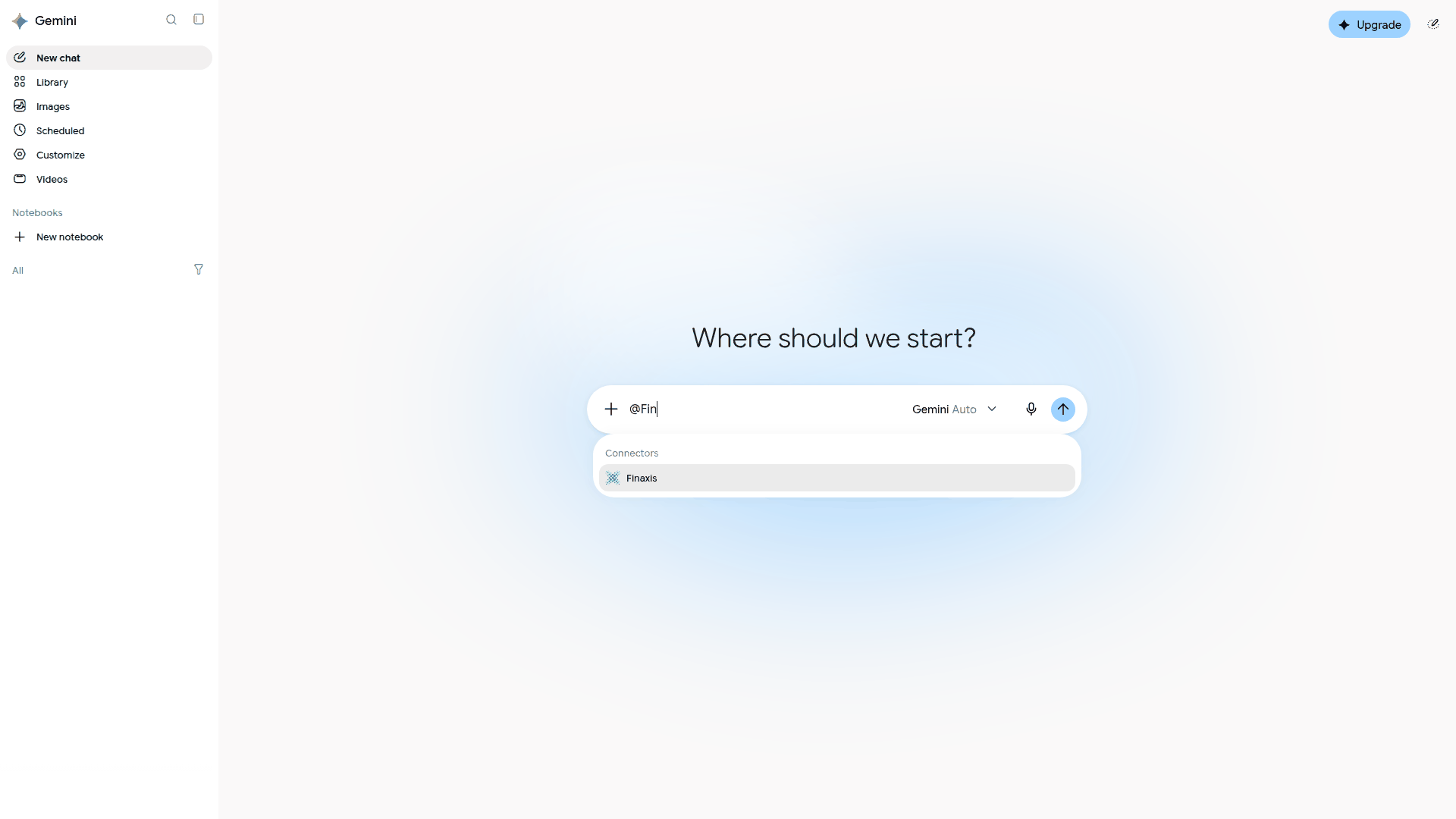
- Type @Fin, then choose Finaxis under Connectors.
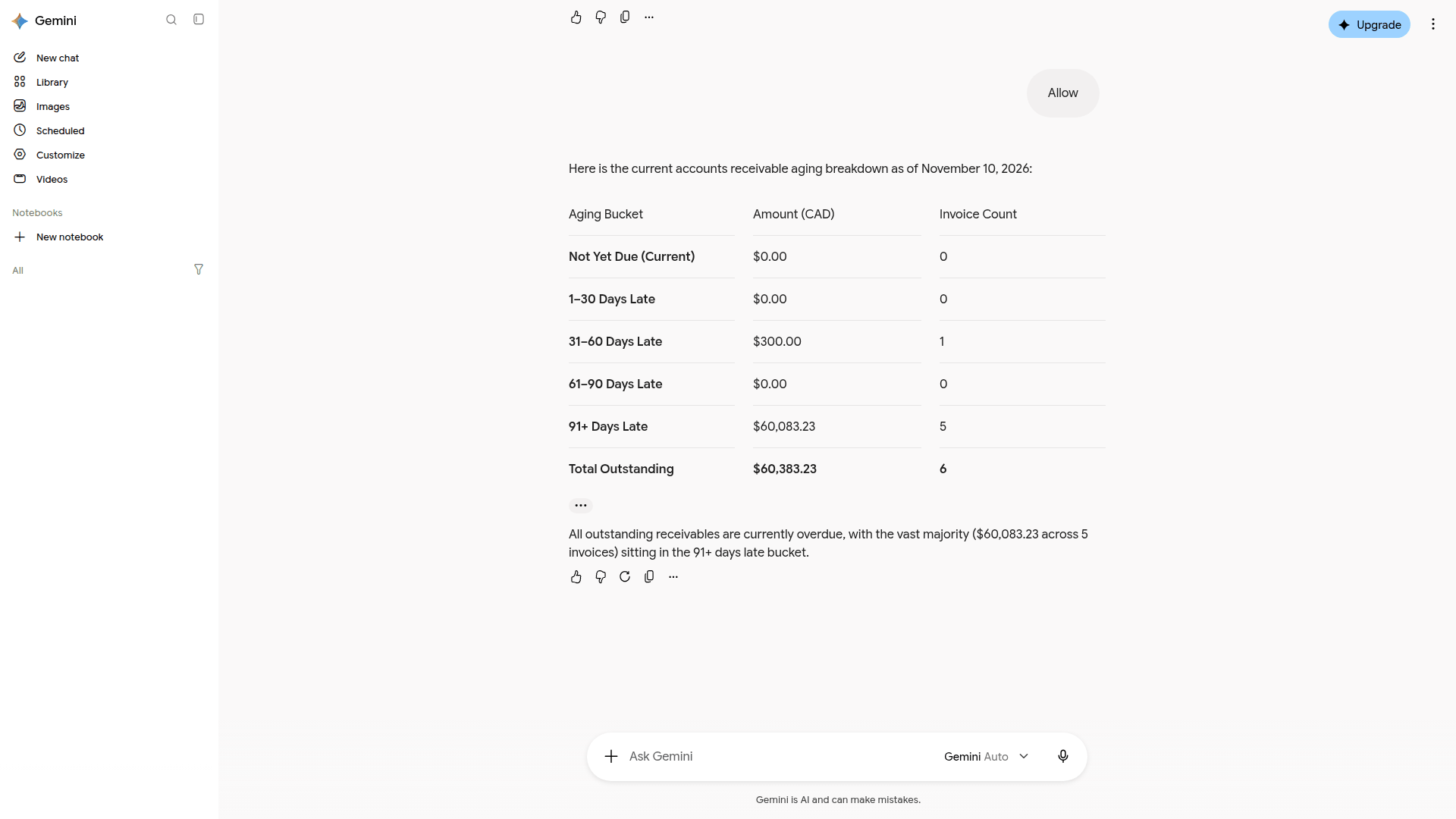
- Write your question after @Finaxis, for example: how old are my receivables? Give me the aging by bucket.
- When Gemini shows Let Gemini use a Finaxis tool, click Allow, or Deny to refuse.
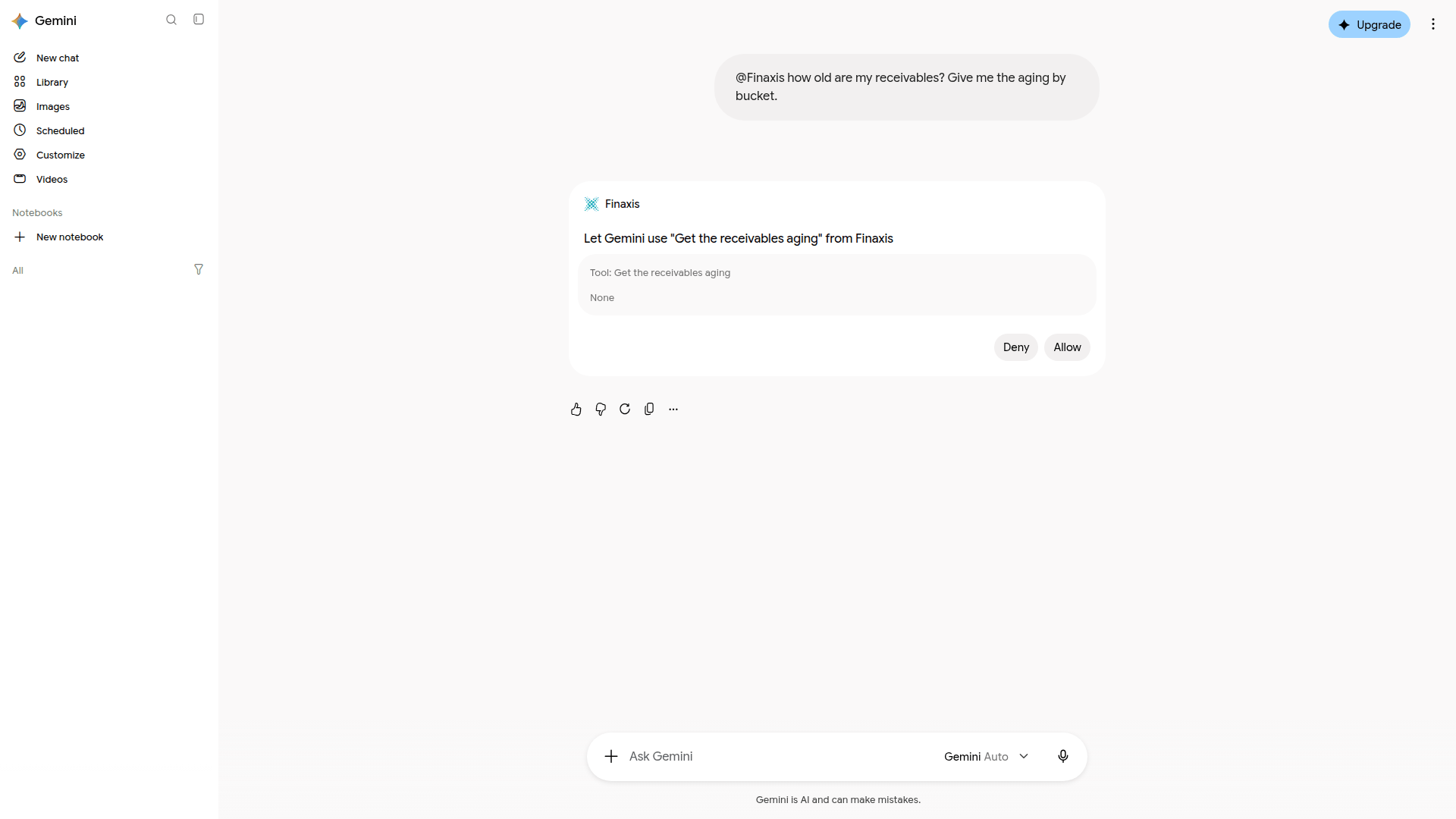
Please note: Gemini asks for your approval in each new conversation, and offers no option to allow a tool for good. The request follows the language of your question: in French, the buttons read Autoriser and Refuser.
Find Gemini in Finaxis
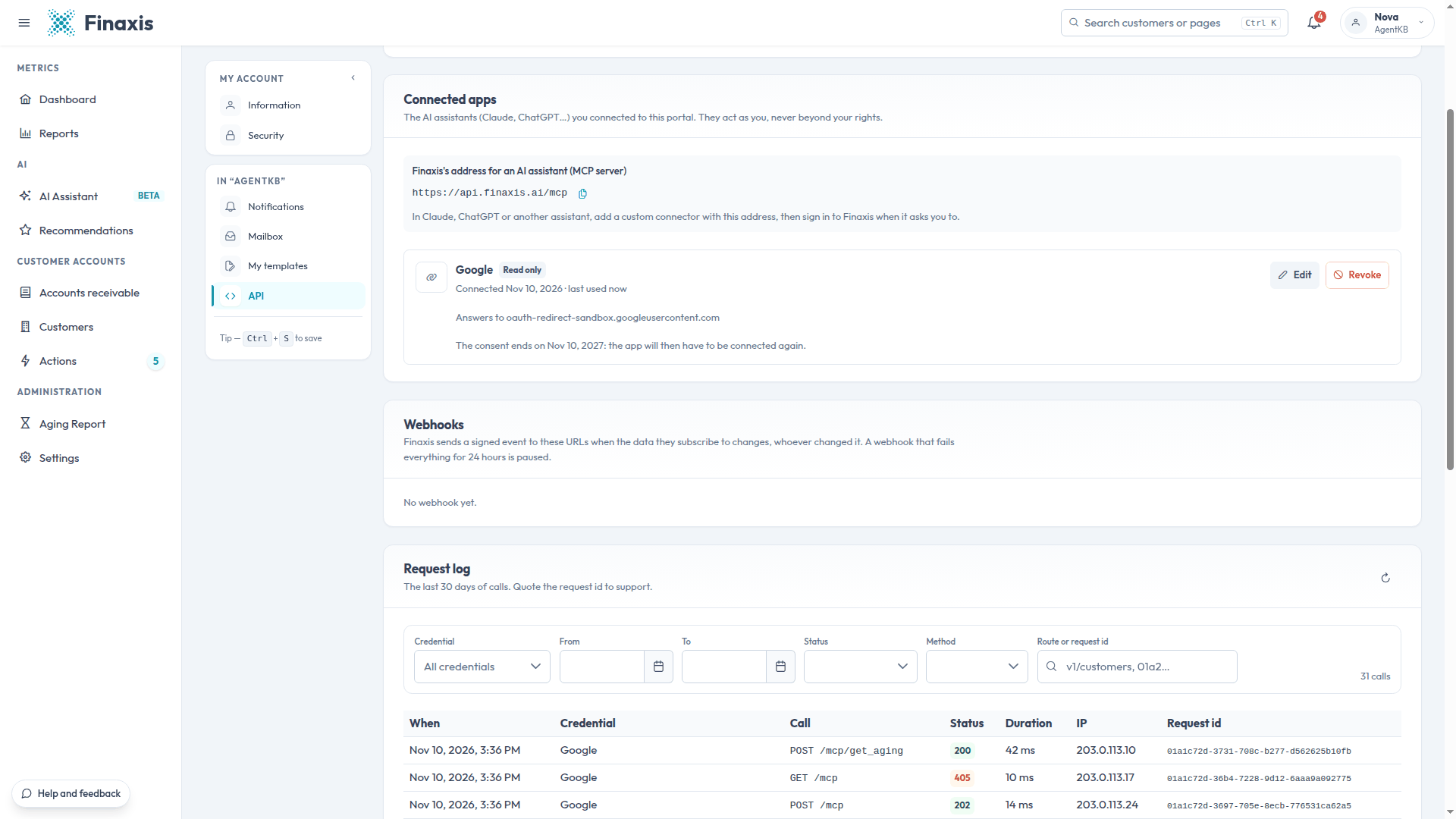
In Finaxis, My Profile, then API, the connection appears under Connected apps with the name Google, its access, the connection date and the date the consent ends. Its calls appear in the request log under the same name.
Disconnect or delete Finaxis in Gemini
- In Gemini, click Customize, then Connectors, and scroll down to Custom apps.
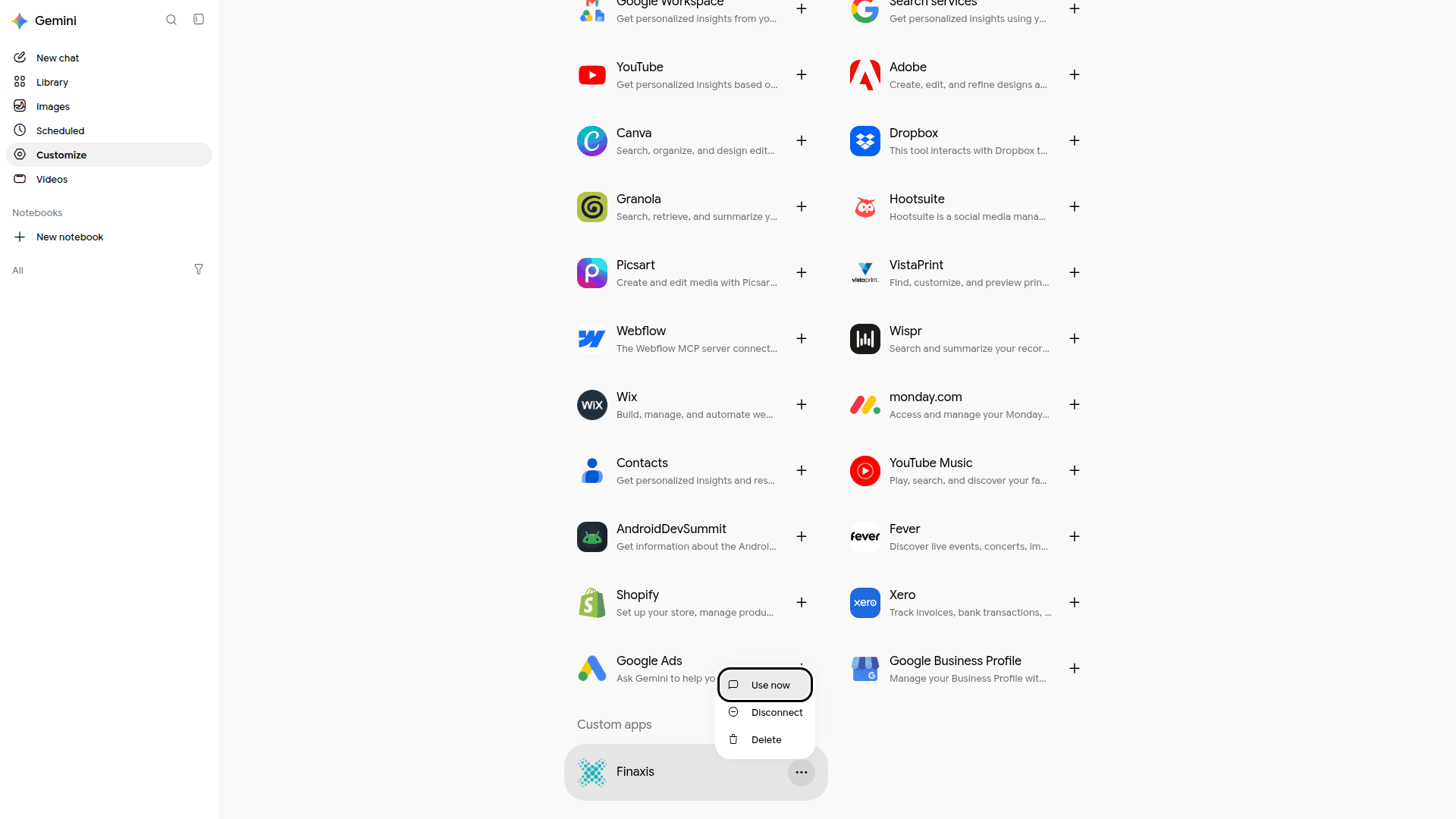
- On the Finaxis row, click the three dots. Disconnect unlinks Finaxis at once and keeps the app, ready to connect again with the + button.
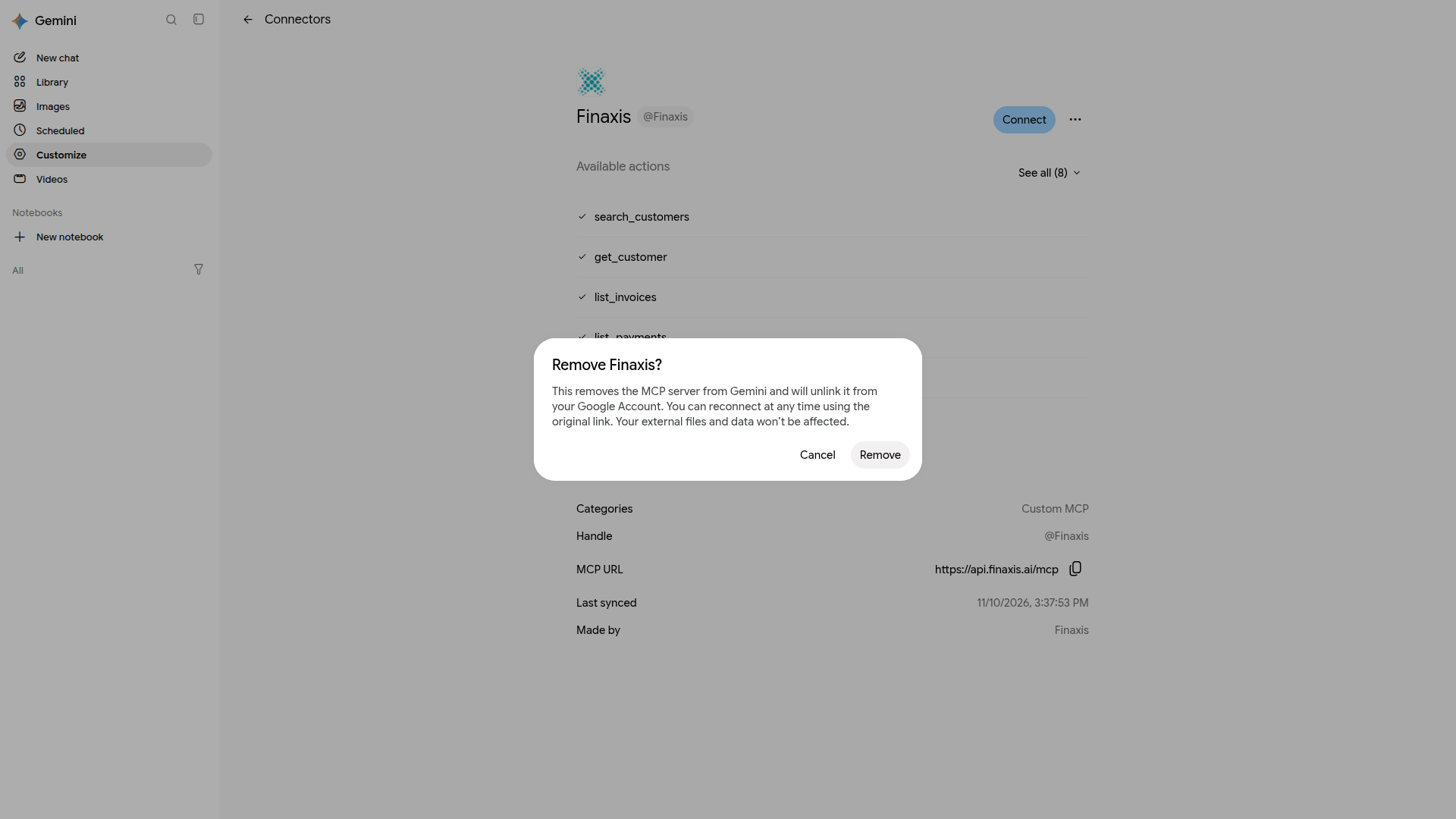
- To remove the app, open the Finaxis app page, click the three dots, then Delete. In Remove Finaxis?, click Remove.
- In Finaxis, open My Profile, then API. Under Connected apps, Google is still listed: click Revoke, then Revoke again.
Please note: Good practice: after you disconnect or remove an assistant, always finish in Finaxis. Under My Profile, then API, then Connected apps, revoke its connection if it is still listed. Gemini leaves it in place, whether you disconnect or delete the app. See Revoke an API credential.
Troubleshooting
| Situation | What to do |
|---|---|
| Gemini does not offer Custom in Connected Apps | Your Google account does not meet Google's conditions for custom apps, for example a work or school account. Check Google's help. |
| Gemini answers that it cannot reach Finaxis | You may be in a temporary chat, or Gemini Apps Activity may be off. Start a regular chat with @Finaxis. |
| @Finaxis is not suggested | The app is disconnected. Under Custom apps, click + on the Finaxis row to connect it again. |
| Gemini does not have a tool you expected | The connection does not have the scope that tool needs. Delete the app, add it again, and check the scope on the Finaxis page. |
| Google is listed in Finaxis after you removed the app | That is expected. Revoke it under Connected apps in Finaxis. |
Need help connecting Gemini? Write to support@finaxis.ai, and our team will help you.
Related articles
Can't find what you're looking for?
Our support team is here to help.