Connect Claude Code to Finaxis
Claude Code, the AI agent that works in your terminal, connects to Finaxis through its MCP server. Once connected, it reads your customers, invoices, payments and aging, and answers your questions or prepares your work, never beyond the rights of the access you give it.
Before you start
- Claude Code installed on your computer.
- To choose between your own access and a service account, read Choose how an AI agent connects to Finaxis.
Connect with your own access
- In a terminal, add the Finaxis MCP server to Claude Code.
claude mcp add --transport http finaxis https://api.finaxis.ai/mcpThe server is added for the current folder. Add --scope user to make it available in all your projects.
- Start the connection. Claude Code opens your browser on Finaxis.
claude mcp login finaxisOn a machine without a browser, add --no-browser: Claude Code prints the address to open, then asks you to paste the address your browser lands on. The command needs an interactive terminal.
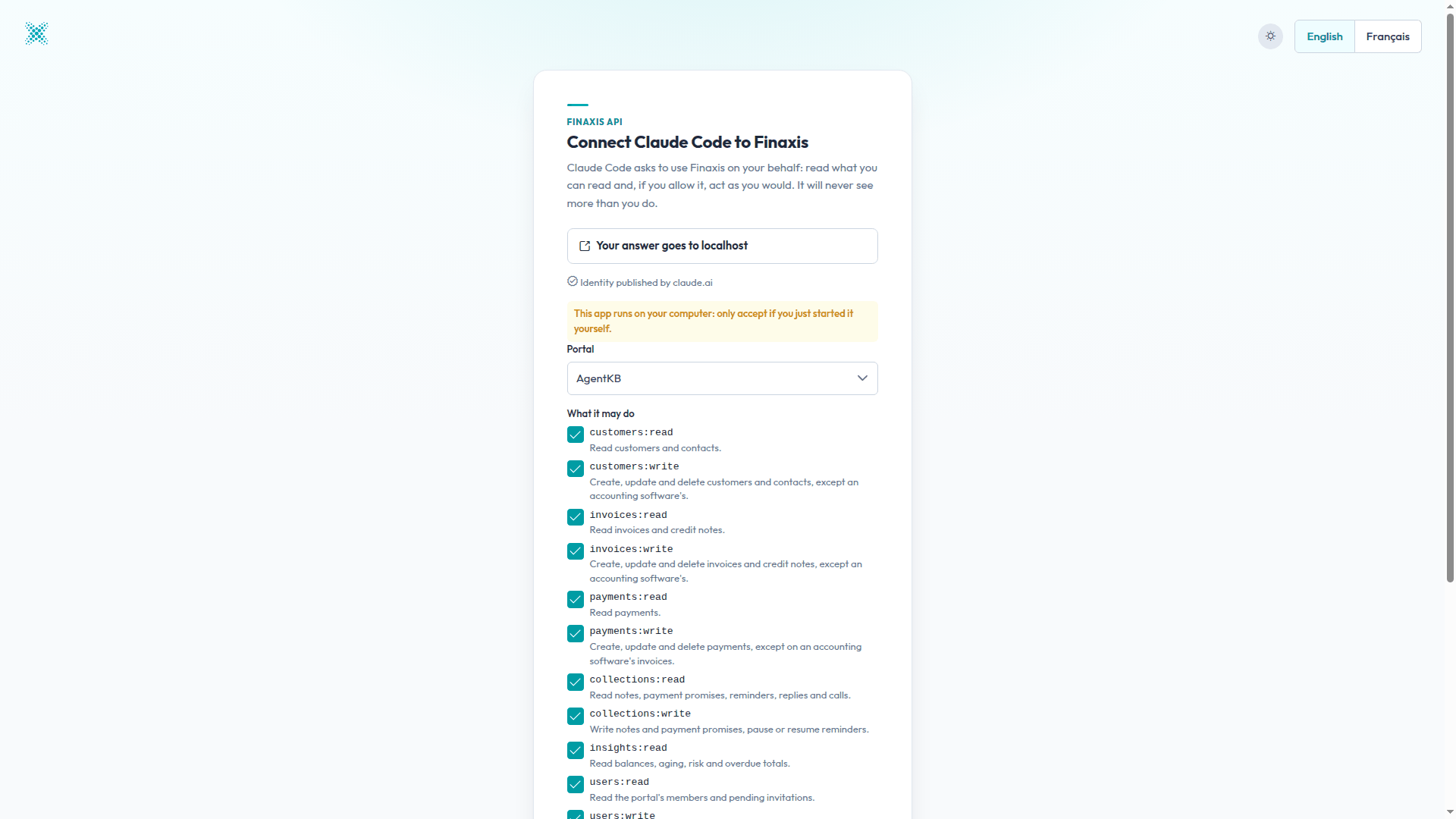
- If Finaxis asks you to log in, log in as usual. A page named Connect Claude Code to Finaxis opens.
- Under Portal, choose the instance the agent will work in. A connection works on one instance only.
- Under What it may do, uncheck the scopes the agent should not have, for example every write scope to start. The agent never goes beyond your rights, whatever you check.
- Click Connect, then go back to your terminal.
- Check the connection. Its status reads Connected.
claude mcp get finaxisAsk Claude Code a question about your receivables, for example: Which customers are the most overdue in Finaxis, and for how much? With the read scopes alone, Claude Code sees the eight read tools of Finaxis.
Please note: In Finaxis, the connection appears as Claude Code under Connected apps, with its access and its last use. See Choose how an AI agent connects to Finaxis to follow or revoke it.
Connect with a service account
For a job that runs without you, such as a script launched every morning with claude -p, use a service account. Its token lasts one hour, so Claude Code asks for a new one each time it connects, through a small script.
- Create a service account with the scopes the job needs, then copy its client ID and secret.
- Save them in a file only you can read.
# ~/.config/finaxis/service-account.env (readable by you only: chmod 600)
FINAXIS_CLIENT_ID=fxc_...
FINAXIS_CLIENT_SECRET=fxs_...- Create the script that asks Finaxis for a fresh token and prints it as a header, then make it executable with chmod 700.
#!/usr/bin/env bash
# Prints an Authorization header with a fresh token for a Finaxis service account.
# The token lasts one hour: the agent runs this script each time it connects.
set -euo pipefail
. "$HOME/.config/finaxis/service-account.env"
token=$(curl -sf -u "$FINAXIS_CLIENT_ID:$FINAXIS_CLIENT_SECRET" \
  -d grant_type=client_credentials https://api.finaxis.ai/v1/oauth/token \
  | python3 -c 'import sys, json; print(json.load(sys.stdin)["access_token"])')
printf '{"Authorization": "Bearer %s"}\n' "$token"- Declare the server with the script as its headersHelper, in the .mcp.json file of your folder or with claude mcp add-json.
{
  "mcpServers": {
    "finaxis": {
      "type": "http",
      "url": "https://api.finaxis.ai/mcp",
      "headersHelper": "/home/you/.config/finaxis/finaxis-headers.sh"
    }
  }
}
Calls made this way appear under the name of the service account in the request log. Never commit the file that holds the secret.
Troubleshooting
| Situation | What to do |
|---|---|
| claude mcp get shows Needs authentication | Run claude mcp login finaxis and approve the connection in Finaxis. |
| claude -p cannot sign in | A non-interactive run cannot approve a connection. Log in once in an interactive terminal, or use a service account. |
| The page says the app is not registered | Check that you added the exact address https://api.finaxis.ai/mcp. |
| A tool you expected is missing | The scopes you approved hide it. Edit the connection in Finaxis, or connect again and check the scope. |
| The script returns an error | The secret expired or was replaced: rotate it and update the file. |
Need help connecting your agent? Write to support@finaxis.ai with the request id from the request log, and our team will help you.
Related articles
Can't find what you're looking for?
Our support team is here to help.