Connect ChatGPT to Finaxis
ChatGPT connects to Finaxis through a custom MCP server, which ChatGPT saves as a plugin. Once connected, mention the plugin with @ and ask about your accounts receivable: ChatGPT reads Finaxis as you. ChatGPT's screens are shown in English.
Before you start
- You add the server in ChatGPT on the web, at chatgpt.com. Your ChatGPT plan and your workspace permissions decide whether Add custom MCP server is offered: if it is missing, ask your workspace admin, or see OpenAI's guide.
- To learn what ChatGPT can then do in Finaxis, see Connect an AI assistant to Finaxis.
Add Finaxis to ChatGPT
- In ChatGPT's left menu, click Plugins.
- At the top right, click Add, then Add custom MCP server.
- In Name, enter a name you will recognize, for example Finaxis. Under Connection, keep Server URL and paste https://api.finaxis.ai/mcp. Keep OAuth under Authentication.
- Wait a few seconds for ChatGPT to discover the Finaxis settings, then open Advanced OAuth settings.
- Under Registration method, choose Dynamic Client Registration (DCR). Keep the other settings.
- Check I understand and want to continue, then click Create as a plugin.
- In Connect, click Continue to followed by the name of your plugin. The Finaxis page opens.
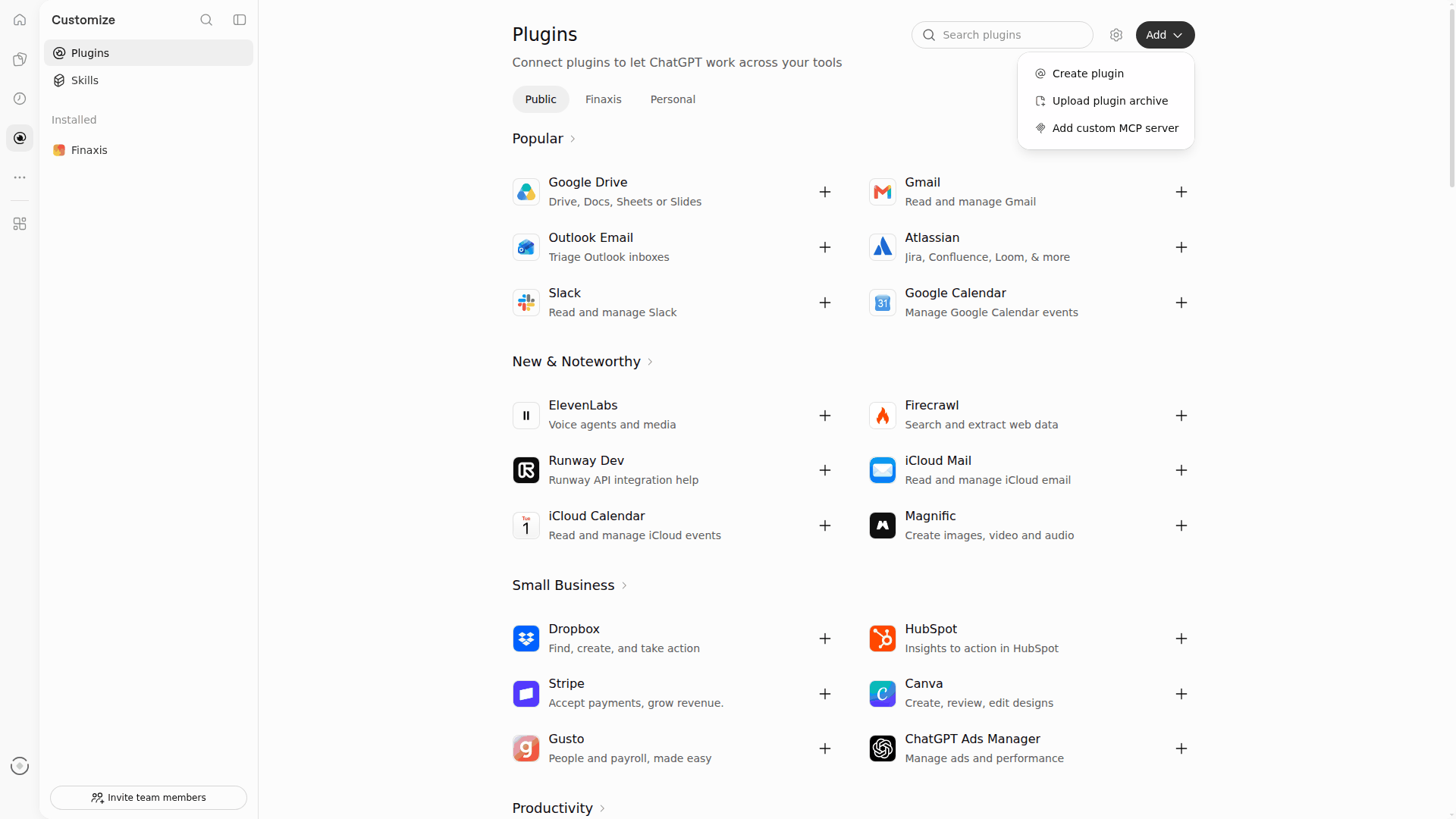
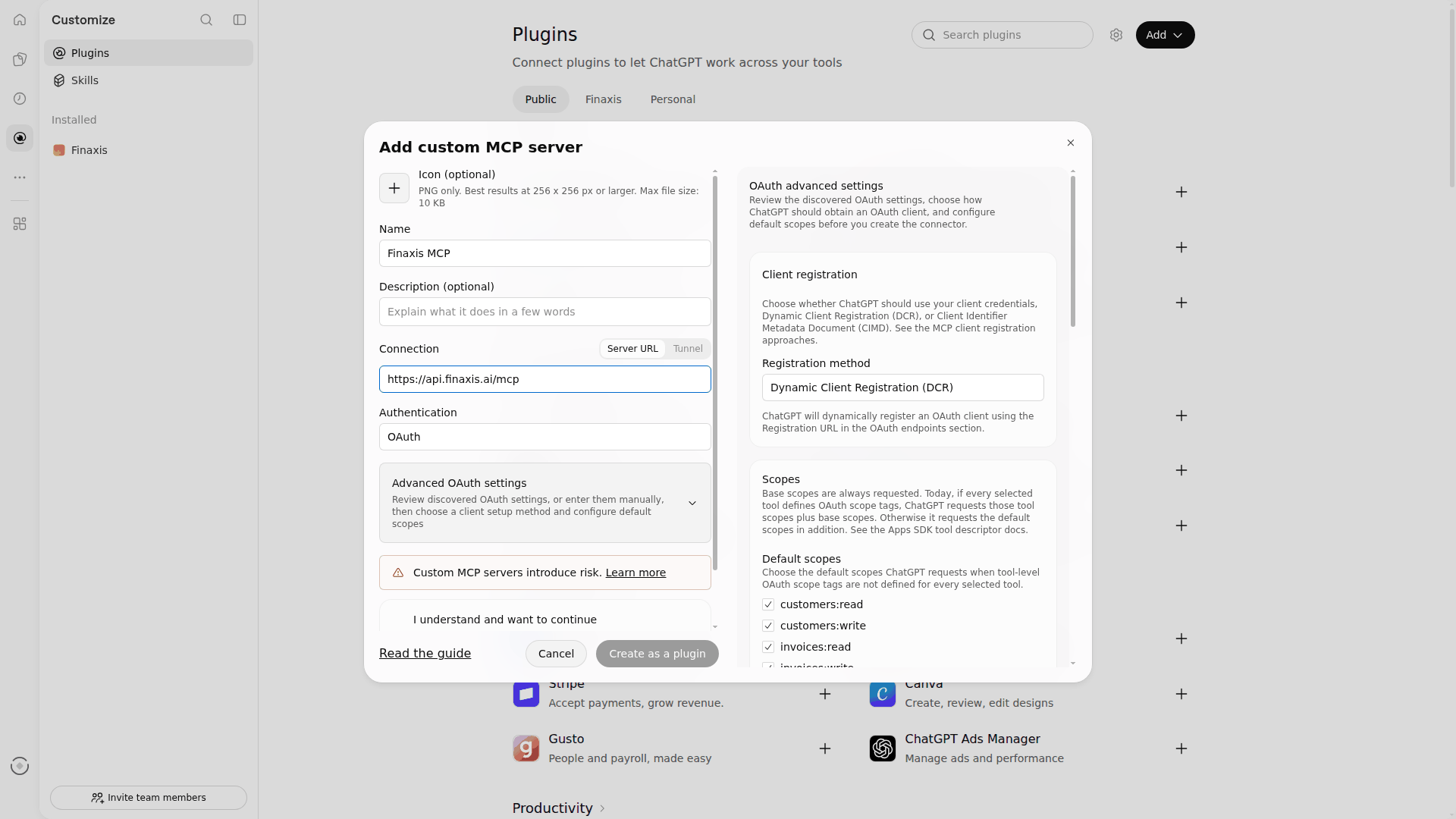
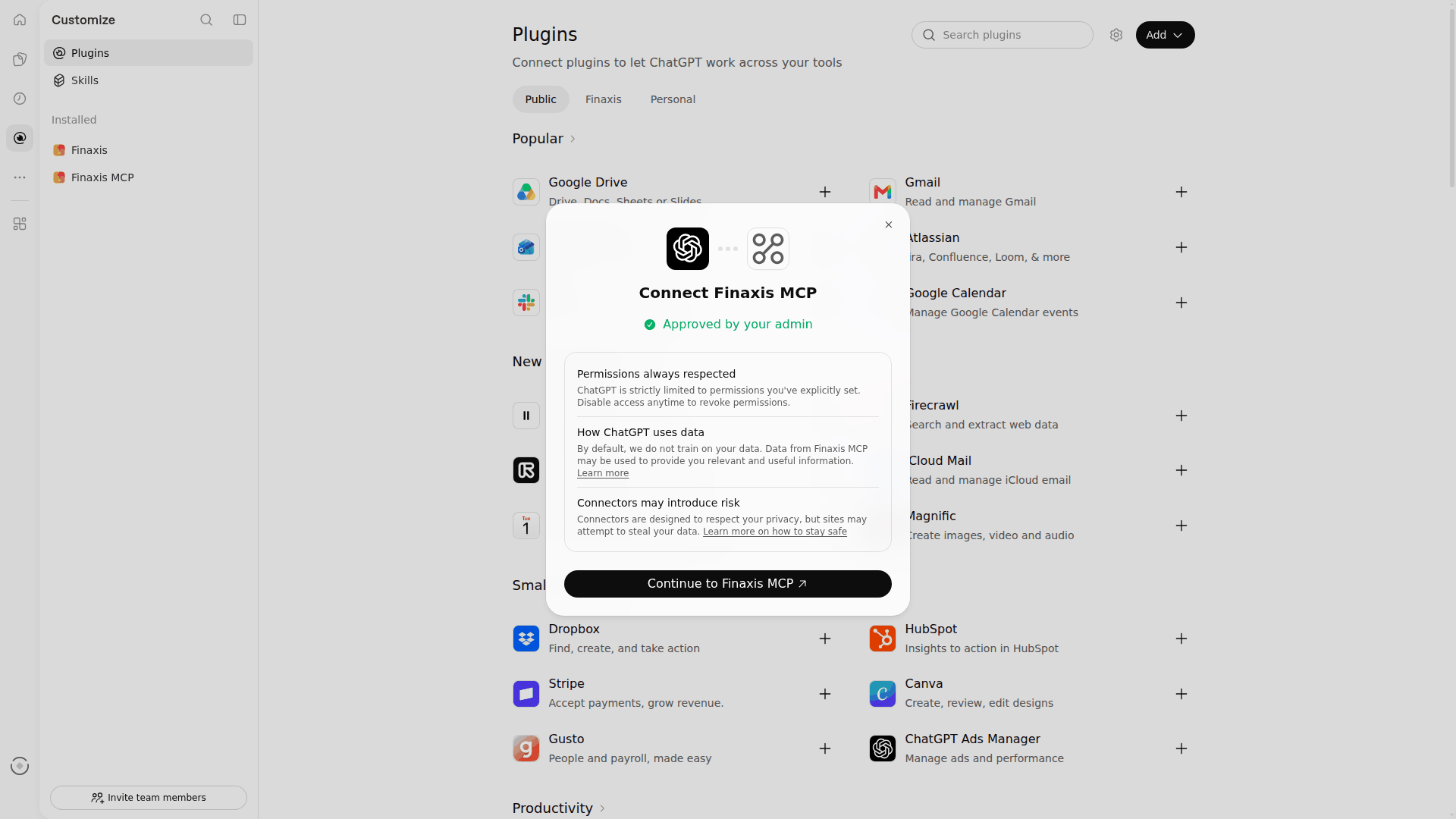
Please note: Choose Dynamic Client Registration (DCR). With the method ChatGPT suggests first, Client Identifier Metadata Document (CIMD), Finaxis answers that the app is not registered.
Approve the connection in Finaxis
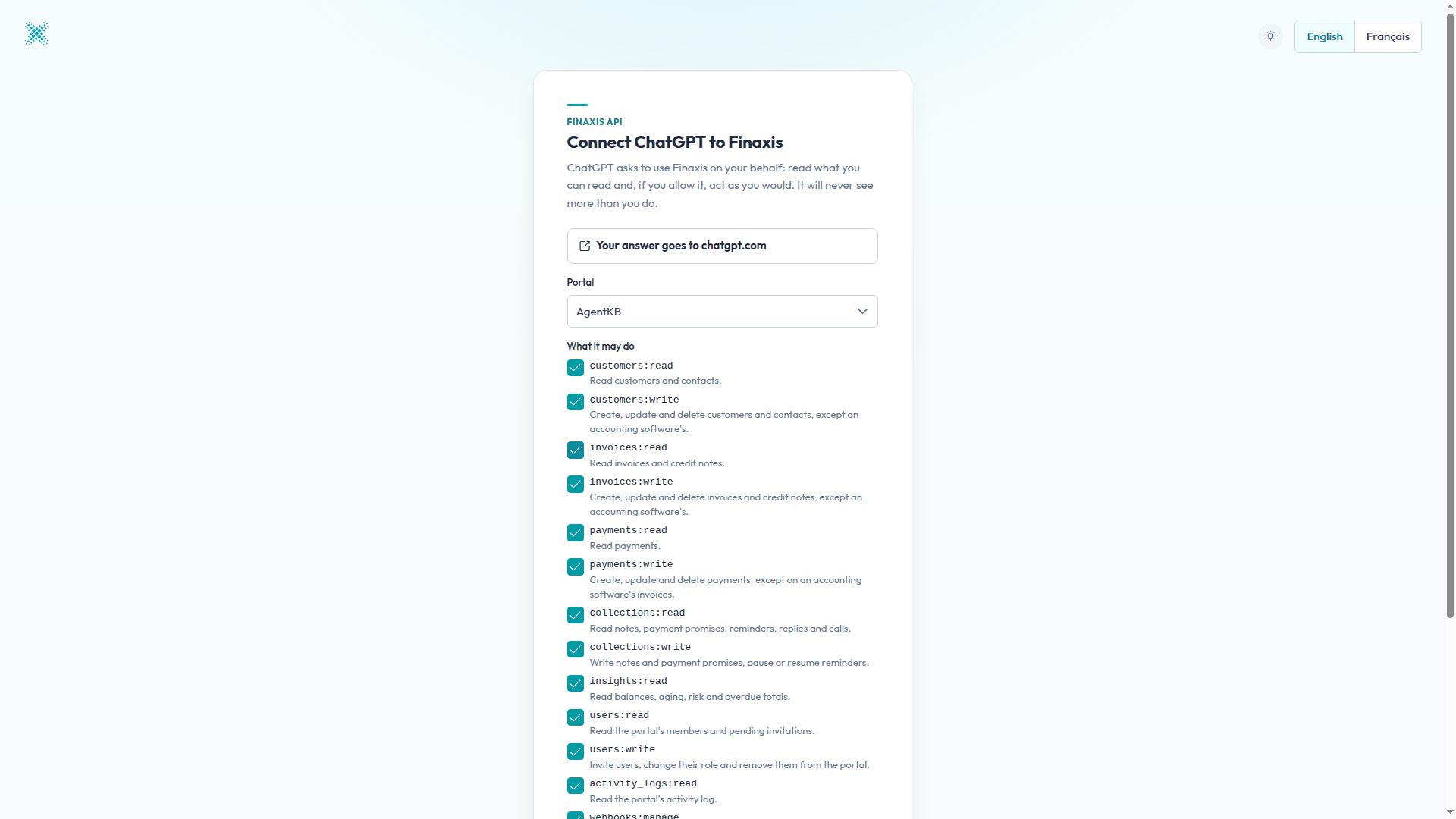
- If Finaxis asks you to log in, log in as usual. The Connect ChatGPT to Finaxis page opens.
- Under Portal, choose the instance ChatGPT will work in.
- Under What it may do, uncheck the scopes ChatGPT should not have. To ask questions, the read scopes are enough.
- Click Connect. You are back in ChatGPT, and the plugin is listed under Installed.
Ask ChatGPT a question
- Start a new chat. A temporary chat works too, and stays out of your history.
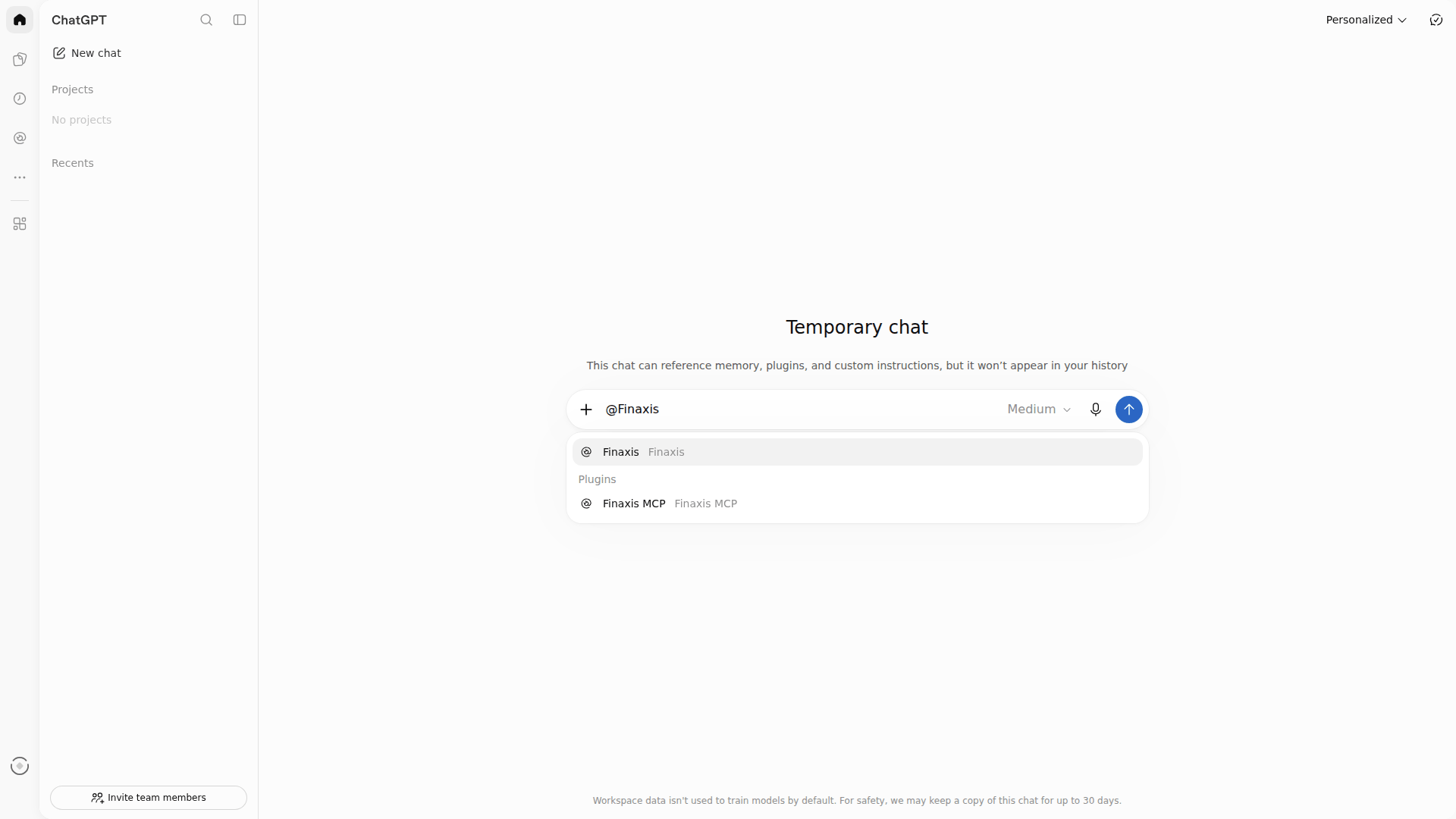
- Type @ followed by the beginning of the plugin name, then choose it under Plugins.
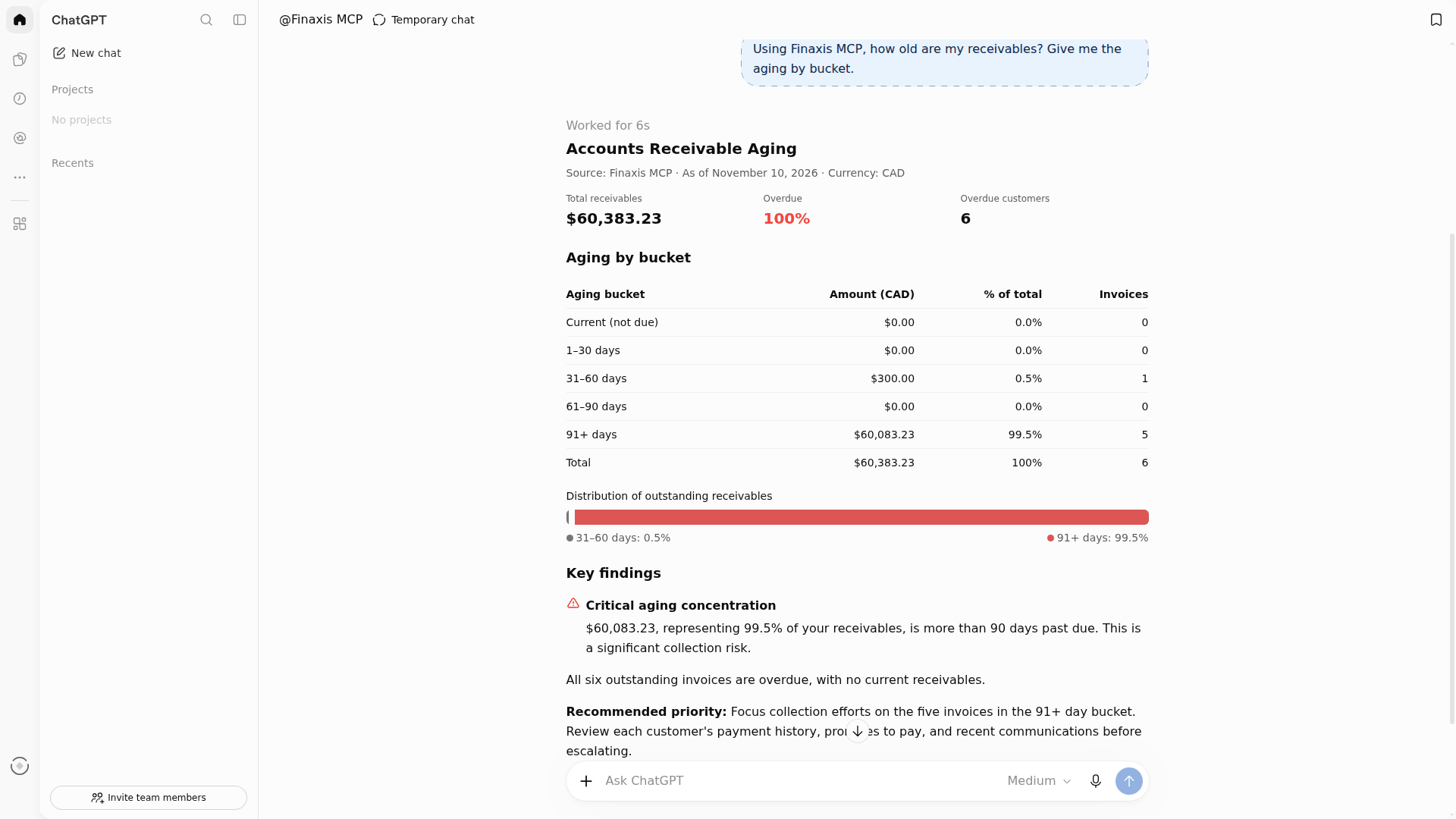
- Write your question, for example: how old are my receivables? Give me the aging by bucket.
- Read the answer. ChatGPT asks for your confirmation before a tool that writes in Finaxis.
Find ChatGPT in Finaxis
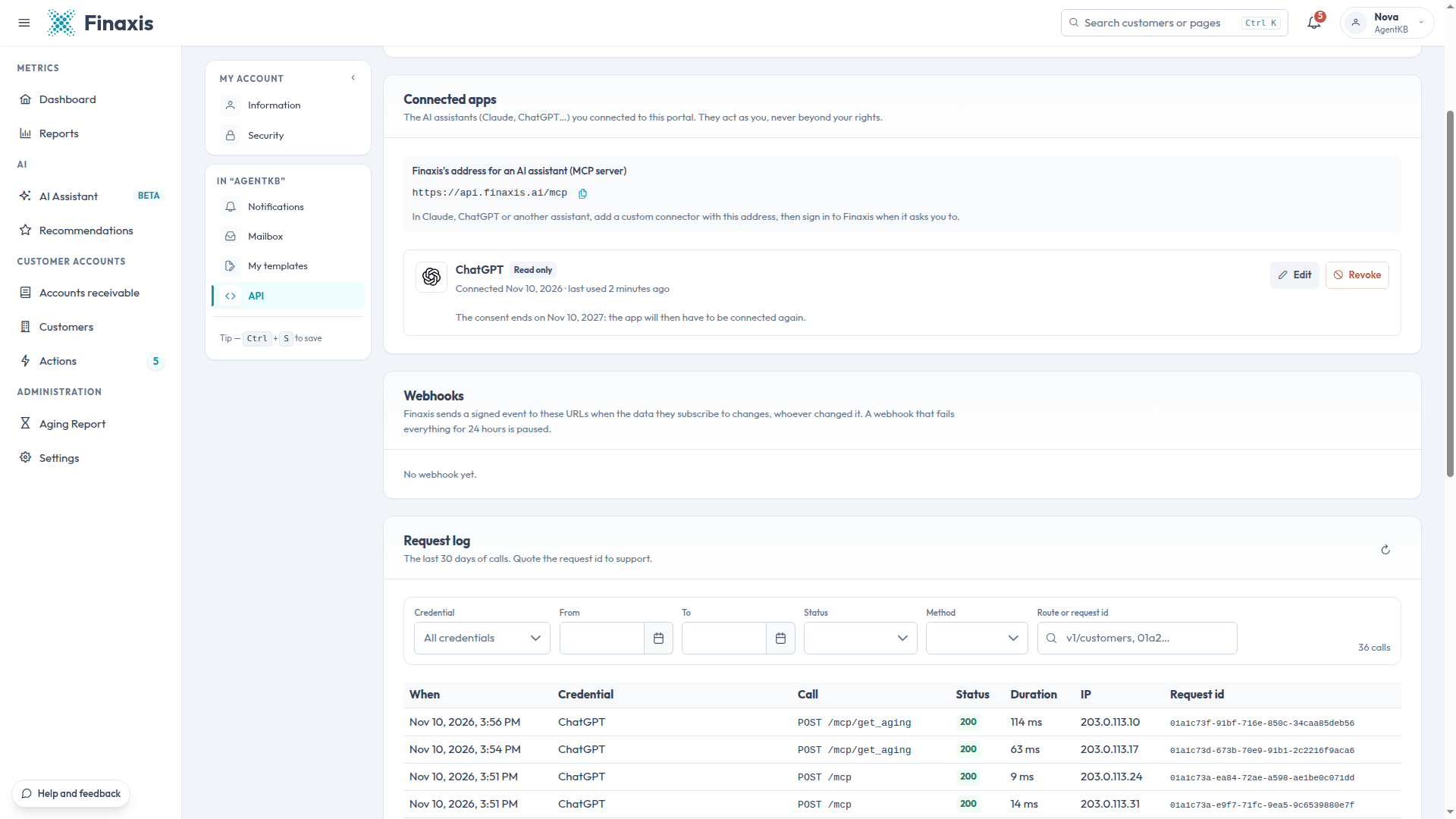
In Finaxis, My Profile, then API, the connection appears under Connected apps with the name ChatGPT, its access, the connection date and the date the consent ends. Its calls appear in the request log under the same name.
Uninstall or delete the plugin
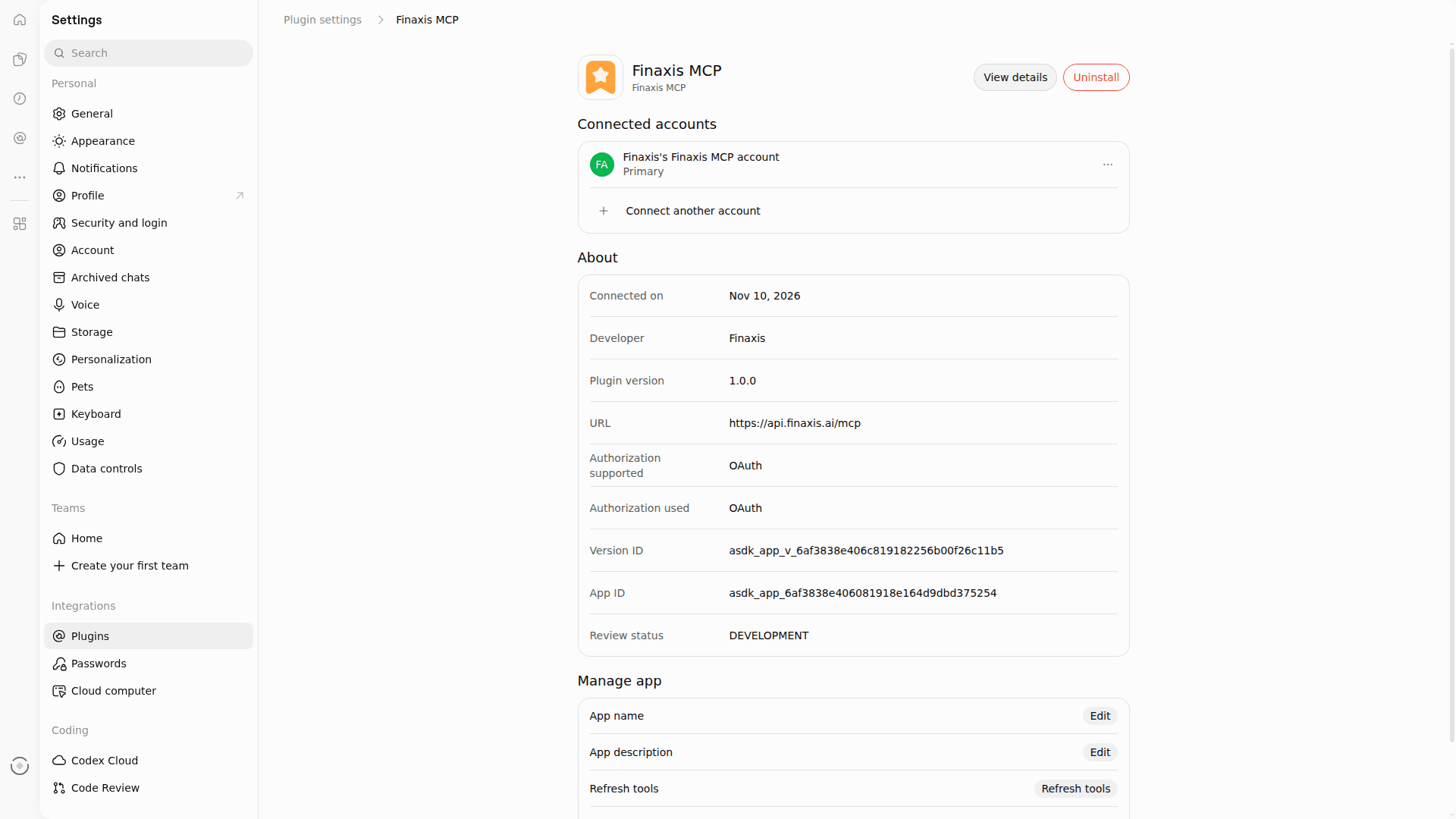
- In ChatGPT, click Plugins, then the plugin under Installed, then Manage. The plugin settings open.
- To stop using it, click Uninstall, then Uninstall again. ChatGPT also ends the connection in Finaxis: it leaves Connected apps.
- To remove the plugin for good, click Delete app at the bottom of the settings, then Delete app again.
- In Finaxis, check Connected apps. If ChatGPT is still listed, click Revoke, then Revoke again.
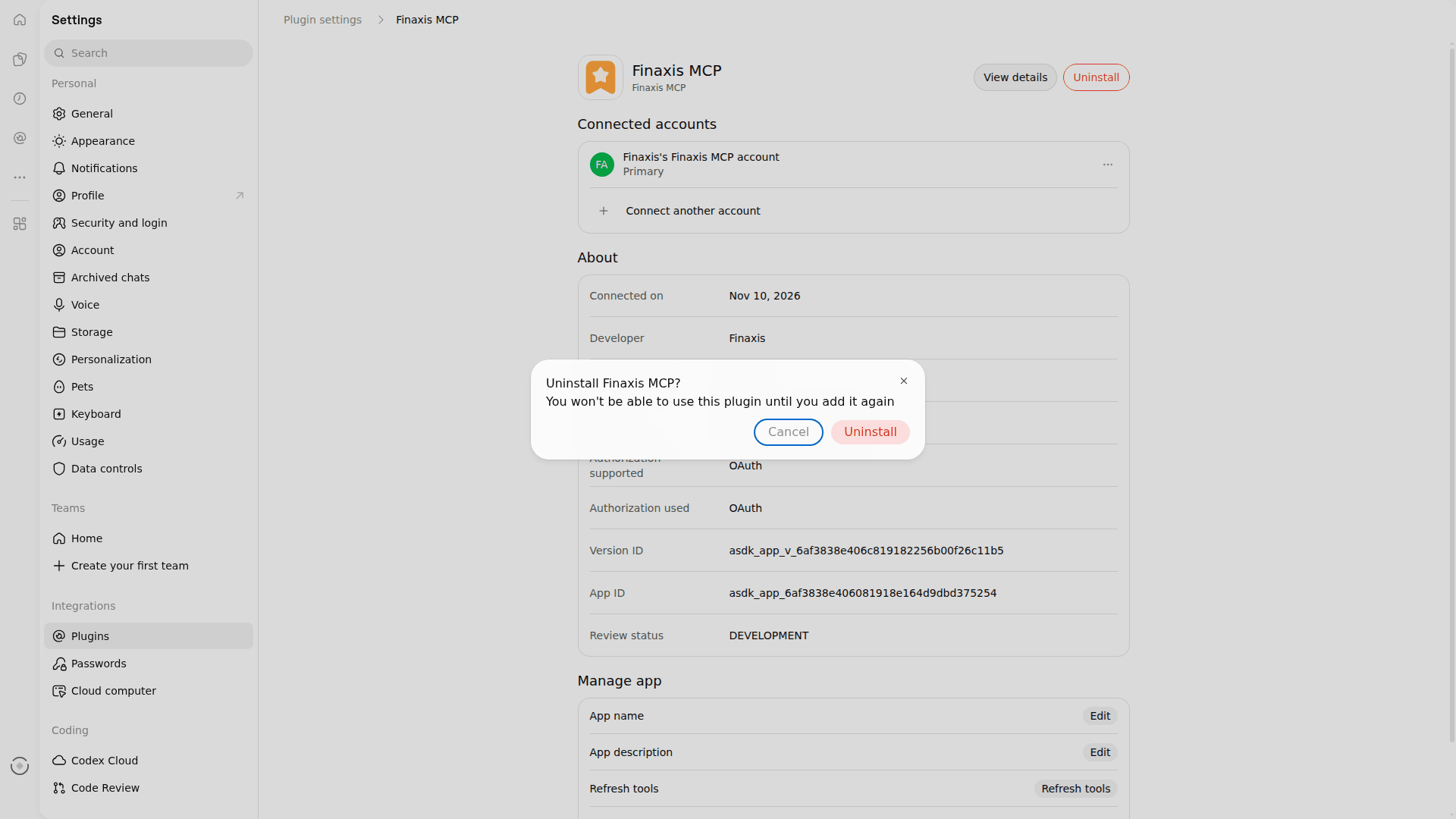
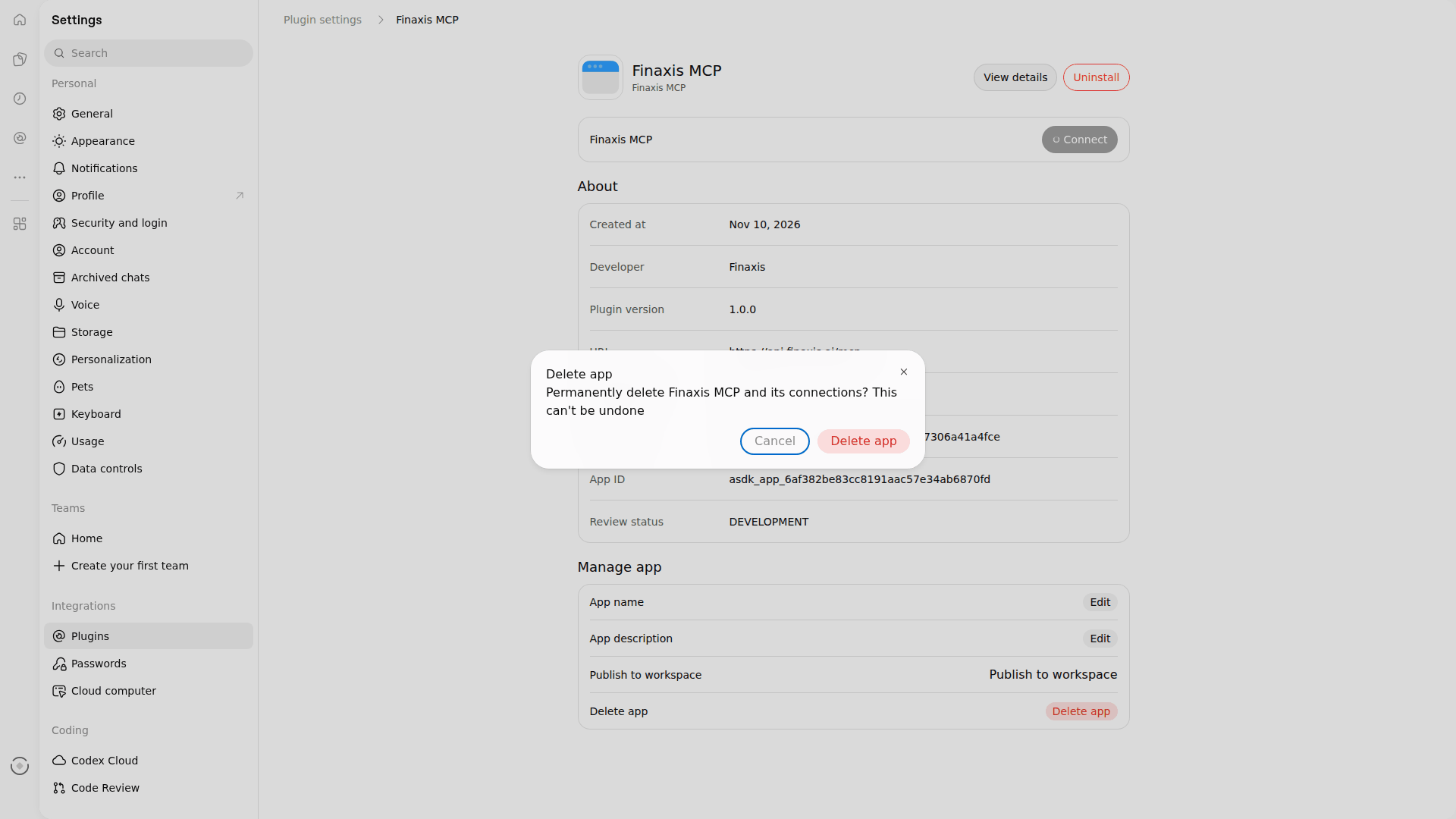
Please note: Good practice: after you disconnect or remove an assistant, always finish in Finaxis. Under My Profile, then API, then Connected apps, revoke its connection if it is still listed. ChatGPT ends it when you uninstall the plugin, and the check confirms it. See Revoke an API credential.
Troubleshooting
| Situation | What to do |
|---|---|
| ChatGPT does not offer Add custom MCP server | Your plan or your workspace permissions do not allow it. Ask your workspace admin. |
| Finaxis shows This app is not registered with Finaxis | The plugin uses the CIMD registration method. Delete the plugin, then add it again with Dynamic Client Registration (DCR). |
| An app with this name already exists | Your workspace already has a plugin with that name. Choose another name. |
| ChatGPT does not use Finaxis to answer | Mention the plugin with @ at the start of your question. |
| ChatGPT does not have a tool you expected | The connection does not have the scope that tool needs. Uninstall the plugin, add it again, and check the scope on the Finaxis page. |
Need help connecting ChatGPT? Write to support@finaxis.ai, and our team will help you.
Related articles
Can't find what you're looking for?
Our support team is here to help.