Connect Perplexity to Finaxis
Perplexity connects to Finaxis through a custom MCP connector. Once connected, write @Finaxis followed by your question about your accounts receivable: Perplexity reads Finaxis as you and cites Finaxis as the source of its answer. Perplexity's screens are shown in English.
Before you start
- Your Perplexity plan decides whether Add MCP connector is offered. In an Enterprise organization, an administrator must first allow members to add custom connectors. See Perplexity's help.
- To learn what Perplexity can then do in Finaxis, see Connect an AI assistant to Finaxis.
Add Finaxis to Perplexity
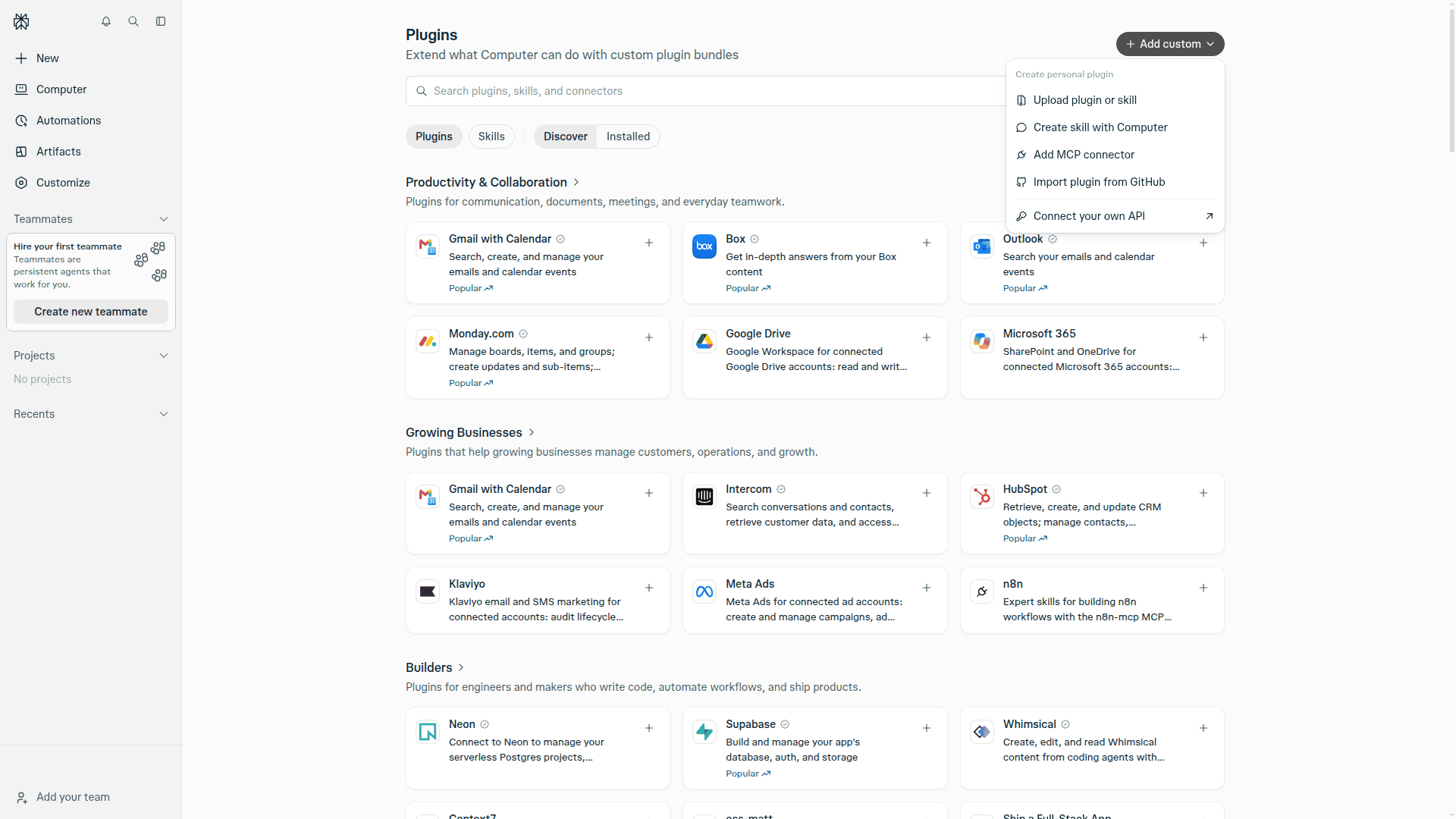
- In Perplexity's left menu, click Customize. The Plugins page opens.
- At the top right, click Add custom, then Add MCP connector.
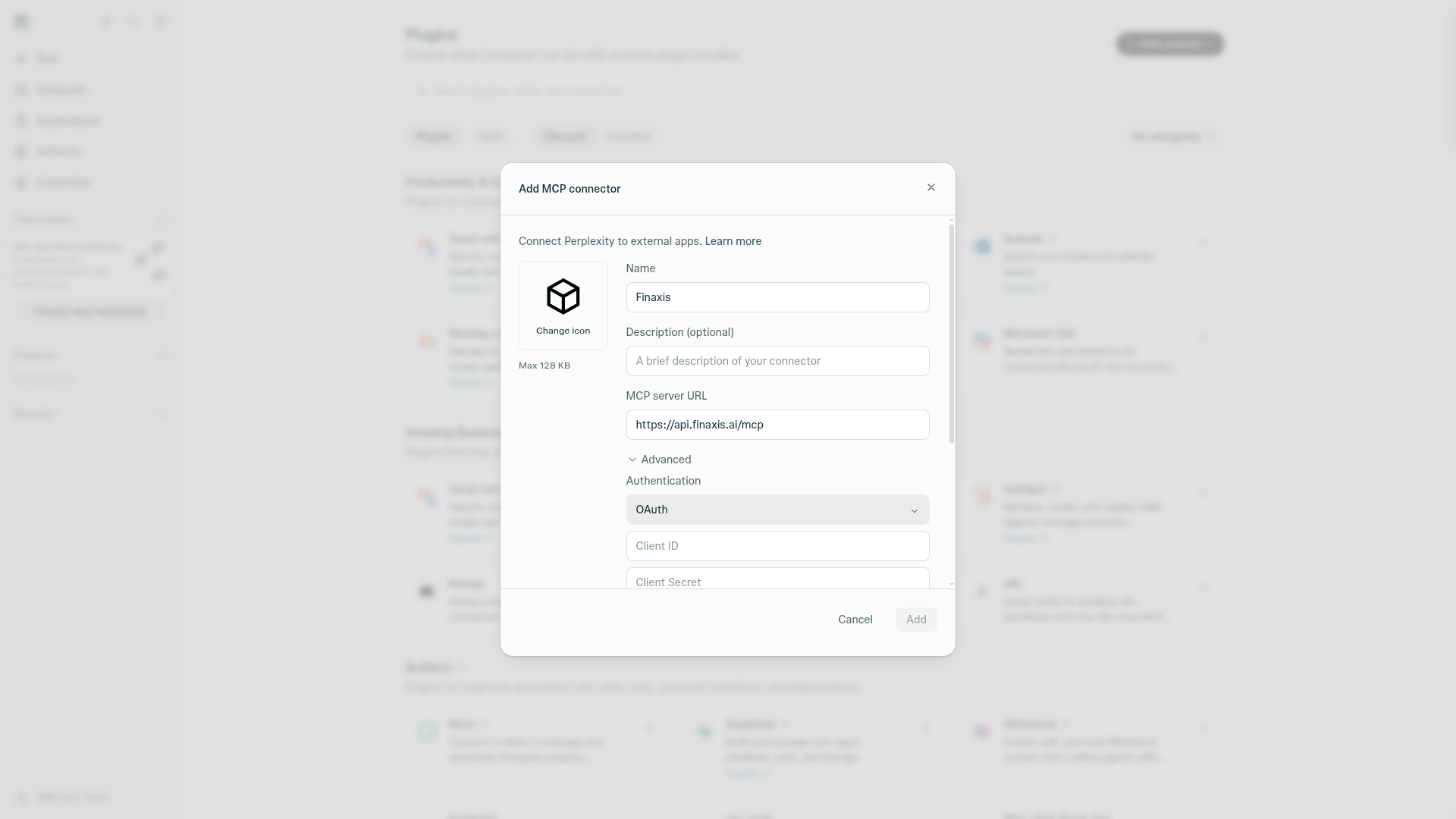
- In Name, enter Finaxis. In MCP server URL, paste https://api.finaxis.ai/mcp.
- Under Advanced, keep OAuth under Authentication and leave Client ID and Client Secret empty. Keep Streamable HTTP and Public.
- Check I understand custom connectors can introduce risks, then click Add.
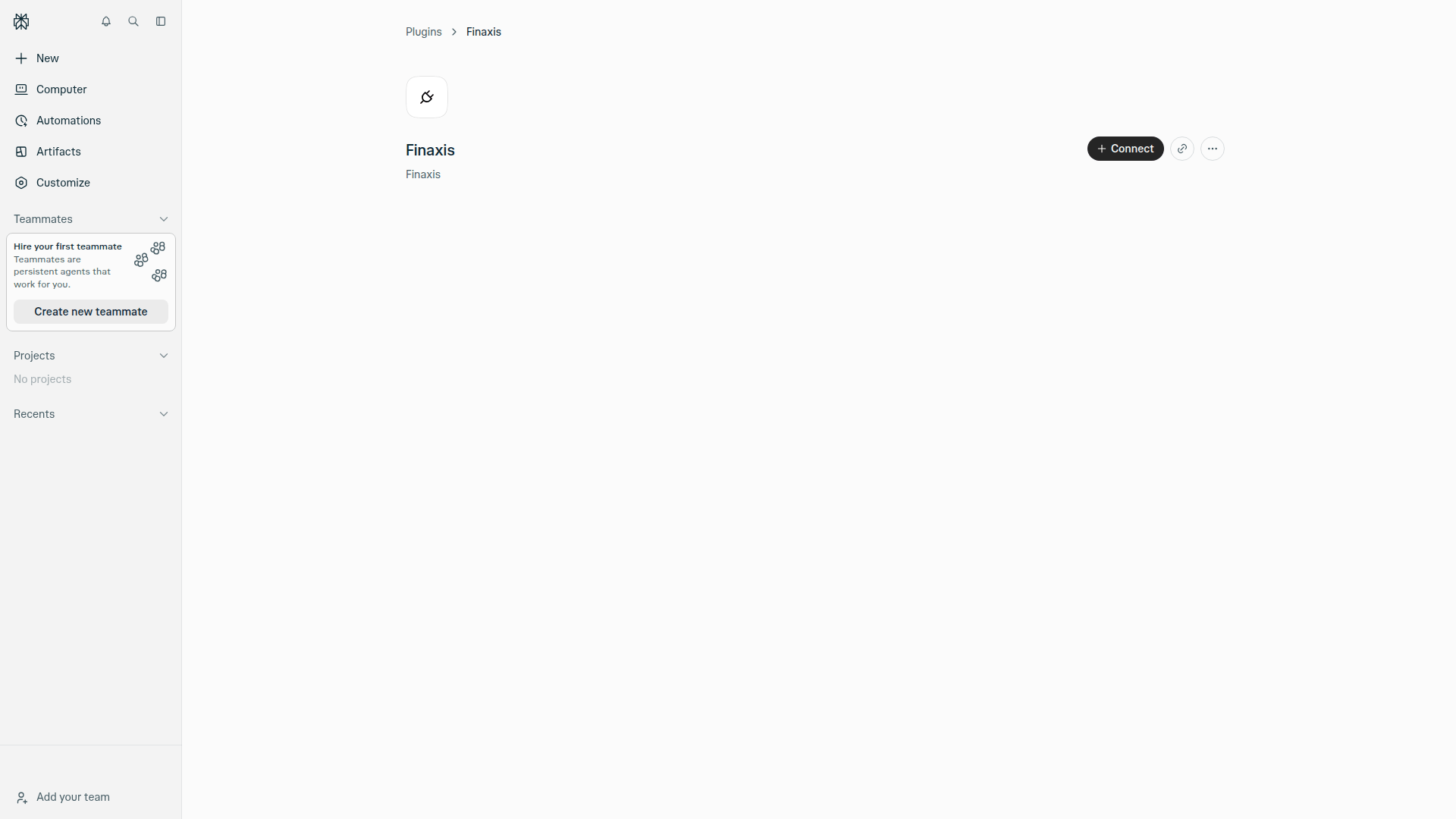
- On the Finaxis connector page, click Connect. The Finaxis page opens in a new window.
Approve the connection in Finaxis
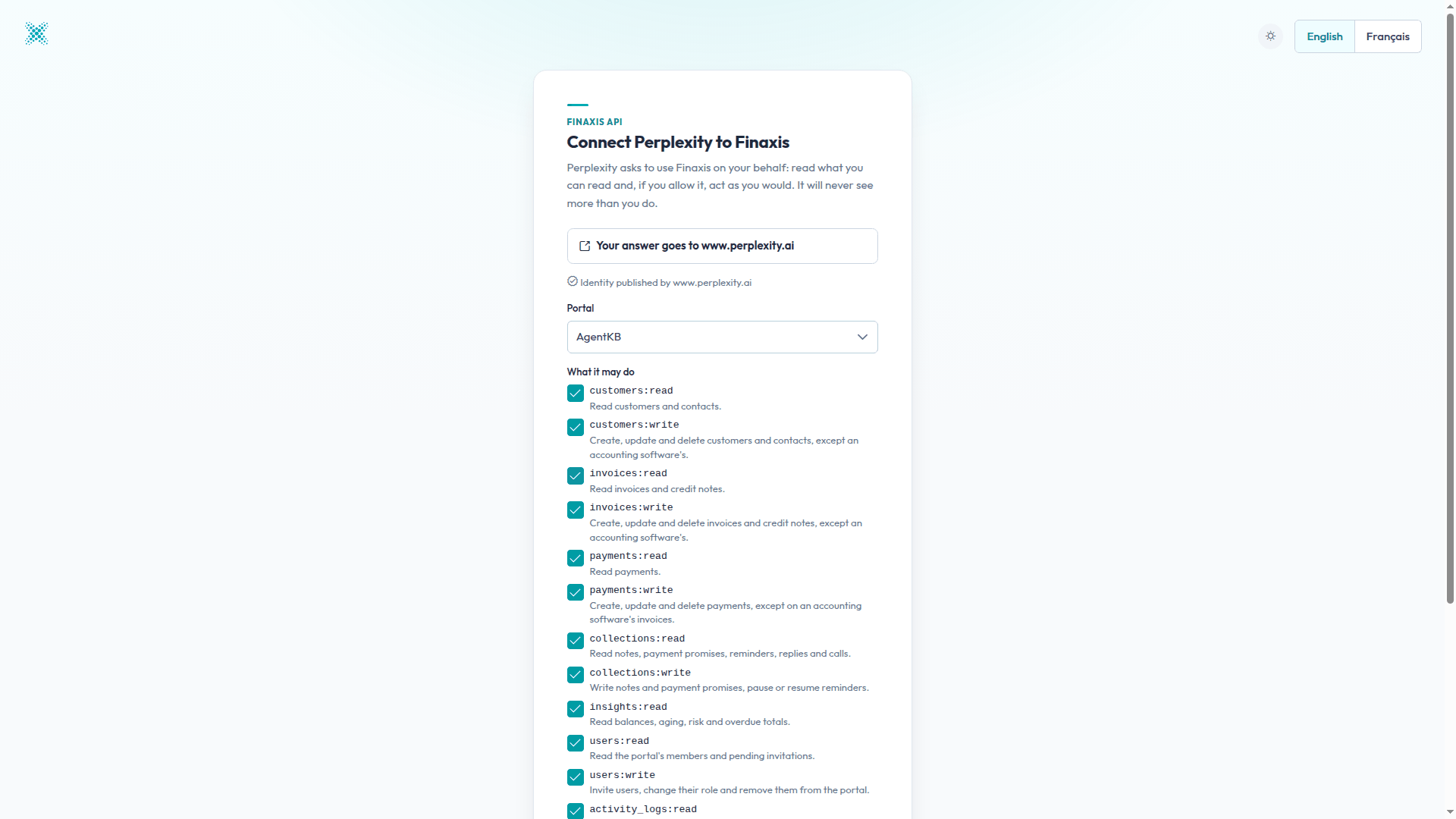
- If Finaxis asks you to log in, log in as usual. The Connect Perplexity to Finaxis page opens.
- Under Portal, choose the instance Perplexity will work in.
- Under What it may do, uncheck the scopes Perplexity should not have. To ask questions, the read scopes are enough.
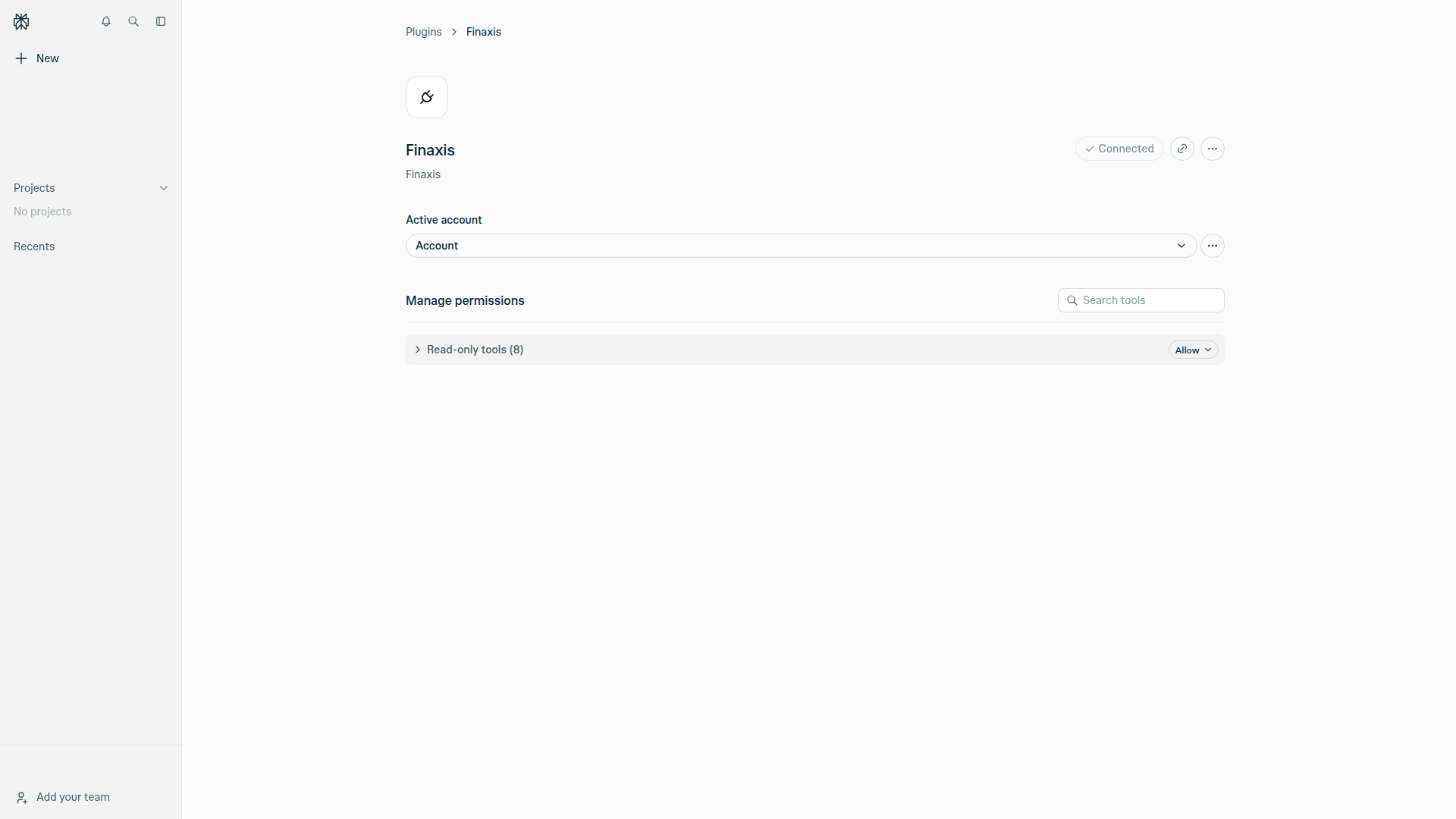
- Click Connect. The window closes, and the connector page in Perplexity shows Connected.
Under Manage permissions, the connector page lists the Finaxis tools by group. Perplexity only receives the tools that the scopes you approved allow: with the read scopes alone, it shows Read-only tools (8), set to Allow.
Ask Perplexity a question
- Start a new session. An incognito session works too, and is not saved to your history.
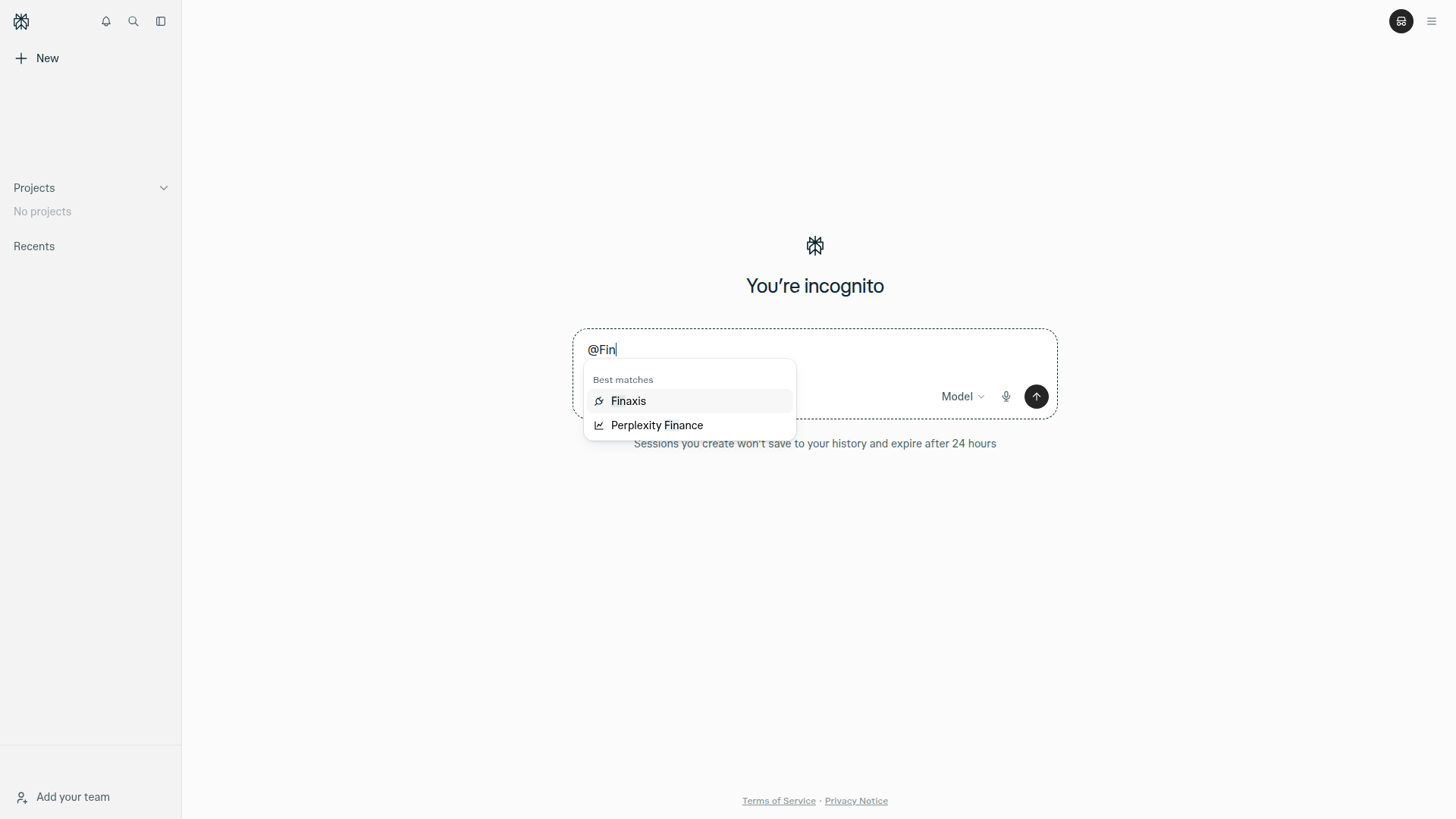
- Type @Fin, then choose Finaxis under Connectors.
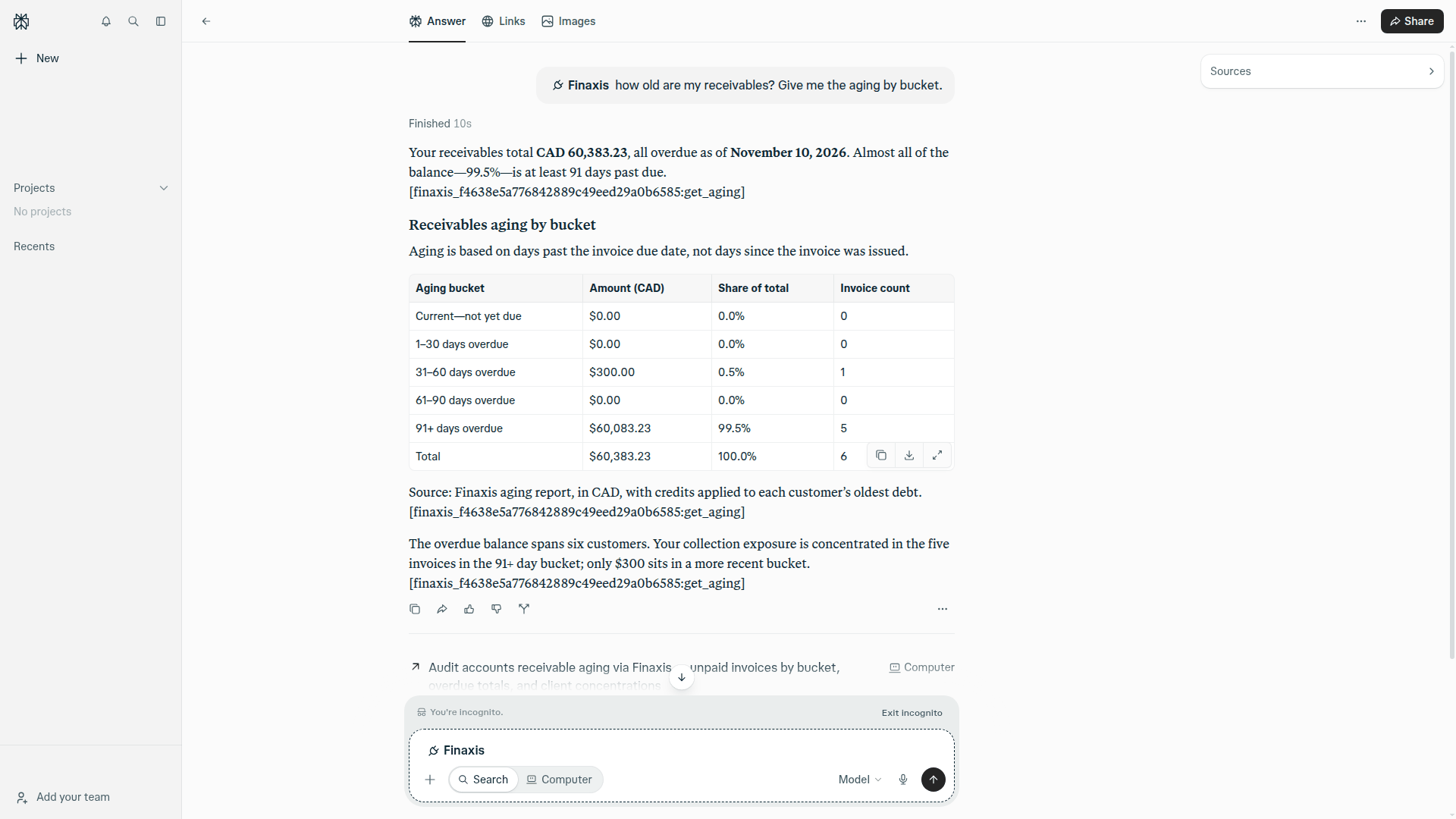
- Write your question after the mention, for example: how old are my receivables? Give me the aging by bucket.
- Read the answer. Perplexity cites the Finaxis tool it used next to each fact.
Find Perplexity in Finaxis
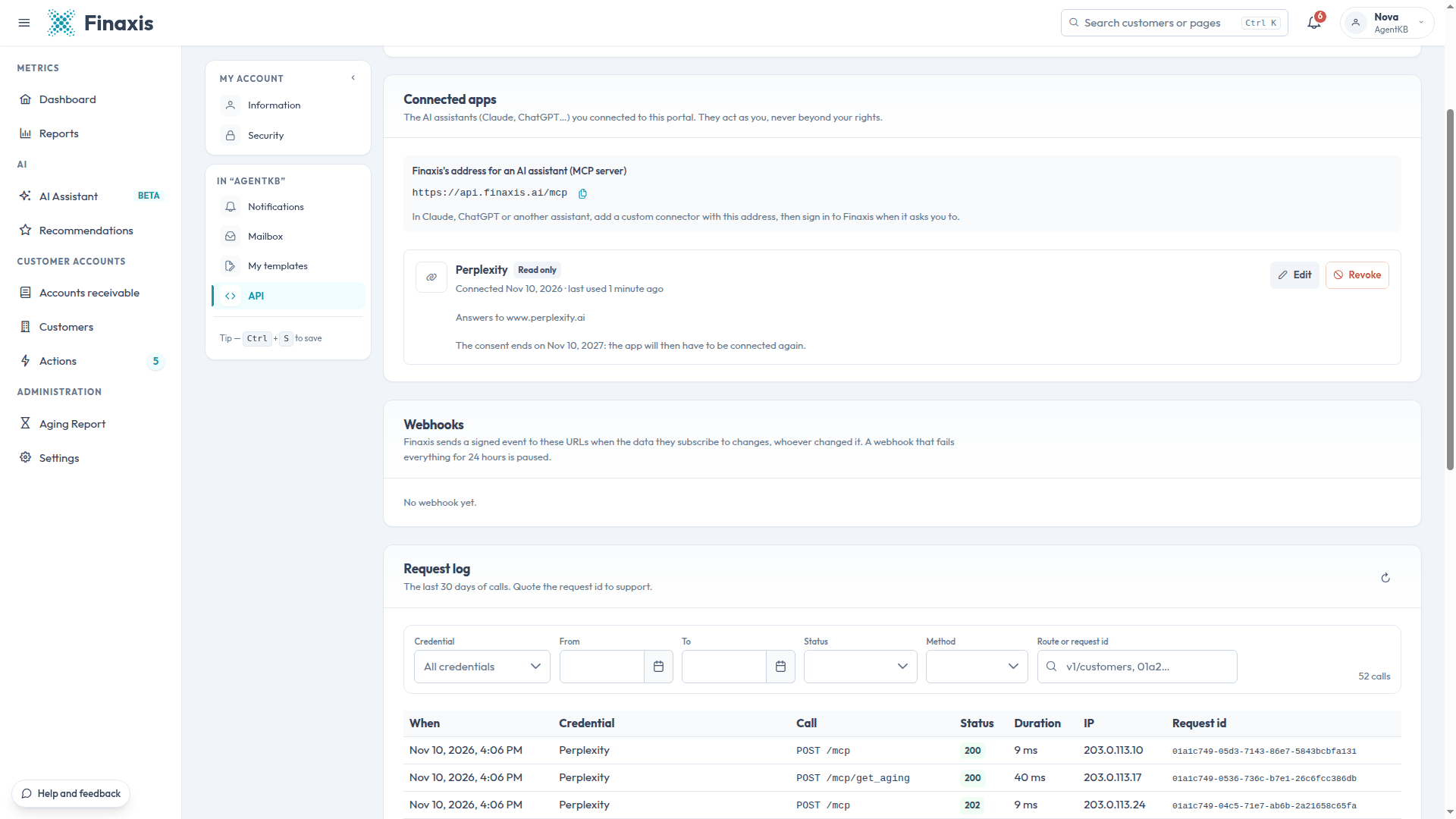
In Finaxis, My Profile, then API, the connection appears under Connected apps with the name Perplexity, its access, the connection date and the date the consent ends. Its calls appear in the request log under the same name.
Disconnect or delete the connector
- In Perplexity, click Customize, then open the Finaxis connector.
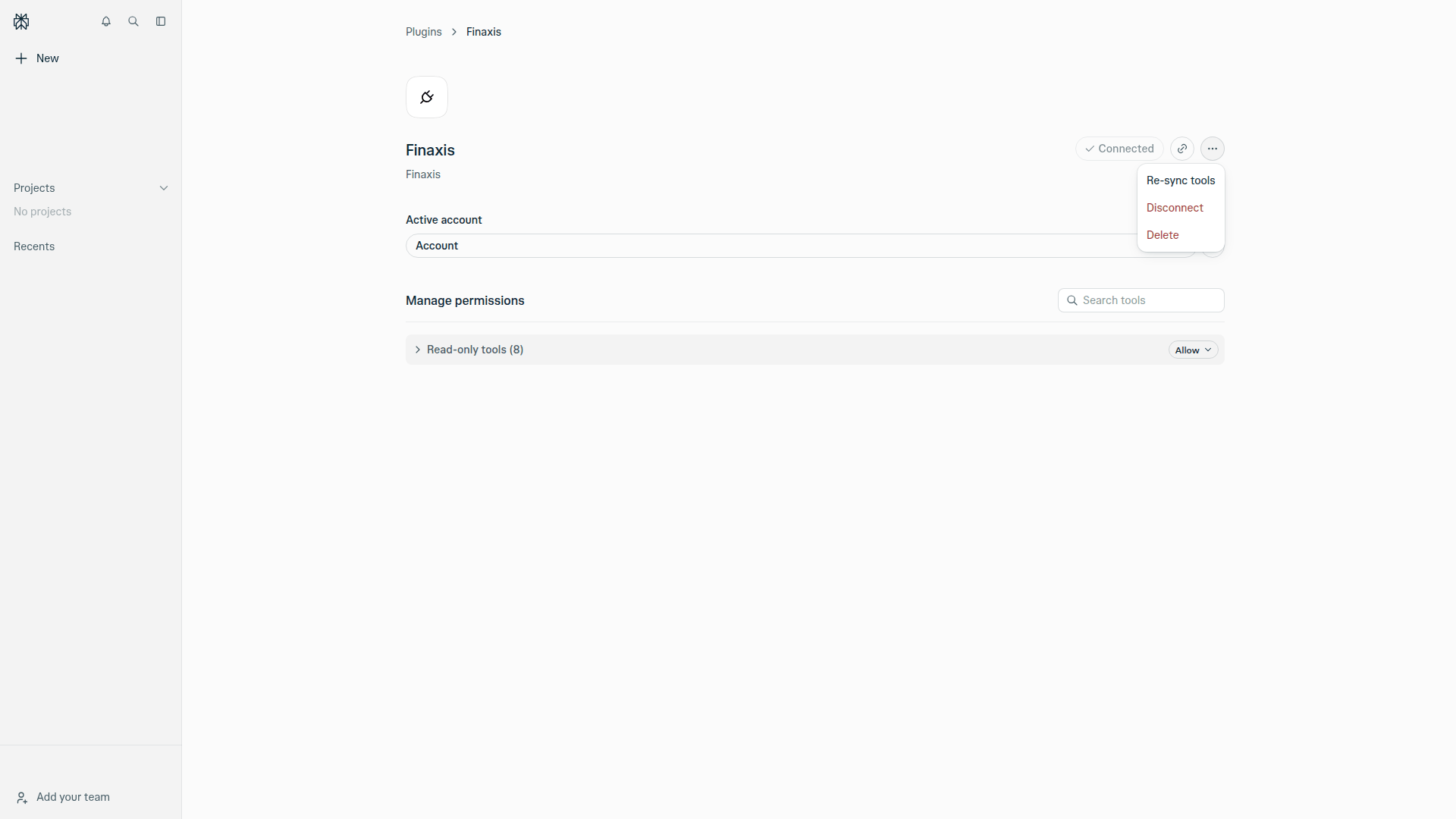
- At the top right of the connector page, click the three dots.
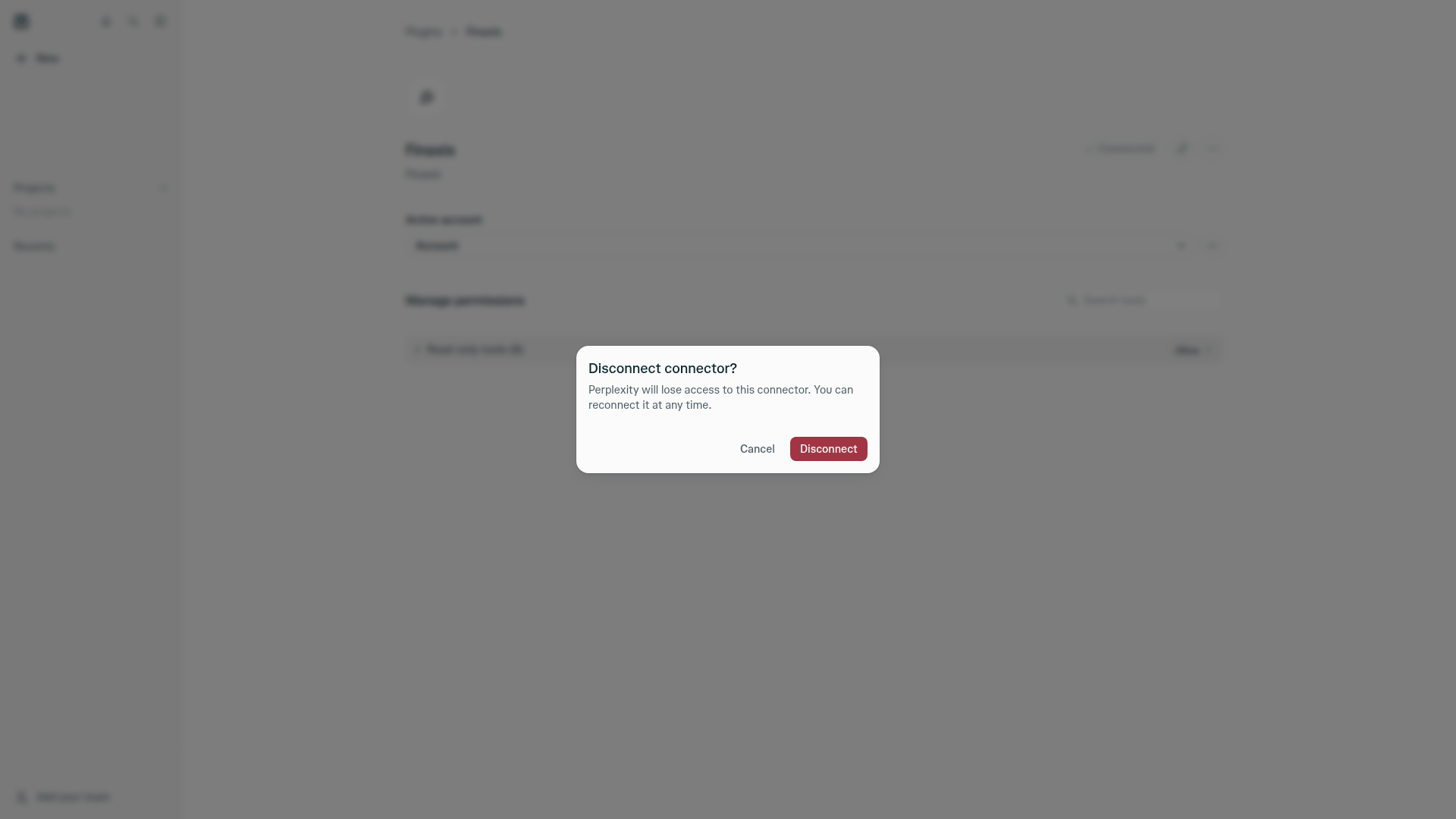
- To cut access, click Disconnect, then Disconnect again in Disconnect connector?. Perplexity also ends the connection in Finaxis: it leaves Connected apps. The connector stays, ready to connect again.
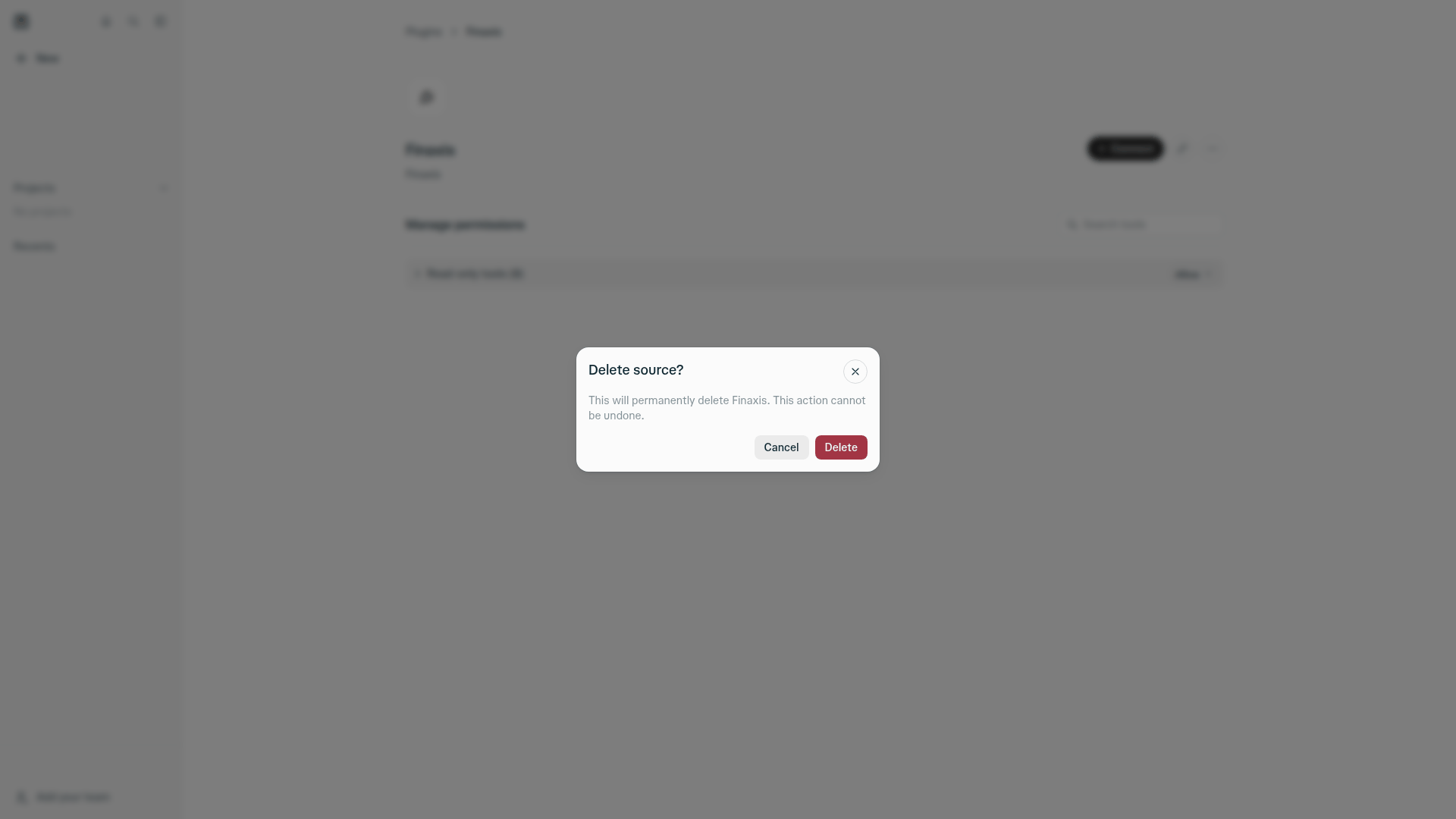
- To remove the connector for good, click Delete, then Delete again in Delete source?.
- In Finaxis, check Connected apps. If Perplexity is still listed, click Revoke, then Revoke again.
Please note: Good practice: after you disconnect or remove an assistant, always finish in Finaxis. Under My Profile, then API, then Connected apps, revoke its connection if it is still listed. Perplexity ends it when you disconnect the connector, and the check confirms it. See Revoke an API credential.
Troubleshooting
| Situation | What to do |
|---|---|
| Perplexity does not offer Add MCP connector | Your plan does not allow it, or your organization's administrator has not allowed members to add custom connectors. |
| Perplexity does not use Finaxis to answer | Mention @Finaxis at the start of your question. |
| Perplexity does not have a tool you expected | The connection does not have the scope that tool needs. Disconnect the connector, connect it again, and check the scope on the Finaxis page. Then click Re-sync tools. |
| The connector shows Connect again | The connection was disconnected, revoked in Finaxis, or 12 months passed since you approved it. Click Connect and approve it again. |
Need help connecting Perplexity? Write to support@finaxis.ai, and our team will help you.
Related articles
Can't find what you're looking for?
Our support team is here to help.