Add a webhook
A webhook is an address in your system where Finaxis sends an event each time the data it subscribes to changes. Your ERP learns that an invoice is paid, your CRM that a customer replied, without asking the API over and over. Finaxis sends the event whoever made the change: your system through the API, a person in Finaxis, or a QuickBooks, Acomba or HubSpot synchronization.
Before you start
- A webhook belongs to an API credential and only receives what that credential can read. Create the credential first: a service account or a personal credential.
- An administrator adds webhooks for the instance's service accounts. Every member adds webhooks for their own personal credentials.
- Your system needs an HTTPS address that can receive the events.
Add the webhook
- Open the API page. For a service account, click Settings, then API. For one of your personal credentials, click your name at the top right, My Profile, then API.
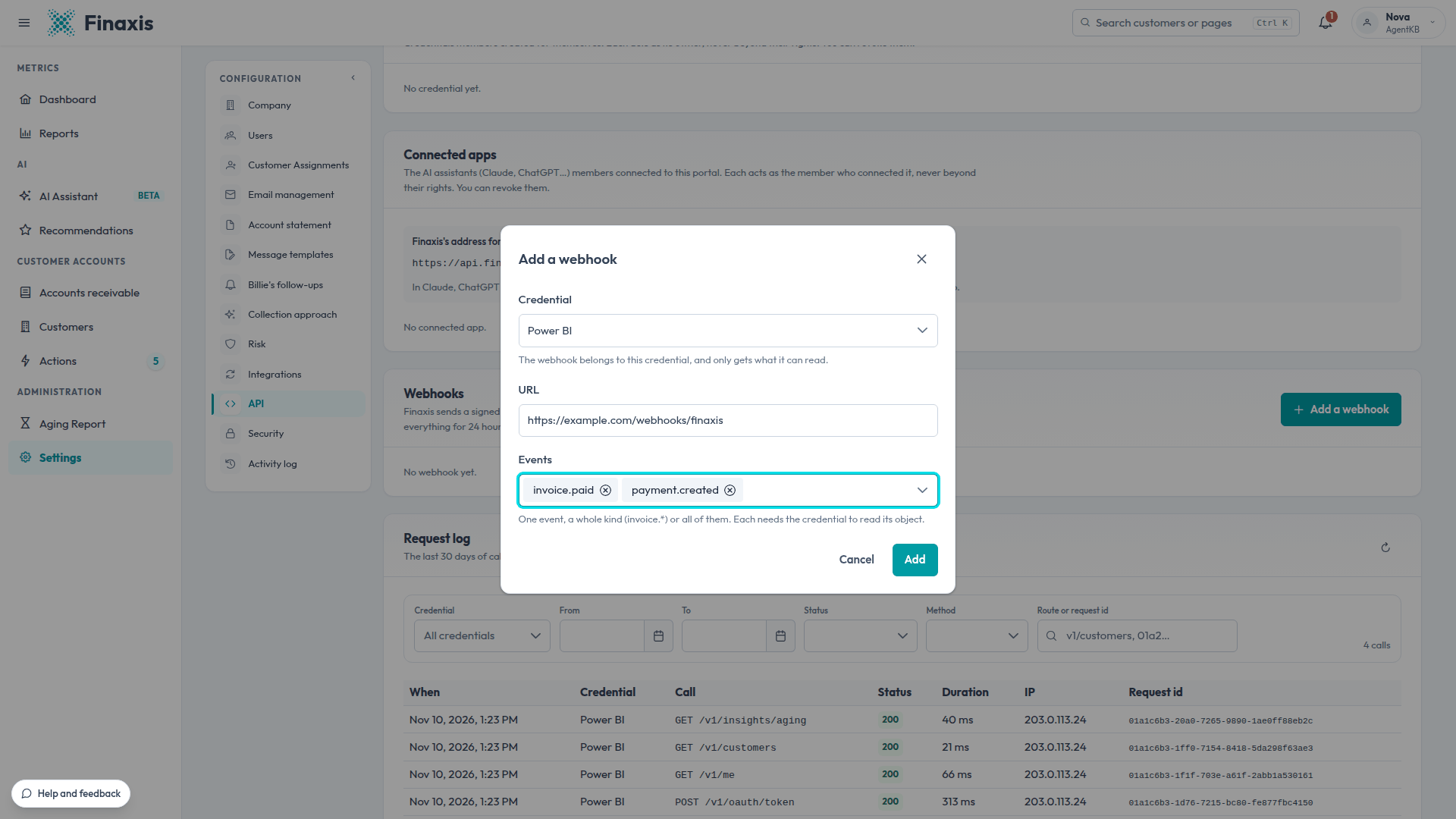
- Under Webhooks, click Add a webhook.
- In Credential, choose the credential the webhook belongs to.
- In URL, enter the HTTPS address of your system that receives the events.
- In Events, choose one or more events, a whole kind such as invoice.*, or All events (*).
- Click Add. If Finaxis asks you to confirm your password, enter it, then click Confirm.
- Under Webhook secret, copy the secret and give it to your system, then close the window.
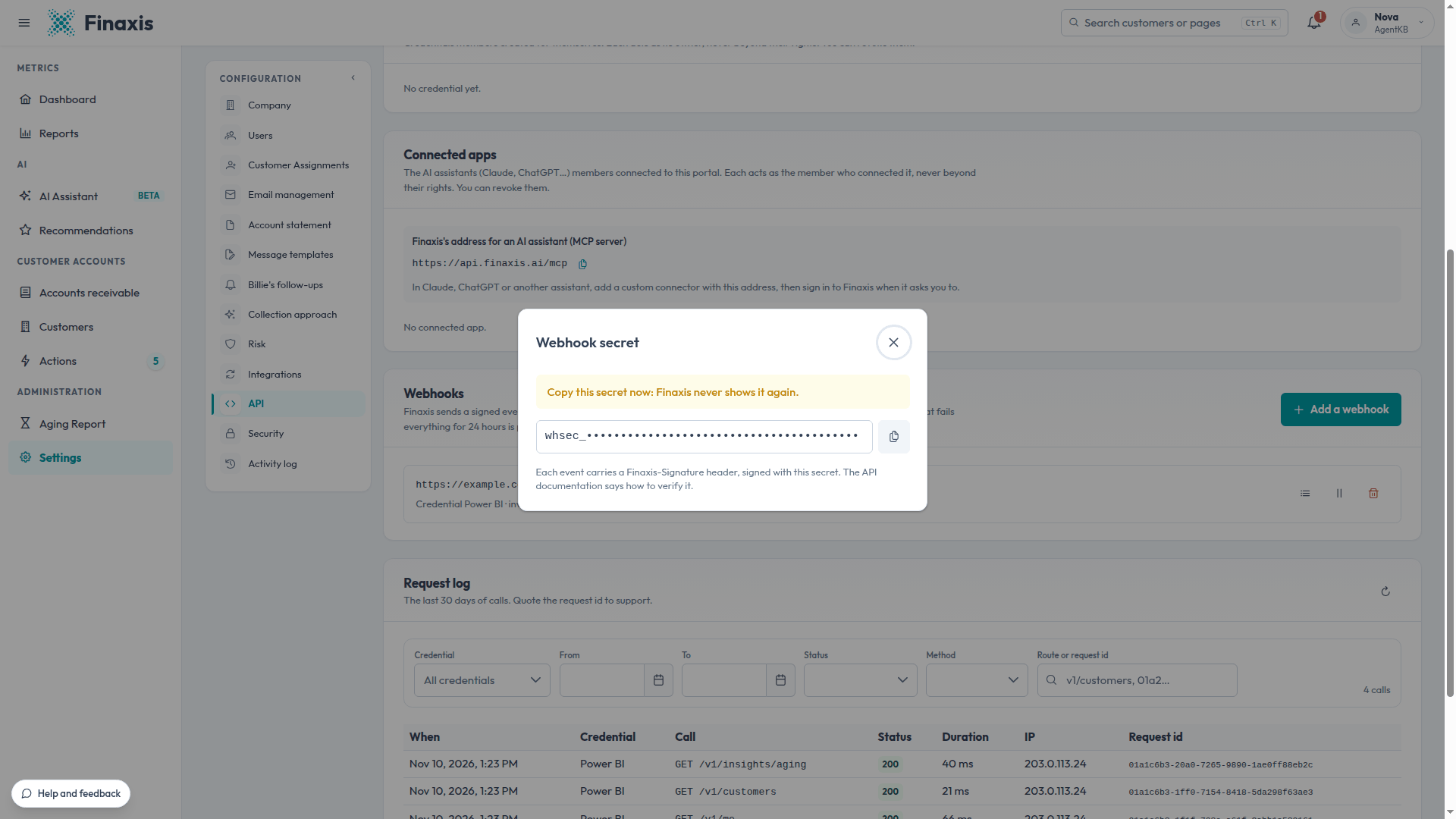
Please note: Finaxis shows the webhook secret once. If you lose it, delete the webhook and add it again.
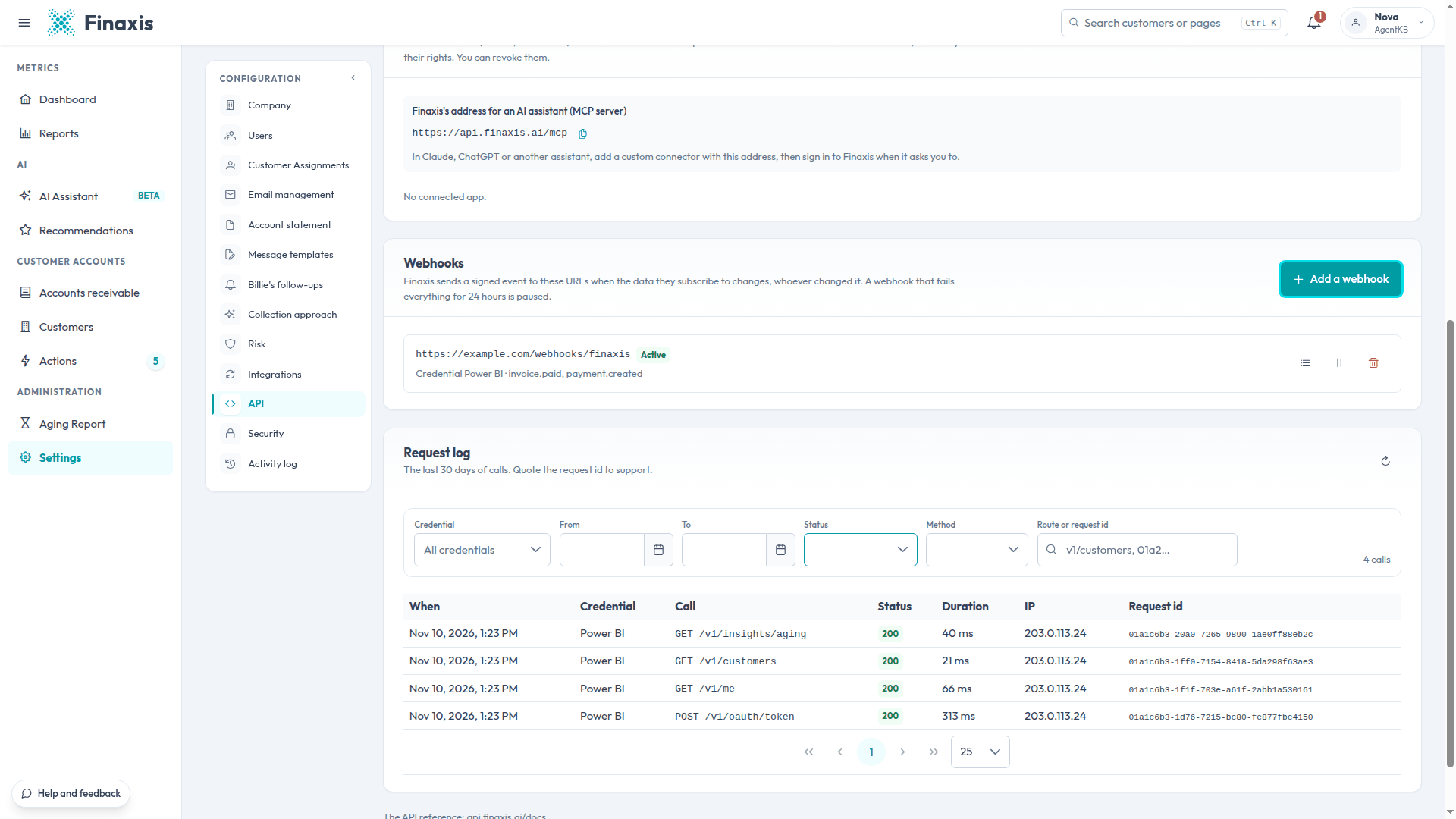
The webhook then appears under Webhooks, with its address, its status, its credential and its events.
Choose the events
Each event needs the credential to read its object. A credential with only invoices:read, for example, can subscribe to invoice events but not to payment events.
| Kind | Events | Scope the credential needs |
|---|---|---|
| customer.* | customer.created, customer.updated, customer.deleted | customers:read |
| contact.* | contact.created, contact.updated, contact.deleted | customers:read |
| invoice.* | invoice.created, invoice.updated, invoice.deleted, invoice.balance_changed, invoice.paid | invoices:read |
| payment.* | payment.created, payment.updated, payment.deleted | payments:read |
| promise.* | promise.created, promise.updated, promise.deleted, promise.due (payment arrangements) | collections:read |
| note.* | note.created | collections:read |
| reminder.* | reminder.sent | collections:read |
| reply.* | reply.received | collections:read |
Each event says who caused it, so your system can recognize its own changes and ignore them.
Check that an event comes from Finaxis
Each event carries a Finaxis-Signature header, signed with the webhook secret. Your system checks it before trusting the event. An event can also arrive twice: its id lets your system ignore the duplicate. The Webhooks section of the API reference explains both, with an example: api.finaxis.ai/docs.
Your system answers each event with a success code within 10 seconds. To follow what was sent, see Check webhook deliveries.
Troubleshooting
| Situation | What to do |
|---|---|
| Finaxis refuses the webhook and names scopes | The credential cannot read those events. Add the missing scopes to the credential with Edit, or choose other events. |
| A credential is missing from the Credential list | In My Profile, you only see your own personal credentials. AI assistants connected to Finaxis are not offered for webhooks. |
| You lost the webhook secret | Delete the webhook, then add it again. Finaxis shows a new secret. |
Your system does not receive the events? Write to support@finaxis.ai with the webhook address, and our team will help you.
Related articles
Can't find what you're looking for?
Our support team is here to help.