Manage your collection approaches
A collection approach is your way of following up: when Finaxis writes to a customer who has not paid, in what tone, by email or text, and when it stops. Finaxis prepares every reminder from these rules and puts it in To approve, where you have the final say. This guide shows how to read and edit an approach, create several, assign customers to them, and make an exception for one customer.
Before you start
- Your customers and their invoices are already in Finaxis, through an integration or a CSV import.
- Creating, editing or deleting an approach is reserved for portal administrators. Adjusting the reminders of one customer is open to the person who handles that customer.
- To send texts, a contact needs a mobile phone number. To send emails, an email address.
What an approach is
Think about how you follow up with a customer by hand. A short, polite reminder before the due date. A follow-up a few days after. A firmer tone if nothing moves. A collection approach is exactly that. Finaxis applies it to every customer, every day.
| Term | What it means |
|---|---|
| Approach | Your follow-up recipe: when to write, in what tone, on which channel, and when to stop. Every customer follows one approach. |
| Default approach | The one every customer follows when they are not assigned to another, new customers included. |
| Reminder sequence | The list of reminders, in order. For example: 7 days before the due date, then at 5, 15, 30 and 45 days late. |
| Tone level | A step of firmness. The starter approach has four: Friendly, Professional, Firm and Final notice. Each level has its own messages. |
| Notch | One tone level up or down. Finaxis moves one notch up or down based on what the customer does. |
| Hold | A situation where Finaxis holds off writing, for example when the customer replied to you or made a payment arrangement. |
| Customer exception | A setting that applies to one customer only. The approach stays the same for everyone else. |
| To approve | The tab of the Actions page where every prepared reminder waits for your approval. |
What happens every day
- Finaxis looks at how late each customer is, based on their oldest unpaid invoice.
- When a reminder in the sequence comes due, Finaxis takes a message from the right tone level and fills it in for that customer: their name, their invoices, their balance.
- The day before it goes out, the draft lands in Actions › To approve.
- You read it, edit it if needed, then approve it.
- The reminder goes out at the planned time, inside your sending window.
Please note: The Nothing is sent without your approval setting is always on in an approach. A reminder you do not approve does not go out.
Were you using reminder campaigns? Since November 6, 2026, each campaign has become an approach, with the same steps and the same messages.
Find your approaches
- In the left menu, click Settings.
- In the Configuration list, click Collection approach.
- The Collection approaches page shows each of your approaches with its customer count and a summary: when the first reminder goes out, the channel, and the number of rules and tone levels.
- Click Open to see and edit an approach.
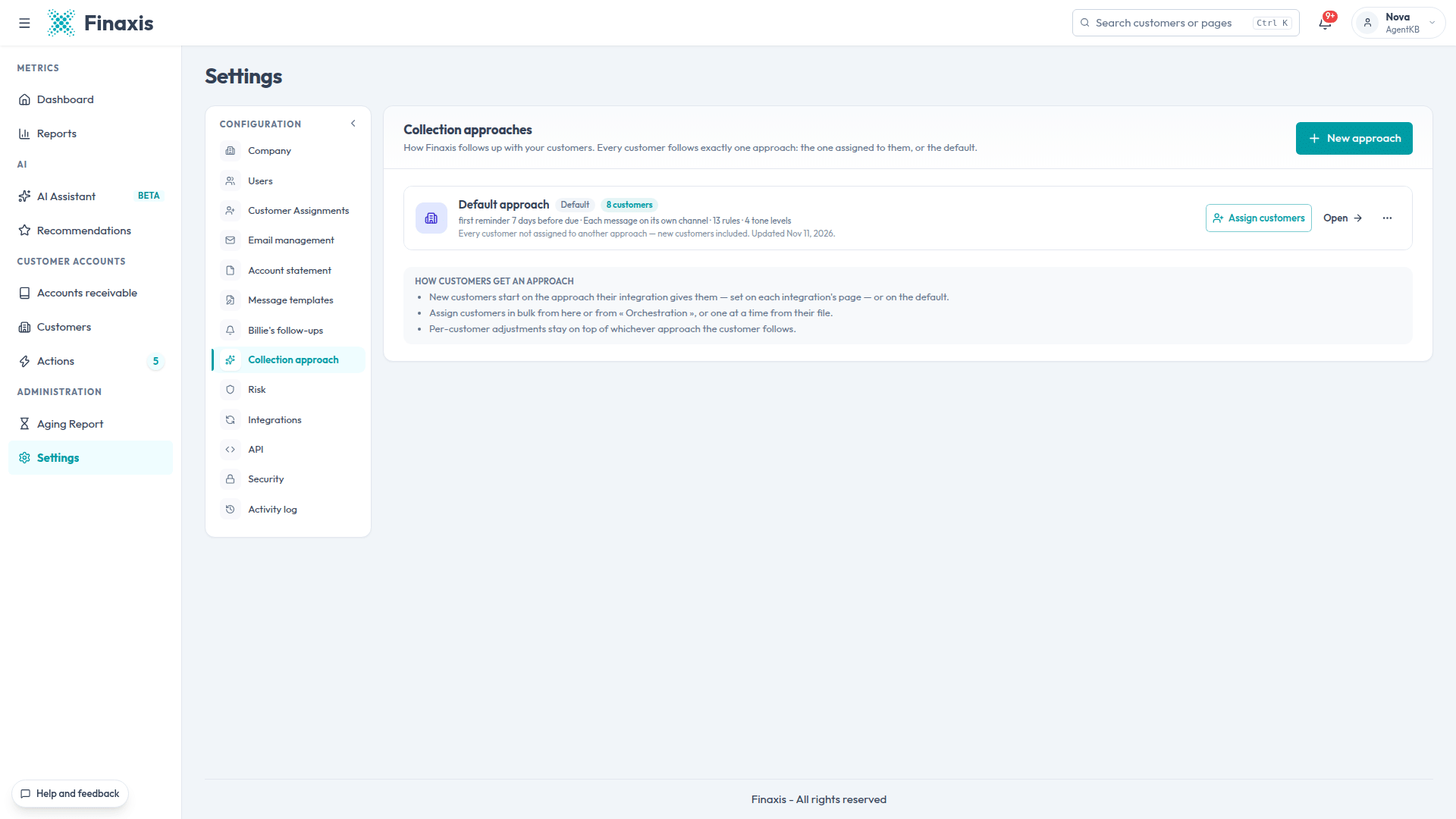
The How customers get an approach box sums up the three ways a customer ends up in an approach. They are explained below, in Assign customers to an approach.
Read and edit an approach
An approach page reads from top to bottom: who it applies to, when it writes, when it holds off, how it adjusts the tone, and how it sends. On the right, the On a real customer panel shows what one of your customers would receive if they neither pay nor reply.
Your changes stay pending until you apply them. Nothing changes for your customers before then.
Who follows it
This section gives the number of customers who follow the approach. See them in Orchestration opens their list. The Assign new customers to this approach box is checked on the default approach. Only one approach can have it.
Reminder sequence: when to write, and in what tone
Each row is one reminder. Read it from left to right: when it goes out, in what tone, on which channel.
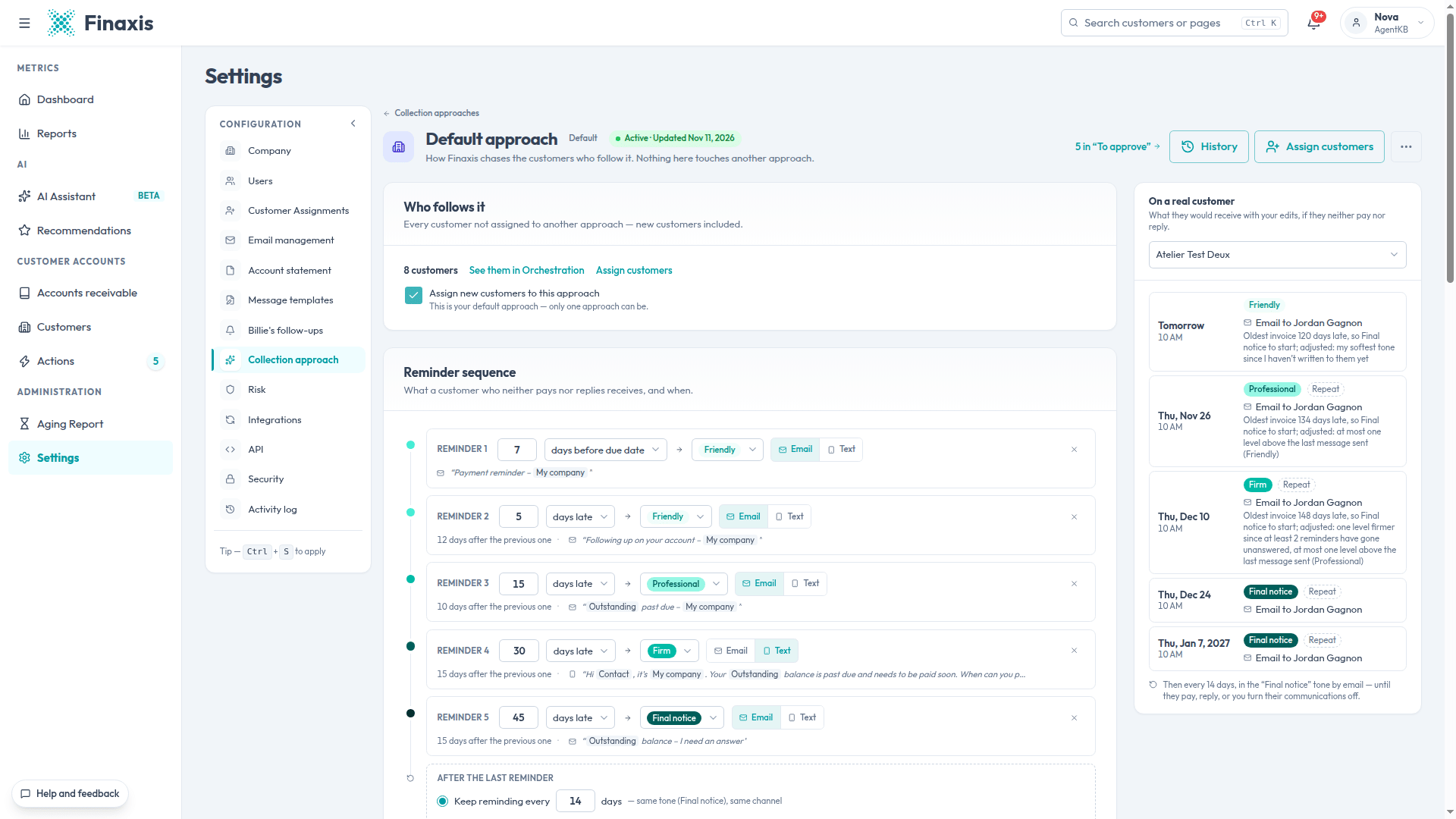
- When it goes out: a number of days before due date, on the due date, or a number of days late.
- Tone: the tone level of this reminder, for example Friendly or Firm.
- Channel: Email or Text.
- Under each row, Finaxis shows the gap since the previous reminder and the start of the message it uses. Click the message to edit it.
- Add a reminder adds a row, up to 12 reminders. The x at the end of a row removes it. An approach always keeps at least one reminder.
- After the last reminder: choose Keep reminding every X days, in the same tone and on the same channel, or Stop reminding. The customer then stays in your lists, but nothing more is proposed.
Please note: A reminder cannot be softer than the one before it. The tone follows how late the customer is: a customer already 60 days late at their first reminder gets the tone of the 60-day step. If two tones are swapped, Finaxis flags it under the row.
In the starter approach Finaxis provides, the sequence has five reminders: 7 days before the due date (Friendly, by email), then at 5 days late (Friendly), 15 days (Professional), 30 days (Firm, by text) and 45 days (Final notice). After that, Finaxis reminds every 14 days in the Final notice tone.
I hold off when…: holds
These switches tell Finaxis when to hold off. While one of these situations lasts, no reminder is proposed for that customer.
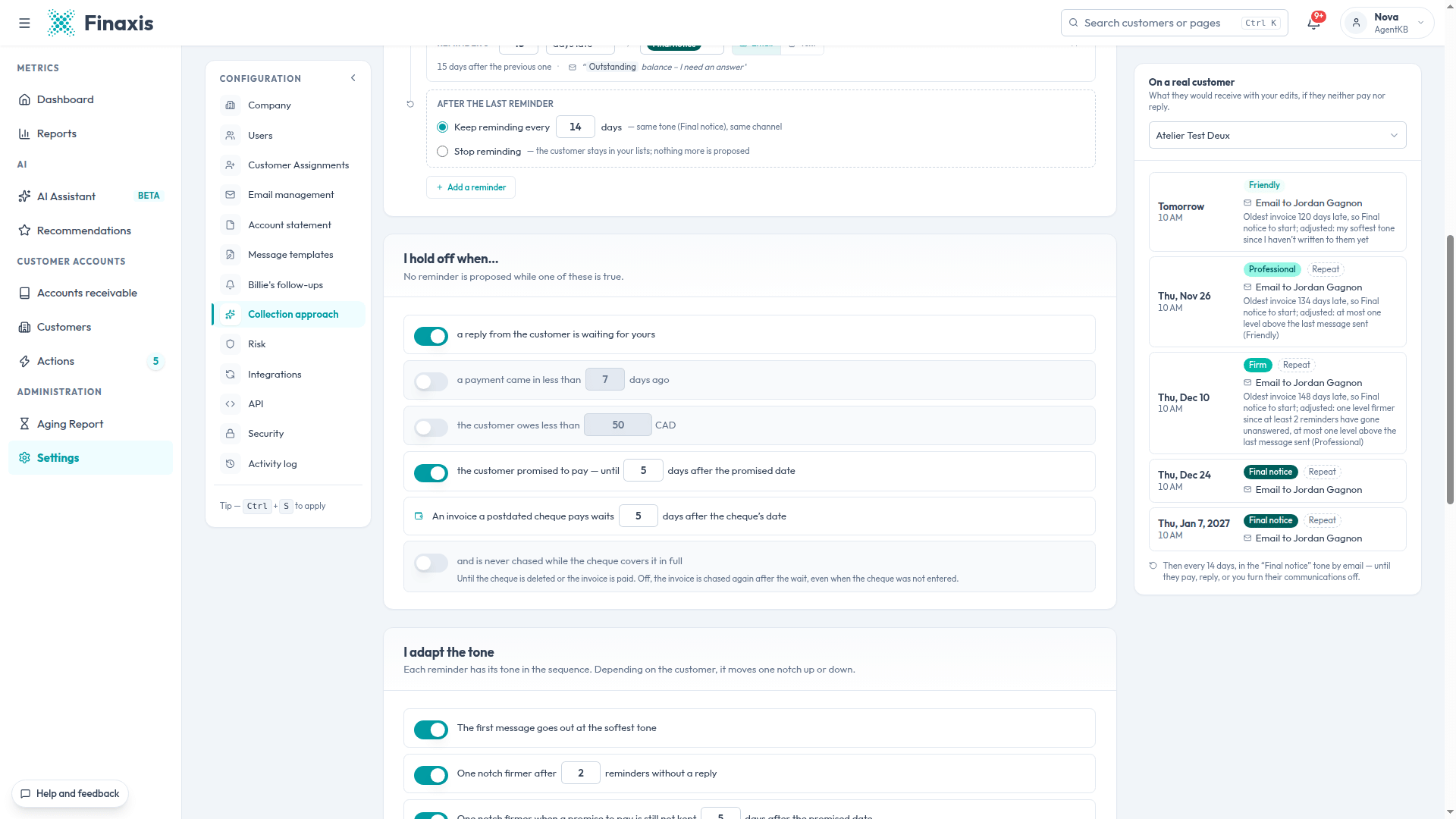
| Setting | In plain words |
|---|---|
| a reply from the customer is waiting for yours | The customer wrote to you. Finaxis waits for your answer before reminding them. Keep it on. |
| a payment came in less than X days ago | After a payment, Finaxis gives the customer a few days before writing again. |
| the customer owes less than X | Below this amount, the customer is not reminded at all. Handy to avoid chasing a few dollars. |
| the customer promised to pay, until X days after the promised date | Invoices covered by a payment arrangement are not chased before the promised date, plus this grace period. |
| An invoice a postdated cheque pays waits X days after the cheque's date | Invoices covered by a postdated cheque wait for the cheque's date, plus this delay. The switch right below holds them for as long as the cheque covers them in full. |
I adapt the tone: automatic adjustments
Each reminder has a starting tone in the sequence. These settings move it one notch up or down based on what the customer did. You do not write to a good payer who forgot an invoice the way you write to a customer who never answers.
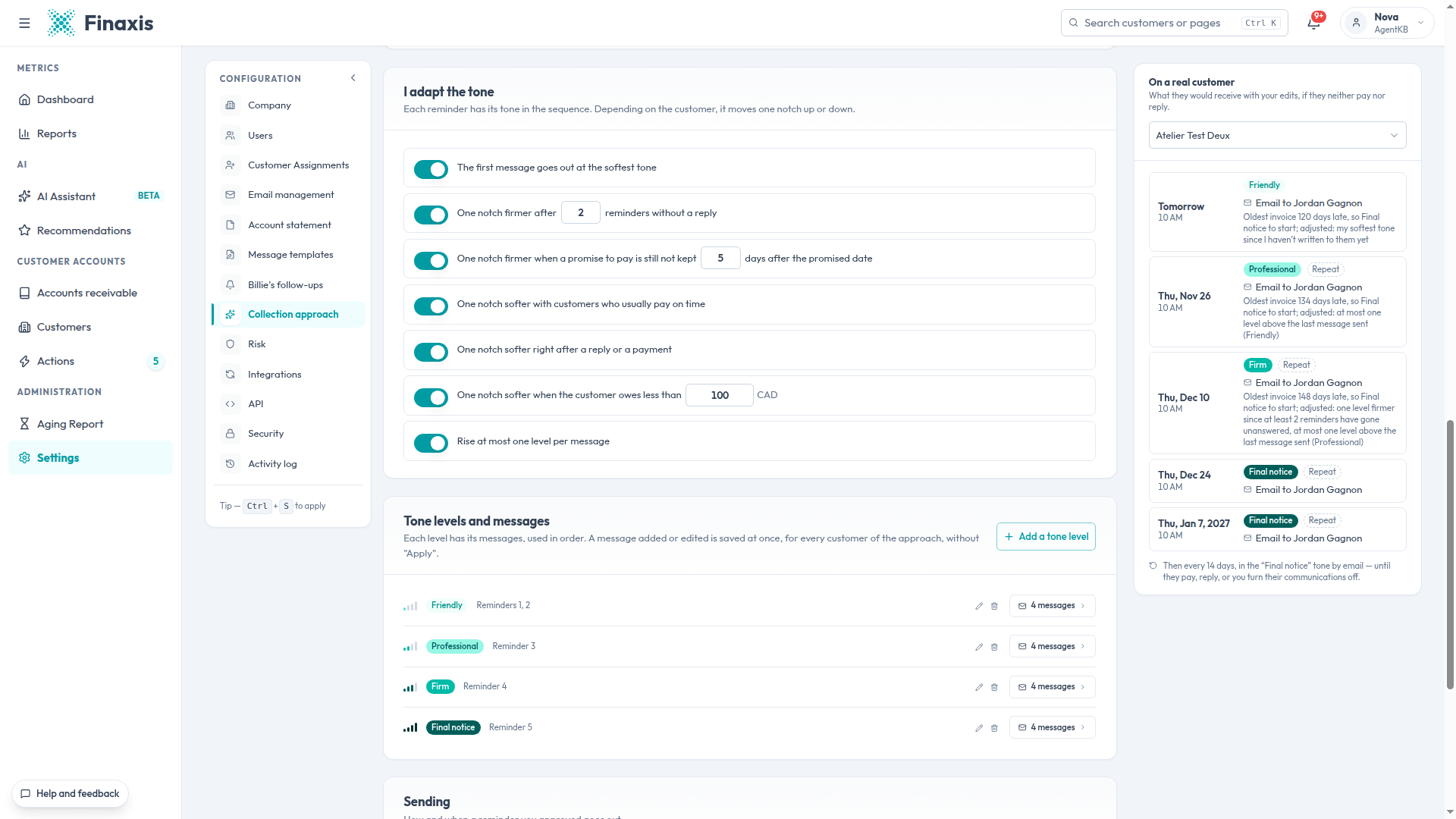
| Setting | In plain words |
|---|---|
| The first message goes out at the softest tone | The very first message to a customer is always polite, even if they are already very late. |
| One notch firmer after X reminders without a reply | The customer ignores your messages: the tone goes up. |
| One notch firmer when a promise to pay is still not kept | The promised date passed X days ago and nothing came in: the tone goes up. |
| One notch softer with customers who usually pay on time | A good payer who forgot an invoice gets a lighter tone. |
| One notch softer right after a reply or a payment | The customer is making an effort: the tone comes down. |
| One notch softer when the customer owes less than X | A small balance does not get a final notice. |
| Rise at most one level per message | The tone never jumps two steps at once. |
In the On a real customer panel, every planned reminder explains its tone. For example: Oldest invoice 120 days late, so Final notice to start; adjusted: my softest tone since I haven't written to them yet.
Sending
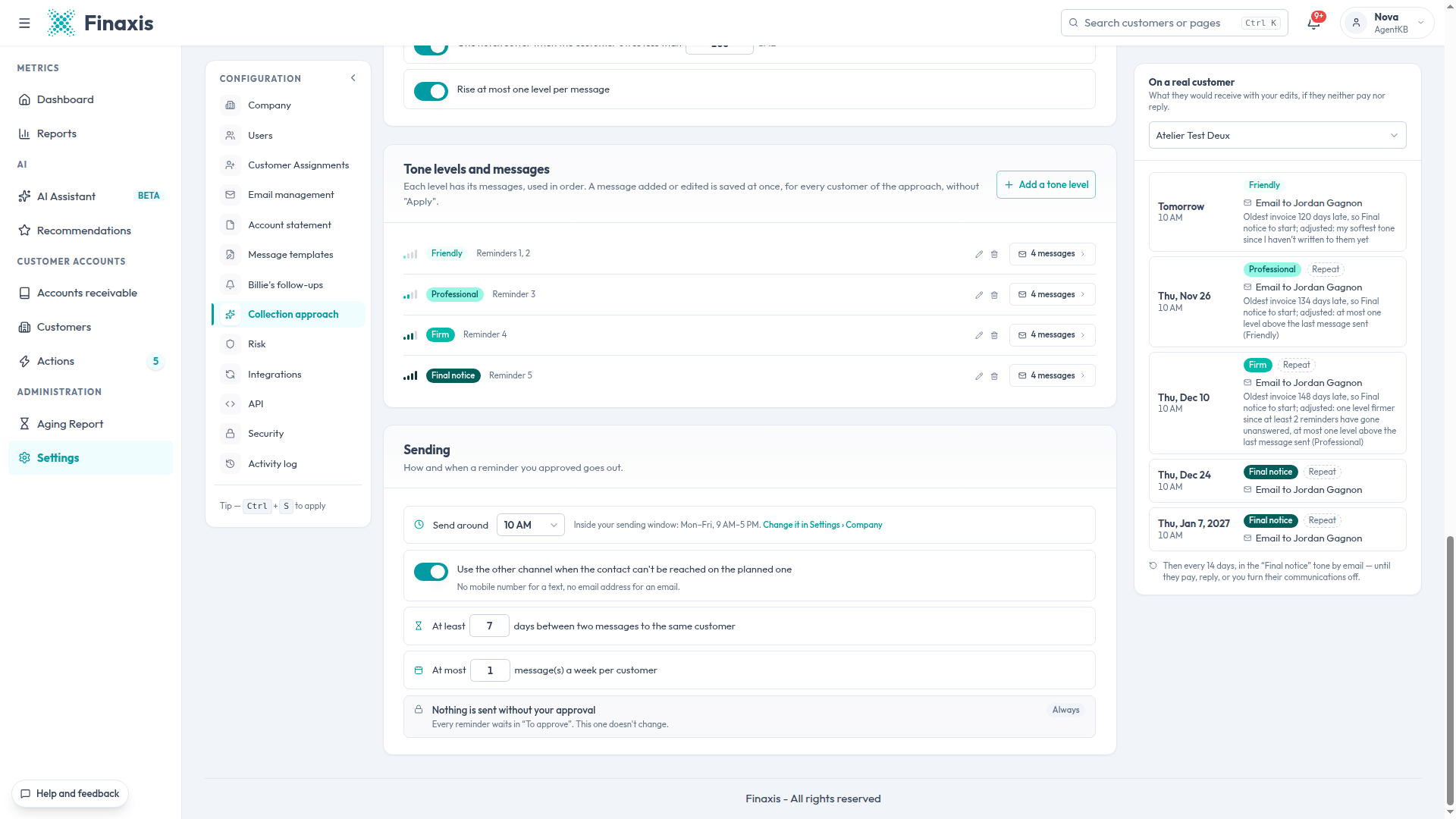
- Send around: the time approved reminders go out. It falls inside your sending window, set in Settings › Company.
- Use the other channel when the contact can't be reached on the planned one: no mobile number for a text, so Finaxis writes by email, and the other way around.
- At least X days between two messages to the same customer: avoids writing to the same customer too often.
- At most X message(s) a week per customer: a safety cap.
- Nothing is sent without your approval: always on. Every reminder waits in To approve.
Apply your changes
As soon as you change a setting, a bar appears at the bottom of the screen. It counts your changes not applied yet.
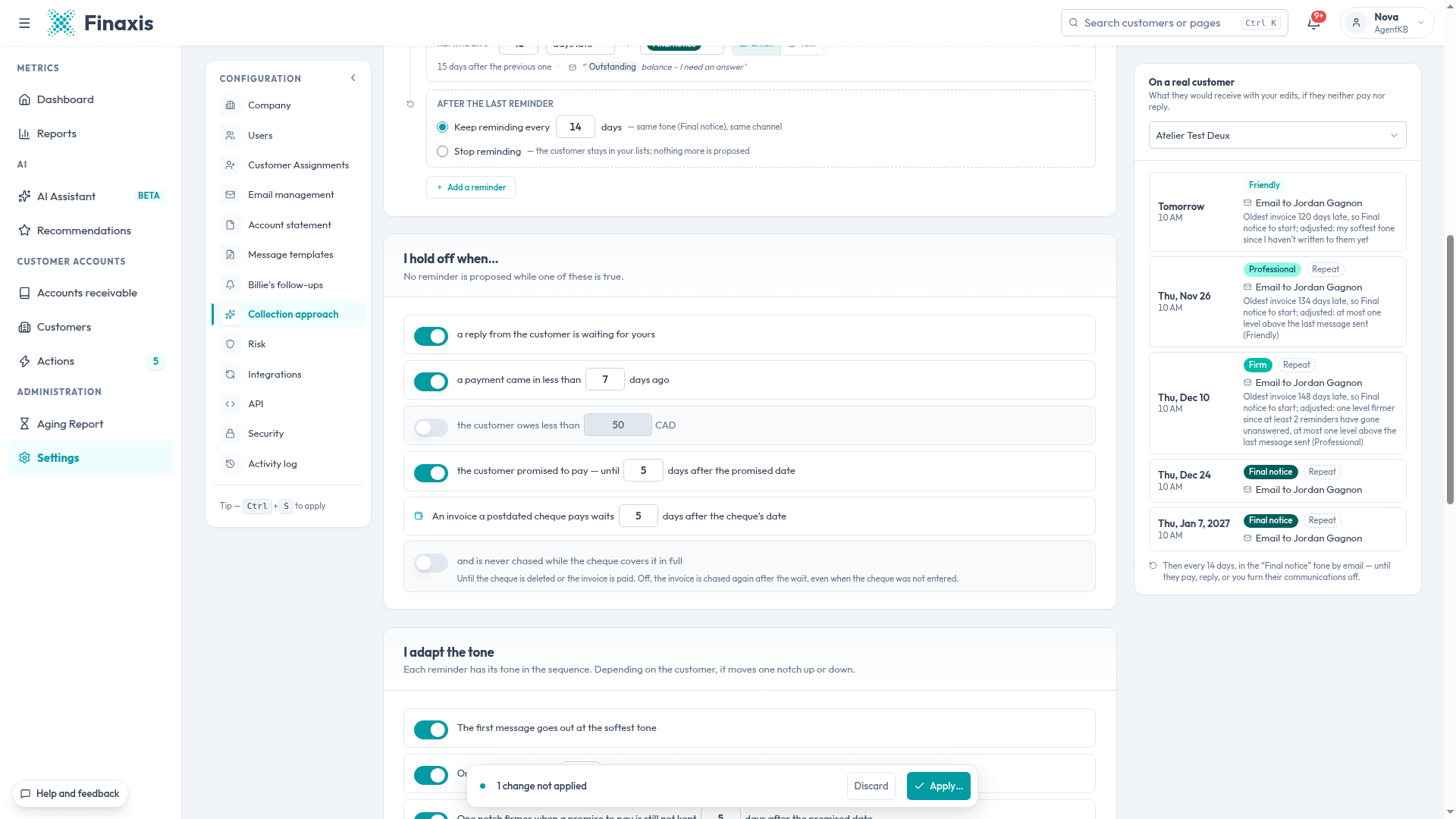
- Make your changes in one or more sections.
- In the bottom bar, click Apply…. Keyboard shortcut: Ctrl + S.
- The Apply these changes window shows each changed rule, before and after.
- Read the If we apply this today box: how many customers would be reminded, sooner, later, more firmly or more softly.
- Click Apply. To review something first, click Keep editing instead.
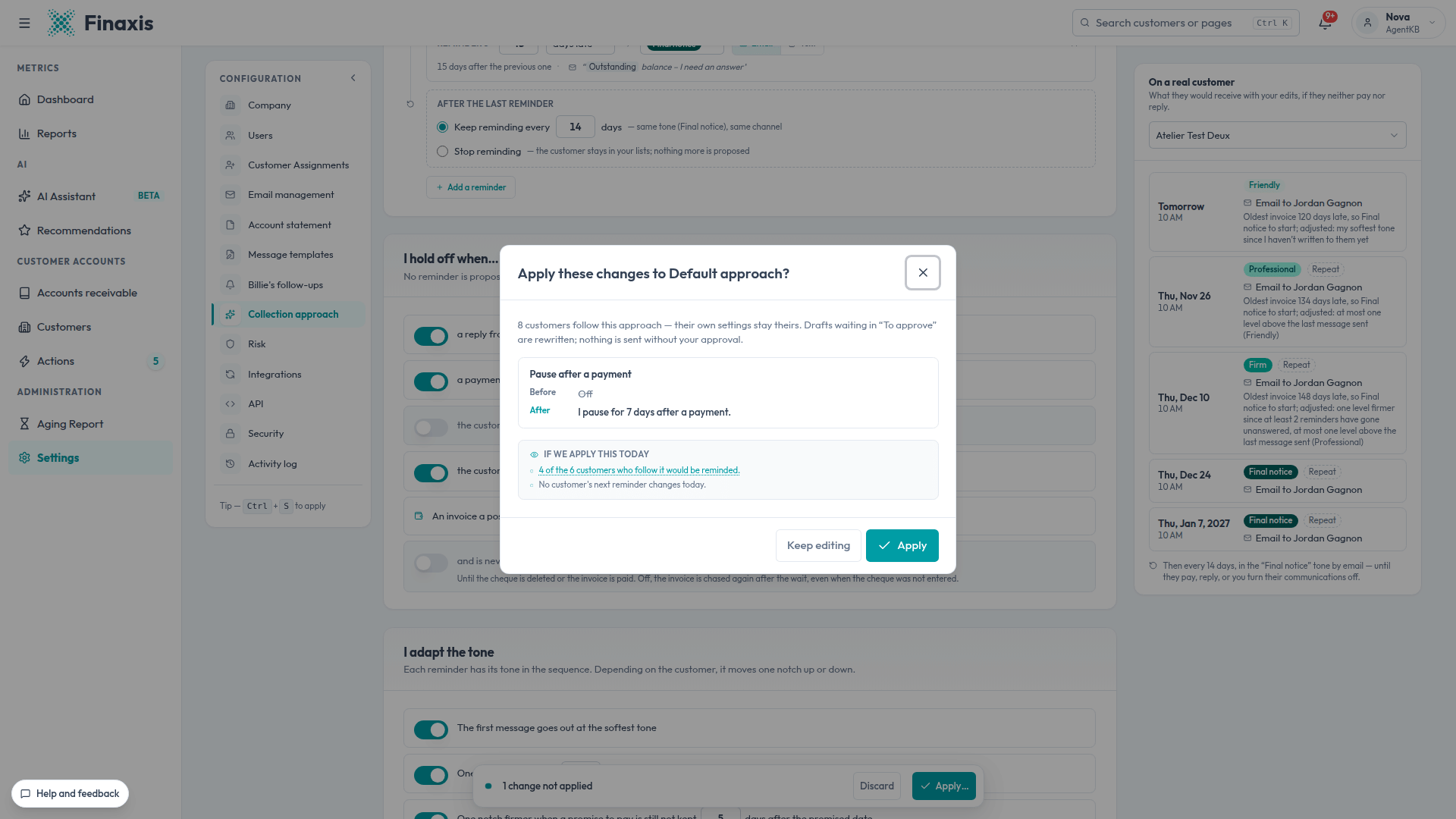
Please note: Once the changes are applied, the drafts waiting in To approve are rewritten under the new rules. A draft you edited yourself stays untouched. To drop everything before applying, click Discard in the bottom bar.
Your first change to the starter approach, whether to a setting or a message, makes it your own: updates Finaxis makes to its starter approach no longer apply to it.
Go back to an earlier version
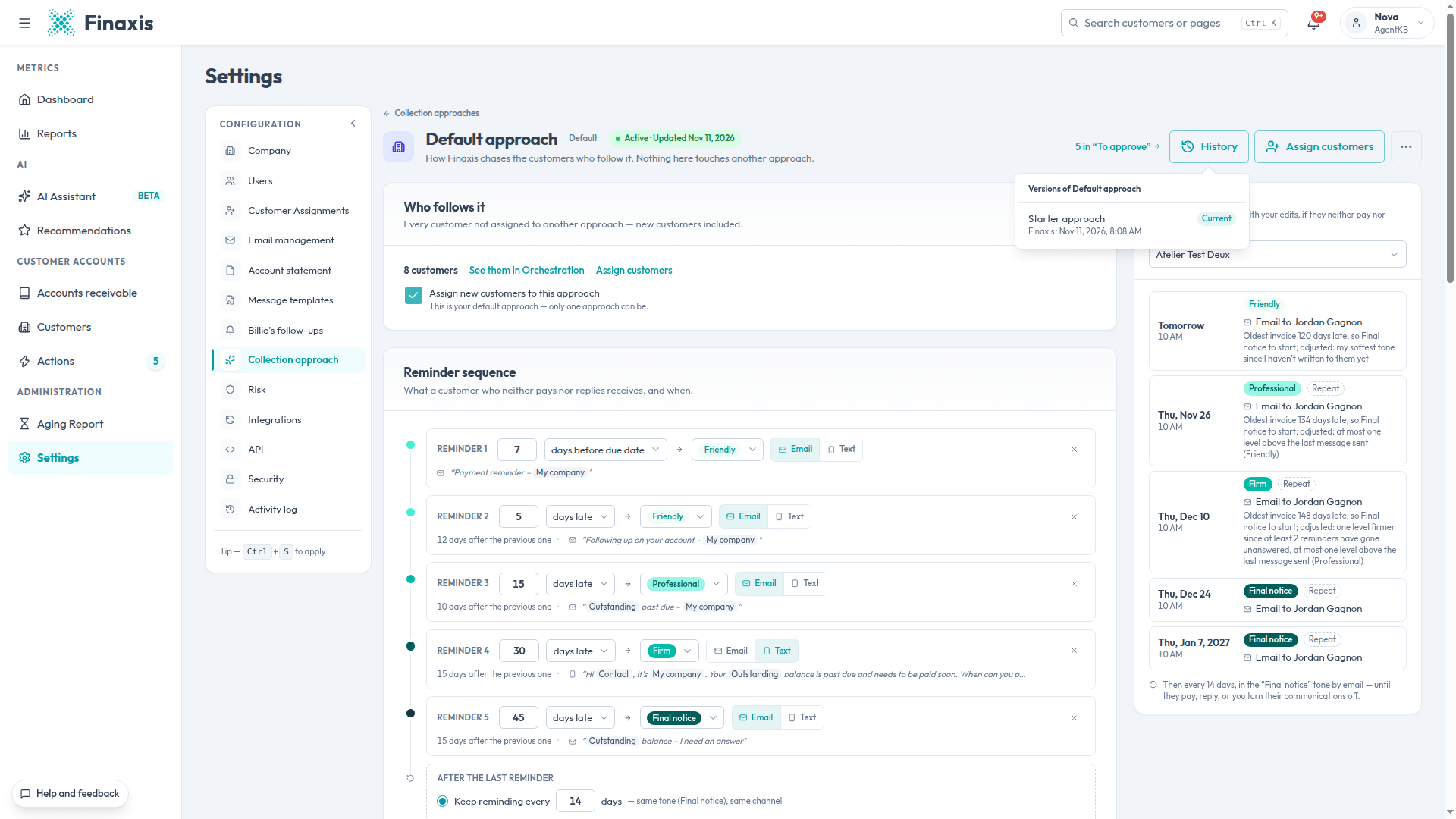
Every time you apply changes, Finaxis keeps a version. To go back:
- Open the approach in Settings › Collection approach.
- At the top of the approach, click History.
- Pick a version, then click Load this version.
- The version lands on the page as changes not applied yet. Check it, then click Apply….
Edit the messages
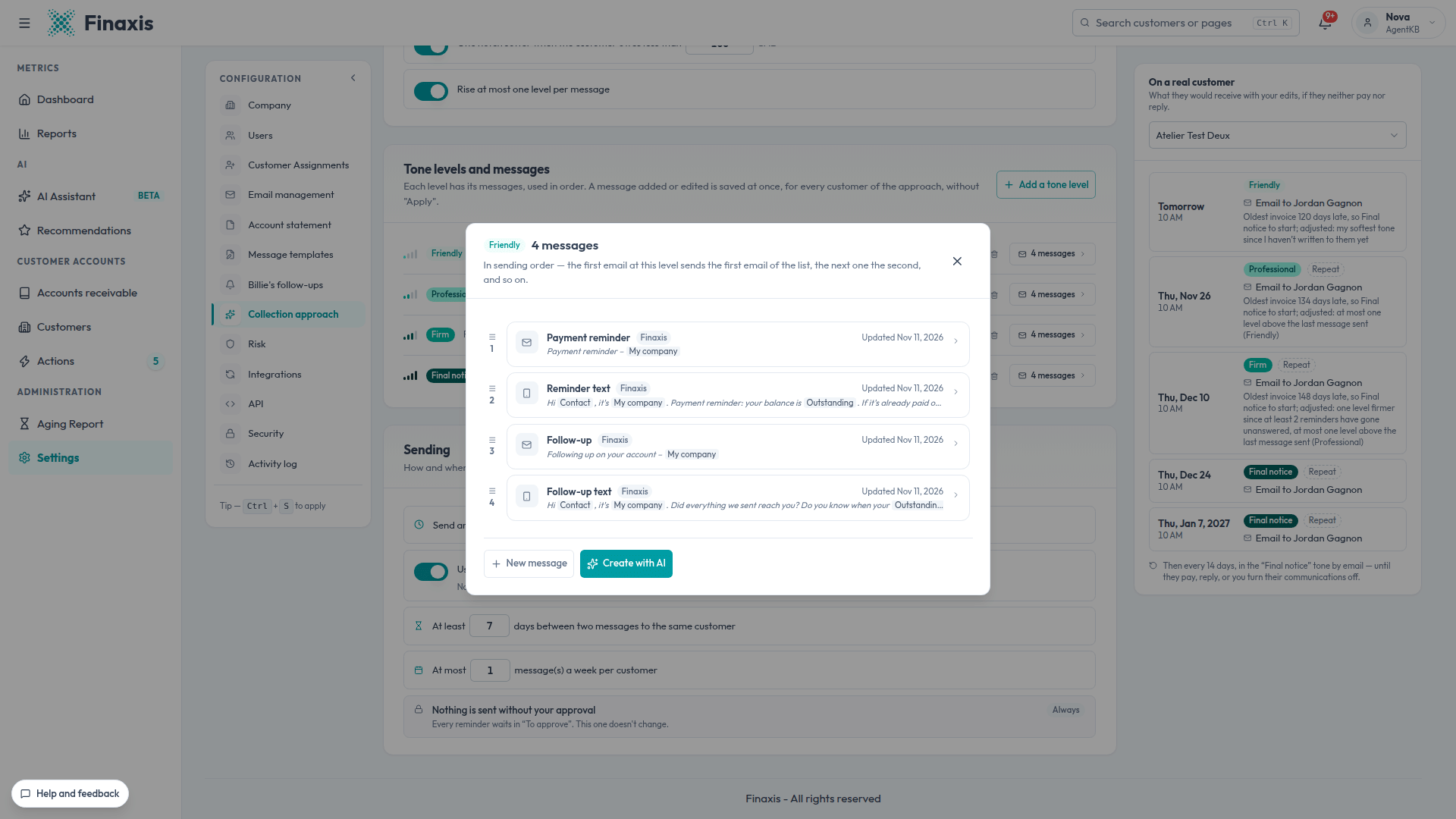
Each tone level has its own list of messages, by email and by text. Finaxis uses them in order: the first email sent at that level uses the first email in the list, the next one uses the second, and so on.
Please note: Unlike the other settings, a message you add or edit is saved at once, for every customer of the approach, without going through Apply.
- In the Tone levels and messages section, click the button that counts the messages of the level you want, for example 4 messages.
- The list opens in sending order. Drag a message to change its rank.
- Click a message to open it.
- Edit the Email subject and the Email body. The Insert button adds fields that fill in automatically, such as the contact's name or the outstanding balance.
- Pick a customer under Preview with a real customer to read the message the way they would receive it.
- Click Save.
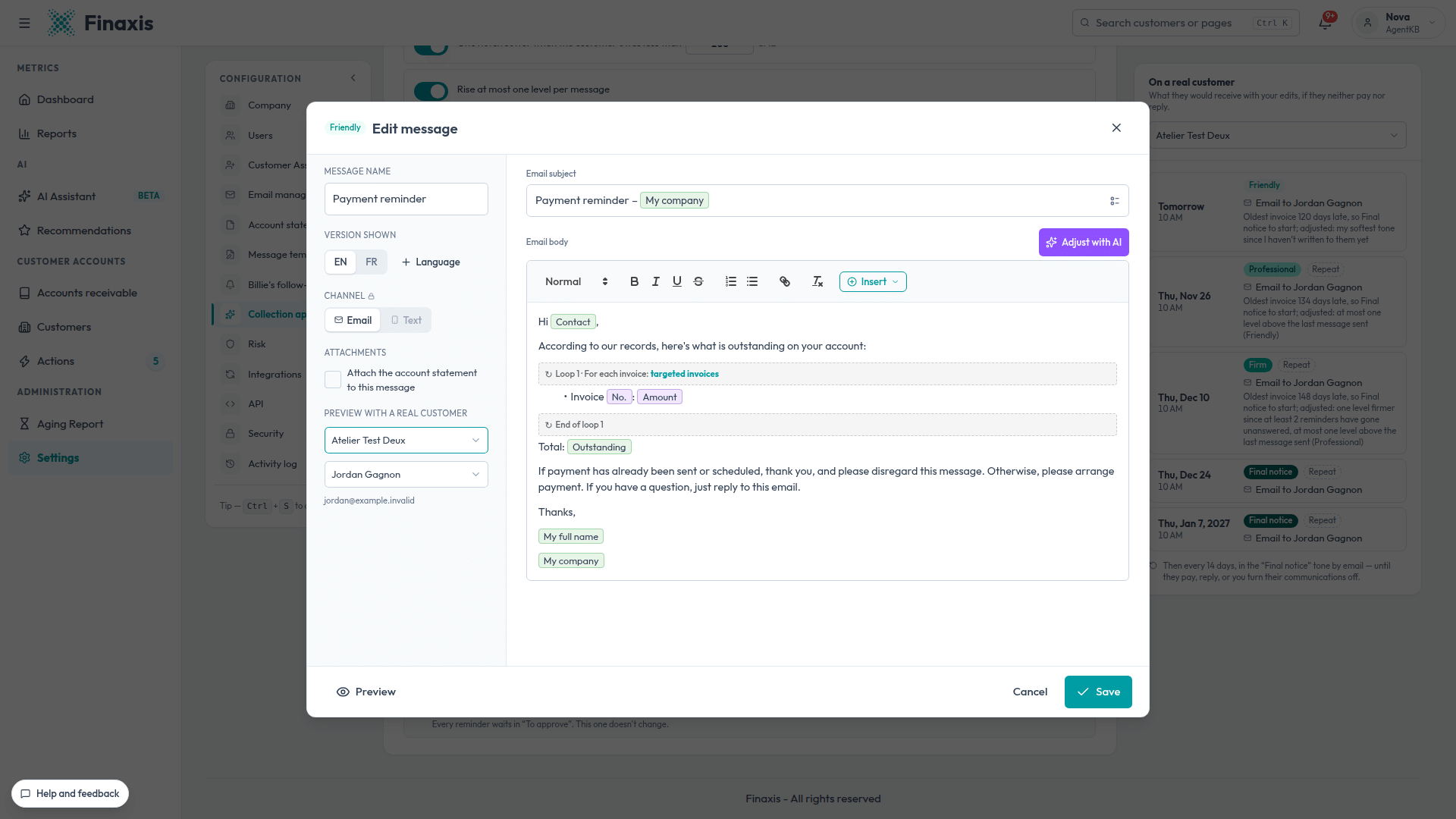
- EN and FR: each message has one version per language. The customer receives the one in their contact's language. Language adds a version in another language.
- Attach the account statement to this message: adds the customer's account statement as an attachment. A text cannot carry one.
- Adjust with AI: type a simple instruction, such as make it shorter and warmer, and the AI rewrites the message. Read it before saving.
- New message creates a blank message. Create with AI drafts a new message in every language of the level.
- Once a message is saved, its channel no longer changes. For the other channel, create a new message.
Please note: A message that still carries a field that cannot be filled in is refused at send time. Check the preview with a real customer before saving.
Add, rename or remove a tone level
- Add a tone level: give it a name, such as Insistent, and choose where it sits among the others. It starts with messages copied from its neighbour. Rewrite them.
- The pencil renames a level. The trash can removes it: pending drafts at that level are rewritten at the level that replaces it.
- An approach always keeps at least two tone levels.
Why several approaches
An approach is your rules of engagement for a group of customers. A single approach with a few exceptions is often enough. Once your customers form distinct groups, two to four approaches usually do the job: one per line of business, account size or type of customer. Special cases are then handled customer by customer, with exceptions.
These rules also prepare what comes next. Today, automatic sending is locked by default and every reminder waits for your approval. The lock is lifted upon your request, or when Finaxis offers it after a few months of use, and the choice approach by approach is planned: a group whose rules have proven themselves will be able to go out on its own, while your strategic accounts stay in copilot. The Rules of engagement: getting your collections ready for autonomous AI guide explains how to split your customers and when to widen.
Create a new approach
One approach is often enough. Create another when a group of customers should be followed up differently: individuals, key accounts, public bodies.
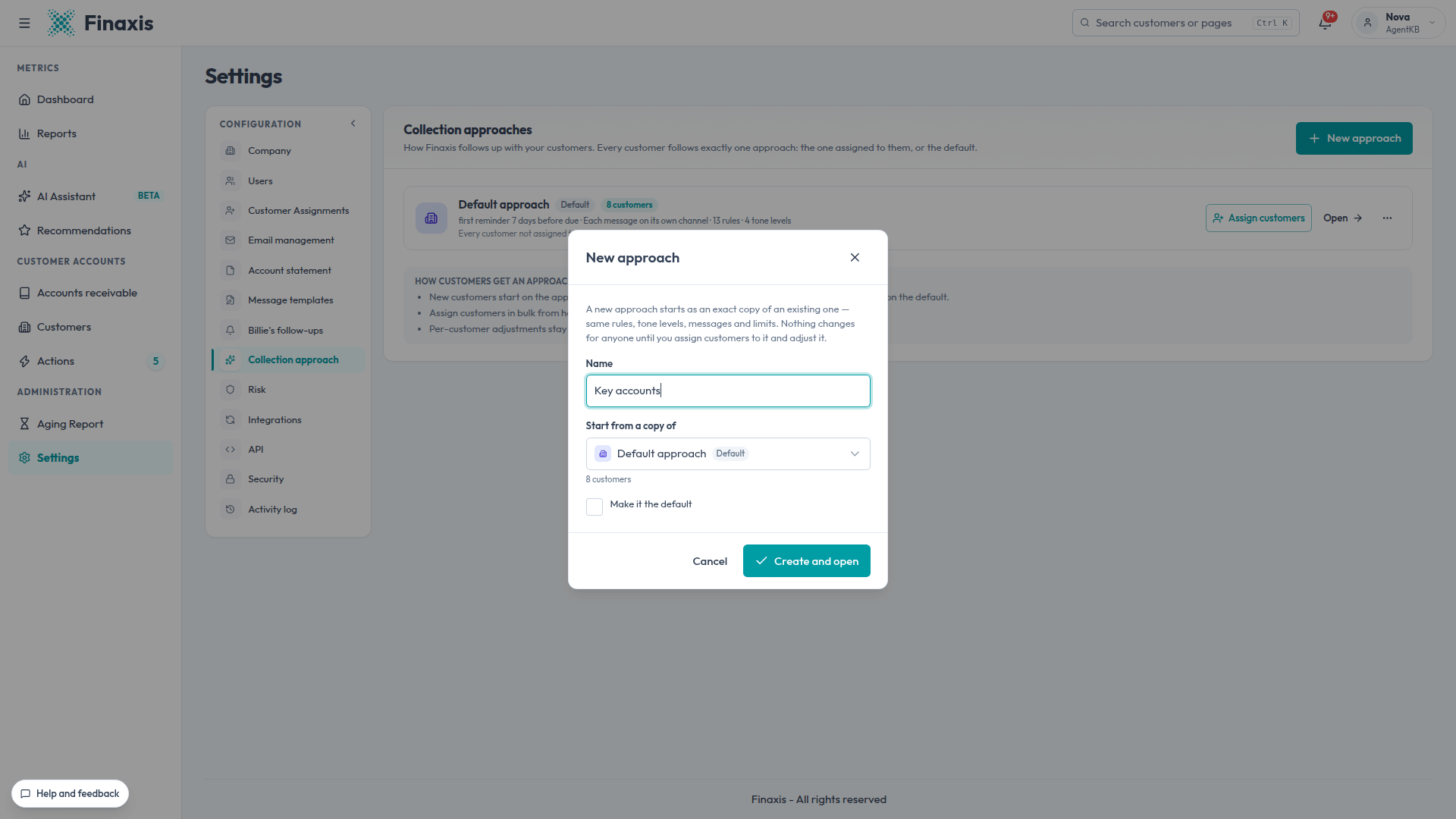
- In Settings › Collection approach, click New approach.
- In Name, type a clear name, for example Key accounts.
- In Start from a copy of, pick the approach to copy.
- Check Make it the default only if new customers should follow it.
- Click Create and open.
- Adjust the sequence, holds, tone and messages, then apply your changes.
- Assign customers to it, as explained in the next section.
Please note: A new approach is an exact copy: same rules, same tone levels, same messages. Nothing changes for anyone until you assign customers to it.
Rename, duplicate, change the default or delete
The … button of an approach opens its actions.
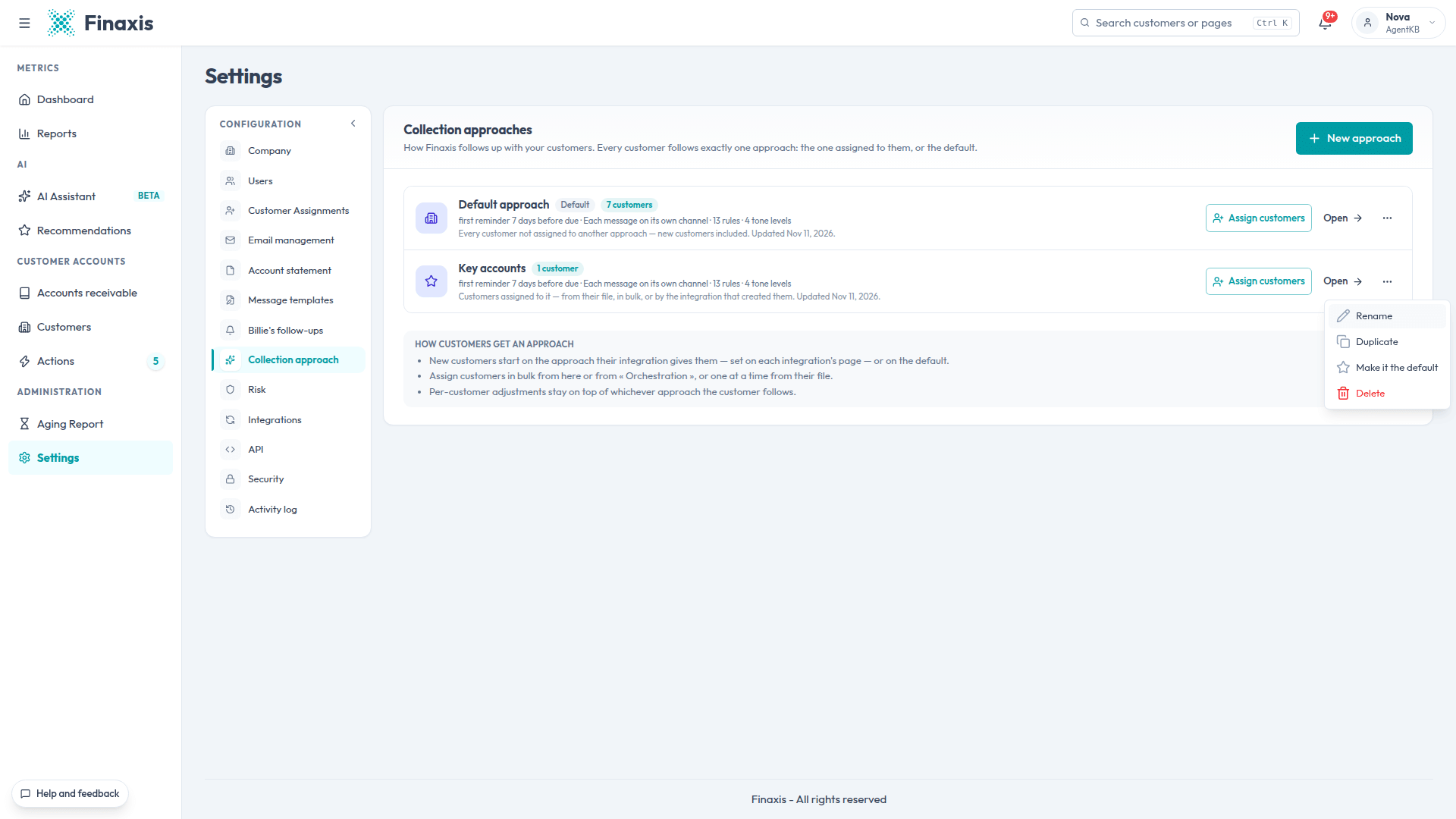
| Action | What happens |
|---|---|
| Rename | The name changes. Nothing else. |
| Duplicate | Finaxis creates a copy, with (copy) in its name. Handy to try out a variant. |
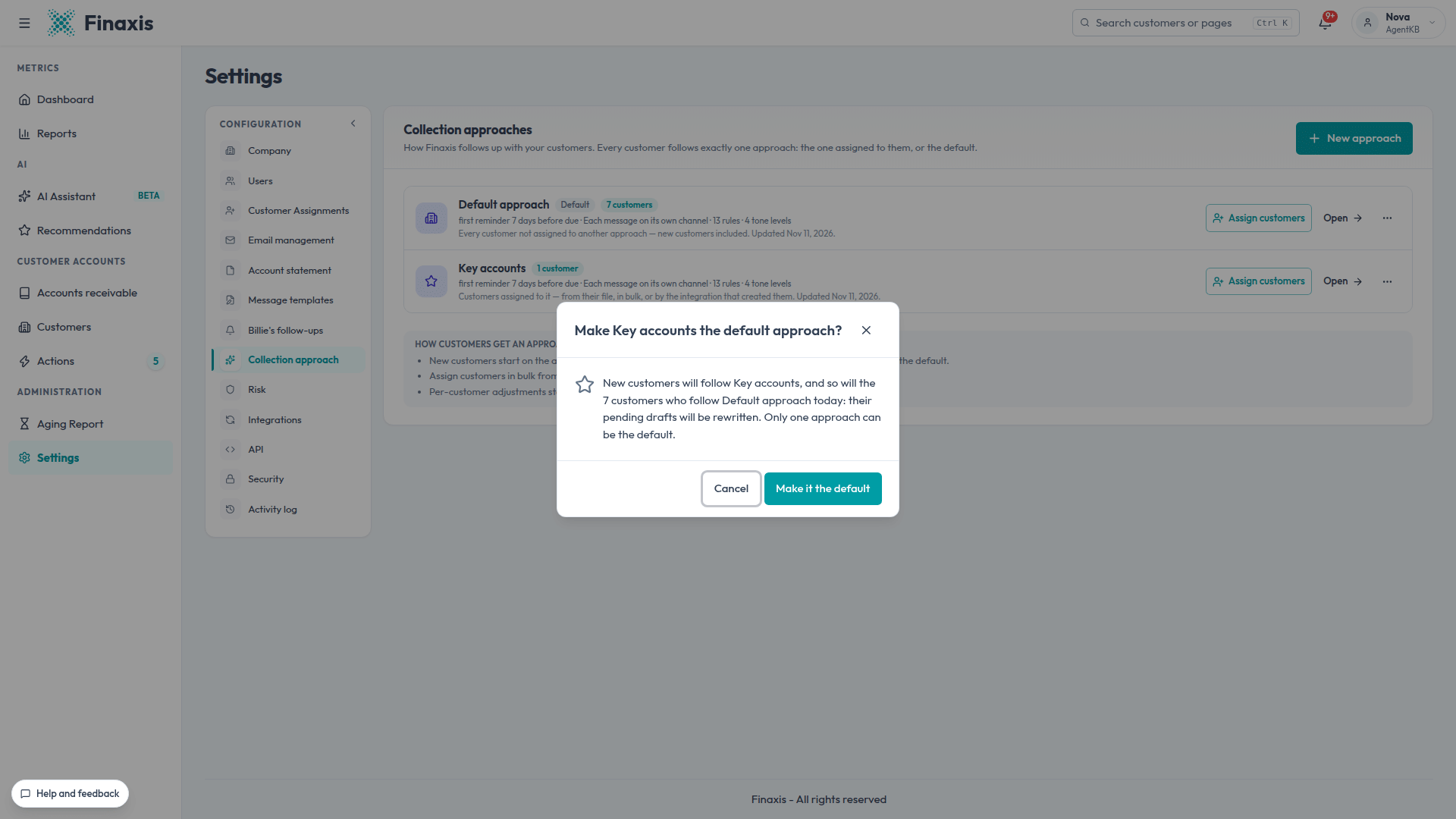
| Make it the default | New customers will follow it, and so will the customers who followed the former default approach. Their pending drafts are rewritten. |
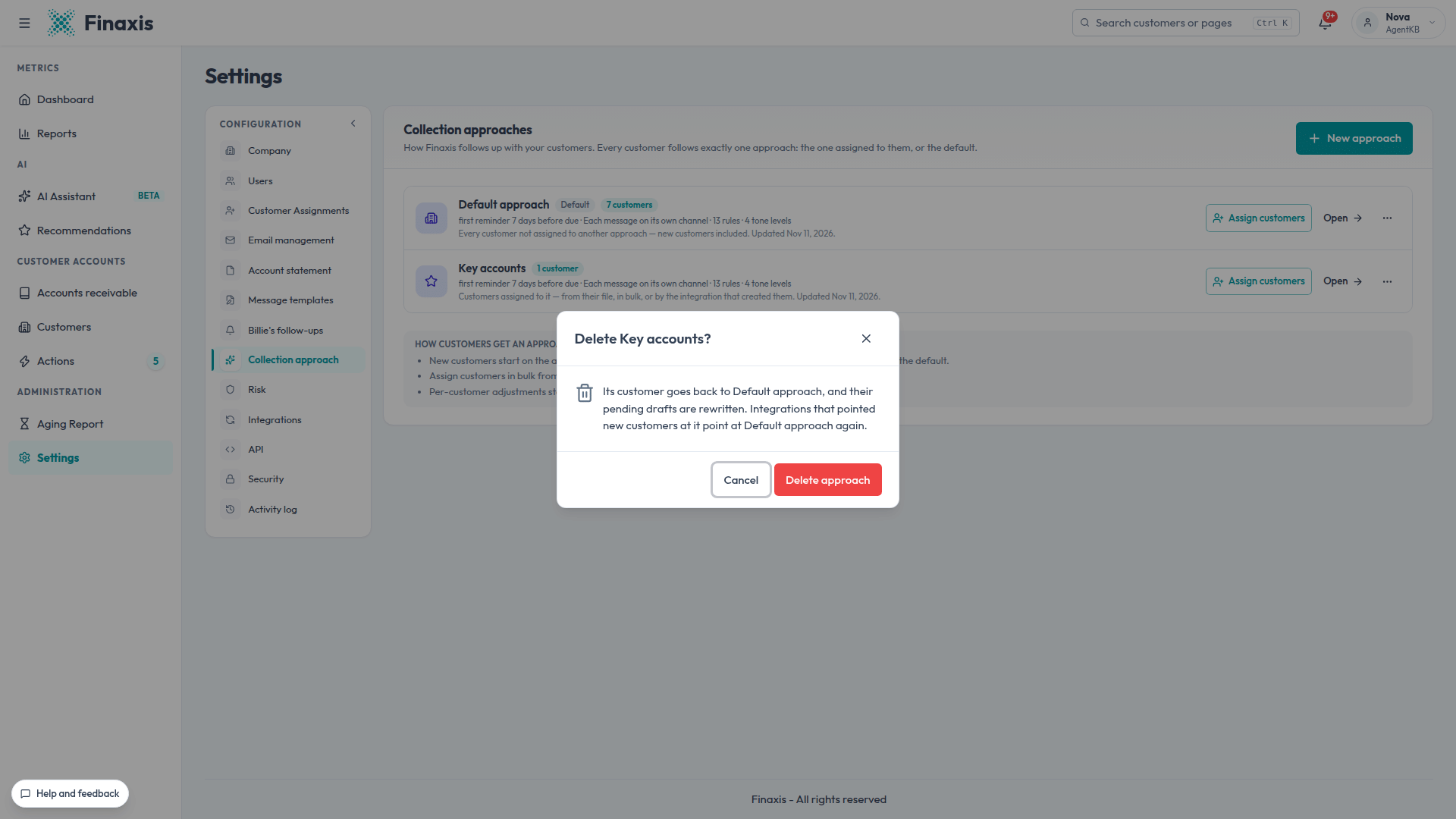
| Delete | Its customers go back to the default approach and their pending drafts are rewritten. The default approach cannot be deleted. |
The default approach only offers Rename and Duplicate. To replace it, make another approach the default.
Assign customers to an approach
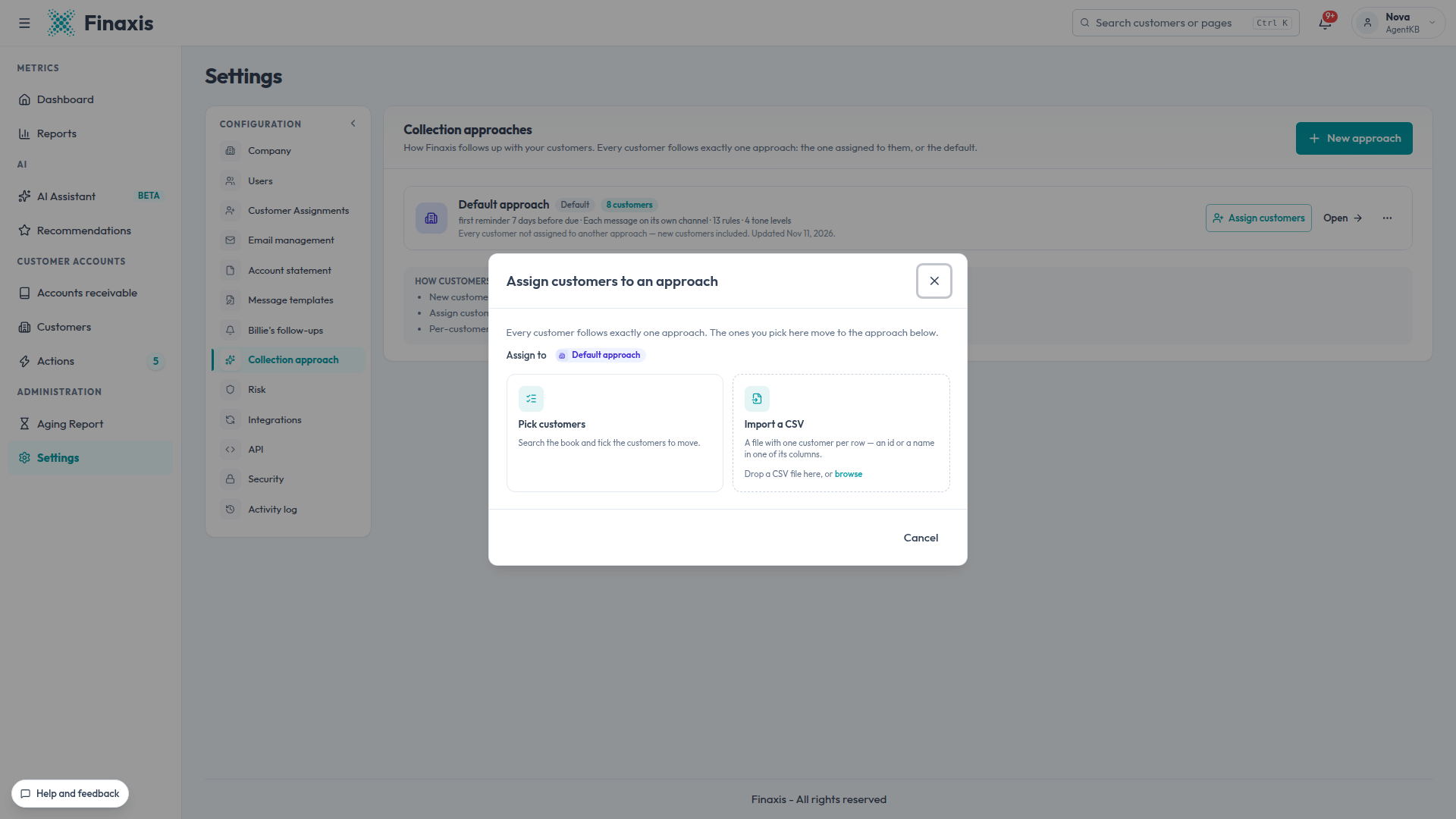
Every customer follows exactly one approach: the one assigned to them, or else the default approach. There are three ways to assign it.
Several customers at once
- Click Assign customers: on the approach card, on the approach page, or at the top of the Orchestration page.
- Choose Pick customers to check them in a list, or Import a CSV to start from a file.
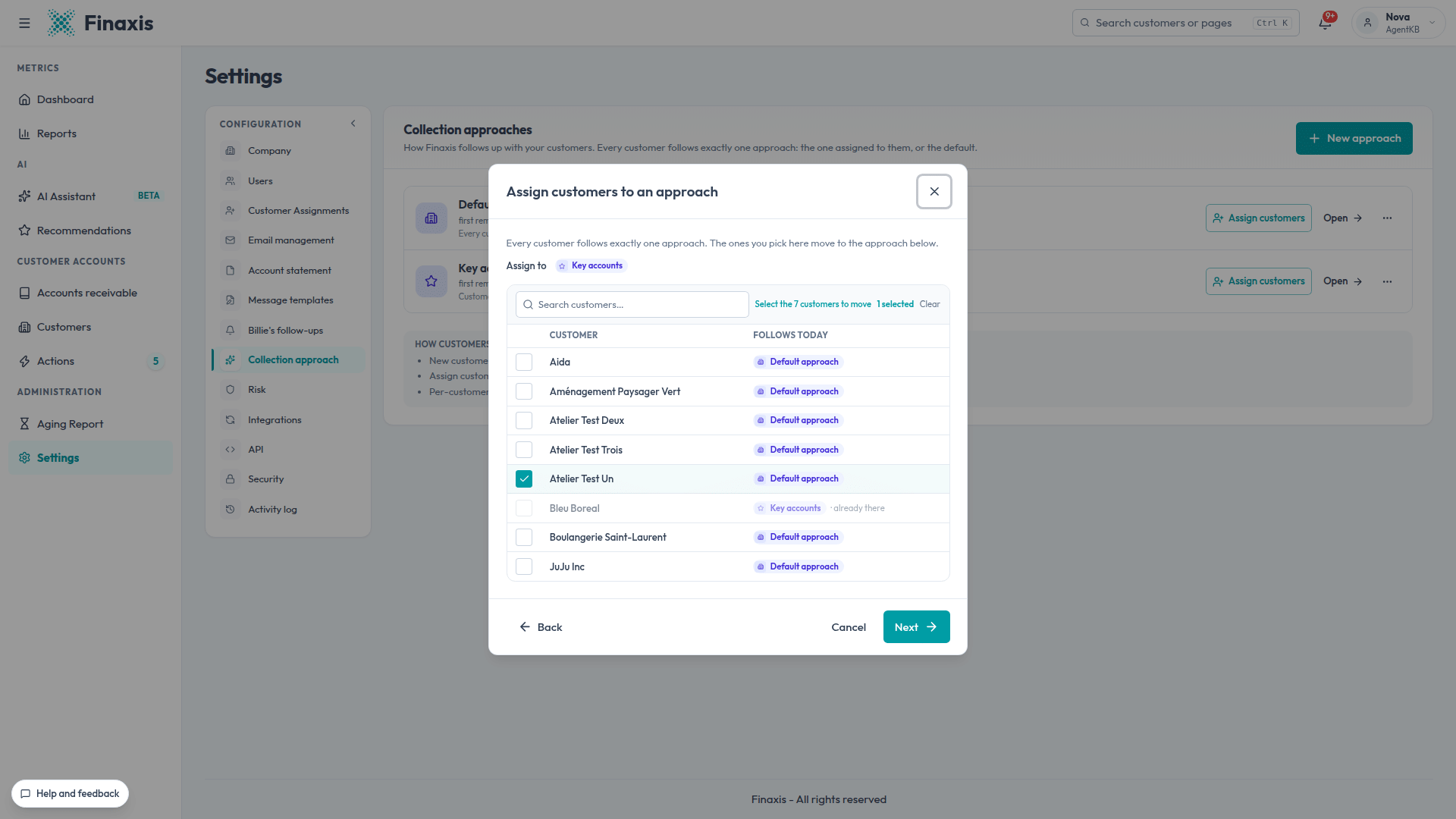
- With the list: search for and check the customers. The Follows today column shows their current approach.
- With a CSV file: one row per customer. Point to the column that identifies the customer and say what it contains: the Finaxis customer id, the external customer id or the customer name.
- Click Next. Finaxis shows the Customers that will be assigned. Remove any you do not want to move.
- Click the Assign button, which shows the number of customers.
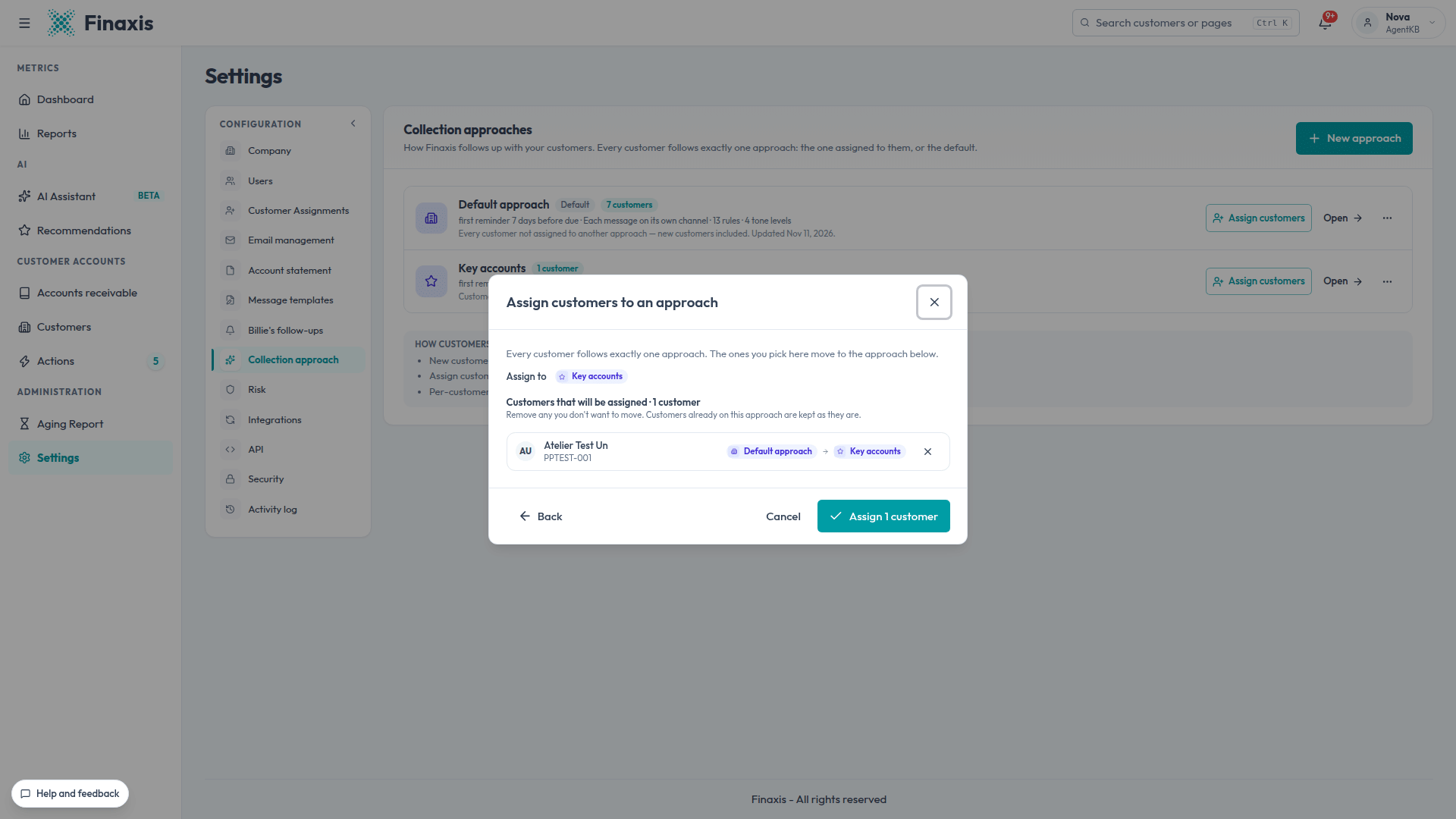
The pending drafts of the customers you move are rewritten under their new approach. File rows that match no customer, or several, stay as they are: fix the file and import it again, or pick those customers by hand.
One customer at a time
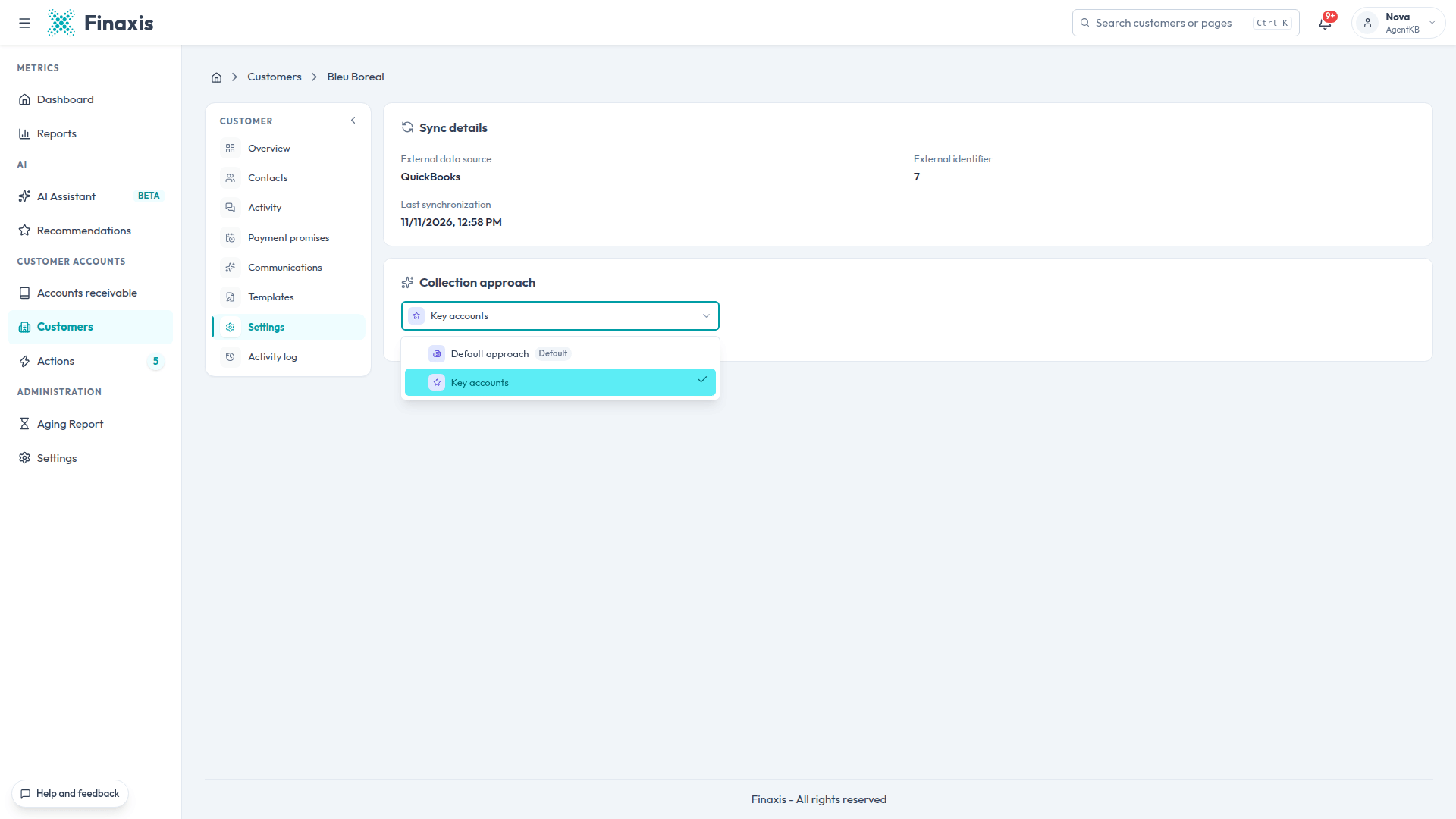
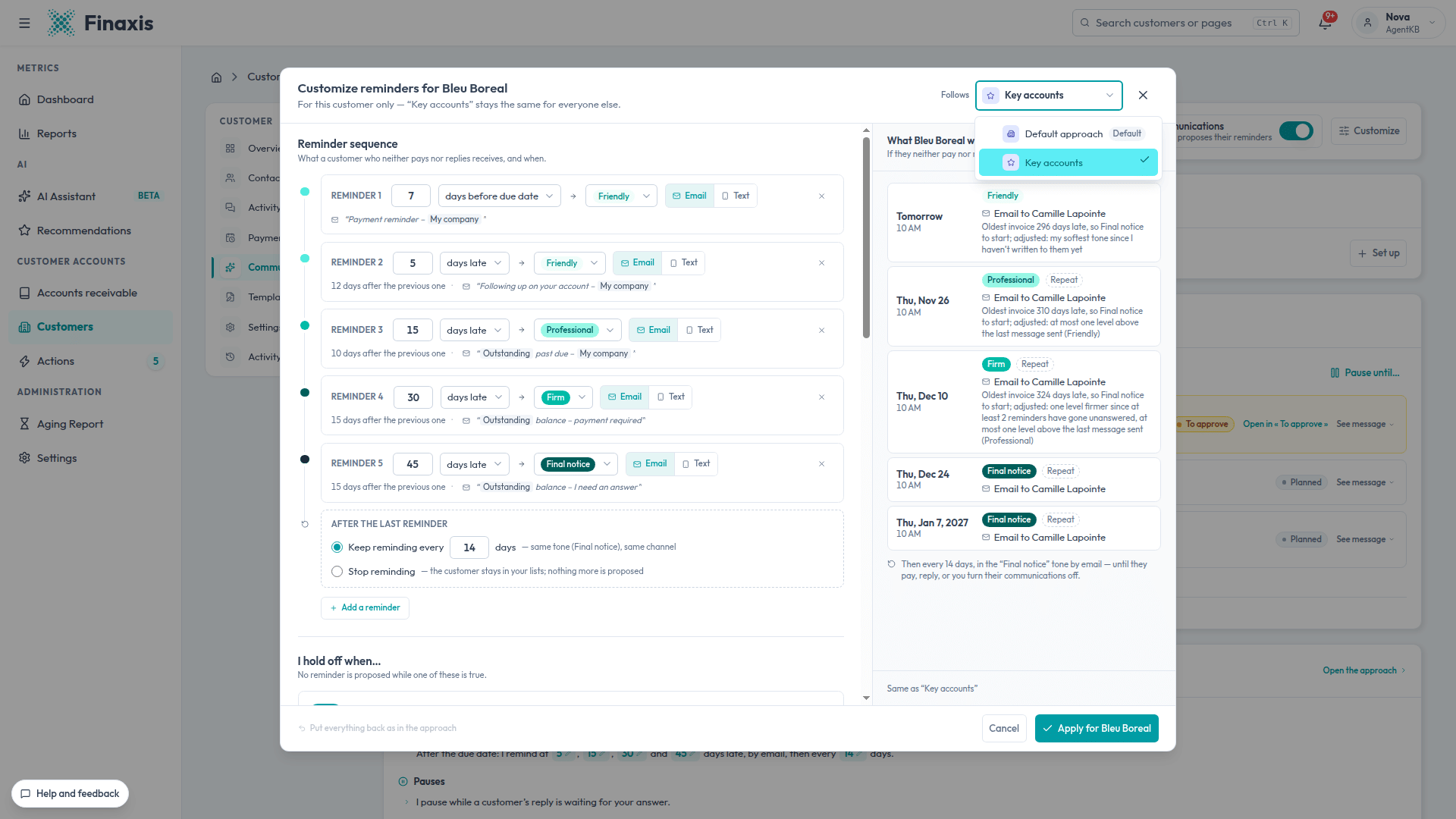
Once you have more than one approach, the customer's file lets you change theirs. In the customer's Settings tab, pick the approach in the Collection approach section. You can also do it in the Communications tab, with the Follows list at the top of the Customize window.
New customers
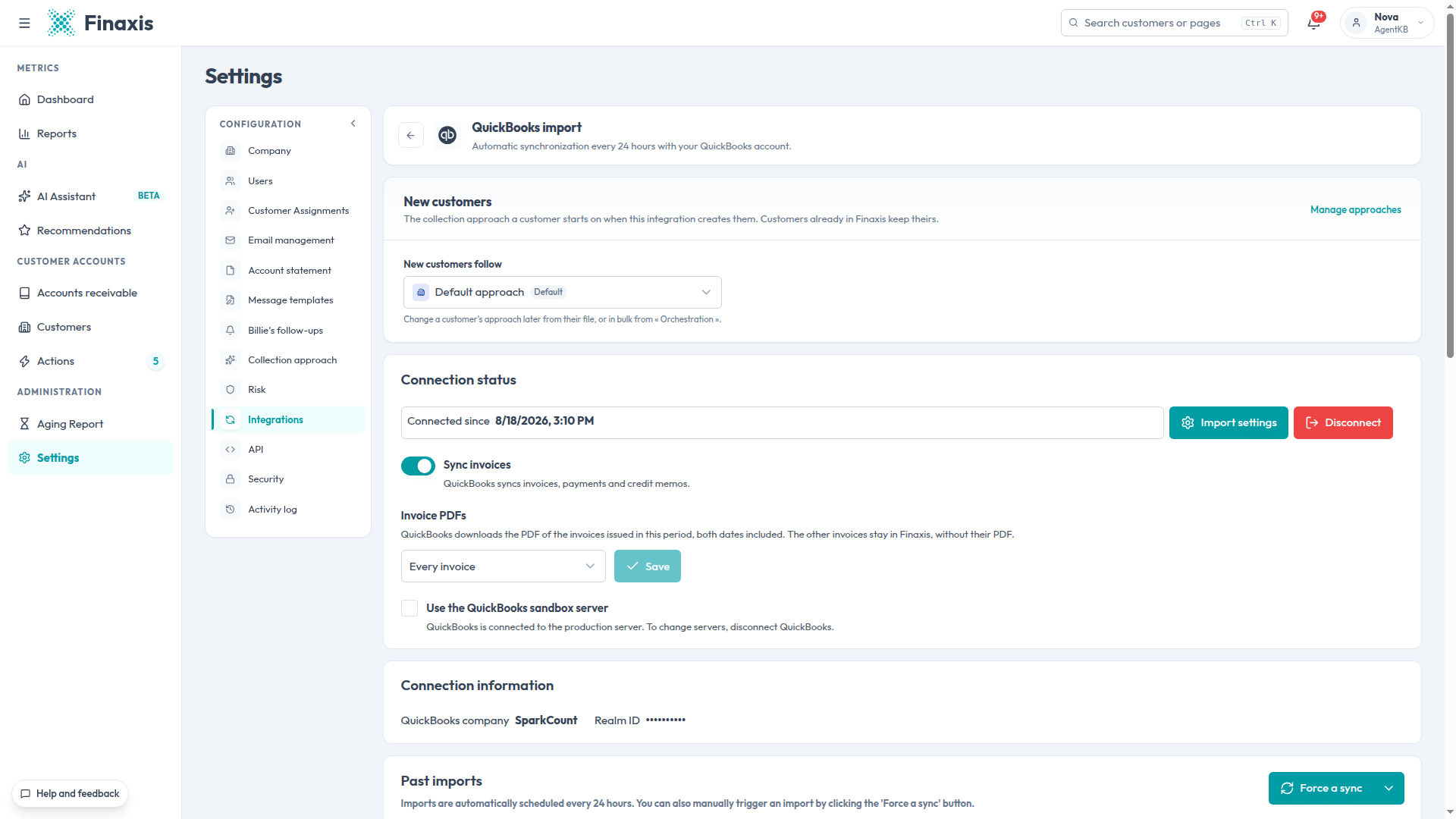
A new customer follows the default approach. You can also choose, integration by integration, the approach followed by the customers it creates: on the integration's page, New customers section, New customers follow list. Customers already in Finaxis keep theirs.
Please note: A customer's own exceptions stay on top of their new approach. Their customized messages stay with their former approach and come back if they return to it.
Follow every customer in Orchestration
The Orchestration page shows, for each customer, what goes out next and why.
- In the left menu, click Actions, then Orchestration.
- On the left, the list shows each customer's next reminder, with its tone and date. The All, Customized and Off filters sort the list.
- Click a customer. On the right, Upcoming reminders shows each reminder planned if nothing changes: the date, time, tone, channel, recipient and the reason for the tone.
- See message shows the exact text that will go out.
- Their rules sums up their approach in plain sentences.
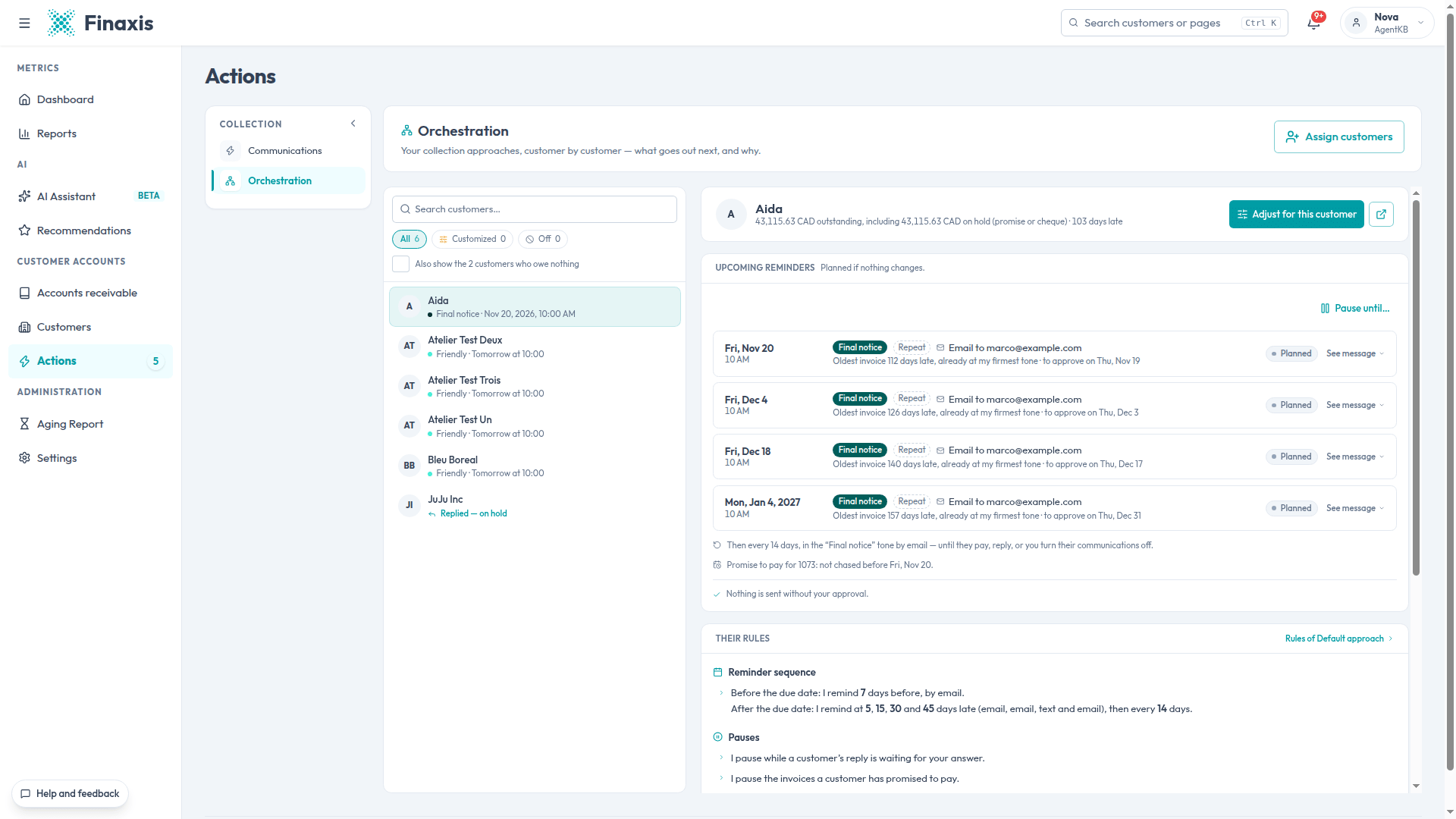
Customers who owe nothing are hidden. Check the Also show box at the top of the list to see them.
A customer replied to you
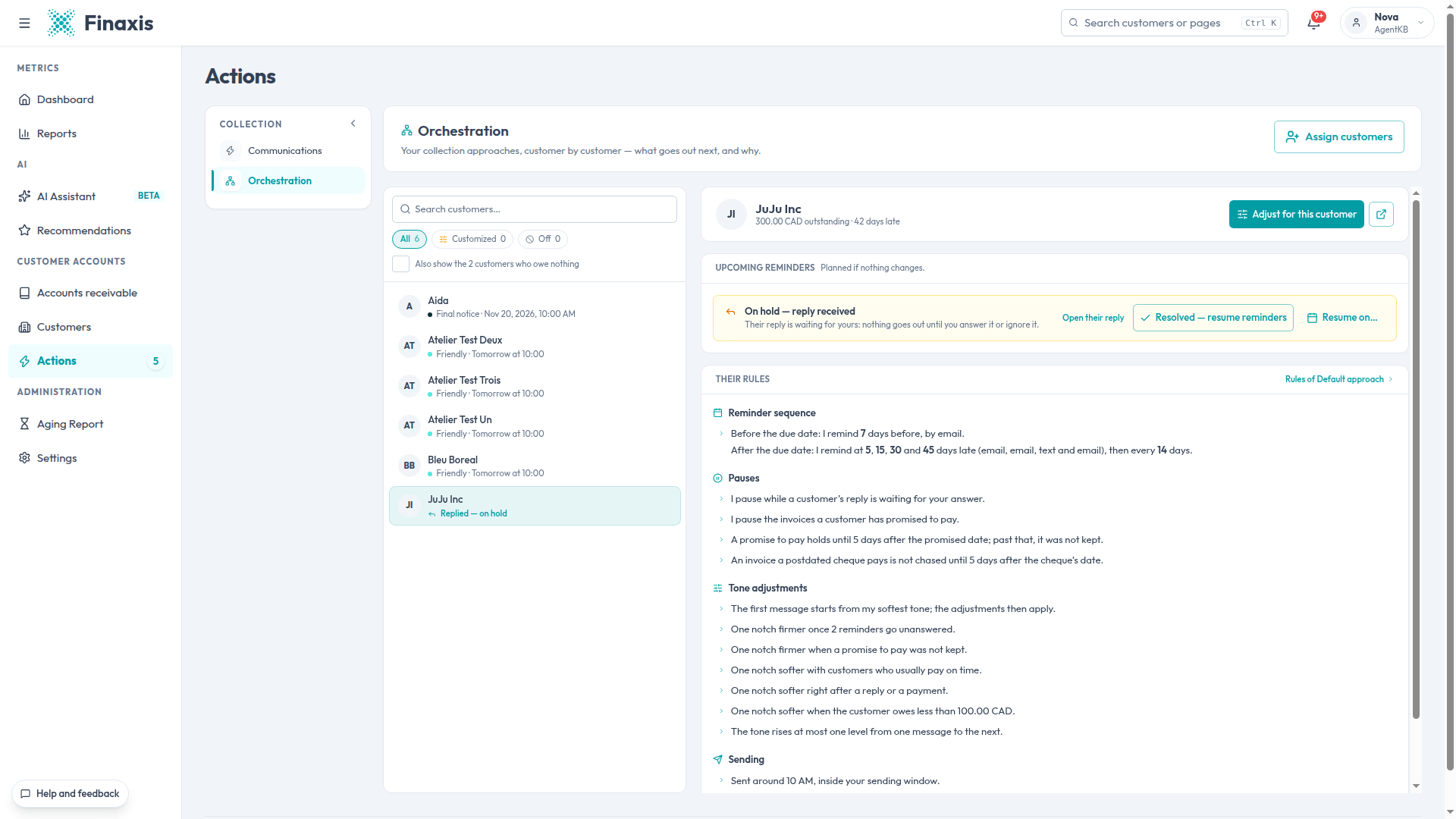
When a customer replies, their reminders go on hold until you deal with the reply. Orchestration shows them on hold, with three buttons:
- Open their reply to read it and answer.
- Resolved to resume reminders right away.
- Resume on… to pick a date. Nothing goes out before that day.
Pause a customer until a date
In Upcoming reminders, Pause until… stops reminders until the date you pick. A reminder already approved goes back to To approve. That day's reminder reaches To approve the day before.
Make an exception for one customer
Some customers need special handling: a customer who always pays at 60 days under an arrangement, an account in dispute, a bookkeeper who must be copied. No need to create an approach for them. You adjust their approach for them alone, from their file.
Open the customer's file, for example by searching for their name in the search bar at the top of the screen, then click the Communications tab.
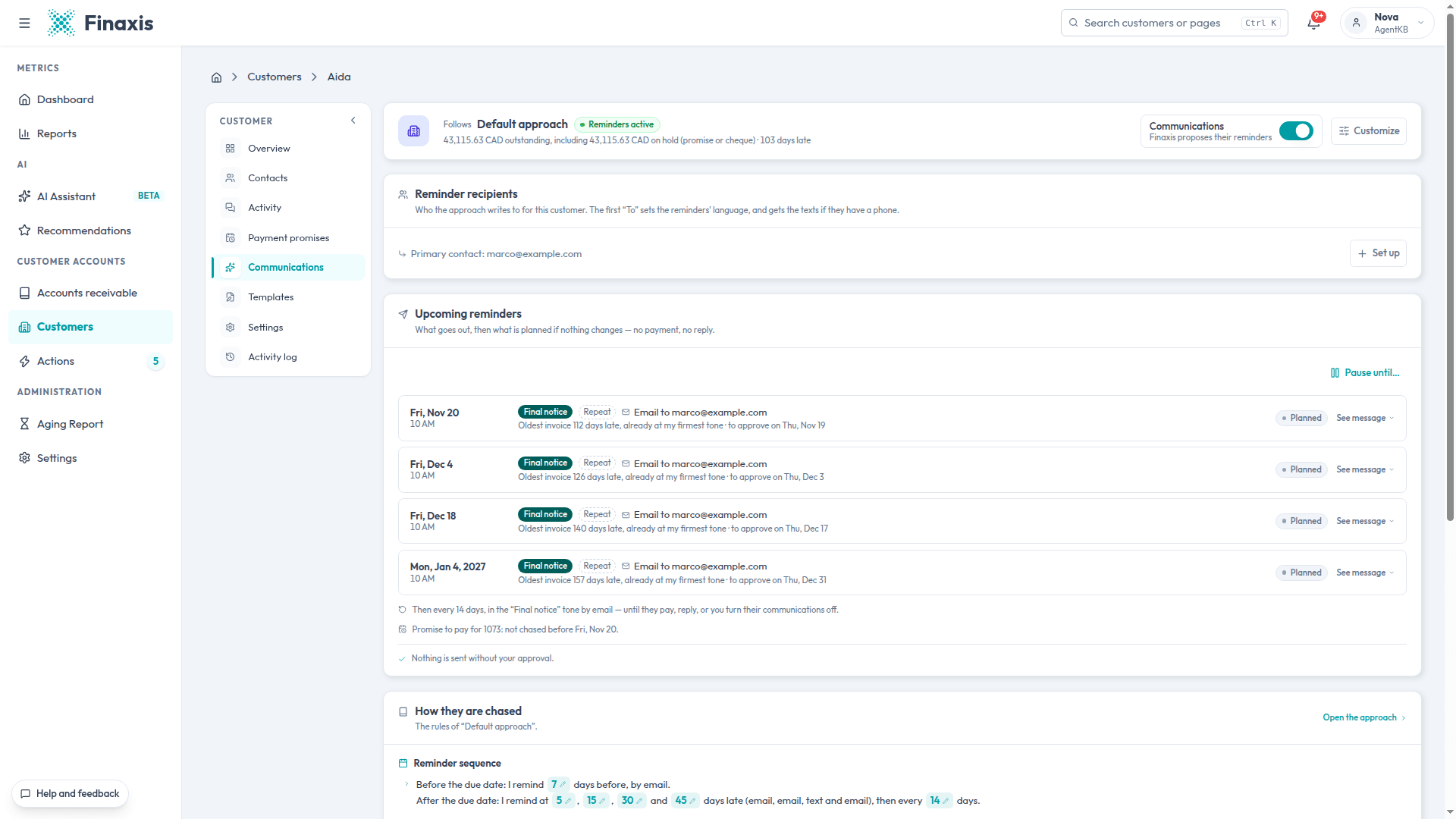
At the top, you see the approach the customer Follows, their status (for example Reminders active), the Communications switch and the Customize button. Further down: Reminder recipients, Upcoming reminders and How they are chased.
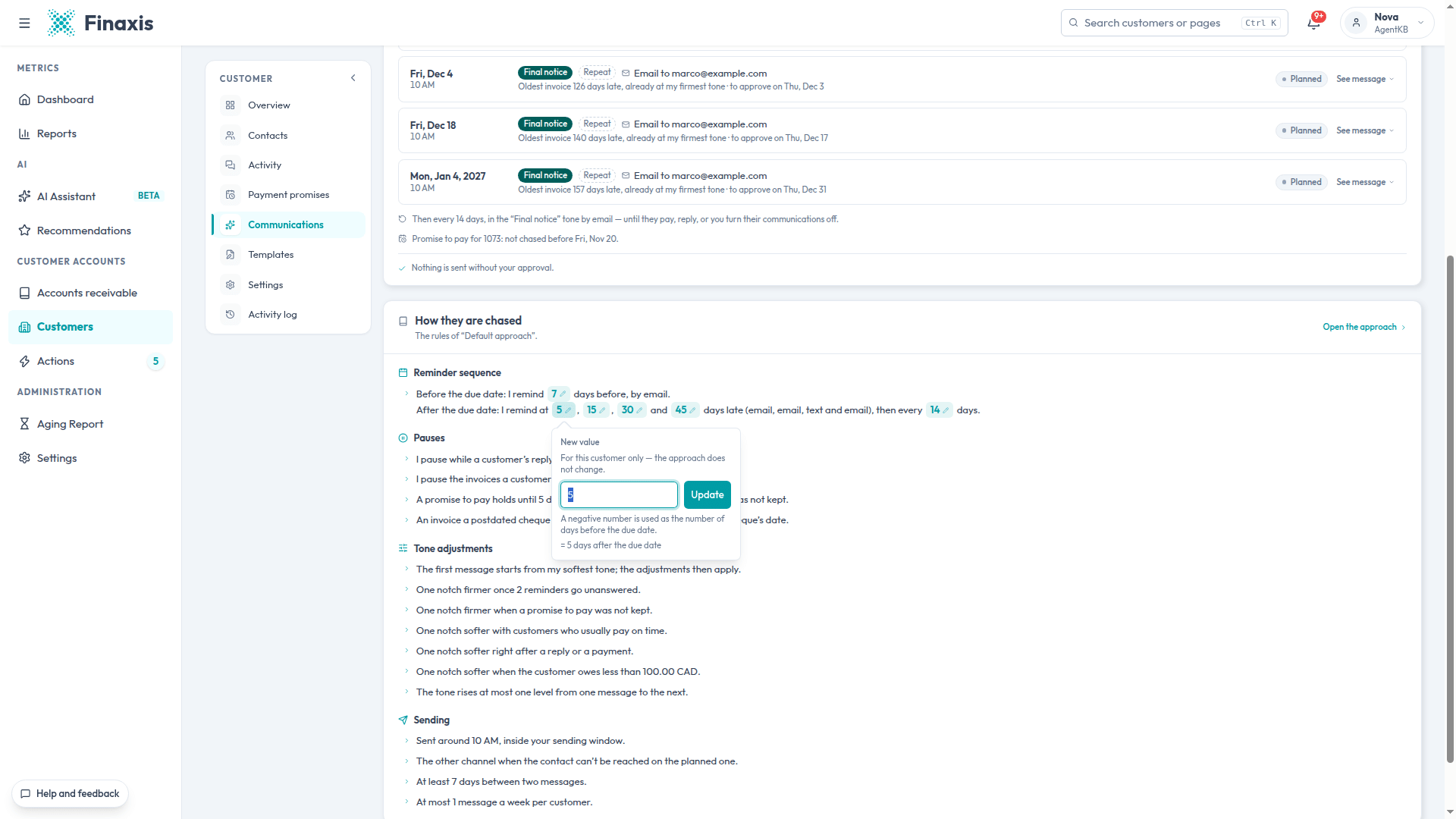
Change a single value
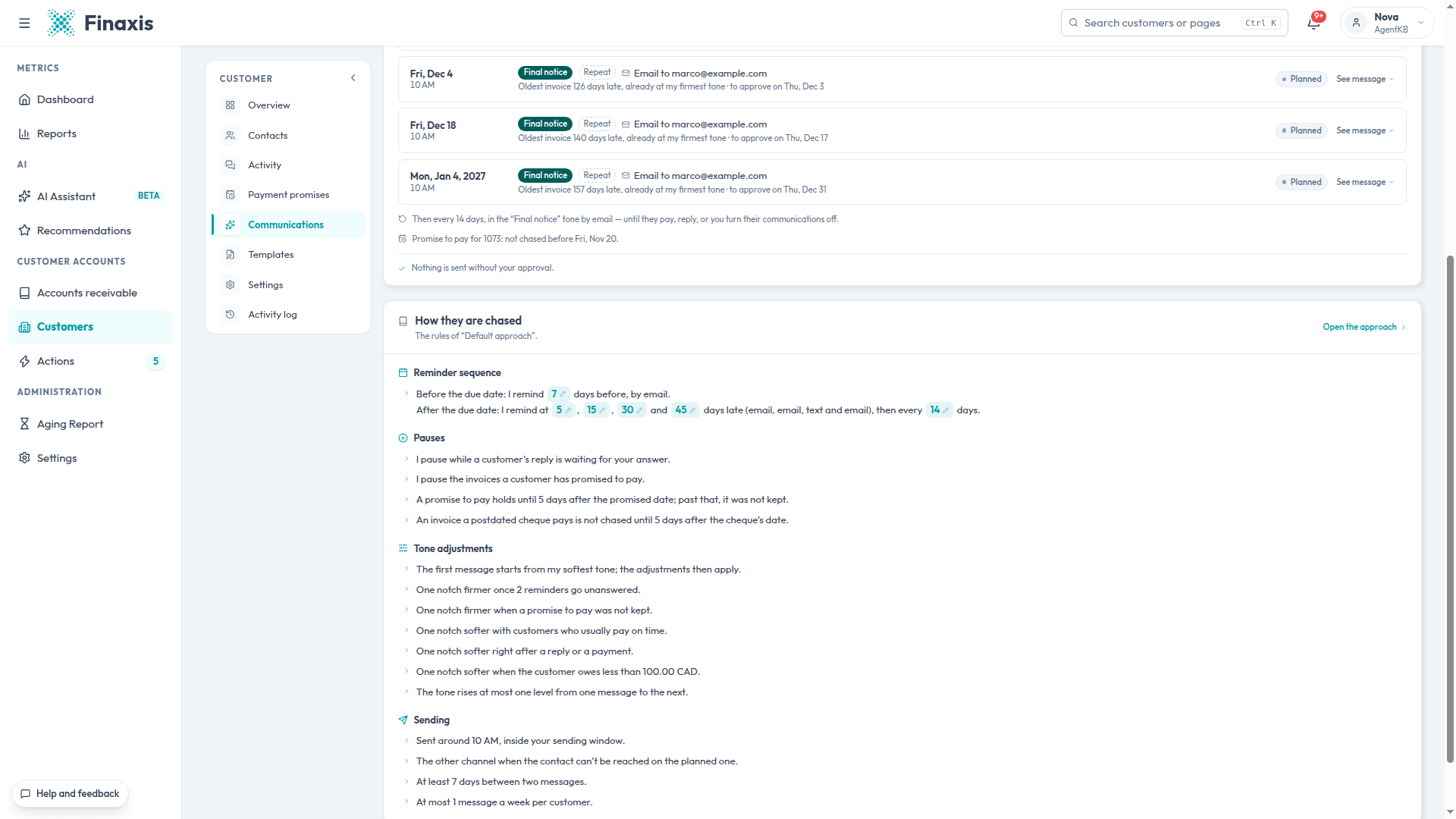
- Open the customer's Communications tab and scroll down to How they are chased.
- In How they are chased, the values highlighted with a pencil can be changed. Click the one you want, for example the delay of a reminder.
- Enter the New value. For a delay, a negative number counts days before the due date.
- Click Update. The change applies to this customer only: the approach does not change.
Customize everything
- Click Customize. The Customize reminders for window, followed by the customer's name, shows every section of the approach.
- Change what you need. Each changed section carries the For this customer mark, with a Put back button to return to the approach's value.
- On the right, What the customer would receive shows their next reminders with your changes.
- At the bottom, Finaxis counts the settings that belong to this customer.
- Click Apply for followed by the customer's name.
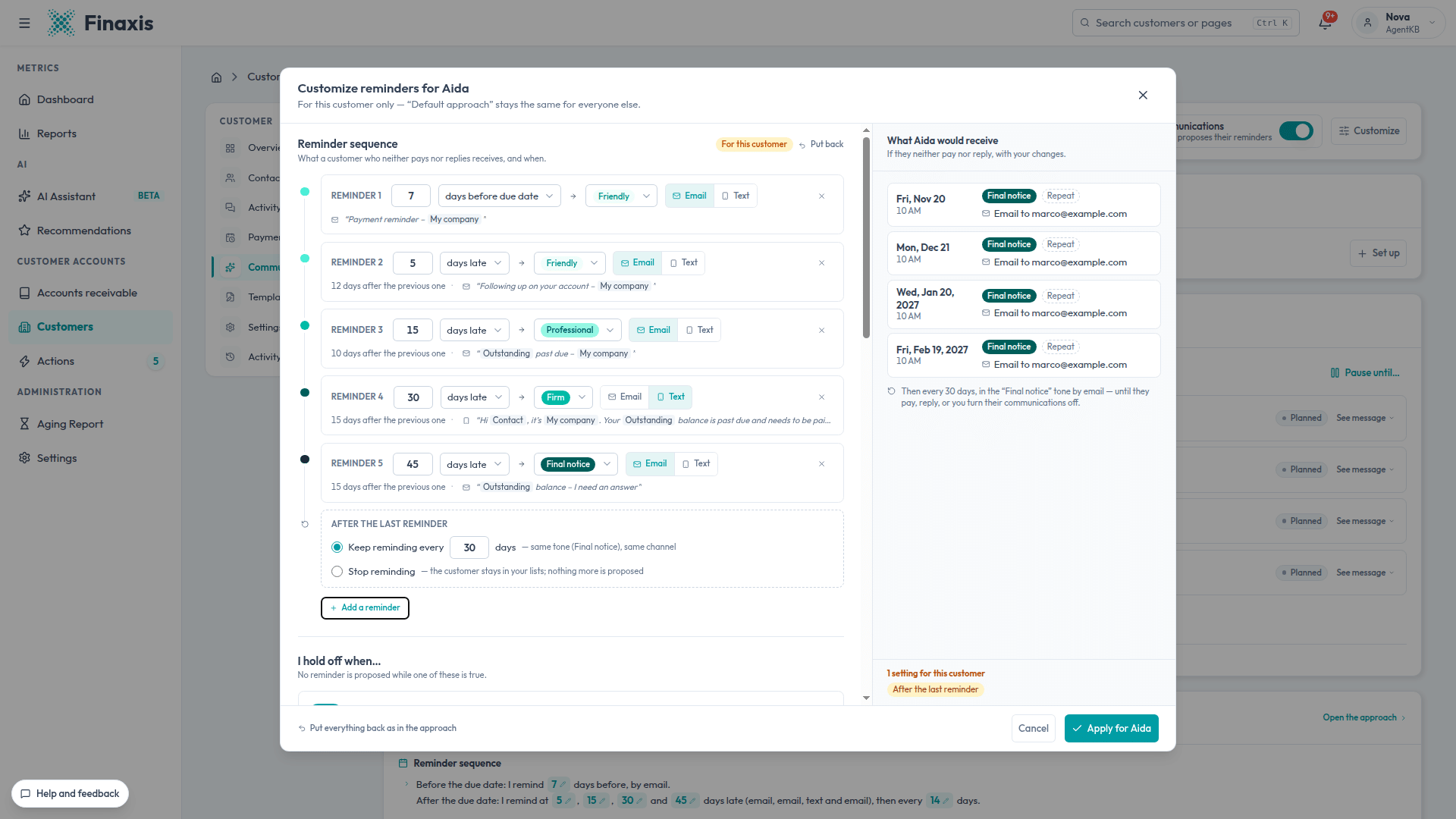
To remove all of a customer's exceptions, open Customize and click Put everything back as in the approach. Their own settings cannot be recovered.
Write messages for one customer
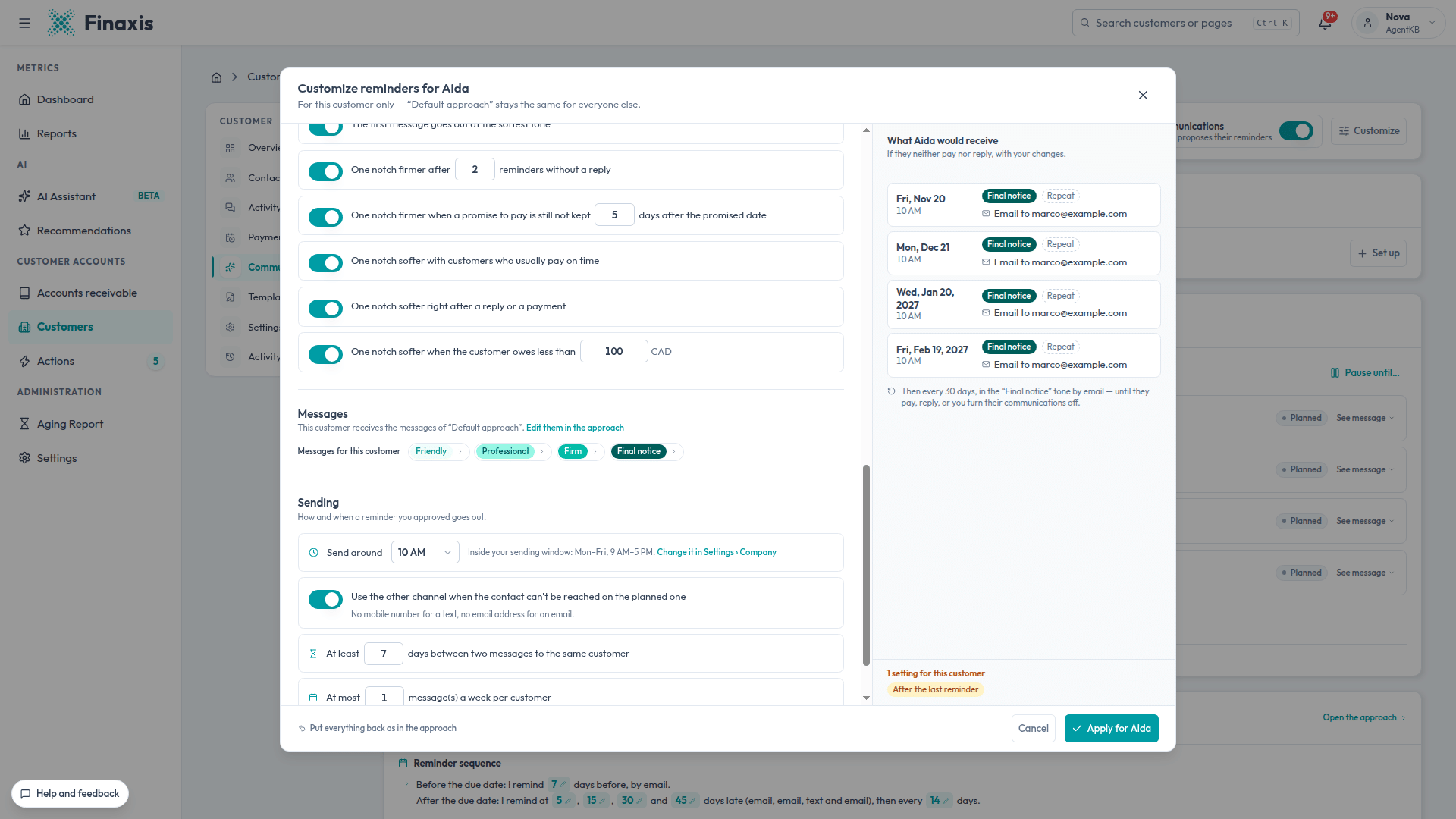
- In the Customize window, Messages section, click a tone level next to Messages for this customer.
- Open the message to adapt.
- Edit the text. Only the text changes: the name, channel and account statement stay those of the approach.
- Click Save for this customer.
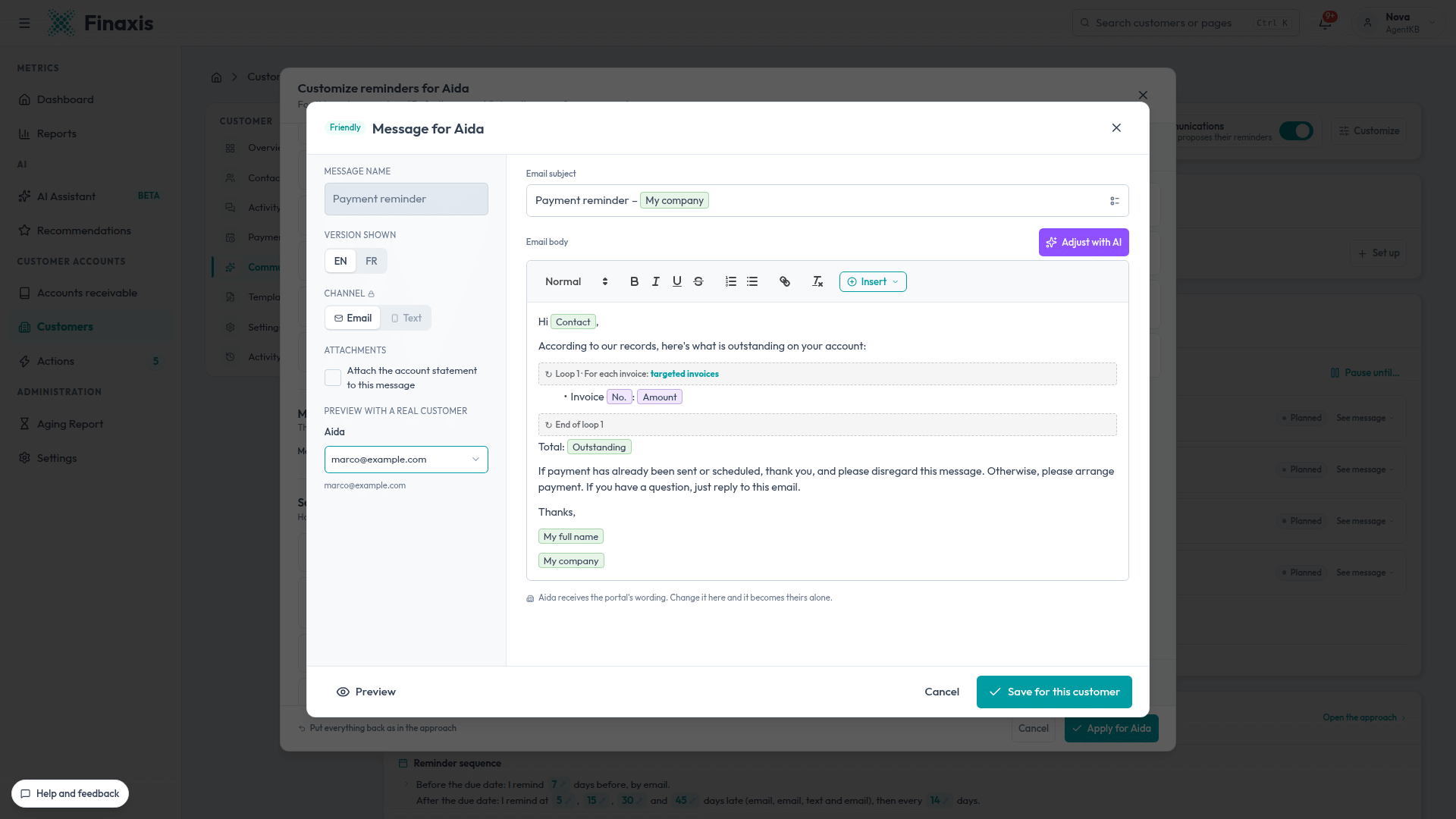
To go back to the shared wording, open the message and click Back to the portal's wording.
Choose who to write to
The Reminder recipients section shows who the approach writes to for this customer. Click Set up to choose the To, Cc and Bcc recipients among their contacts and your team. The first To recipient sets the reminders' language and receives the texts if they have a phone. Without a list, Finaxis follows the customer's default list, or else their primary contact.
Stop all reminders for a customer
Turn off the Communications switch. Finaxis no longer proposes any reminder for this customer, but you can still write to them by hand. A reminder already approved and waiting in the Send queue still goes out: cancel it there if needed.
For a temporary pause, use Pause until… in Upcoming reminders instead.
Understand why a reminder has its tone
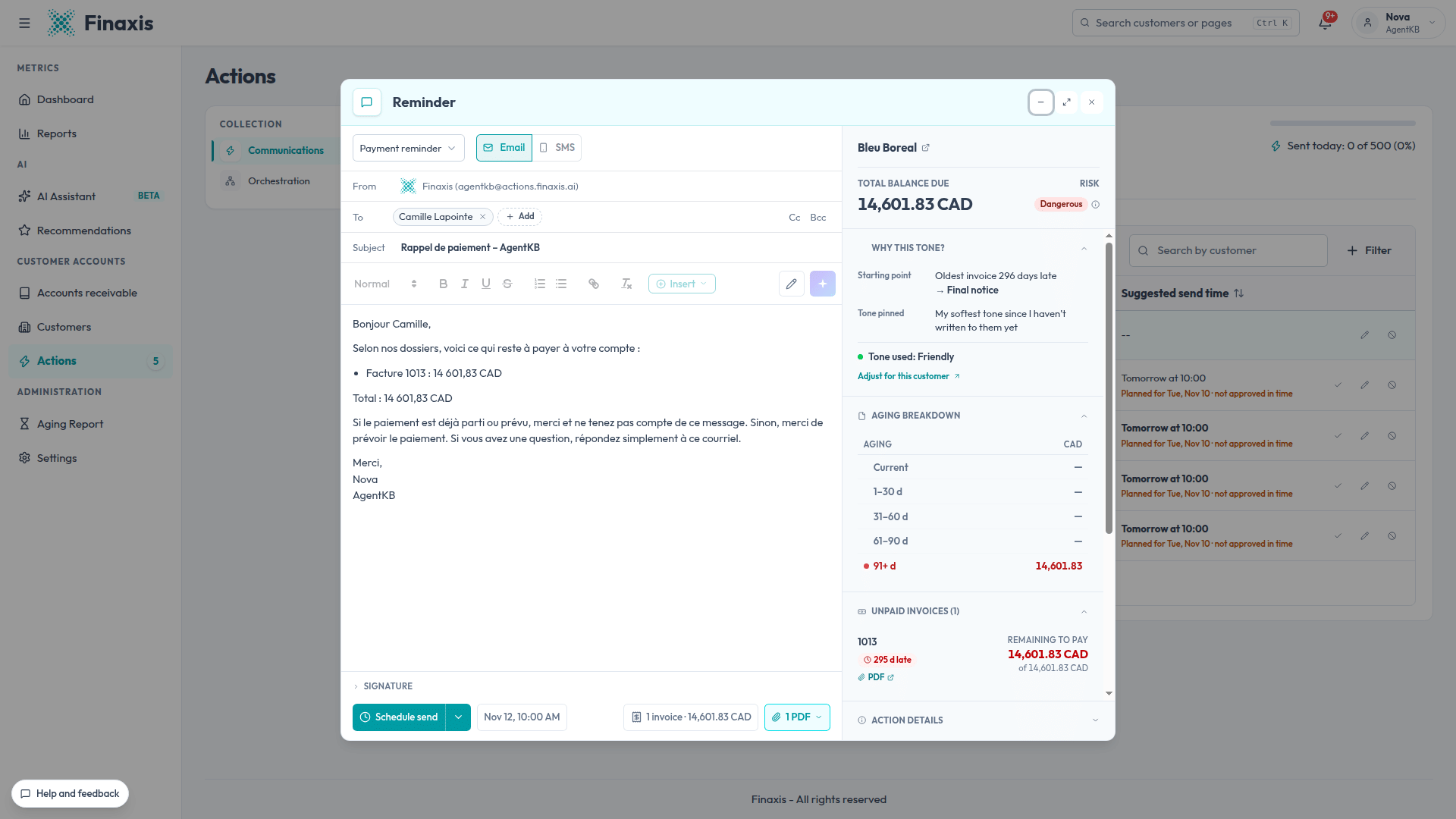
Every draft prepared by an approach explains its tone.
- In Actions › To approve, open a draft.
- On the right, the Why this tone? box gives the starting point: how late the oldest invoice is and the tone that matches it. It then lists each adjustment applied.
- The Tone used line gives the result.
- The tone does not suit this customer? Click Adjust for this customer.
Best practices
A few simple principles give you good reminders without adding to your workload.
- Start with the starter approach. It is balanced. Watch a few weeks of reminders before changing it.
- One approach per group, not per customer. Create an approach for a group of similar customers. For a single customer who differs, make an exception instead.
- Keep a reminder before the due date. A friendly message a few days before catches forgotten invoices without upsetting anyone.
- Go from softest to firmest, one step at a time. Let the automatic adjustments fit the tone to each customer.
- Do not write to someone who is waiting for your answer. Keep the hold on replies turned on, and deal with replies quickly.
- Record payment arrangements. With the hold on promises turned on, Finaxis waits for the promised date instead of chasing for nothing.
- Use texts sparingly. A text in the middle of the sequence gets attention. Keep email for invoice details and the account statement.
- Check before you apply. Always look at If we apply this today and at the On a real customer panel.
- Ask for a specific action. A good message asks for a payment date or what is holding things up, not just to pay.
- Visit To approve every day. Reminders land there the day before they go out. A reminder not approved in time does not go out.
Sample approaches to adapt
These examples are starting points, not rules. Adapt them to your customers.
| Approach | For whom | Settings idea |
|---|---|---|
| Default approach | Most of your business customers | The starter sequence: a reminder 7 days before the due date, then reminders at 5, 15, 30 and 45 days late. |
| Key accounts | A few important customers, where the relationship matters a lot | First reminder on the due date, reminders further apart, email only, account statement attached to messages. |
| Public bodies | Government departments, municipalities and institutions, often slow because of their approvals | First reminder after the due date, reminders further apart, a hold of a few days after each payment. |
| Individuals | Residential customers with small balances | Short reminders by text, a hold below a minimum balance, one notch softer for small amounts. |
Troubleshooting
| Situation | What to do |
|---|---|
| A customer receives no reminder | Open them in Orchestration: Finaxis says why. For example, no rule asks to write to them yet, their communications are off, they are on hold, or their balance is below the minimum. |
| Orchestration says there is no address to write to on this channel | The contact has no email address or mobile number. Add it in the customer's Contacts tab, or turn on the other channel in the approach's Sending section. |
| I do not see New approach, or I cannot edit an approach | Creating and editing an approach is reserved for portal administrators. Ask one of them. Customer exceptions remain available to the person who handles that customer. |
| The softer than the reminder before message appears | A reminder has a softer tone than the one before it. Raise its tone or change the order of the reminders. |
| The Another reminder already goes out that day message appears | Two reminders fall on the same day. Change the delay of one of them. |
| My changes do not show in To approve | Check that you clicked Apply. Pending drafts are then rewritten, except the ones you edited yourself. |
| A customer speaks another language | Add a version in their language with the Language button of the message editor. Without that version, they receive the English one. |
| I turned communications off, but a reminder went out | It was already approved and waiting in the Send queue. Cancel the reminders you do not want to send there. |
Need help building your approaches? Write to support@finaxis.ai and our team will help you.
Related articles
Can't find what you're looking for?
Our support team is here to help.