Send a payment reminder manually
Finaxis prepares follow-up suggestions for you on the Actions page, but you can also contact a customer right away. A manual reminder starts from the customer page: Finaxis drafts the message with the late invoices, and nothing is sent without your approval.
Before you start
- The customer needs at least one contact, with an email address for email reminders or a phone number for SMS.
- The customer needs at least one invoice in Finaxis: reminders are always linked to invoices.
- Emails are sent from your connected mailbox or from the sending address Finaxis provides for your company.
Open the reminder editor
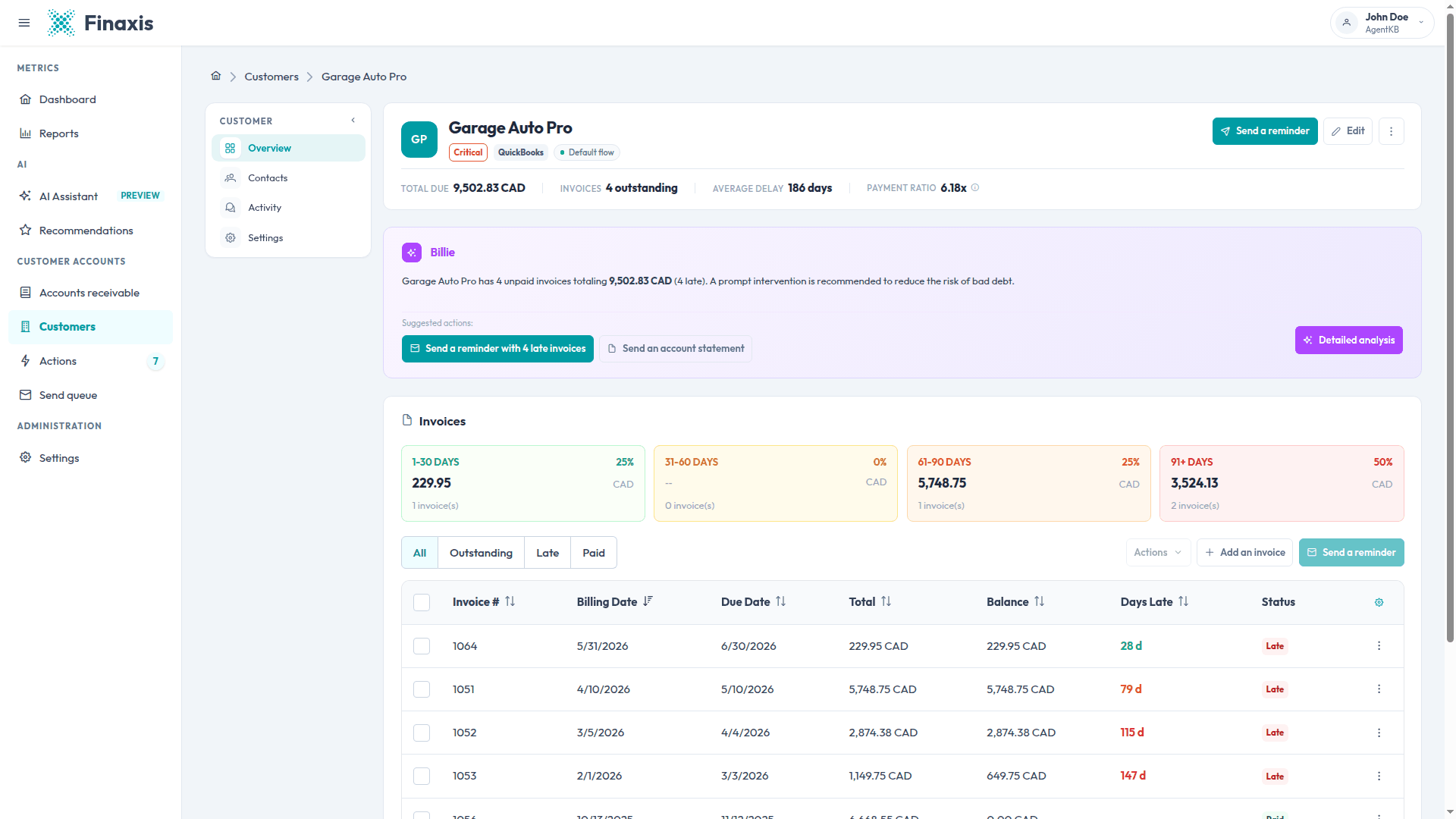
- In the left menu, click Customers, then open the customer you want to contact.
- Click Send a reminder at the top of the customer page. You can also select invoices in the Invoices section and use the Send a reminder button there to target those invoices.
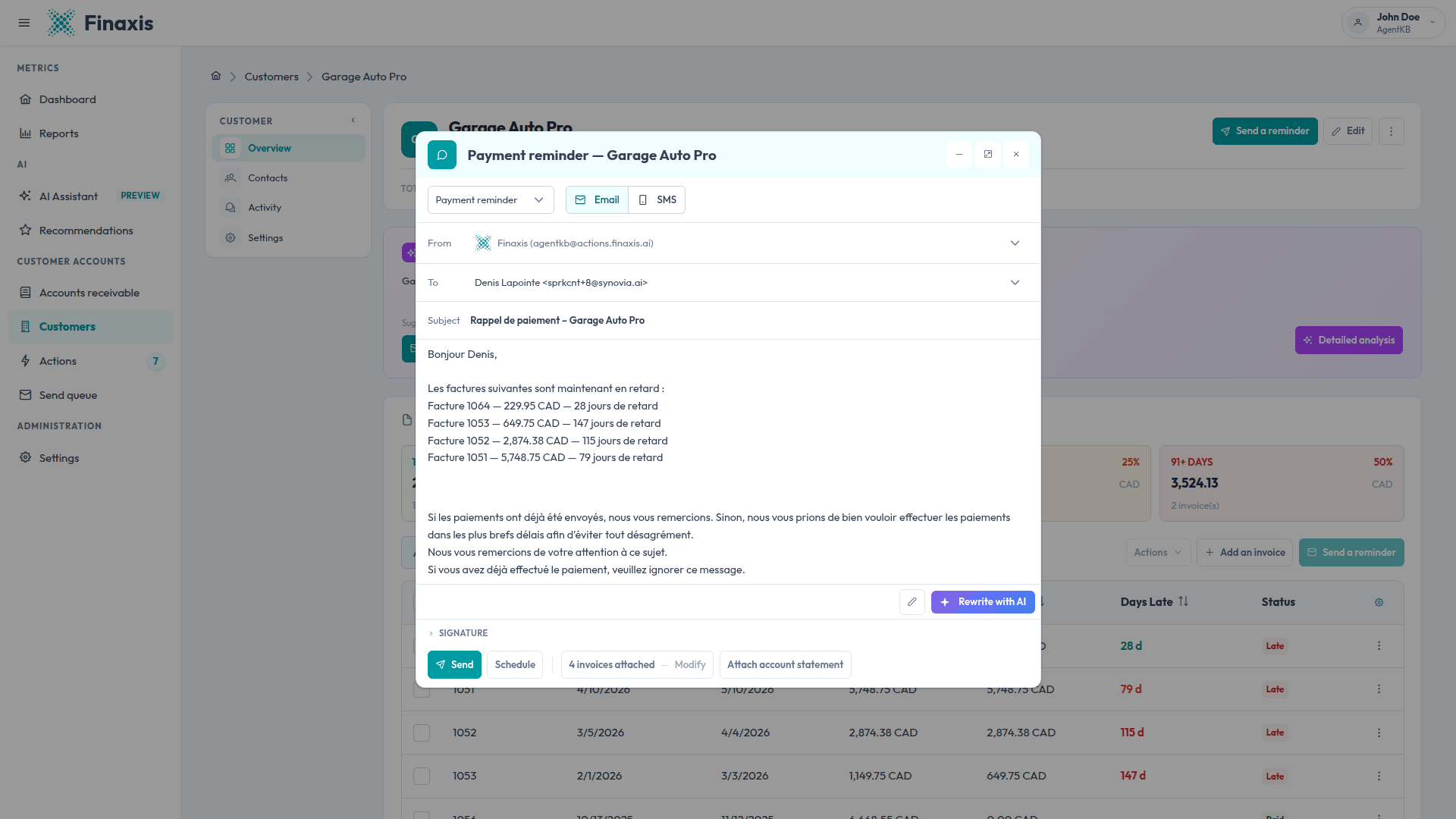
- The editor opens with a ready-to-send draft: the late invoices are listed in the message, written in the contact's language.
Review and personalize the message
- Choose the channel: Email or SMS.
- Pick the recipient in the To field. For email, the From field shows the sending address.
- Edit the subject and the body freely. Amounts, day counts, and invoice lists are filled in with up-to-date values when the message leaves.
- Click Rewrite with AI to have the message rewritten. You review the result before it replaces your draft, and nothing is sent by the AI.
- Manage attachments: click Modify next to the number of attached invoices to change the selection, or Attach account statement to add a statement.
Please note: The account statement always lists every unpaid invoice of the customer. Your draft is saved automatically: if you close the editor, Finaxis offers to restore it the next time you compose a message for this customer.
Send now or schedule
- Click Send to send the message right away, or Schedule to pick a date and time.
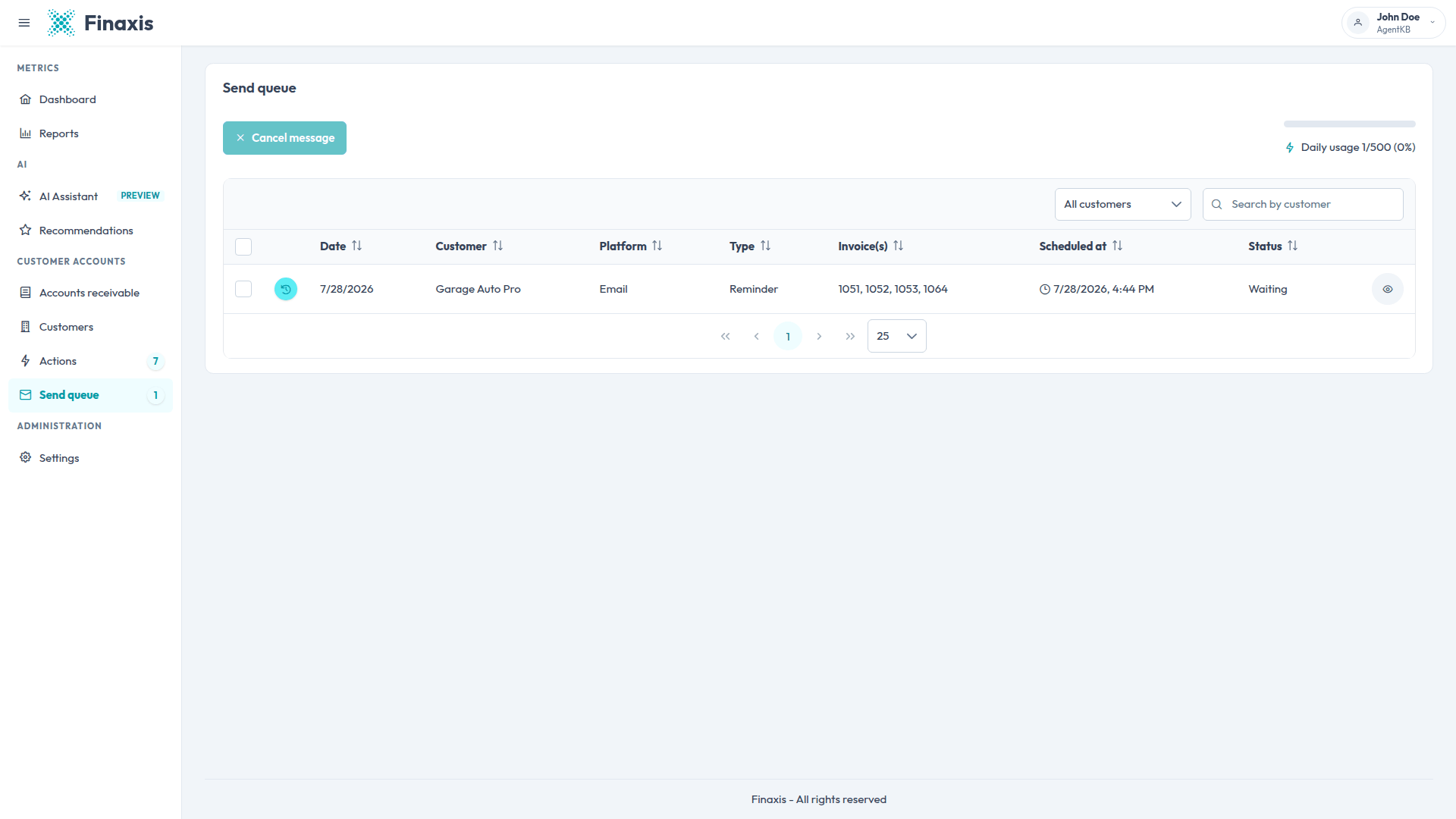
- Every message first goes to the Send queue. An immediate send stays there for a short moment, so you can still cancel it.
Track the message in the send queue
The Send queue page in the left menu lists every message waiting to leave, with its scheduled time and status. The page also shows your daily sending usage.
- While the status is Waiting, select the message and click Cancel message to stop it.
- A cancelled message is not lost: it returns to the Actions page with your edits, ready to send later.
- Once sending has started, the message can no longer be cancelled.
Confirm the message was sent
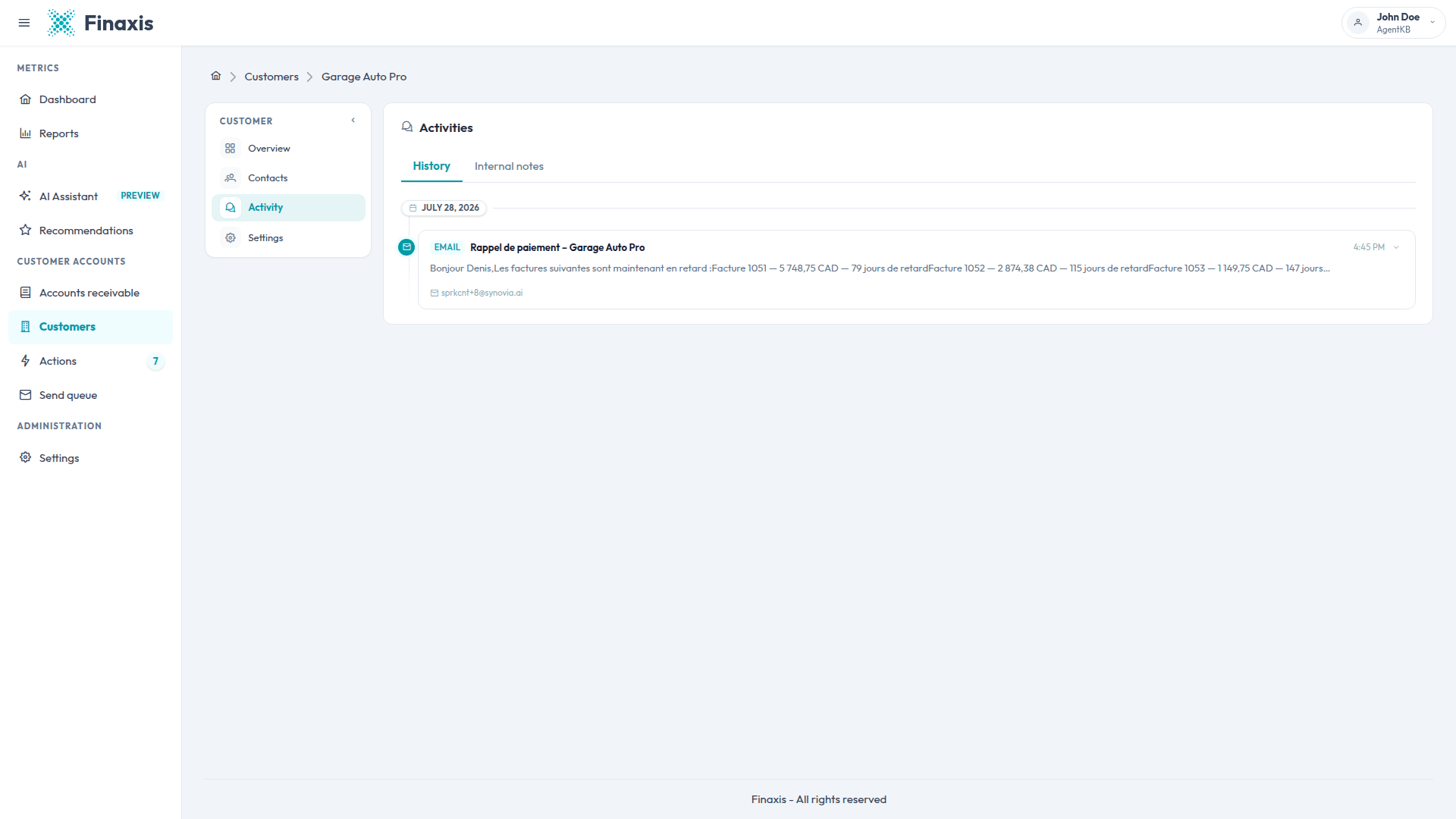
- On the customer page, open the Activity tab, then History.
- The sent message appears with its time and recipient; expand the entry to read the full text.
- When the customer replies, the reply shows up in the same history and creates a new item on the Actions page so you can respond.
Please note: After any send, Finaxis waits before suggesting a new automatic follow-up for the same customer, so your manual reminder and the automated suggestions never pile up.
Troubleshoot manual reminders
| Situation | What to do |
|---|---|
| Send a reminder is greyed out | The customer has no contact yet. Add a contact with an email address or a phone number, then try again. |
| The editor says "No invoices are available for this company." | A reminder needs at least one invoice in Finaxis. Check that your accounting synchronization has run, or add the invoice. |
| The message failed and came back to the Actions page | The send did not go through. For an email reminder, the mailbox owner also receives an error email. Fix the cause, for example a disconnected mailbox, then send the message again. |
| A queued message cannot be cancelled | Sending has already started. Only messages still in Waiting status can be cancelled. |
| A scheduled reminder left the queue without being sent | When every attached invoice is paid before the scheduled time, Finaxis cancels the send and returns the message to the Actions page. |
| The draft is in the wrong language | The draft follows the contact's language. Change the contact's language, or simply edit the text before sending. |
Questions about your follow-ups? Write to support@finaxis.ai and our team will help you.
Related articles
Can't find what you're looking for?
Our support team is here to help.