Connect QuickBooks to Finaxis
The QuickBooks integration feeds Finaxis automatically. Your customers, contacts, invoices, and payments are imported every hour, and a full re-import runs once a week. Finaxis reads your QuickBooks data and never modifies your accounting.
Before you start
- You need administrator access to your Finaxis instance (the Settings menu).
- Have your QuickBooks credentials on hand to authorize the connection.
Connect your QuickBooks account
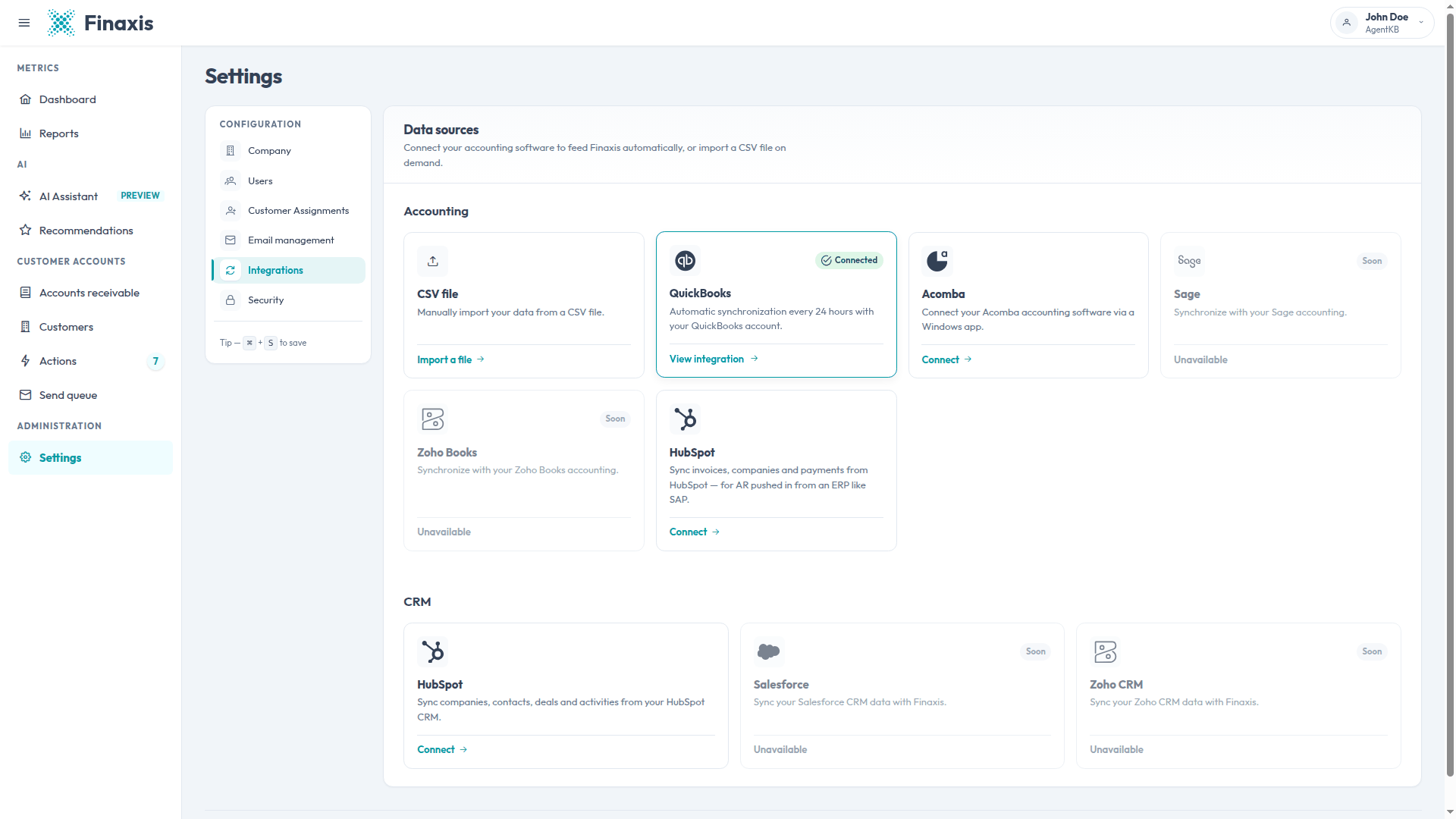
- In the left menu, click Settings, then open Integrations. The Data sources page opens.
- Under Accounting, click Connect on the QuickBooks card. The QuickBooks import page opens.
- Click Connect. A QuickBooks window opens.
- Sign in to your Intuit account, choose the company to connect, and authorize Finaxis to read your QuickBooks data.
- The window closes on its own and Finaxis takes you to the Customers to import page.
Please note: The connection stays inactive until you confirm which customers to import. Until then the QuickBooks card still shows Not connected and no import runs.
Choose which customers to import
You decide which QuickBooks customers Finaxis imports. You can change this choice at any time with the Import settings button on the QuickBooks import page.
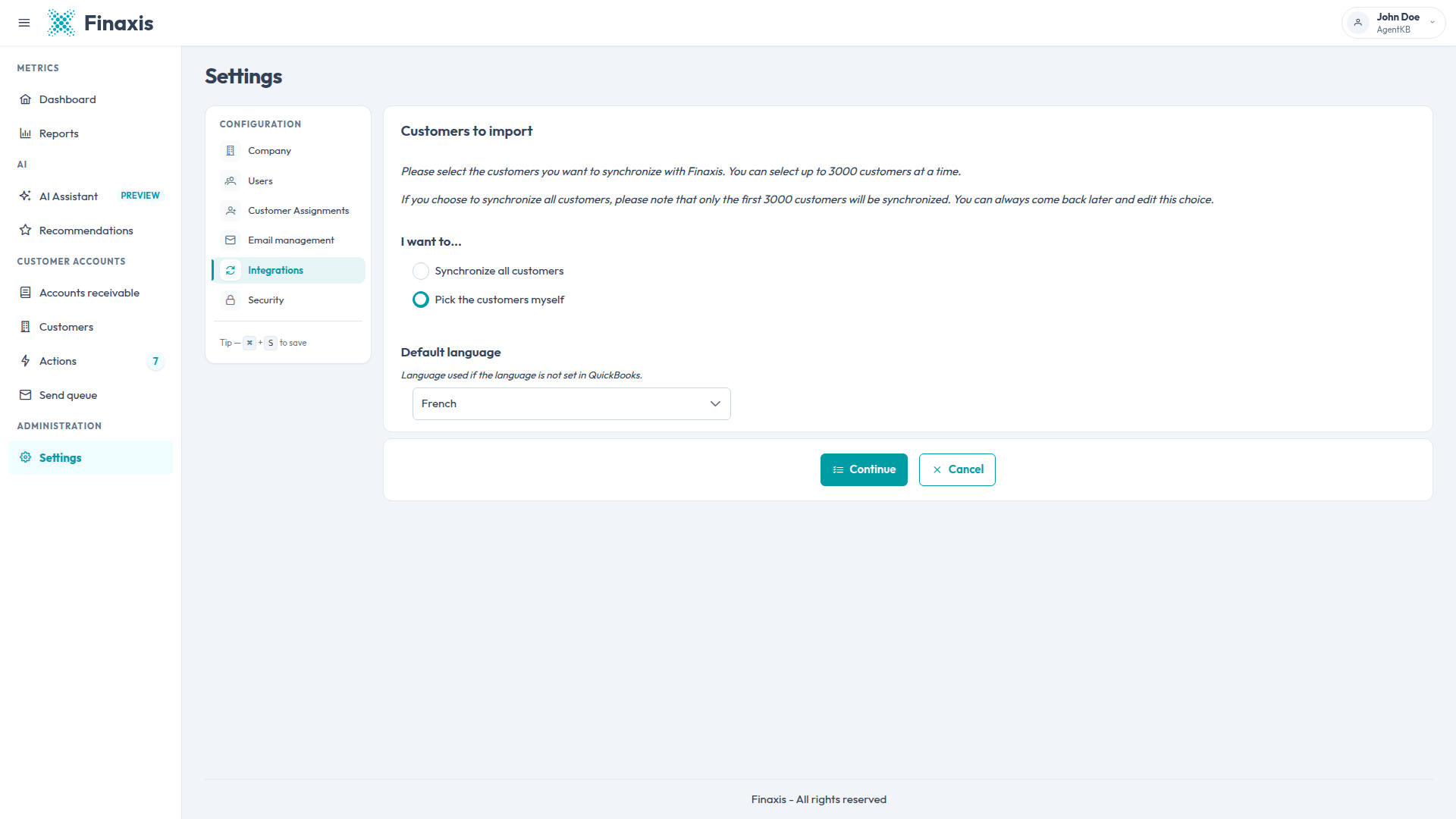
- On the Customers to import page, under I want to..., select Synchronize all customers or Pick the customers myself.
- Set the Default language. Finaxis uses it when a customer has no language set in QuickBooks.
- If you picked the customers yourself, click Continue, then move the customers you want into the Import customers list.
- Click Import customers.
- Finaxis saves your choice and starts a first import right away. Follow it in Past imports.
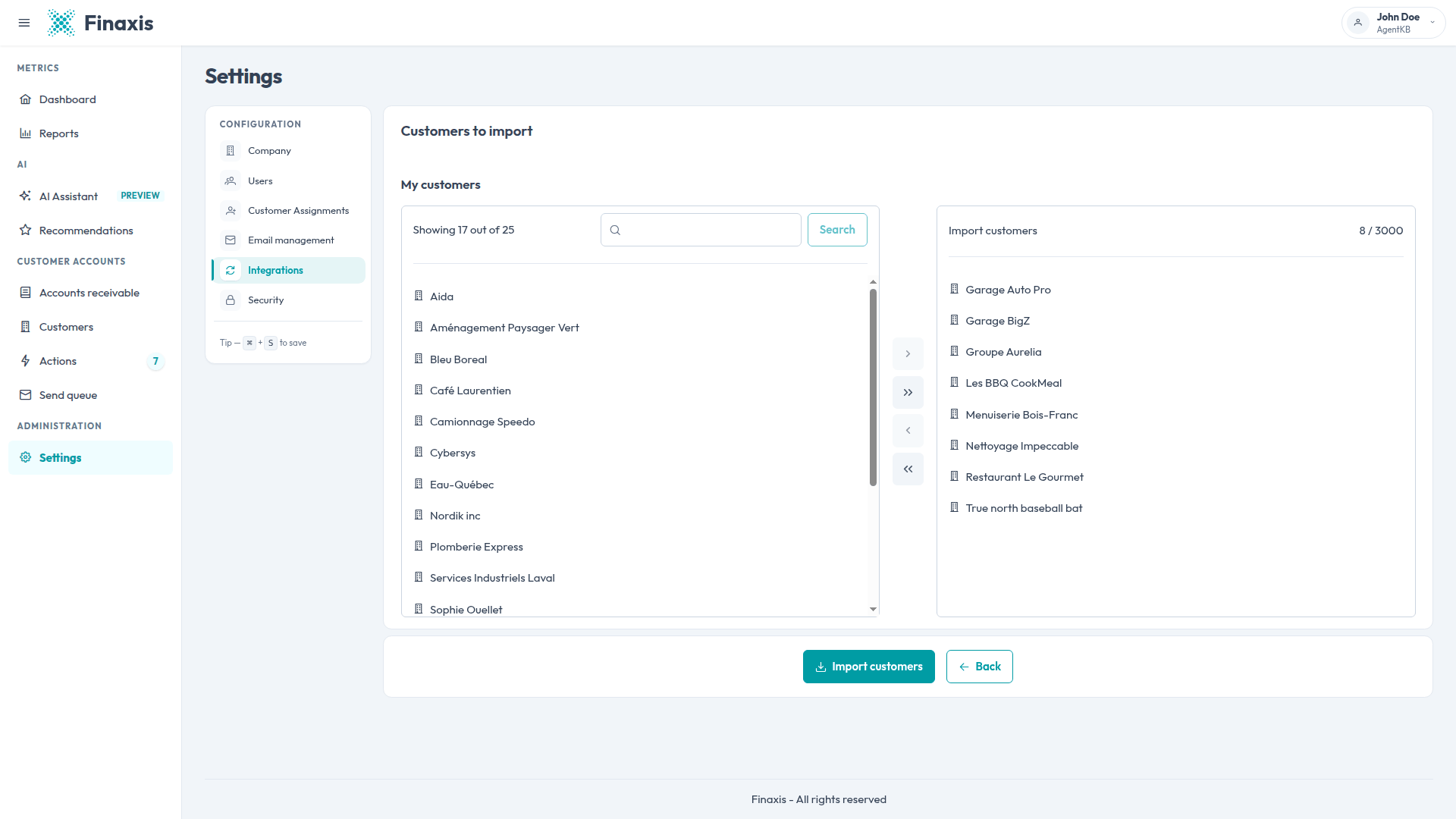
Please note: The number of customers you can import depends on your Finaxis plan, and the limit is shown on the selection page. If your QuickBooks account holds more customers than your plan allows, pick the ones you want. With Synchronize all customers, Finaxis imports the first customers up to your limit.
Please note: Removing a customer from your selection also removes their data from Finaxis on the next import, including their invoices and payments. Adding the customer back re-imports everything from scratch.
Run and monitor imports
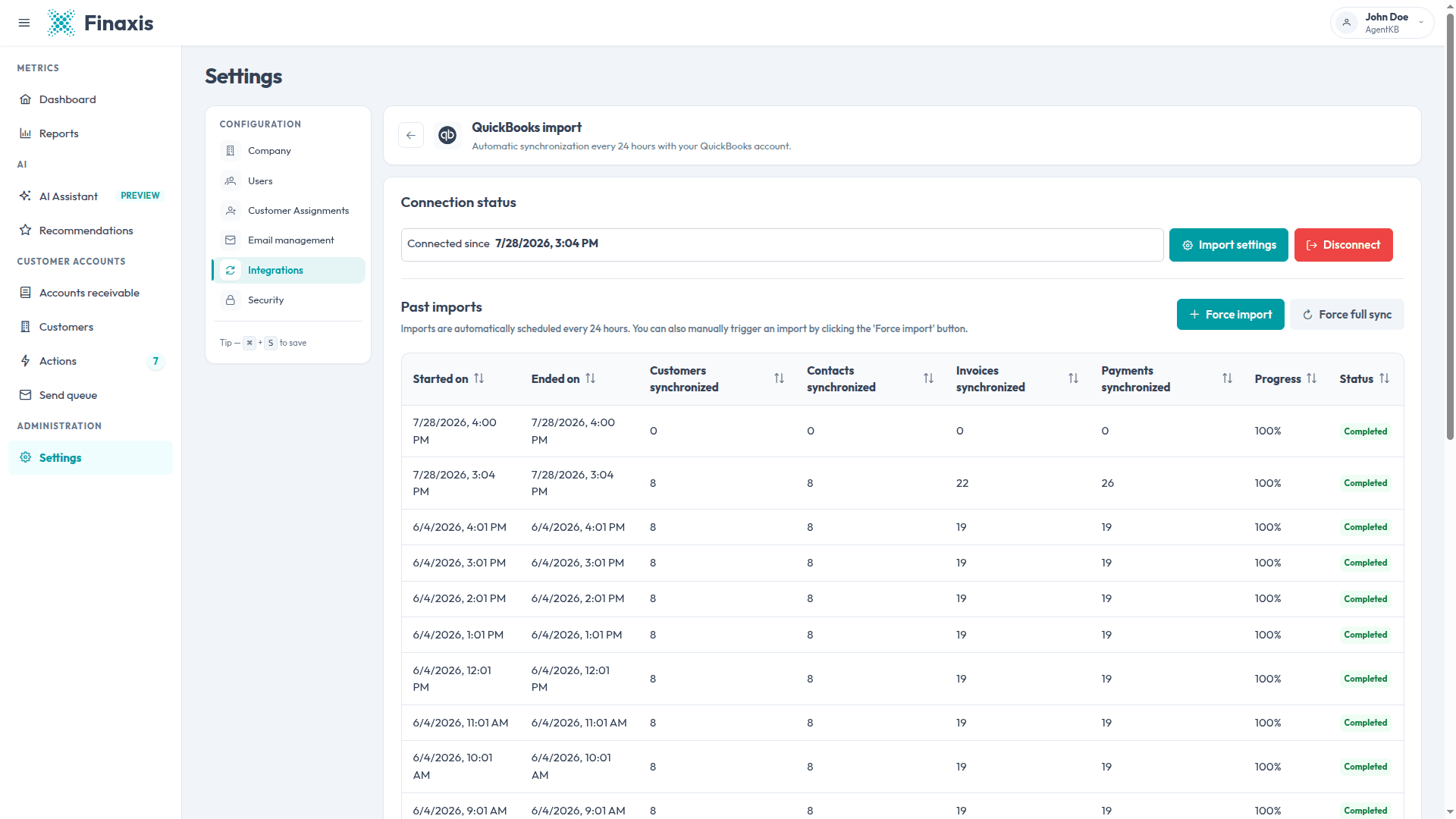
Finaxis imports what changed in QuickBooks every hour. Once a week it also runs a complete import that re-reads your entire QuickBooks data set, so nothing drifts out of sync. The Past imports table lists every run.
- Force import starts an import right away instead of waiting for the next hourly run. It brings in what changed since the last import.
- Force full sync re-imports your complete QuickBooks data set, including invoices and invoice documents that have not changed. Use it when your data looks wrong rather than simply out of date.
- Each row shows the start and end time, the number of customers, contacts, invoices, and payments imported, the progress, and the status.
Import statuses
| Status | What it means |
|---|---|
| Waiting | The import is scheduled and has not started yet. |
| In progress | The import is running. The page refreshes on its own until the run ends. |
| Completed | Everything QuickBooks reported was imported. |
| Completed with errors | Part of the data could not be read during this run. Finaxis picks it up on a later import. |
| Failed | The import could not finish. Check that QuickBooks is still connected, then contact support if it happens again. |
Disconnect QuickBooks
- In Settings, open Integrations, then click View integration on the QuickBooks card.
- Click Disconnect.
- Confirm your password when Finaxis asks for it.
Please note: Disconnecting stops the automatic imports and keeps everything already imported. Your customers, invoices, and payments stay in Finaxis. You can reconnect at any time from the same page.
Troubleshoot the QuickBooks import
| Situation | What to do |
|---|---|
| Some customers are missing in Finaxis | Open Import settings and check your selection. If your QuickBooks account holds more customers than your plan's limit, only customers within the limit are imported. |
| Your data looks out of date | Imports run every hour. Click Force import to refresh right away. |
| Force import is refused | An import is already running for this connection. Wait for the current run to end in Past imports, then try again. |
| A run shows Completed with errors or Failed | Click Force full sync. If the problem persists, contact support. |
| A customer receives reminders in the wrong language | Set the customer's language in QuickBooks, or change the Default language in Import settings. |
| QuickBooks disconnected on its own | Your QuickBooks authorization expired or was revoked in Intuit. Finaxis emails you when this happens. Reconnect from the QuickBooks import page. |
Need a hand with your QuickBooks connection? Write to support@finaxis.ai and our team will help you.
Related articles
Can't find what you're looking for?
Our support team is here to help.