Rewrite a reminder with AI
Every payment reminder you open in Finaxis can be rewritten by the AI. It writes for that specific customer, using their billing history and the invoices attached to the message. You always review the result before it replaces your text, and nothing is sent by the AI.
Before you start
- Open an email reminder, from the Actions page, from a recommendation card, or from a customer page.
- You need the right to send follow-ups in your Finaxis account.
Open the rewrite window
- Open the reminder you want to improve.
- Under the message body, click Rewrite with AI.
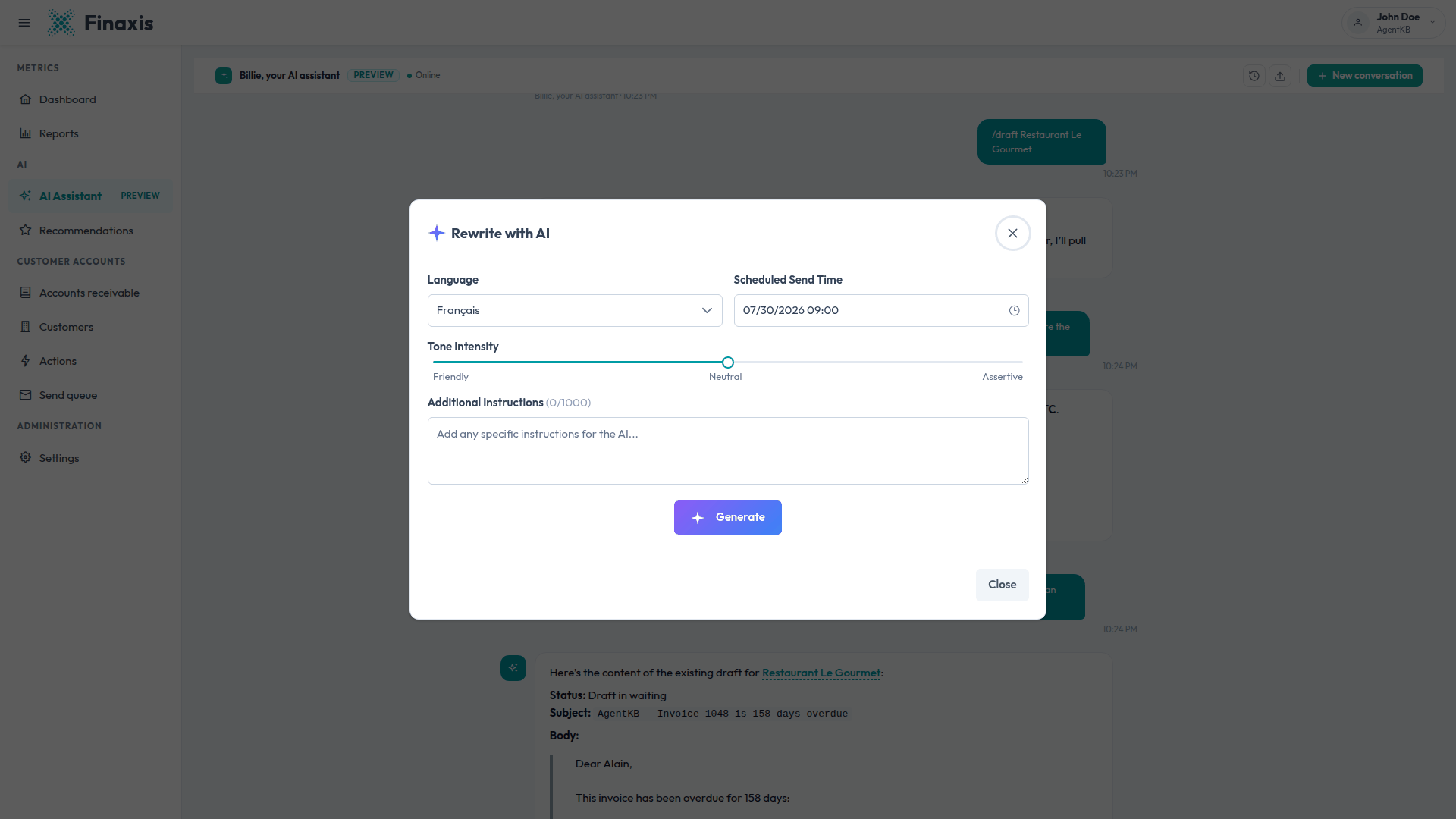
- The window opens with the language already set to the contact's language.
Set the language, the tone, and your instructions
- Language: English or French. Leave the suggested value to write in the language your contact reads.
- Scheduled Send Time: the date the message is meant to leave. The day counts in the message are calculated for that date, so the customer reads the right number of days late.
- Tone Intensity: slide from friendly to assertive. The middle position is the neutral, professional tone.
- Additional Instructions: up to 1000 characters, for example "mention the payment plan discussed on the phone" or "keep it under five sentences". Your instructions take priority over the tone setting.
Generate and review the result
- Click Generate. The first rewrite for a customer can take a little longer, because Finaxis builds their profile first.
- Read the proposed Subject and Body.
- Check the highlighted values in the text: contact name, invoice numbers, amounts, due dates, and day counts.
- Click Accept to bring the result into your message, or Close to discard it and keep your original text.
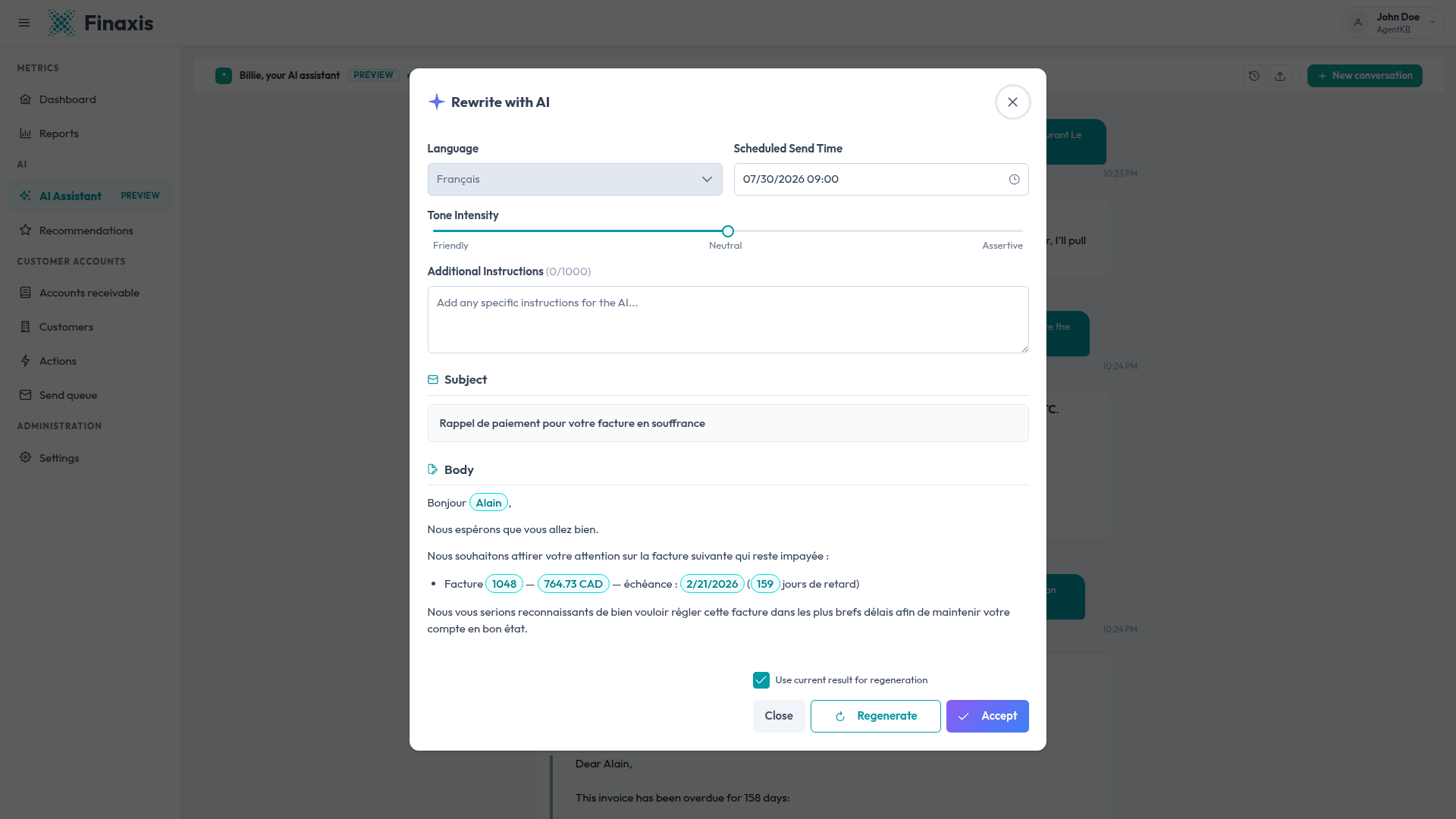
Please note: Those highlighted values are placeholders. Finaxis fills them in with up-to-date figures when the message actually leaves, formatted in the customer's language and currency. The AI never types an amount by hand, which is why the numbers stay accurate even if you schedule the send for next week.
Refine the result
- Leave Use current result for regeneration checked. It appears once you have a first result.
- Write what you want changed in Additional Instructions, for example "shorter" or "offer to split the balance in two payments".
- Click Regenerate. The AI adjusts the message you already have instead of starting over.
- Repeat as many times as needed, then click Accept.
Please note: Moving the tone slider clears that checkbox and starts a fresh rewrite from your original message. The language cannot be changed while the checkbox is checked either. Uncheck it, or generate again, to switch language.
Send the message
The accepted text lands in the message, where you can keep editing it. Add attachments if needed, then schedule the send as usual. The AI writes, you send.
- The AI never adds a signature. Finaxis appends yours when the message leaves.
- When several invoices are attached, the message lists each of them.
- The message goes to the Send queue, where you can still cancel it.
Troubleshoot the AI rewrite
| Situation | What to do |
|---|---|
| The Rewrite with AI button is missing | The button appears on email reminders. It is not offered on replies to a customer, and not on SMS. |
| The result looks like your original text | When a rewrite risks losing an invoice number or an amount, Finaxis keeps your text instead. Generate again, or reword your instructions. |
| An error message with a retry option | Finaxis already retried on its own. Click the retry option, and check that the customer has invoices attached to the message. |
| The message came out in the wrong language | Choose the language at the top of the window before generating. The suggested value follows the contact's language on the customer page. |
| The generation takes a long time | The first rewrite for a customer builds their profile. The following ones are faster. |
Not getting the wording you need? Write to [email protected] and our team will help you.
Related articles
Can't find what you're looking for?
Our support team is here to help.