Work your daily recommendations
The Recommendations page is your collection routine for the day. It gathers the customers who have a follow-up waiting, sorts them by how serious their overdue balance is, and walks you through the steps to complete for each one. Nothing is sent without your approval.
Before you start
- A customer only appears here when Finaxis has prepared a follow-up for them, which requires a contact with an email address or a phone number.
- Your invoices must be up to date. Recommendations follow the overdue balances of your accounts receivable.
Open your recommendations
- In the left menu, under AI, click Recommendations. You can also click View recommendations on the dashboard.
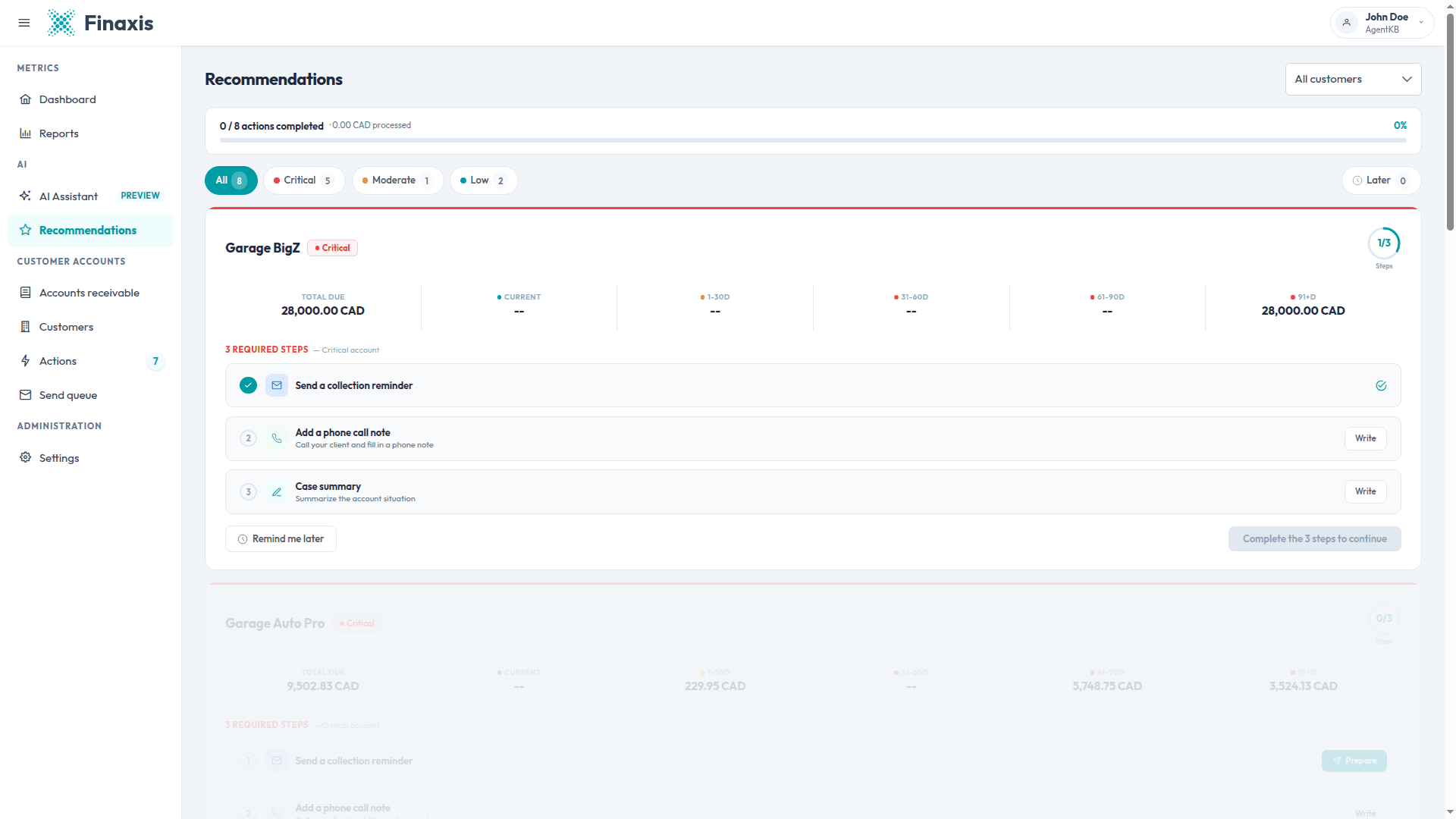
- The bar at the top shows your progress for the day: the number of completed follow-ups, the amount processed, and a percentage.
- Use the pills to focus on one group: All, Critical, Moderate, Low, or Later.
- Use the All customers menu at the top right to keep only the customers assigned to you or to a colleague.
Read a recommendation card
Each card covers one customer. It shows the severity, the progress circle for the steps, the total due, and the balance in each aging bucket: current, 1 to 30 days, 31 to 60 days, 61 to 90 days, and 91 days and over.
| Severity | When it applies | Steps required |
|---|---|---|
| Critical | Part of the balance is 91 days overdue or more | Three: reminder, phone call note, case summary |
| Moderate | Nothing beyond 90 days, but part of the balance is 61 to 90 days overdue | Two: reminder and case summary |
| Low | Everything else | One: the reminder |
Please note: Cards are ordered by severity, and by amount due inside each severity. The most expensive critical account is always at the top.
Step 1: send the prepared reminder
- On the card, click Prepare next to Send a collection reminder.
- The message opens, already written with the customer's late invoices, in the contact's language.
- Review it, edit it, or click Rewrite with AI to have it rewritten.
- Choose the date and time, then click Schedule send. The step is checked off on the card.
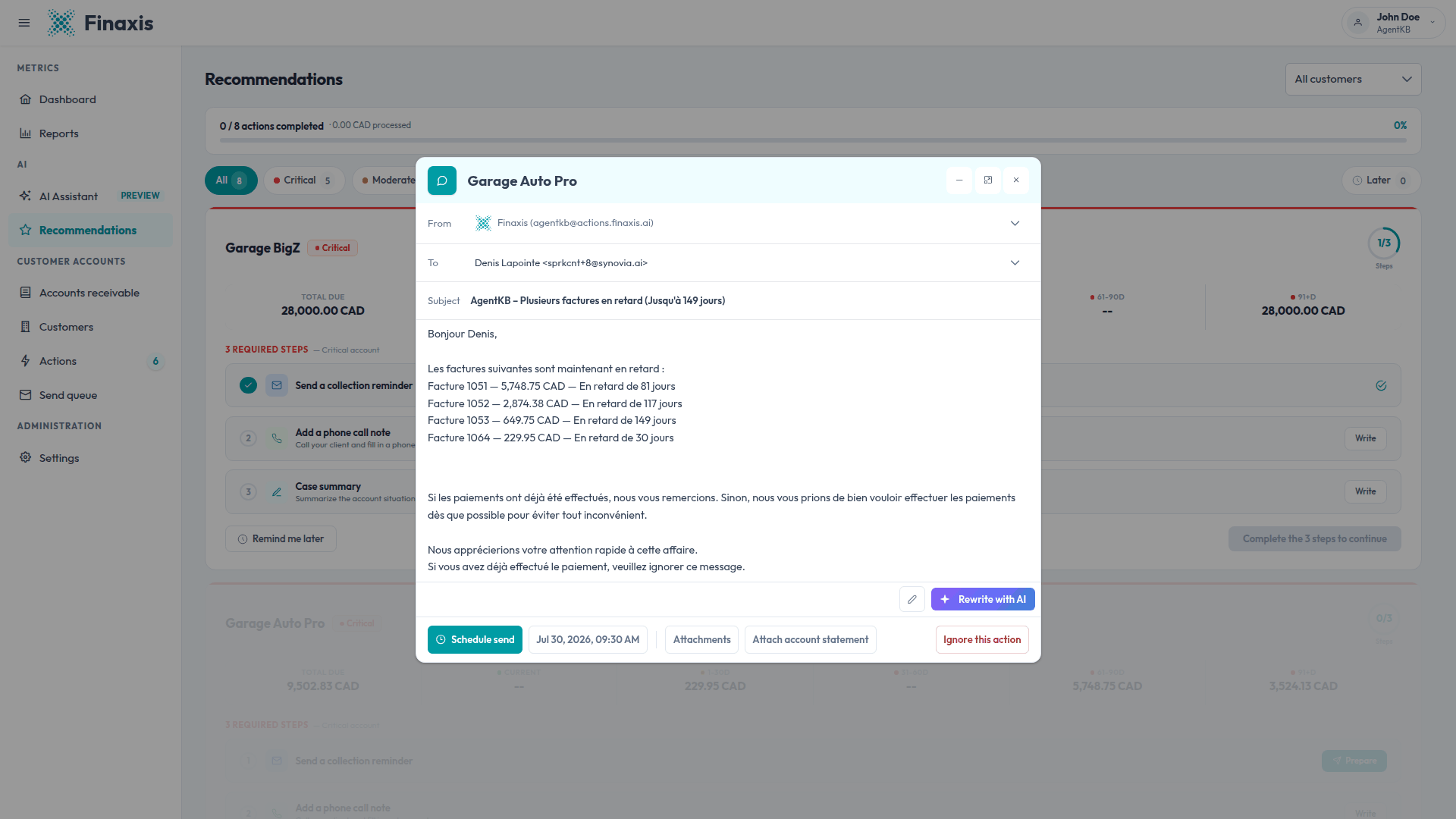
Please note: The message goes to the Send queue first, so you can still cancel it there before it leaves.
Step 2: log your phone call
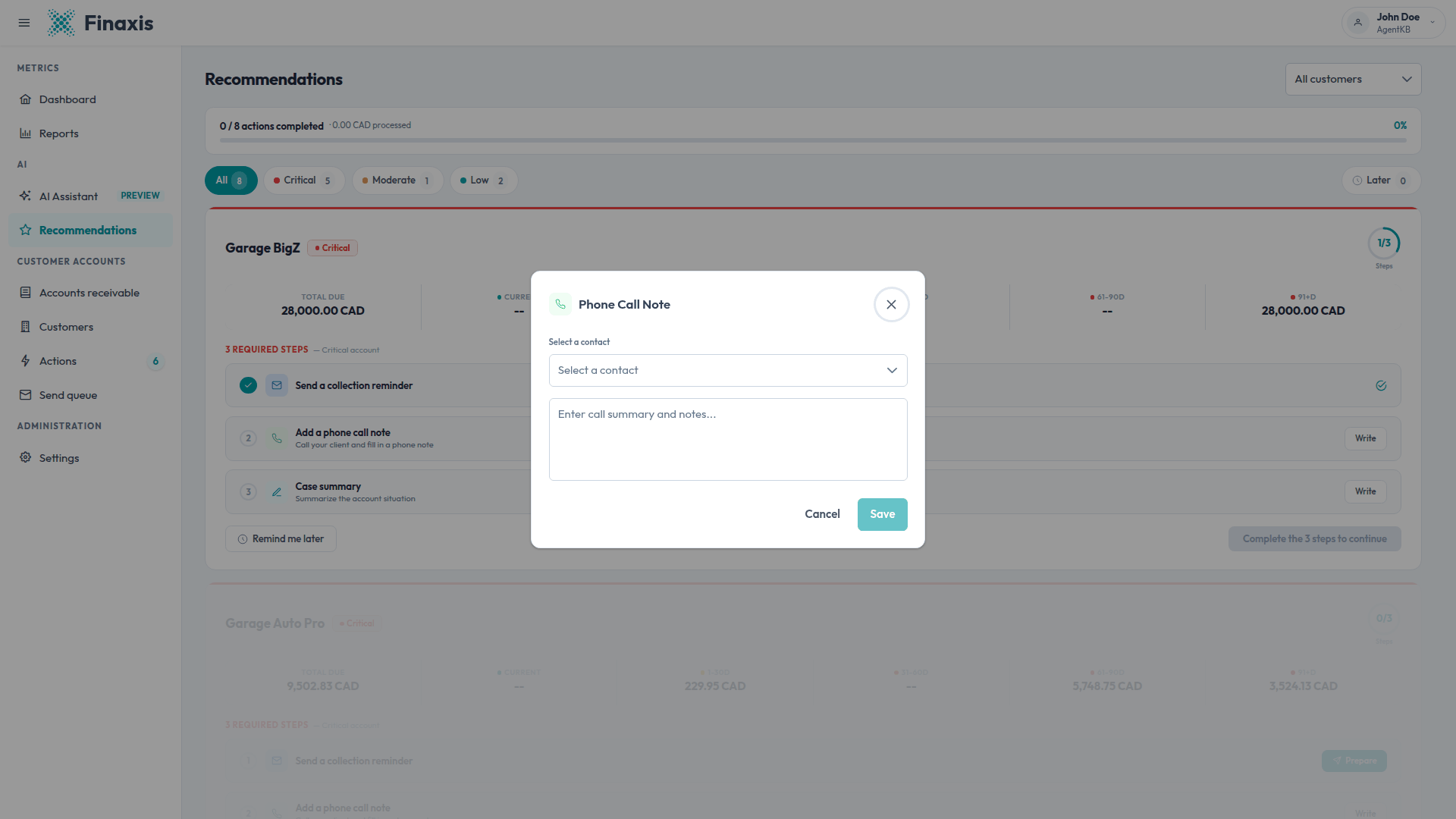
Critical accounts also expect a call. Call your customer, then record what came out of it.
- Click Write next to Add a phone call note.
- Pick the person you spoke with in Select a contact.
- Write the summary of the call, then click Save.
Step 3: write the case summary
- Click Write next to Case summary.
- Summarize where the account stands: promises made, disputes, payment plan, anything a colleague would need to know.
- Click Save. Reopen the window later to read or adjust your summary.
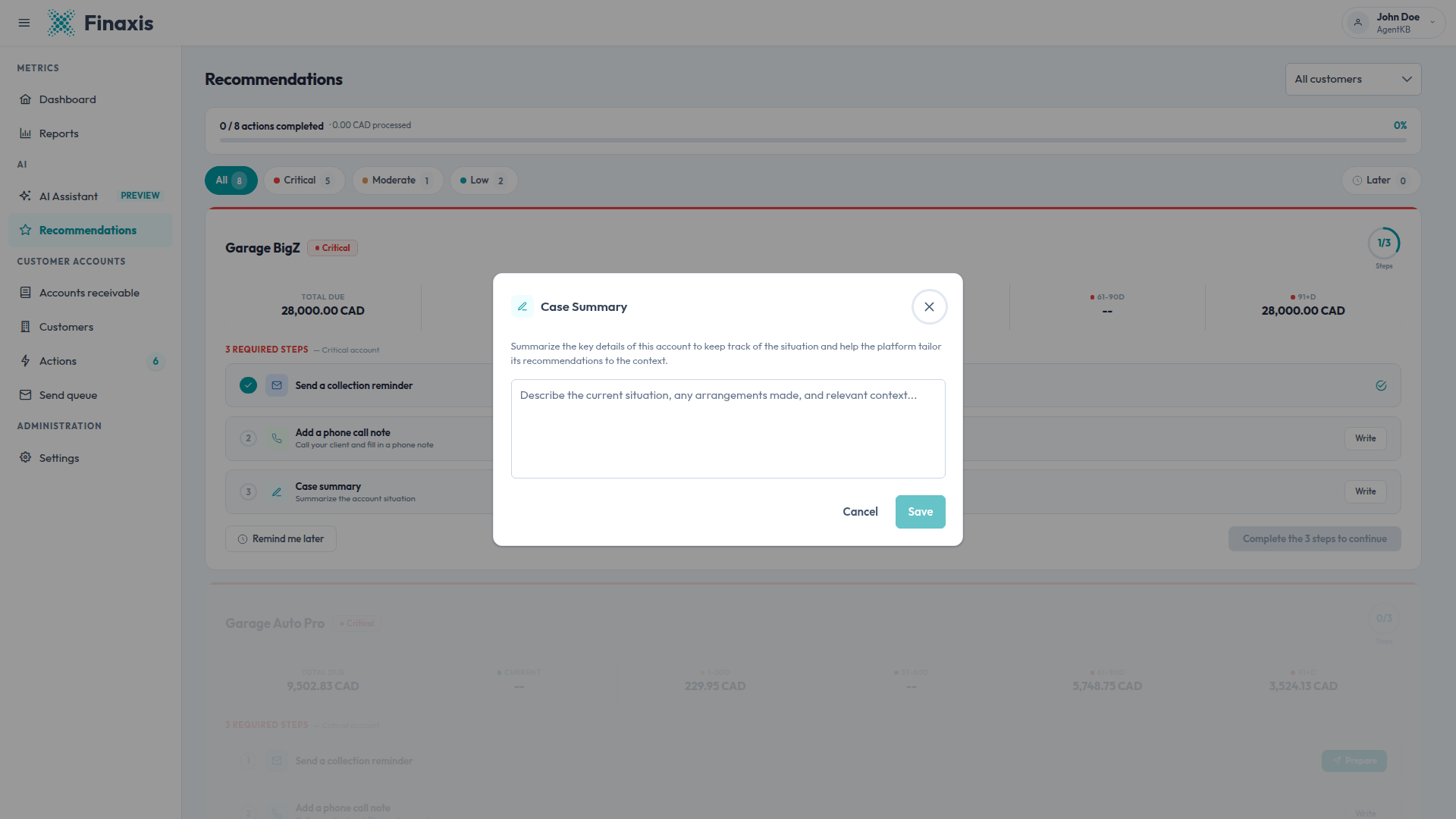
Please note: Both notes are saved on the customer, so your colleagues can read them, and Finaxis takes them into account when it prepares the next messages for this customer.
Close the card or come back later
- The button at the bottom right stays greyed out and reads Complete the 3 steps to continue until every step is checked off. Once they are, use it to close the card: it leaves the list and your daily counter goes up.
- A low severity customer needs no closing click. The card disappears as soon as its reminder is scheduled.
- Click Remind me later to set the customer aside for 24 hours. The card moves to the Later pill and comes back on its own.
- A customer whose reminder is already sent stays in the list until the remaining notes are written.
How your progress is counted
- The steps you check off and the customers you set aside are yours. A colleague working the same account has their own checklist.
- The counter at the top is shared by everyone in your Finaxis account, so you see the progress of the whole team.
- The target for the day is set the first time the page is opened and does not shrink as you work through it.
Troubleshoot recommendations
| Situation | What to do |
|---|---|
| The All count is higher than the number of cards shown | Customers set aside with Remind me later are still counted. Open the Later pill to see them. |
| A customer you expected is missing | Finaxis prepares one follow-up at a time per customer, and waits between two contacts. The customer comes back once that delay has passed, or when new unpaid invoices appear. |
| A customer with a large balance never appears | Check that the customer has a contact with an email address or a phone number. Without one, no follow-up can be prepared. |
| The aging line shows only dashes | That customer is missing from today's accounts receivable data. Run or wait for your accounting synchronization, then reload the page. |
| Scheduling a send is refused | Your plan includes a monthly number of messages. When the limit is reached, sending stops until the next period. Contact your administrator. |
Questions about your recommendations? Write to support@finaxis.ai and our team will help you.
Related articles
Can't find what you're looking for?
Our support team is here to help.