Log in to Finaxis
Last updated on
Applies to: All plans
Lire en français
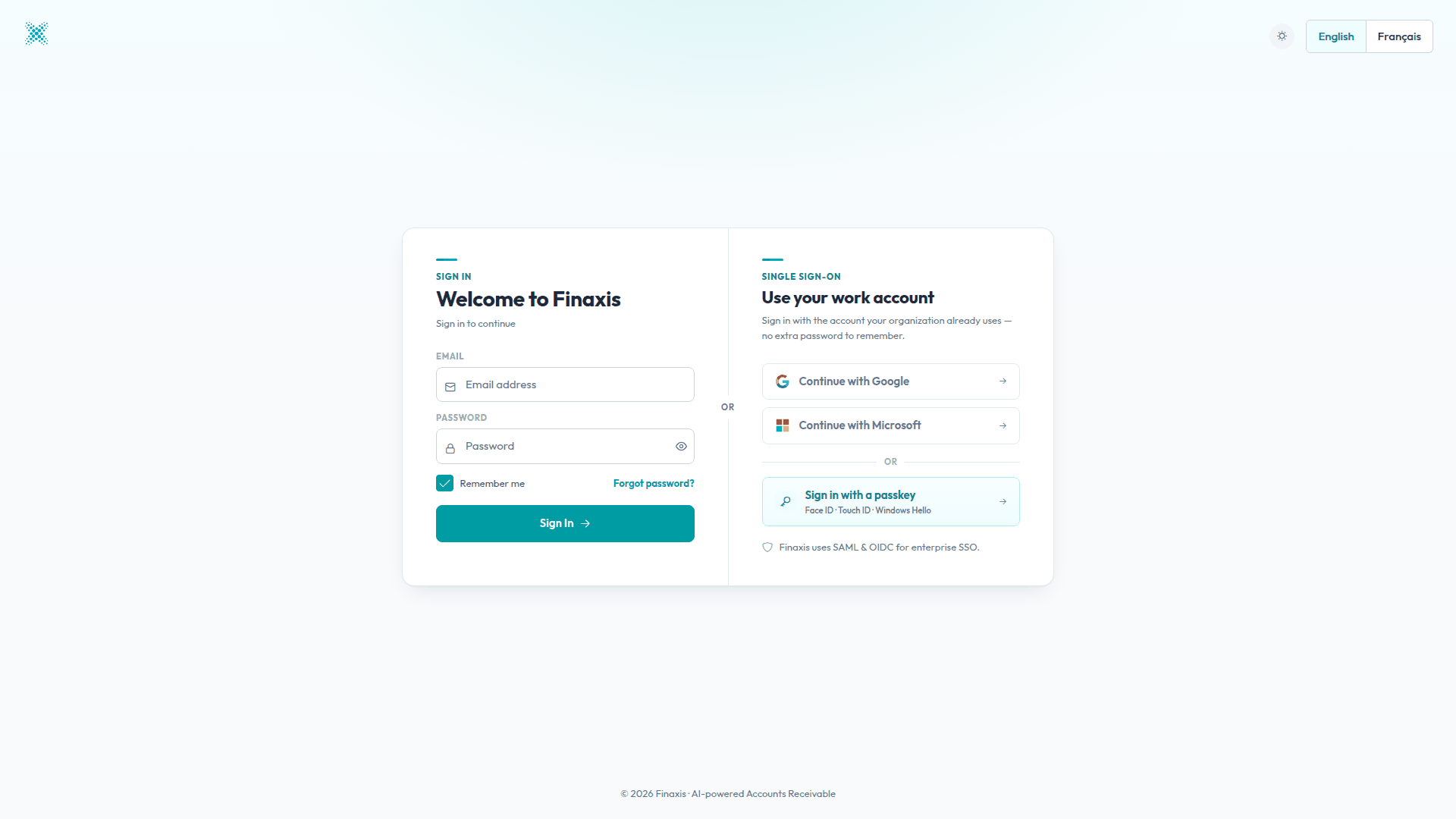
You can log in to Finaxis at app.finaxis.ai in three ways: with your email address and password, with your Google or Microsoft work account, or with a passkey. This article walks through each method.
Before you start
- Your Finaxis account is created from an invitation sent by your administrator. If you have not received one, contact the person who manages Finaxis in your organization.
- The login page is available in English and French. Use the language toggle at the top right to switch.
Log in with your email and password
- Go to app.finaxis.ai. You are redirected to the login page.
- In the Email field, enter your email address.
- In the Password field, enter your password. Click the eye icon to show or hide it.
- To stay logged in on this device, leave Remember me checked.
- Click Sign In.
Please note: If two-factor authentication is enabled on your account, Finaxis asks for a verification code after this step.
Log in with Google or Microsoft
If your organization uses Google Workspace or Microsoft 365, you can log in without a separate Finaxis password. Finaxis also supports SAML and OIDC for enterprise single sign-on.
- On the login page, under Use your work account, click Continue with Google or Continue with Microsoft.
- Select the account your organization uses.
- Once your identity is confirmed, you are redirected back to Finaxis.
Log in with a passkey
A passkey lets you log in with Face ID, Touch ID, or Windows Hello instead of a password.
- On the login page, click Sign in with a passkey.
- Follow your device's prompt to confirm your identity.
Reset your password
- On the login page, click Forgot password?.
- Enter your email address and submit the form.
- Open the password reset email and follow the link to choose a new password.
Troubleshoot login issues
| Situation | What to do |
|---|---|
| You see a generic error message | Check your email address and password, then try again. If the problem persists, reset your password. |
| Your account has access to several instances | After you sign in, Finaxis asks you to pick the instance you want to work in. |
| You received an invitation email | Follow the link in the invitation first. You choose your password during that step. |
Still unable to log in? Write to support@finaxis.ai and our team will help you.
Related articles
Can't find what you're looking for?
Our support team is here to help.