Connect HubSpot invoices to Finaxis
The HubSpot invoices integration imports your invoices, with their companies, contacts, and payment state, into Finaxis every hour. It works like the QuickBooks and Acomba connections and is useful when your accounting lives in an ERP, such as SAP, that pushes invoices into HubSpot.
Before you start
- You need administrator access to your Finaxis instance (the Settings menu).
- You need a HubSpot account allowed to approve access for your HubSpot portal, and your browser must allow the HubSpot authorization window to open.
- Connecting alone imports nothing: the first import starts once you finish the setup steps.
- Already using the HubSpot CRM connection? This connection is separate and needs its own authorization.
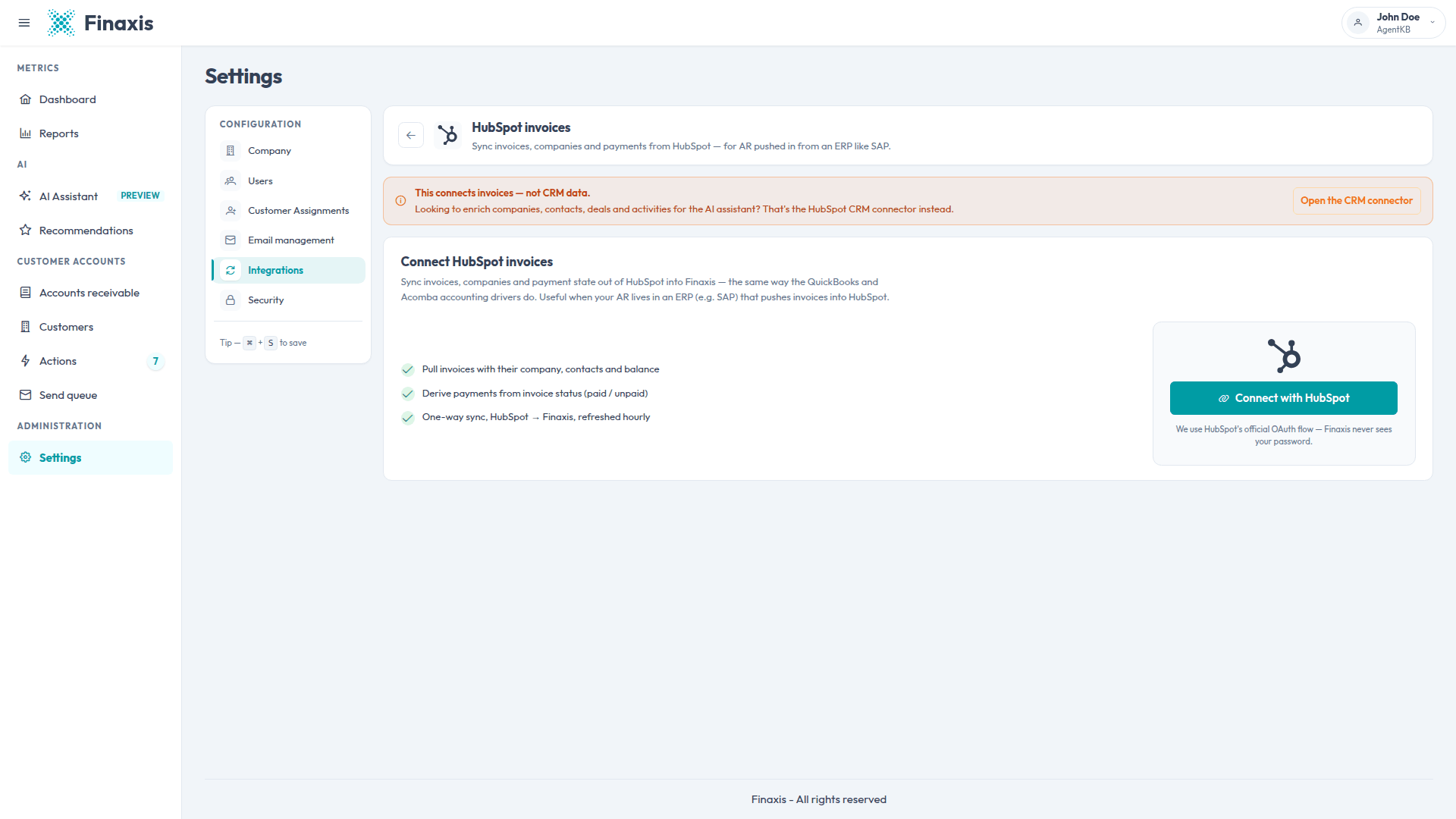
Please note: Finaxis has two separate HubSpot integrations. This article covers the invoices connection, under Accounting. To enrich companies, contacts, deals, and activities for the AI assistant, use the HubSpot card under CRM instead.
Connect your HubSpot account
- In the left menu, click Settings, then open the Integrations tab. The Data sources page opens.
- Under Accounting, click Connect on the HubSpot card. The HubSpot invoices page opens.
- Click Connect with HubSpot. A HubSpot window opens: sign in and approve the requested access. Finaxis uses HubSpot's official OAuth flow and never sees your password.
- The window closes on its own and the setup steps open in Finaxis.
Complete the setup
Four short steps configure what Finaxis imports. Each step is saved when you continue, so you can leave the setup and come back without losing your work.
- Map your fields. Match each Finaxis field for invoices, companies, and contacts to a HubSpot property. A suggested mapping is preloaded, and a type indicator warns you when a property does not fit the field. You also pick a default language for contacts without one in HubSpot.
- Set the import filter. Build the rules that decide which invoices and companies synchronize. Draft invoices stay excluded unless you opt in.
- Choose your customers. Synchronize all matching customers, or hand-pick the list.
- Review and finish. A recap shows your mapping, filter, and selection. Finishing starts the first complete import.
Please note: On a large HubSpot portal, the first import can take a while. It runs in the background, the page shows its progress, and it resumes on its own if it is interrupted.
How synchronization works
- Data flows one way, from HubSpot to Finaxis, refreshed every hour with the records that changed since the last import.
- About once a day, a deeper pass reconciles everything; records deleted in HubSpot normally disappear from Finaxis within minutes.
- Payments are derived from each invoice's status: when an invoice is paid in HubSpot, Finaxis records the payment.
- Changes to your mapping, filter, or customer selection apply on the next complete synchronization. A banner offers to run it right away; otherwise it happens automatically within about a day.
Please note: The number of new customers an import can create depends on your Finaxis plan. At the limit, existing customers keep updating and a banner tells you that no new customers can be added.
Disconnect HubSpot invoices
- Open the HubSpot invoices page from the Data sources page.
- Disconnect the integration and confirm; you re-enter your Finaxis password to complete it.
Please note: Everything already imported stays in Finaxis. Reconnecting later goes through the setup steps again and starts a fresh complete import.
Troubleshoot the HubSpot invoices sync
| Situation | What to do |
|---|---|
| You expected deals, activities, or other CRM data | That data comes from the separate HubSpot CRM connection. On the Data sources page, use the HubSpot card under CRM; the invoices page also links to it with Open the CRM connector. |
| Your mapping or filter changes have no effect | Changes apply on the next complete synchronization. Use the banner shown on the page to run it right away. |
| New HubSpot customers stop appearing in Finaxis | Your plan's customer limit is reached; existing customers keep updating. Free up capacity or upgrade your plan, and the missing customers import on a later synchronization. |
| The first import seems very long | Large portals import in the background and resume automatically if interrupted. No action is needed; the totals grow as the import progresses. |
| The connection dropped on its own and you received an email | The authorization was revoked on the HubSpot side. Reconnect from the Data sources page; the setup runs again and a fresh import starts. |
| The HubSpot window shows an error and stays open | Close the window and try again. Make sure your HubSpot account is allowed to approve access for the portal. |
Need a hand with your HubSpot invoices connection? Write to [email protected] and our team will help you.
Related articles
Can't find what you're looking for?
Our support team is here to help.