Draft a collection email with the AI assistant
The AI assistant can write a collection email for a customer, based on that customer's real overdue invoices. The message becomes a draft on the Actions page. You review it, adjust it, and decide when it leaves. The assistant never sends anything.
Before you start
- The customer needs a contact with an email address, and at least one unpaid invoice.
- The draft is written in the contact's language, not in the language of your conversation.
Ask for a draft
- Open AI Assistant in the left menu.
- Type /draft followed by the customer name, for example /draft Garage Auto Pro, then press Enter.
- The assistant looks up the customer, checks the overdue invoices, and confirms what it is about to prepare.
- Answer in the conversation to confirm. You can also ask for an SMS instead of an email, or give instructions such as a firmer tone.
Please note: You can skip the command and simply write "prepare a reminder for Garage Auto Pro". The result is the same. If you have just been discussing a customer, "draft an email" alone applies to that customer.
Check the existing draft first
When a draft already covers the same invoices for that customer, the assistant does not create a second one. It shows you the existing draft with its creation date, and asks what you want to do.
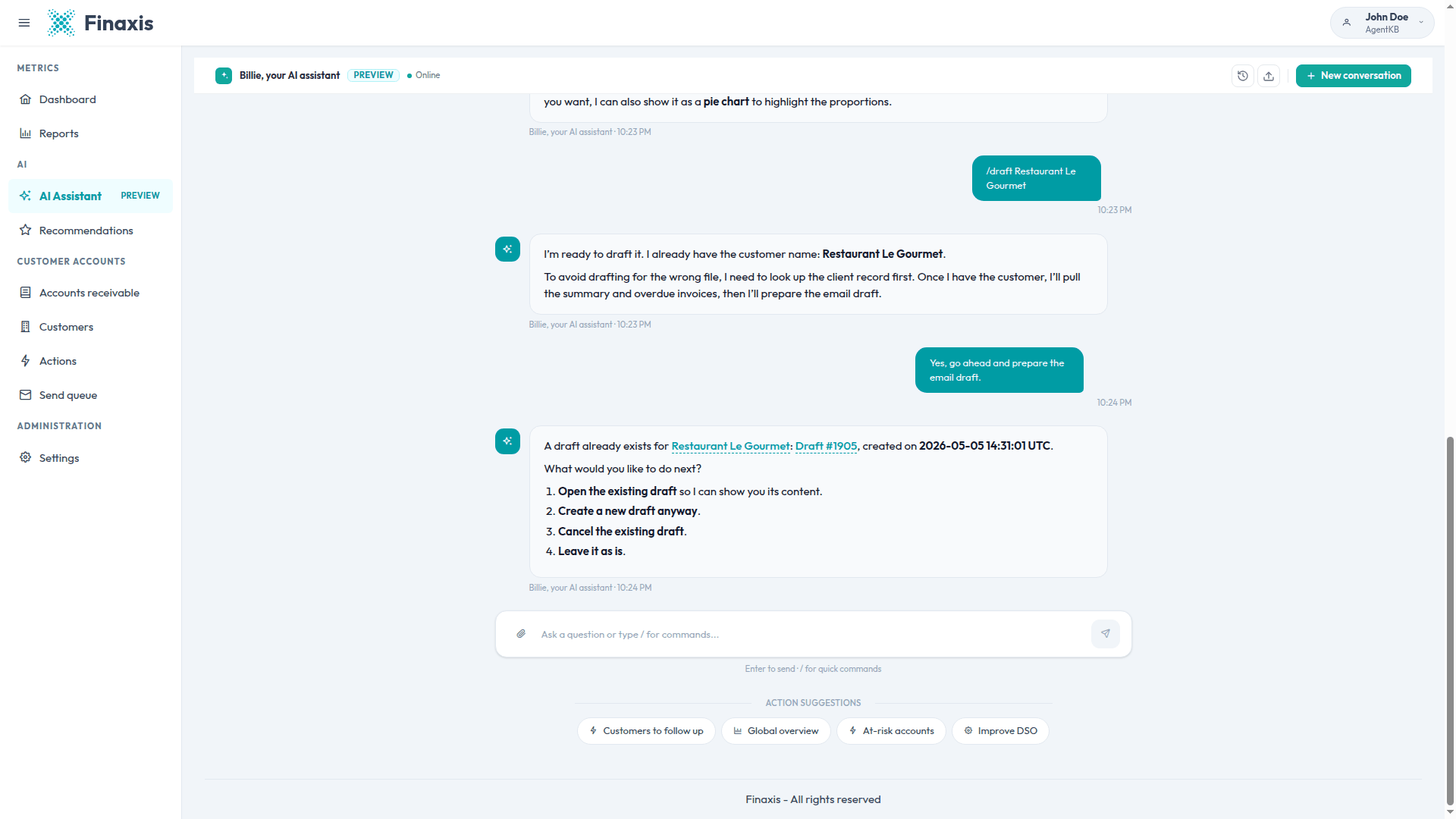
- Open it to read the subject, the body, and the invoices it covers.
- Create a new draft anyway, when the situation has changed.
- Cancel the existing draft, which removes it from the Actions page.
- Leave it as is and come back to it later.
Review the message without leaving the conversation
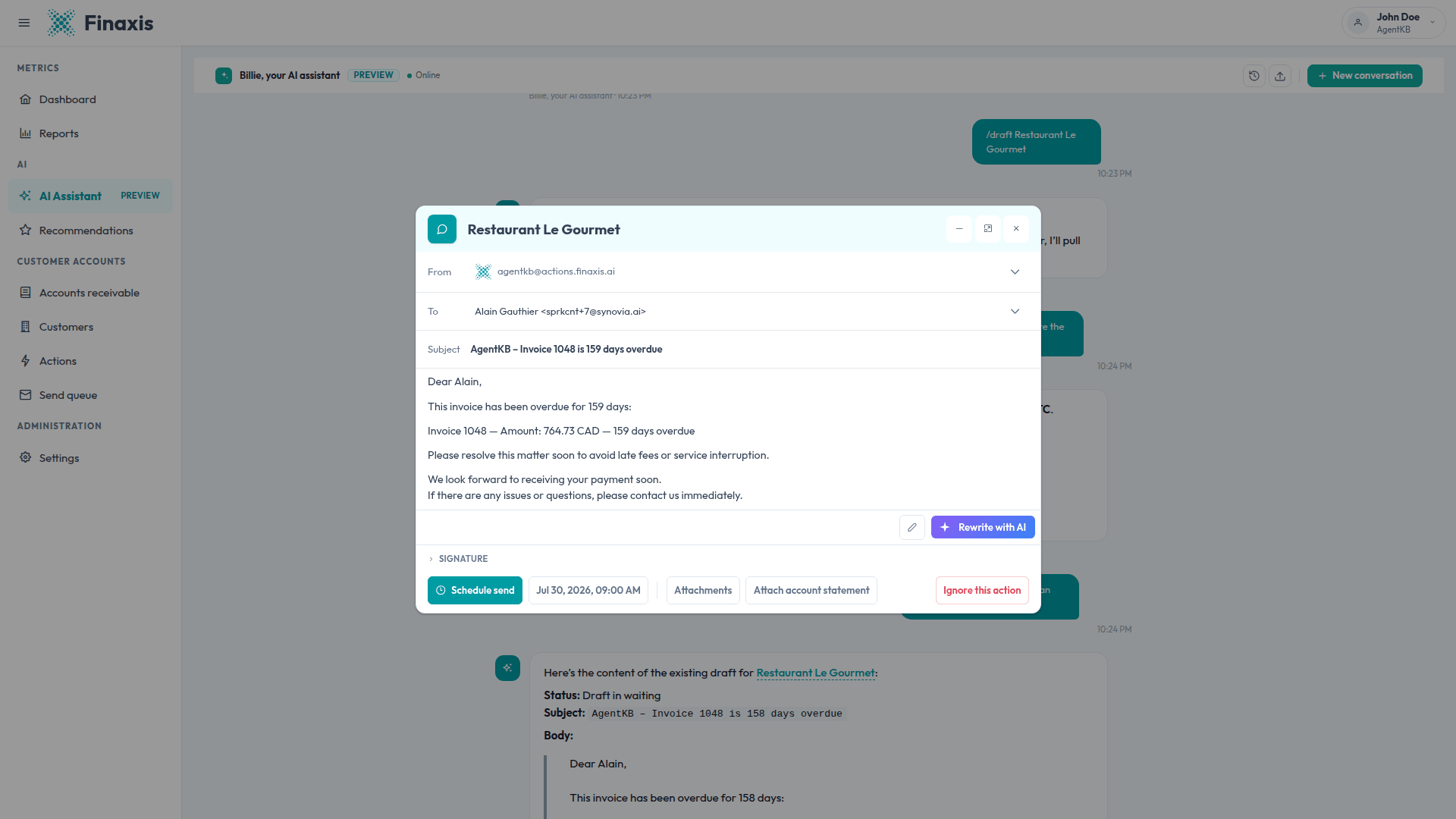
- In the assistant's answer, click the draft link. The message opens in the same panel used on the Actions page.
- Check the From and To fields, the subject, and the body.
- Edit the text directly, or click Rewrite with AI to have it rewritten with a different tone or language.
- Add the invoice PDFs with Attachments, or add a statement with Attach account statement.
- Choose the date and time, then click Schedule send. Click Ignore this action if you do not want to follow up at all.
Please note: Customer names in an answer are links too. Click one to open that customer's page in Finaxis.
Follow the message after it is scheduled
- Once scheduled, the message waits on the Send queue page and can still be cancelled there.
- Ask the assistant about the status of a follow-up at any time. It reports whether the message is a draft, reviewed, scheduled, being sent, or sent.
- Draft reviewed means someone on your team opened the draft in Finaxis. It never means the customer read the email.
- When the customer replies, the reply comes back as a new item on the Actions page.
Troubleshoot AI drafts
| Situation | What to do |
|---|---|
| The assistant says the customer has no contact | A reminder needs a contact with an email address, or a phone number for an SMS. Add the contact on the customer page, then ask again. |
| The draft is in the wrong language | The draft follows the contact's language. Change that language on the customer page, or ask the assistant explicitly for a message in the language you want. |
| You want to change the wording from the conversation | The assistant cannot rewrite an existing draft. Open the draft, then use Rewrite with AI or edit the text yourself. |
| Repeated requests created several SMS drafts | Duplicate protection covers email drafts. Ask the assistant to cancel the extra SMS drafts, or remove them from the Actions page. |
| Scheduling is refused | Your plan includes a monthly number of messages. When the limit is reached, sending stops until the next period. Contact your administrator. |
Need a hand with a follow-up? Write to [email protected] and our team will help you.
Related articles
Can't find what you're looking for?
Our support team is here to help.