Connect the AI Assistant, Billie to Slack
Billie is the Finaxis accounts receivable assistant. Once the Finaxis app is installed in your Slack workspace and your account is linked, you ask Billie your questions in a direct message and it answers with your own receivables data. Billie prepares reminders for you, and you review and send them from Finaxis.
Before you start
- Billie in Slack is in closed beta. Access is granted case by case, and what the assistant can do may change.
- The assistant is available on the Billie and Nova plans.
- To join the closed beta, talk to your customer success manager or your sales contact. You can also reach us from the Contact page.
- You need a Finaxis account with access to at least one instance.
- You need permission to add an app to your Slack workspace, or an administrator who can approve it for you.
Add Finaxis to your Slack workspace
- Open the Finaxis listing in the Slack Marketplace.
- Click Add to Slack.
- Choose the workspace you want to add Finaxis to, then sign in to Slack if you are not already signed in.
- Review the permissions Finaxis requests, then click Allow.
- Slack opens a direct message with the app. This conversation is where you talk to Billie.
Finaxis requests three permissions, and Slack lists them on the authorization screen.
| Permission | What Finaxis can do |
|---|---|
| Send messages | Write in the conversation as the Finaxis assistant. |
| Commands | Add the /finaxis commands you can use. |
| Direct message history | Read the messages in the direct message conversation the assistant was added to. |
Please note: The assistant asks for no access to your channels. It reads only the direct message conversation where you write to it.
Link your Finaxis account
Installing the app is not enough. Each person links their own Finaxis account, because Billie only ever answers with the data that person is allowed to see. The link is confirmed inside Finaxis, from your signed-in session, so nobody can claim your account by knowing your email address.
- In the Slack sidebar, under Apps, open the Finaxis conversation.
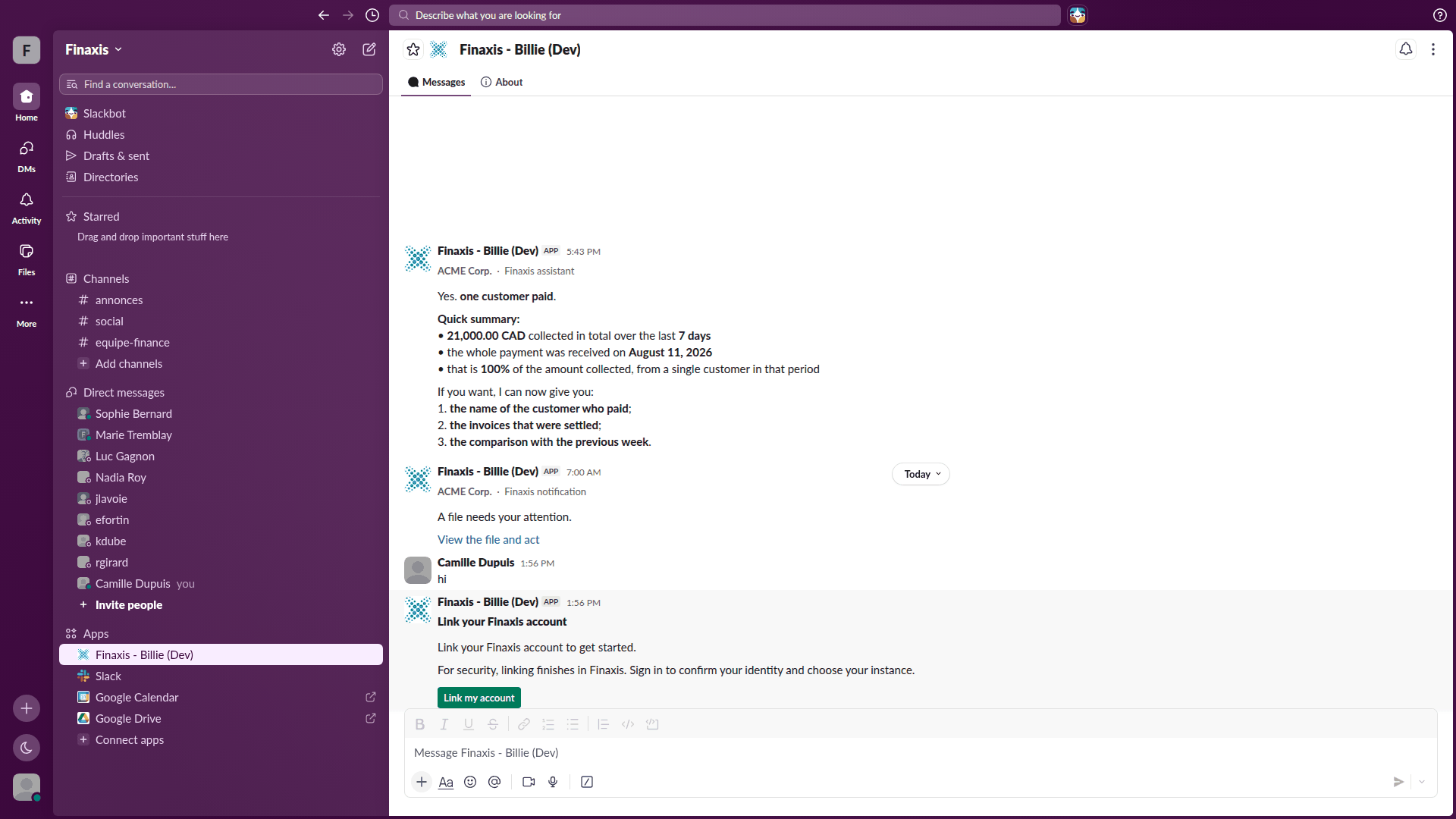
- Send the assistant any message. It replies with a card titled Link your Finaxis account.
- Click Link my account. Finaxis opens in a new browser tab.
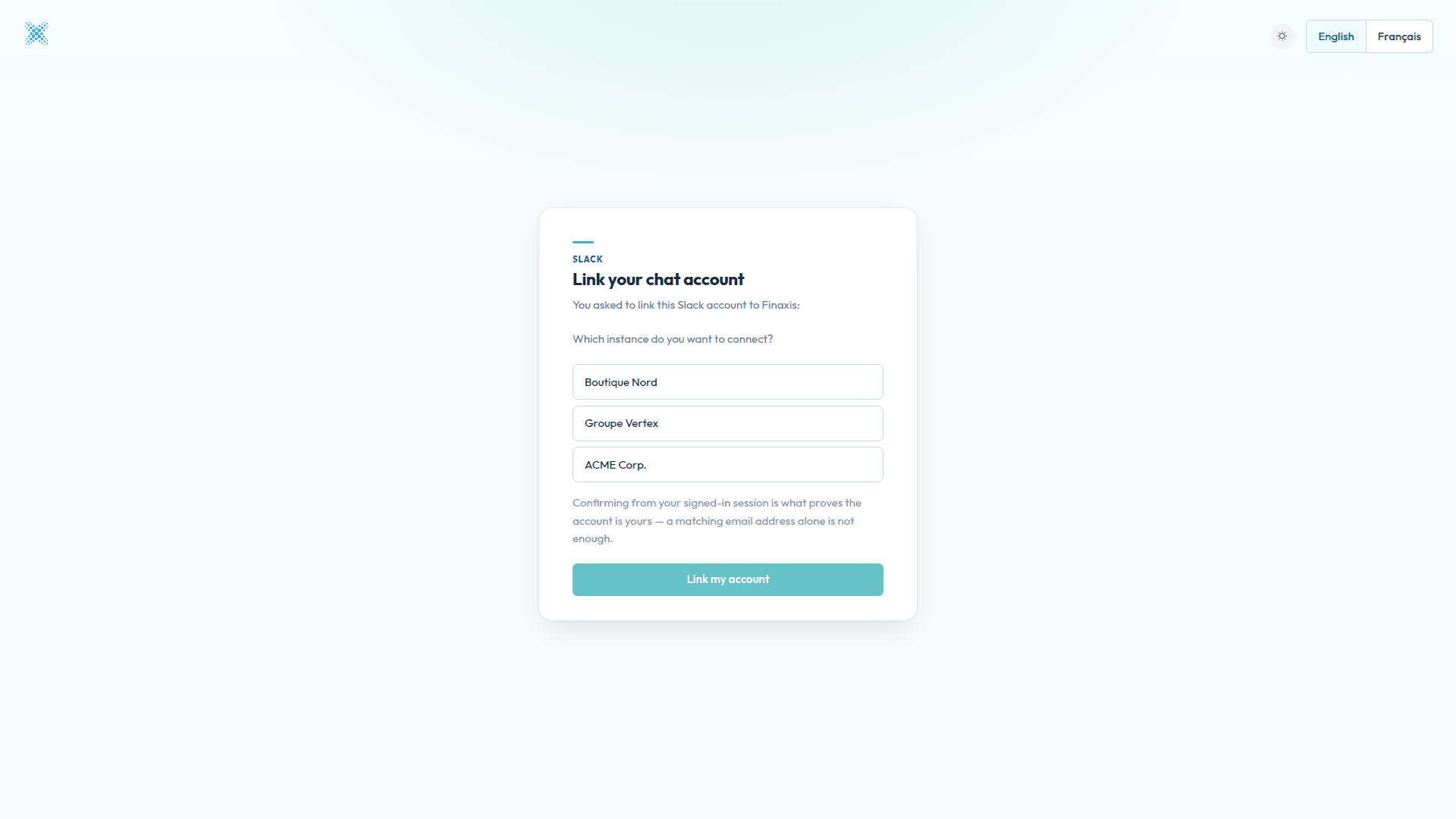
- Sign in to Finaxis if your session is not already open.
- Under Which instance do you want to connect?, click the instance you work in.
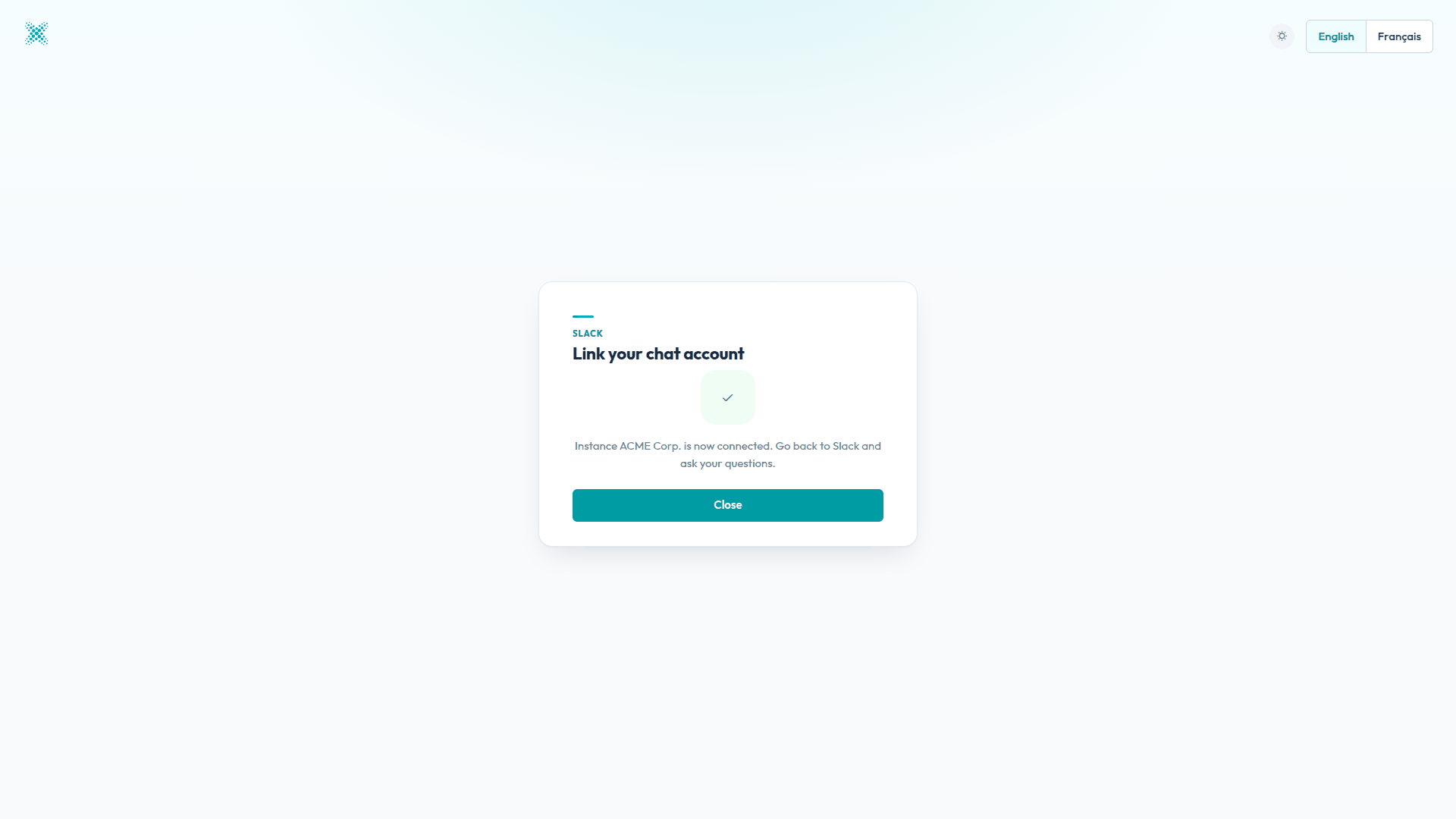
- Click Link my account. Finaxis confirms that the instance is connected.
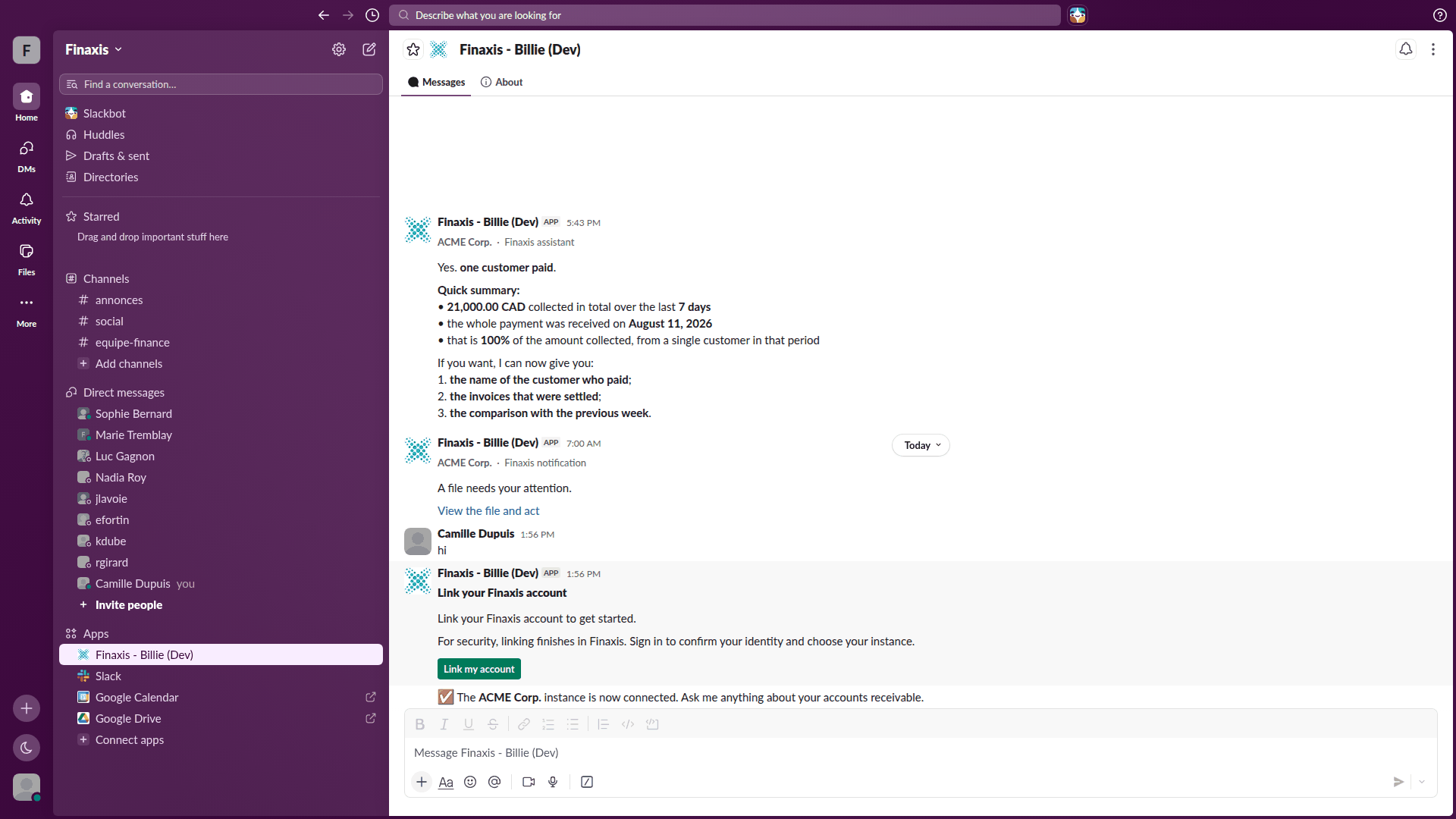
- Go back to Slack. The assistant confirms the connection and invites your questions.
Please note: Do not change the page language while you are linking. Start the link again from Slack if you do, then confirm without switching languages.
What Billie does in Slack
- It answers your accounts receivable questions with the data of the instance you connected, and nothing else.
- It prepares reminders for you. Billie never sends a reminder to a customer on its own. You review and send it from Finaxis.
- It sends you notifications when a file needs your attention. These messages are labelled Finaxis notification, while its answers are labelled Finaxis assistant.
Check and manage your connection
The /finaxis command handles everything about your connection. Type it in the Finaxis conversation, followed by the word you need.
| Command | What it does |
|---|---|
| /finaxis whoami | Shows the Finaxis account you are linked to and the instance you are connected to. |
| /finaxis instance | Lets you switch to another instance your account has access to. |
| /finaxis notifications on | Turns notifications back on. |
| /finaxis notifications off | Stops notifications. You can still ask Billie questions. |
| /finaxis unlink | Disconnects your Finaxis account from this chat account. Billie stops answering until you link again. |
Please note: To disconnect, type /finaxis unlink in the Finaxis conversation. Unlinking affects your own account only. It does not remove the app from the workspace, and it does not change anything in Finaxis. To link again, send the assistant a message and follow the card.
Troubleshooting
| Situation | What to do |
|---|---|
| The linking card does not appear | Send the assistant a message in the Finaxis conversation. The card is sent in reply. |
| We could not link your account | Ask for a new link from Slack, then confirm without changing the page language. If you switched languages before confirming, that is what interrupted the link. |
| Your instance is not in the list | The list shows the instances your Finaxis account has access to. Ask your Finaxis administrator to give you access, then start the link again. |
| Billie answers that it has no access | Your Finaxis account may not have access to the assistant. Talk to your Finaxis administrator or your customer success manager. |
| You linked the wrong instance | Use /finaxis instance to switch, or /finaxis unlink and link again. |
Need a hand connecting Billie to Slack? Write to [email protected] and our team will help you.
Related articles
Can't find what you're looking for?
Our support team is here to help.