Read your accounts receivable list
The Accounts receivable page is your aging report, kept up to date from your accounting data. It answers one question: who owes you money, and how late is it. Each row is one customer with an outstanding balance, split across the aging columns. This article walks through every part of the screen so you can start your collection day from it.
Before you start
- The list is built from the invoices Finaxis imports from your accounting software. Connect QuickBooks, Acomba, or another source first, otherwise the page stays empty.
- Only customers with an outstanding balance appear. A customer whose invoices are all paid drops off the list.
Open the list
- In the left menu, under Customer accounts, click Accounts receivable.
- The table opens on the All Accounts tab, sorted by customer name.
- Read the three summary cards at the top: Total Portfolio, 91+ Days Overdue, and At-Risk Accounts.
- Use the search box to find a customer by name.
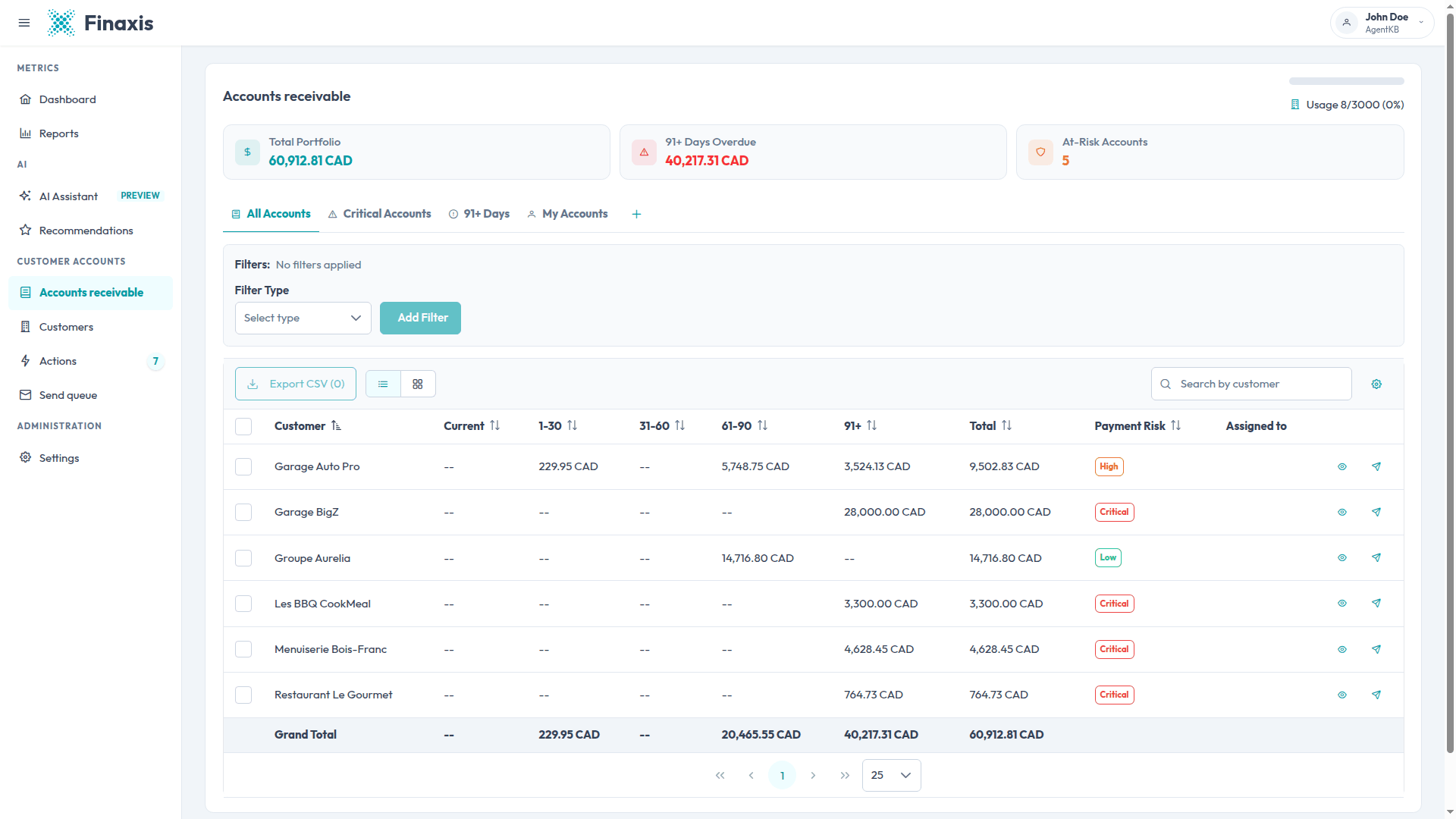
Please note: The three summary cards always describe what you are looking at. Apply a filter and they recalculate on the rows still displayed, so the cards and the table never disagree.
Read the columns
Each amount column holds the part of the customer's balance that falls in that age range. The Total column is the sum of the five, and the Grand Total row at the bottom of the table sums the customers currently displayed.
| Column | What it holds |
|---|---|
| Customer | The customer name. Click the row to open the customer record. |
| Current | Amounts not yet due. |
| 1-30, 31-60, 61-90, 91+ | Amounts past due, by number of days late. |
| Total | Everything the customer still owes you. |
| Payment Risk | Critical, High, Moderate, or Low, based on how the balance is spread across the columns. |
| Assigned to | The team members responsible for the account. |
Click a column header to sort on it, and click again to reverse the order. The Payment Risk column sorts by severity rather than alphabetically, so Critical, High, Moderate, and Low stay in that order.
Choose which columns to show
- Click the gear icon on the right of the search box.
- In the Table Columns panel, use the switches to hide or show a column.
- Drag a row by its handle to reorder the columns.
- Click Reset to go back to the default layout.
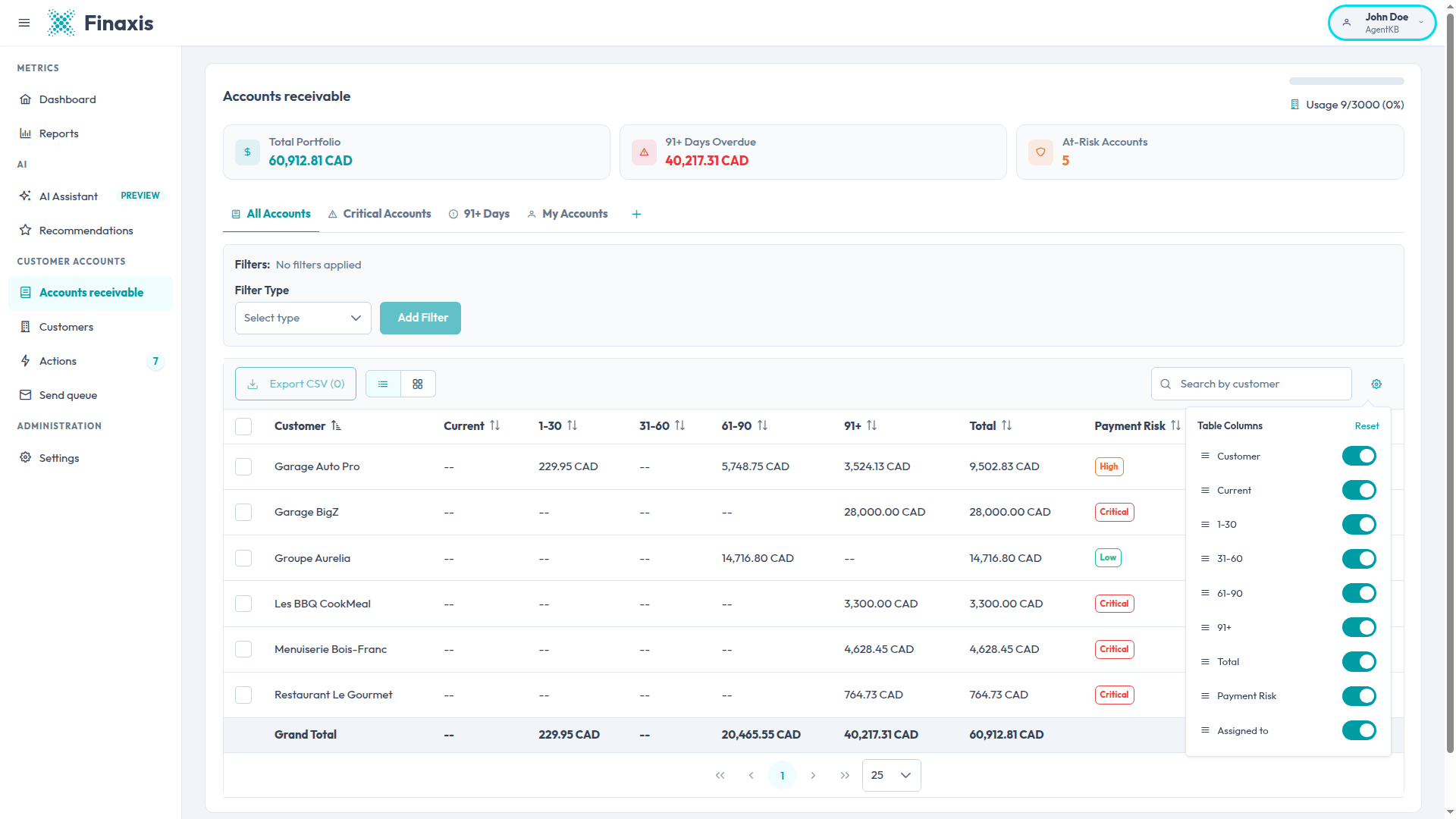
Please note: Your column layout is remembered on this browser and applies only to you. Your colleagues keep their own.
Switch to the board view
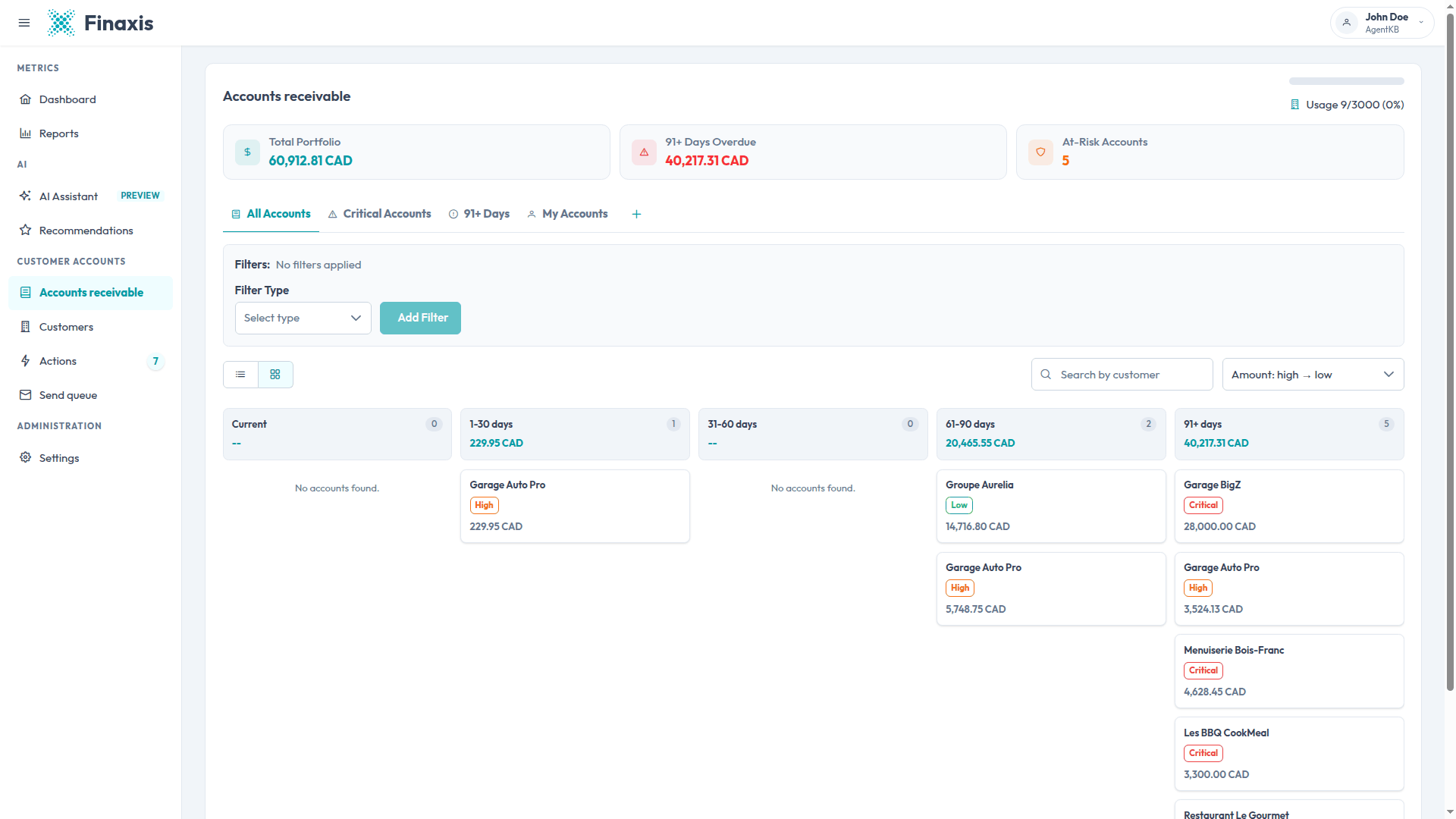
The two small buttons next to the export button switch between the table and a board. The board lays out one column per age range, which makes the oldest money easy to spot.
- Each column header shows how many accounts it holds and how much money sits in it.
- A customer appears in every column where it has a balance, so the same name can show up more than once.
- Each card carries the customer name, its payment risk badge, and the amount in that age range.
- The sort menu on the right orders the cards by amount or by age, in either direction.
Act on a customer
Two buttons sit at the end of every row in the table.
- The eye icon opens the customer record, with its invoices, contacts, and communication history.
- The send icon opens the reminder editor, already prepared for that customer's late invoices.
Export what you select
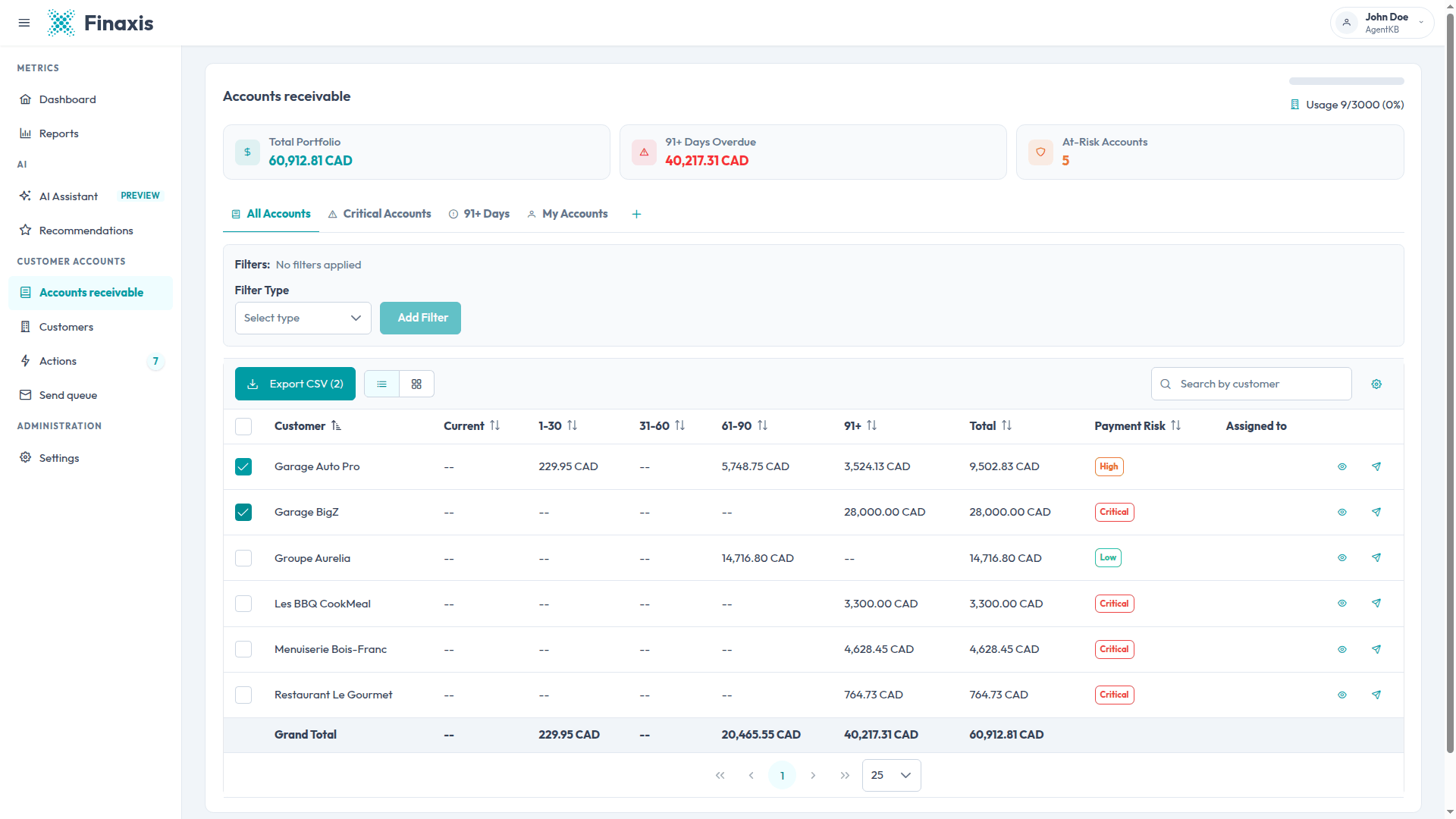
- Check the box at the left of each customer you want to export. Use the box in the header row to select every customer displayed.
- The button now reads Export CSV with the number of rows selected.
- Click it. Finaxis downloads a CSV file holding the customer names and the aging columns.
Troubleshoot the list
| Situation | What to do |
|---|---|
| A customer is missing | Only customers with an amount still owing appear here. Look the customer up under Customers to see all of its invoices, paid ones included. |
| An amount looks out of date | The list follows your accounting data. Run a synchronization from Settings, then Integrations, and reload the page. |
| The amounts are in the wrong currency | Finaxis converts every balance into your display currency. Change it and the list reloads with the new conversion. |
| The counter at the top right is close to its maximum | That counter tracks how many customers you import against the maximum allowed by your plan. Contact us to raise it. |
Still not seeing what you expect? Write to [email protected] with the customer name and our team will look at it with you.
Related articles
Can't find what you're looking for?
Our support team is here to help.