Filter your aging report and save a view
The accounts receivable list is your aging report: every customer that owes you money, with each balance split by how late it is. A full aging report is rarely the list you want to work from, so Finaxis lets you narrow it. Four default views cover the usual questions, four filter types handle everything else, and any combination can be saved as a view of your own.
Before you start
- Read your accounts receivable list first if you are not familiar with the aging columns and the payment risk badge.
- The My Accounts tab and the Assigned User filter both rely on customer assignments. An administrator sets those up in Settings.
Start from a default view
Finaxis ships four views that answer the questions most collection teams open the report with. They sit as tabs above the filter bar. Click one and the list, the summary cards, and the totals row all follow it.
| Default view | What it shows |
|---|---|
| All Accounts | Every customer with an outstanding balance. |
| Critical Accounts | Customers whose payment risk is Critical or High. |
| 91+ Days | Customers carrying an amount more than 90 days past due. |
| My Accounts | Customers assigned to you. |
Please note: If My Accounts comes back empty, no customer is assigned to you yet. Ask an administrator to assign your accounts in Settings.
Add your own filter
- In the Filter Type menu, pick the kind of filter you want.
- Fill in the fields that appear beside it. They change with the filter type.
- Click Add Filter. The filter appears as a chip next to Filters:.
- Repeat to stack more filters. A customer has to satisfy all of them to stay in the list.
- Click the small cross on a chip to drop that filter.
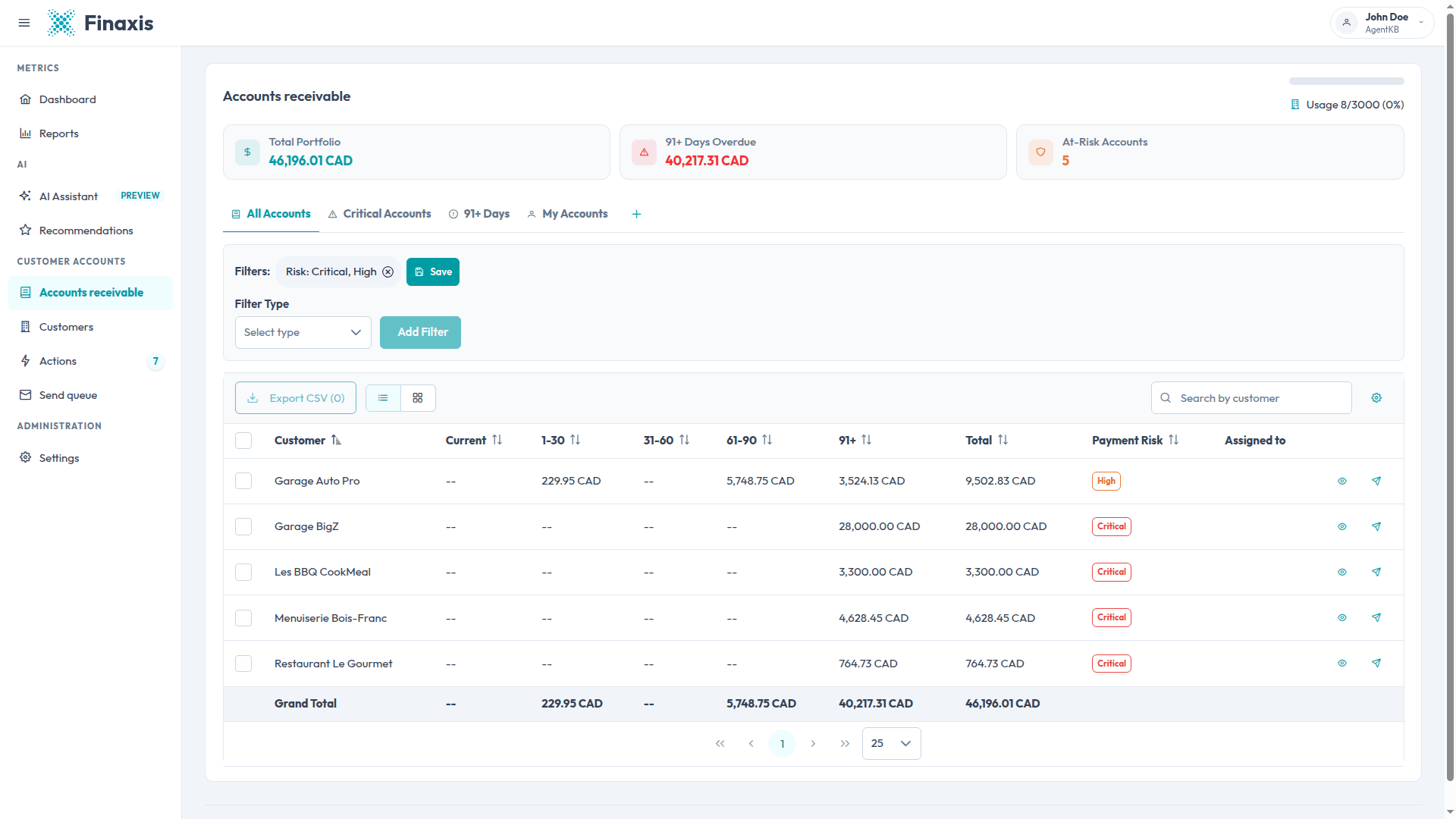
The four filter types
| Filter type | What you set | What it keeps |
|---|---|---|
| Balance | A column: Current, 1-30 Days, 31-60 Days, 61-90 Days, 91+ Days, or Total. | Customers carrying an amount in that column. |
| Amount | A condition (greater than, greater than or equal, less than, less than or equal, equal to), an amount, and optionally a column. | Customers whose column satisfies the comparison. Left on All Columns, any one column is enough. |
| Assigned User | A team member. | Customers assigned to that person. |
| Payment Risk | One or more levels: Critical, High, Moderate, Low. | Customers at any of the selected levels. |
Filters apply to the table and the board alike, and the search box works on top of them. The summary cards and the Grand Total row recalculate on what is left, so you always read the totals of the customers in front of you.
Save the result as your own view
- Build the filter set you want to keep.
- Click the + tab at the end of the tab row. The Manage Views panel opens.
- Type a name under Save Current View. The panel tells you how many filters it will store.
- Click Save as New View.
- Finaxis adds a tab for the view and switches to it right away.
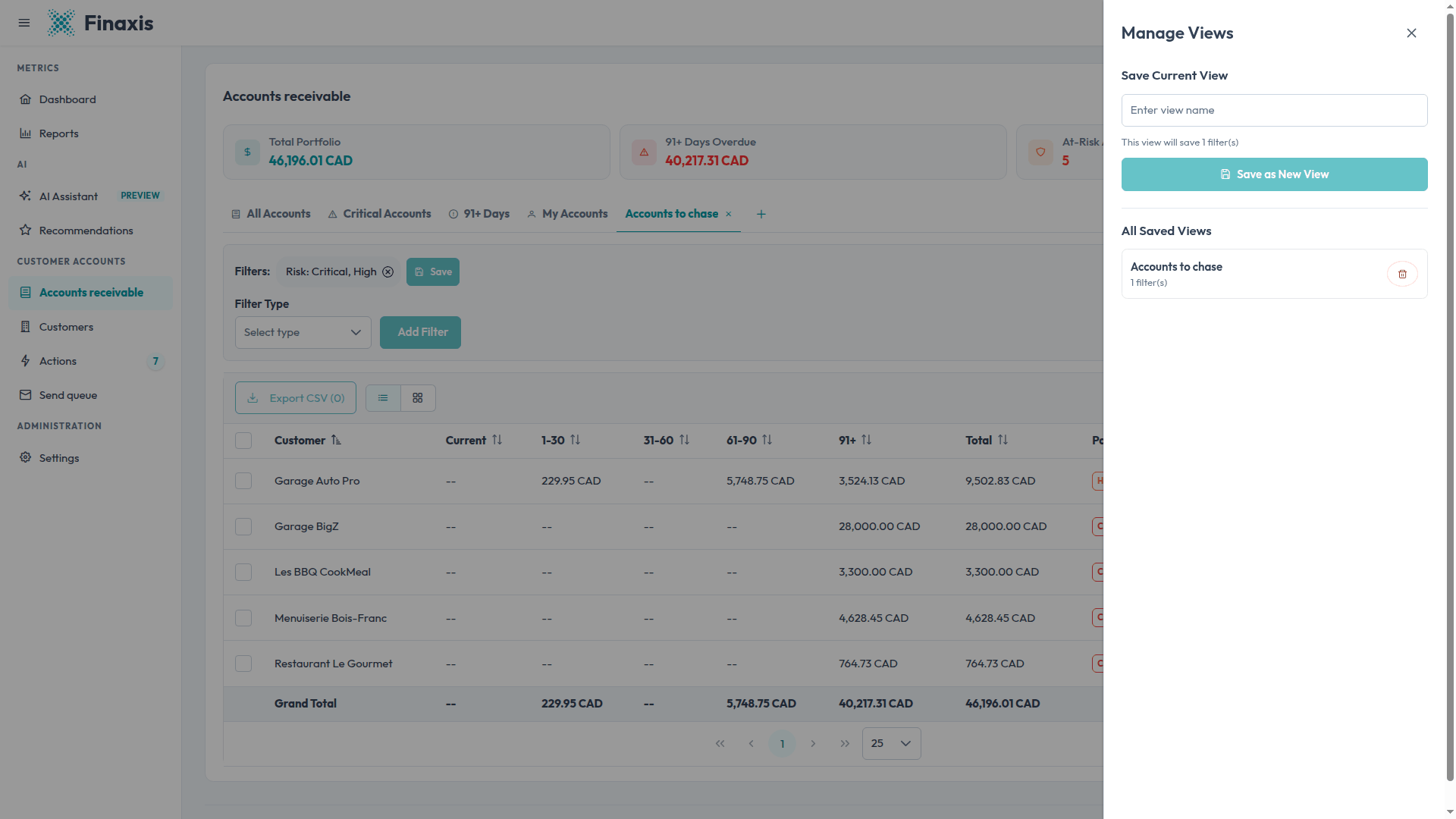
- The four default views always stay in place. Your own views are added after them.
- Your saved views are shared with your team, so everyone works from the same lists.
- The four views you used most recently appear as tabs. The panel always lists them all.
- Change the filters of a saved view and a Save button appears beside the chips. Click it to update the view in place.
- To delete a view, open the panel and click the bin icon next to its name.
Share a filtered list
The web address of the page carries the view or the filters you have applied. Copy it from the address bar and send it to a colleague: they land on exactly the same list, provided they have access to those customers.
Troubleshoot filters and views
| Situation | What to do |
|---|---|
| The list comes back empty | Your filters are stacked, not combined as alternatives. Remove one chip at a time until the customers reappear. |
| The Add Filter button stays greyed out | One of the fields for that filter type is still blank. Fill them all in. |
| An amount filter returns more than expected | Left on All Columns, one matching column is enough. Pick a specific column to tighten it. |
| A saved view no longer appears as a tab | Beside the four default views, only your four most recent saved views get a tab. Open the panel with the + tab and select it there. |
Need a view your filters cannot express? Write to [email protected] and tell us what you are trying to see.
Related articles
Can't find what you're looking for?
Our support team is here to help.